
Home > Get Started > Enable Backup for Azure Virtual Machines, Azure Storage, Azure SQL, VMware, and Azure PostgreSQL > Add to Subscriptions and Assign the Contributor Role
Download this articleAdd to Subscriptions and Assign the Contributor Role
After you complete the app profile creation in AvePoint Online Services, navigate to the Azure portal > Subscriptions. Follow the steps below to add the AvePoint Online Services - Delegated App, or the custom app you created with delegated permissions, to each subscription that includes the VM you intend to protect.
To add this app to the subscription and grant it the Contributor role, the user must be either the Owner of the subscription or the User access administrator of the tenant. If you have concerns about granting this app the Contributor role, you can create a custom role for this app. For details, refer to Add a Custom Role Using Azure Portal, CLI, or PowerShell.
If your storage account to protect has disabled the Allow storage account key access feature, the app must also have the Storage Blob Data Contributor role to the subscription or storage account, in addition to the Contributor role to protect the Azure Blob Storage, and in this case the Azure File Storage is not supported.
-
On the Subscriptions page, find the list of subscriptions. You can filter the subscriptions in the list or search for subscriptions via keywords.
-
Click a subscription.
-
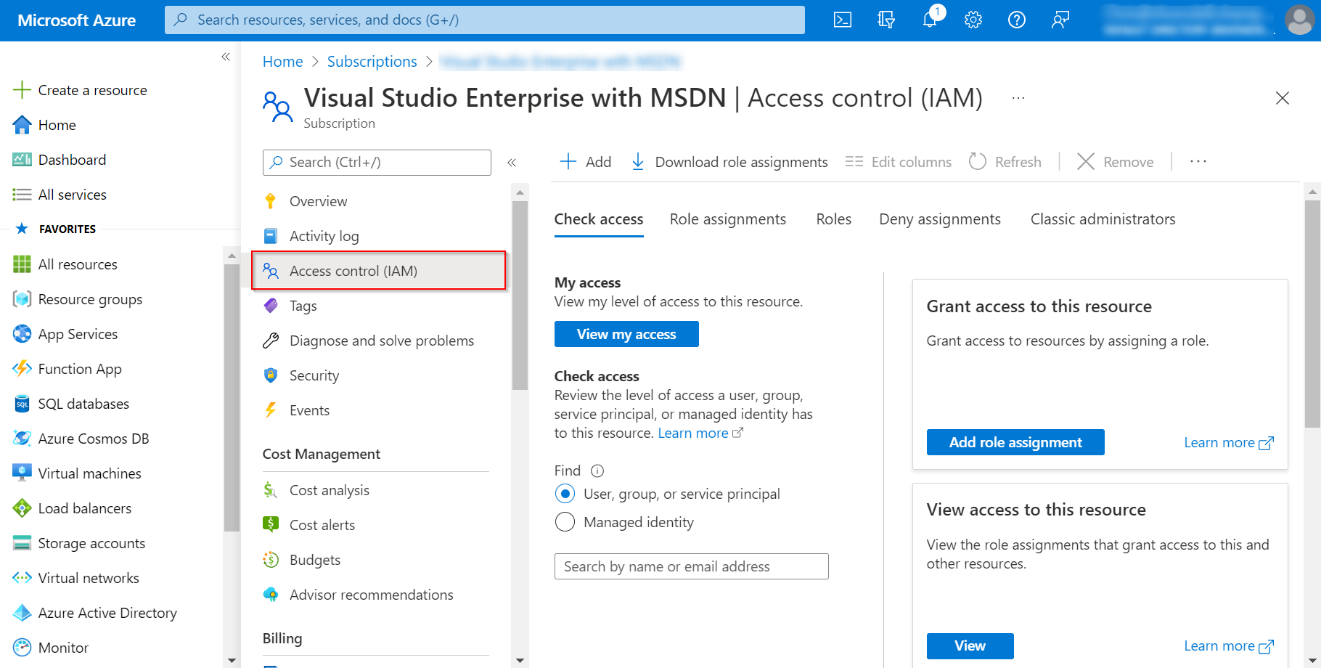
Click Access control (IAM) on the left pane.
-
On the Access control (IAM) page, click Add on the action bar and select Add role assignment from the drop-down list.
-
In the Add role assignment pane, go to the Privileged administrator roles tab, click Contributor from the Role tab, and then click Next.
-
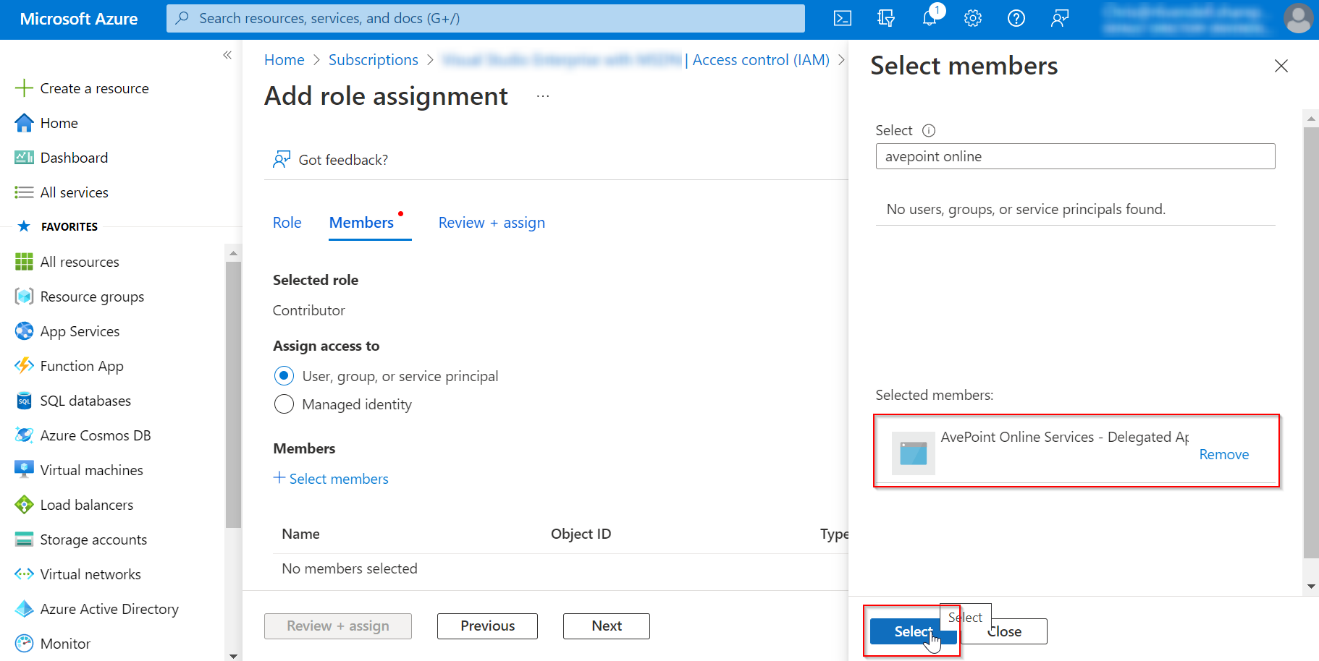
In the Members list, find the Members field, and click Select members.
-
In the Select members pane, enter a keyword in the Select box to search for the AvePoint Online Services - Delegated App or the custom app that you created with delegated permissions. Click the app to add it to the Selected members field and click the Select button.
-
Click the Review + assign button to review the role assignment and click this button again to add this app as Contributor for your subscription.