
Home > Manage the Backup Scopes for Azure SQL > Create a New Backup Scope for Native Azure SQL Backup Monitoring
Download this articleCreate a New Backup Scope for Native Azure SQL Backup Monitoring
To create a new backup scope for Azure SQL, follow the steps below:
-
Go to the Backup page on the new UI.
-
Click on the Azure SQL service tile or click the More actions button on the upper-right corner of the Azure SQL service tile and click Configure backup scope from the drop-down list.
-
In the Configure backup scope for Azure SQL page, all the existing backup scopes for Azure SQL are listed in the table. You can use the search box to search for the backup scopes by name and manage the columns to adjust the view of the backup scopes.
NOTEYou can click the Refresh button in the upper-right corner of this page to retrieve the latest data list for Azure SQL databases. The Last refreshed time is displayed next to the Refresh button. Additionally, the data list will be automatically refreshed daily at 00:00 local time.
-
Click the Create button and select Native Azure SQL backup monitoring. The Create backup scope panel appears.
-
In the Select databases step, select the tenant and the databases that you want to add to the backup scope. You can use Filters to find the databases you want to protect or use the Search box to search for the databases via the keywords in the name. The number of your selection will be displayed on the row of the tenant name.
-
Click Next, and you will go to the Configure storage based on region step to configure a storage profile for each region. You can select a storage type and then select storage profiles. You can use an existing storage profile or create a new storage profile to store the backup data for the databases in the same region. For details on configuring storage location, refer to Manage Your Storage.
NOTEIf you have enabled a firewall for your Azure SQL databases, you need to add the AvePoint IP addresses to your Azure SQL database account firewall or configure the firewall to allow AvePoint agent servers running on a dedicated ARM Vnet subnet to access your storage location. For details, refer to Allow AvePoint Agent Servers to Access Your Storage Account.
-
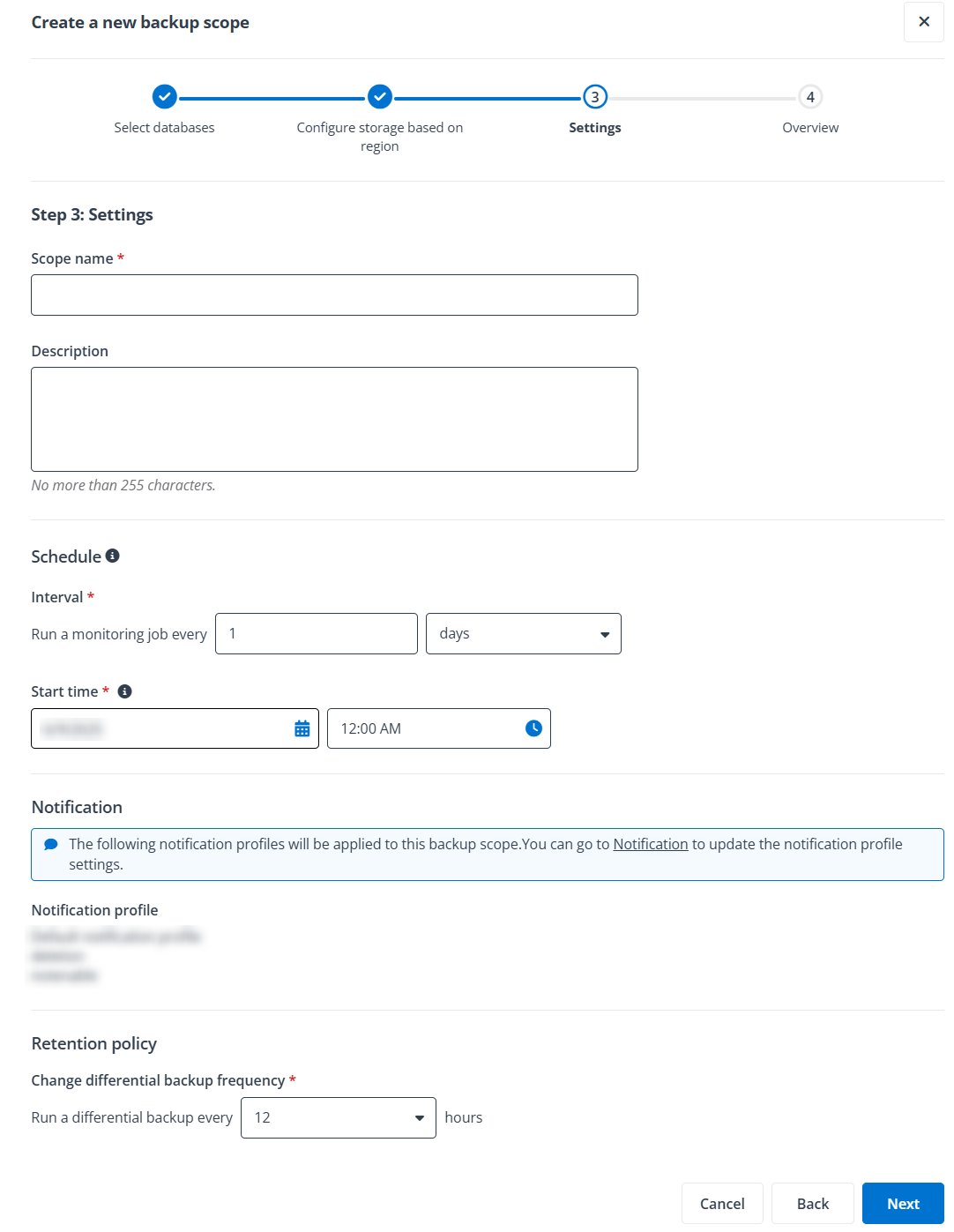
After you finish the storage configuration for each region, click Next to configure the scope information, schedule, and data retention settings. Refer to the following:
-
Scope information - Enter a name and description for the scope you are creating. The description is optional.
-
Schedule - Click hours, days, weeks, or months as the unit of time for the monitoring job interval, enter a number in the text box after Run a monitoring job every, and then configure the start time for your first monitoring job. The monitoring jobs will retrieve the information of the native Azure backups (both PITR and LTR) and provide them as recovery points that you can use to perform restore.
-
Notification - Check the notification profiles which will be applied to the backup scope.
-
Retention policy - You can change the backup frequency for the differential backups and update the retention policy for the native Azure backups (PITR and LTR)
-
Change differential backup frequency - You can change the differential backup frequency for the selected databases in this backup scope. You can select 12 or 24 from the drop-down list to perform the differential backups in Azure every 12 or 24 hours.
-
How many days would you like to keep the point-in-time restore (PITR) backups? - You can keep the PITR backups for up to 35 days. Enter a number for the PITR backups that you want to keep for the databases in this backup.
-
How long do you want to keep the long-term retention (LTR) backups? - Configure the data retention policy for the LTR backups, including weekly LTR backups, monthly LTR backups, and yearly LTR backups. In the corresponding section, select days, weeks, months, and years from the drop-down list and enter a number in the text box. The LTR backups can be kept for up to 10 years.
-
Weekly LTR Backups - Configure for how long you want to keep the weekly backups in Azure.
-
Monthly LTR Backups - The first backup of each month will be kept as the monthly LTR backups. You can configure for how long you want to keep the monthly backups in Azure.
-
Yearly LTR Backups - You can select a weekly backup as the backup of the year and configure for how long you want to keep this yearly backup.
-
-
-
-
Click Next to review your settings.
-
Click Save to save this backup scope. The backup for the databases in this backup scope will roll out as scheduled. For more details about monitoring the backups, refer to Monitor Your Backup.