
Home > Manage CAP Gateways > Install a CAP Gateway > Manual Installation for Linux Gateway
Download this articleManual Installation for Linux Gateway
Before installation, note the following:
-
For Azure VM and Azure Storage, the gateway must be installed on a VM within the same tenant as the protected VMs/blob containers/file shares configured in the backup scope.
-
It's recommended to install the gateway in the same zone/region as the protected instances configured in the backup scope for optimal performance.
-
It is recommended that the instance where the gateway is installed runs Ubuntu Server 24.04 LTS (x64) as its operating system, with a configuration of 4 CPU cores and 16 GB of memory.
-
For better performance, you can use different gateways for different backup scopes and use multiple gateways for one backup scope as needed.
-
For Azure VMware, the VDDK file is required to activate the gateway. For details, refer to Download and Install VDDK.
-
For Azure PostgreSQL, the PostgreSQL client is required to enable PGDUMP to activate the gateway. For details , refer to Install PostgreSQL Client.
Follow the steps below to install the CAP Gateway:
-
Select a gateway and click Get package.
-
In the Get package panel, follow the steps below:
-
In the Install PostgreSQL client step, download and install the PostgreSQL client to enable PGDUMP to activate the gateway. For details , refer to Install PostgreSQL Client. Skip this step if the client is already installed.
NOTEThis step is required only for Azure PostgreSQL. If you are installing a gateway for other services, skip this step.
-
In the Get package step, copy the SAS URL for package to your clipboard.
-
Locate the Azure VM/Azure Storage VM/Azure SQL database/Azure VMware Solution/Amazon EC2 instance/ Amazon S3 Bucket/SQL Server database/PostgreSQL server/Cosmos DB/Google VM instance/Google Cloud Storage buckets where the gateway will be installed, then execute the following wget command to download the installation package to your instance/VM/database/bucket. Replace 'CAPGateway.tar.gz' in the command with the actual downloaded package name and replace 'sas url' with the SAS URL copied in the Get package step.
NOTEThe 'O' in the command is the uppercase letter 'O', not the number zero '0'.
-
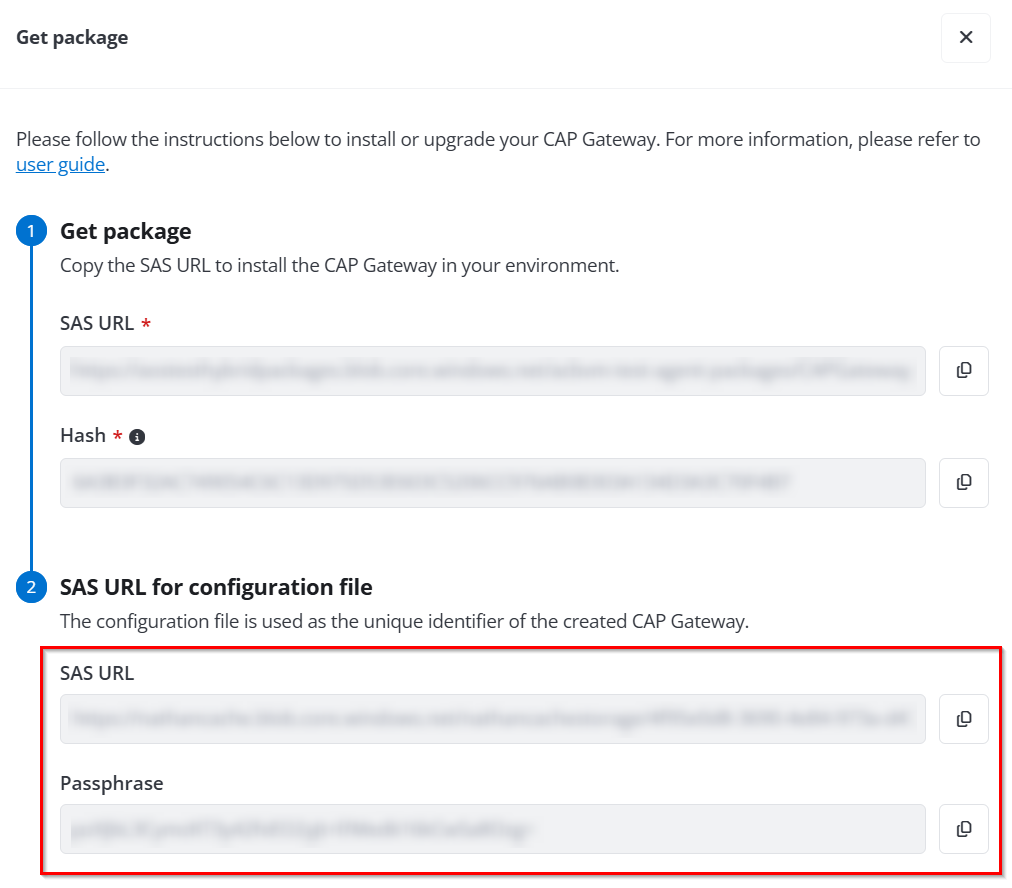
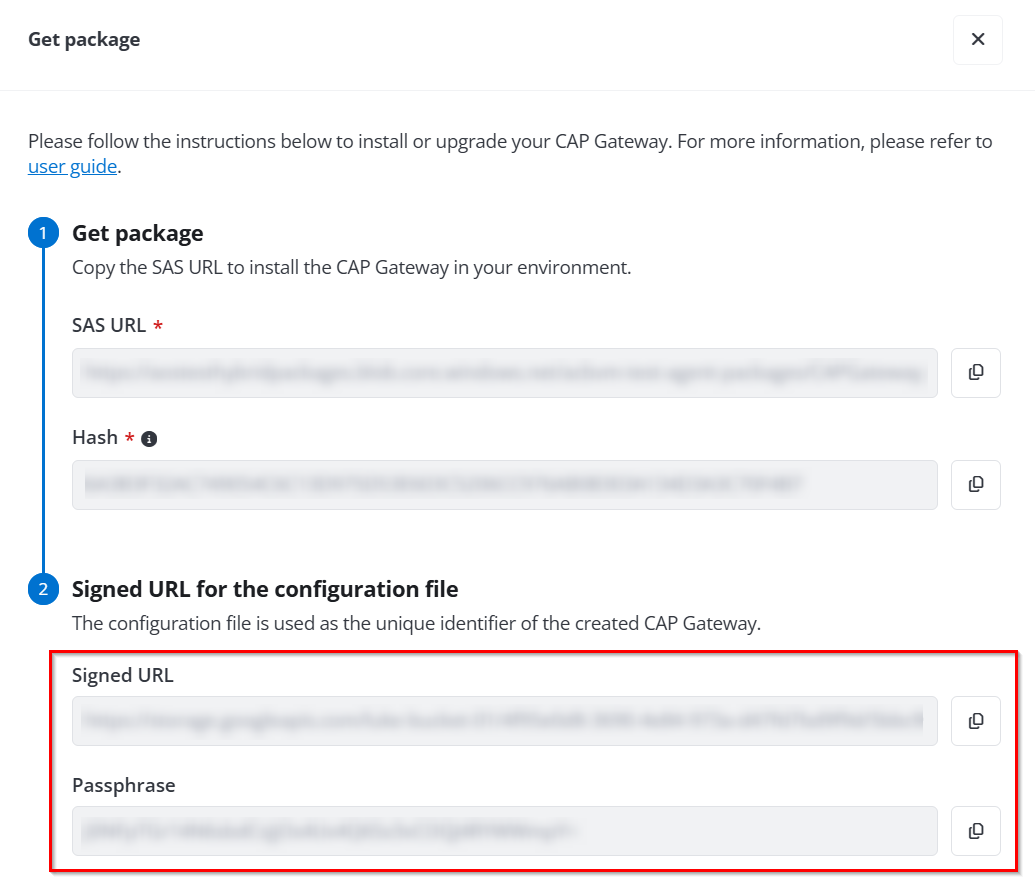
In the SAS URL for configuration file/Signed URL for configuration file step, copy the passphrase and URL for the configuration file to your clipboard.
-
To protect Microsoft Azure service, Amazon service, or self-managed SQL Server, copy the SAS URL and passphrase to your clipboard.
-
To protect Google Cloud service, copy the Signed URL and passphrase to your clipboard.
-
-
-
After downloading, execute the following command line to extract the package contents to the ./cap directory.
NOTEBefore running the command, ensure the ./cap directory exists. You can verify its existence with the following command:
mkdir -p./cap. -
Execute the following command line to grant permissions for the install sh.script included in the extracted package:
-
Execute the following command line to run the install.sh script. Replace 'passphrase' and 'url for configuration file' in the command with actual values copied from the Get package panel.
-
To protect Microsoft Azure service, Amazon service, self-managed SQL Server, Azure PostgreSQL, or Cosmos DB, replace 'url for configuration file' with the SAS URL for configuration file copied from the Get package panel > SAS URL for configuration file step.
-
To protect Google Cloud service, replace 'url for configuration file' with the Signed URL for configuration file copied from the Get package panel > Signed URL for configuration file step.
-
Update a CAP Gateway
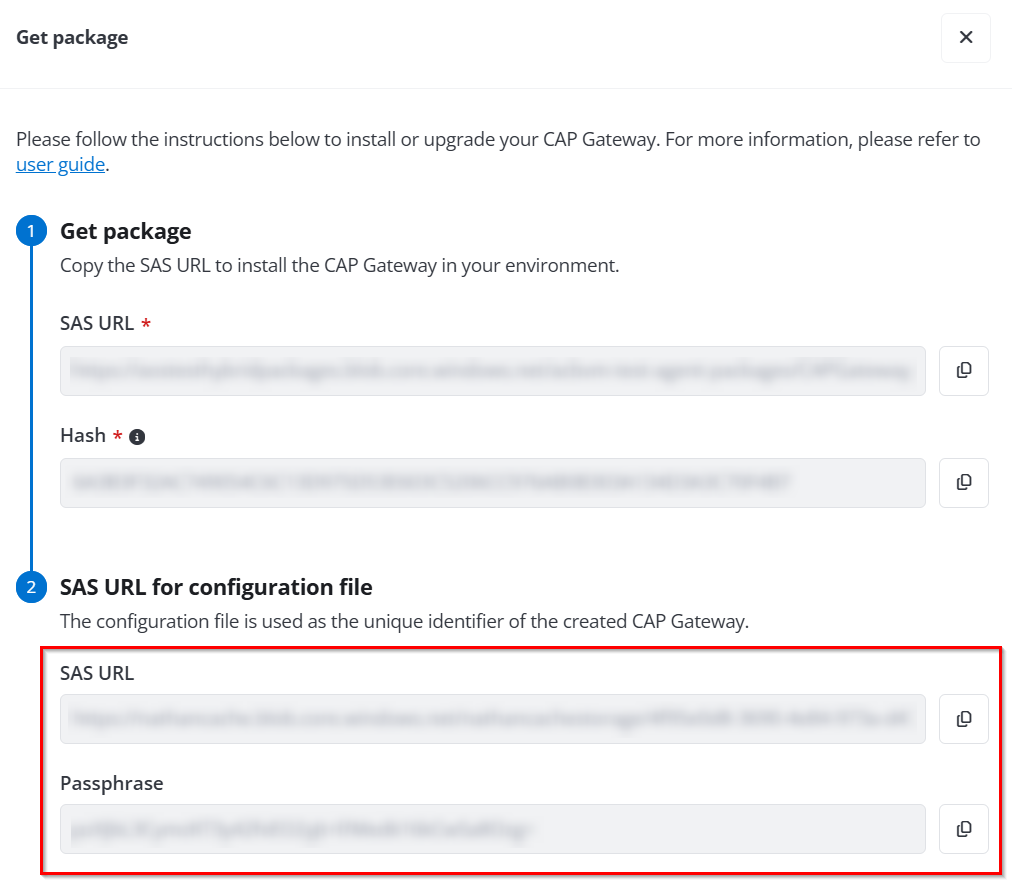
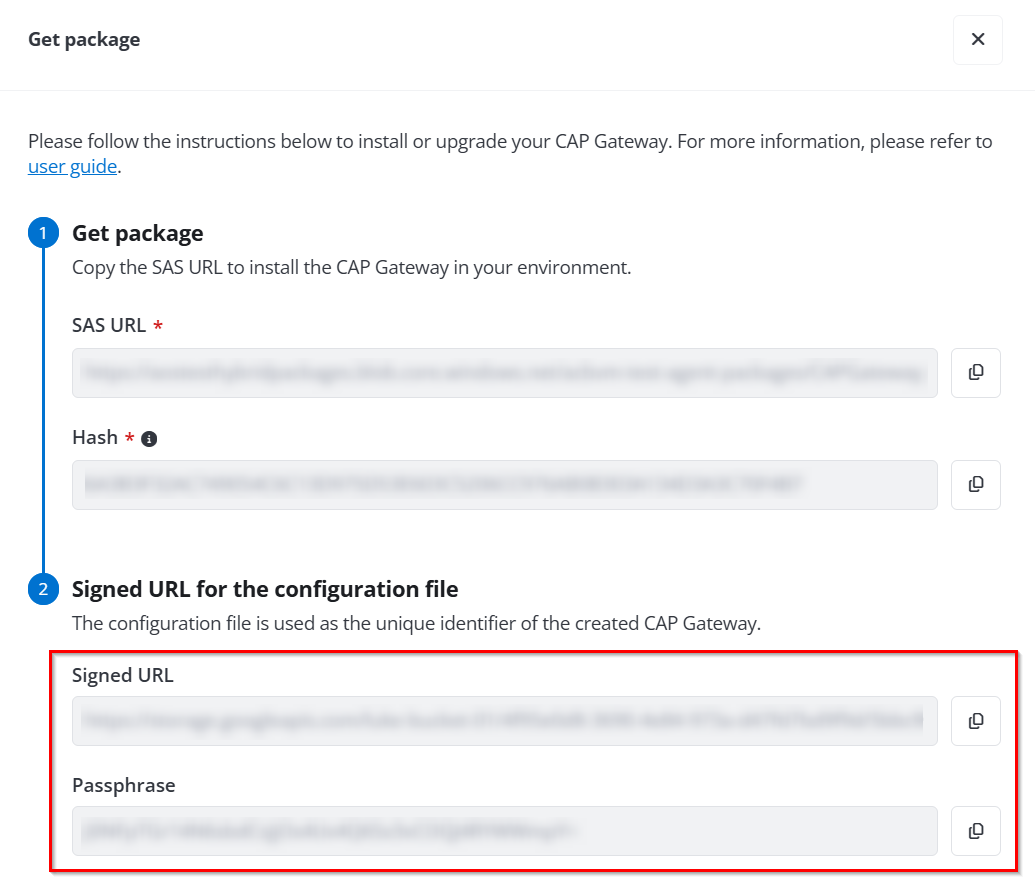
If you need to update your CAP Gateway configurations, such as the passphrase and url for configuration file, you can execute the following command. Replace 'passphrase' and 'url for configuration file' in the command with actual values copied from the Get package panel.
-
To protect Microsoft Azure service, Amazon service, self-managed SQL Server, Azure PostgreSQL, or Cosmos DB, replace 'url for configuration file' with the SAS URL for configuration file copied from the Get package panel.
-
To protect Google Cloud service, replace 'url for configuration file' with the Signed URL for configuration file copied from the Get package panel.
Verify Checksum
After downloading the installation package, you can run the following command to verify its checksum. Compare the result with the hash value displayed in the Get package panel to ensure the checksum is correct. Replace 'CAPGateway_SerialNumber.tar.gz' in the command with the actual downloaded package name
Uninstall a CAP Gateway
If you want to uninstall the CAP Gateway, locate the unzipped package folder, and execute the following command lines:
Download and Install VDDK
To enable the gateway for Azure VMware, ensure that a VDDK file is installed. Follow the steps below to download and install the VDDK file.
-
Access the VDDK download page and log in with your account. If you do not already have an account, simply register using a valid email address to create one.
-
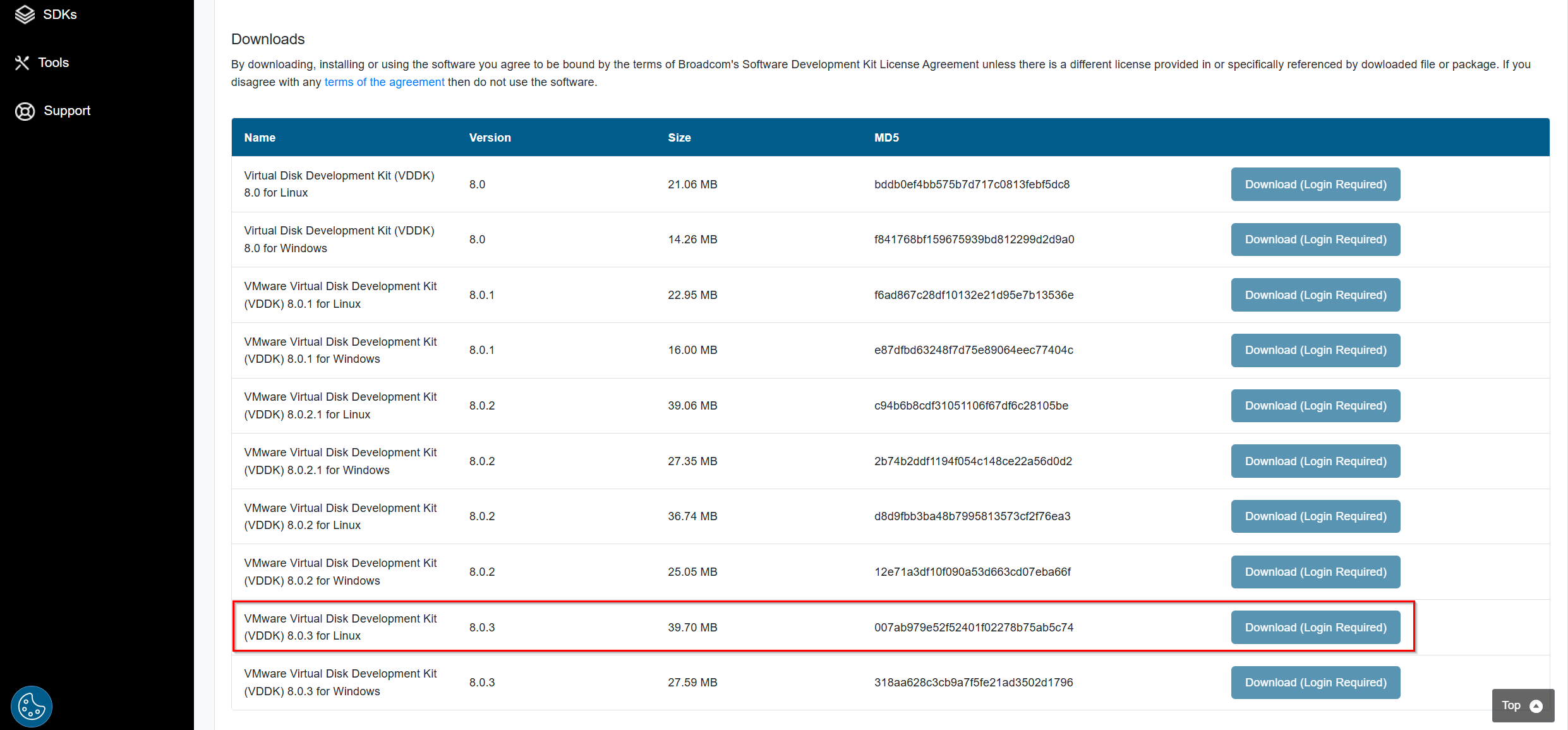
Find the VMware Virtual Disk Development Kit (VDDK) 8.0.3 for Linux tar.gz file and click Download.
NOTEThe file version may be updated. Please download the latest version.
-
Upload the VDDK file to the CAP Gateway VM and execute the following command to extract its contents to the /usr/lib/vmware-vix-disklib-distrib directory.
NOTEAs the VDDK file version may be updated, replace the file name 'VMware-vix-disklib-8.0.3.tar.gz' in the command with the name of the version you downloaded.
Install PostgreSQL Client
To enable the gateway for Azure PostgreSQL, ensure that the PostgreSQL client is installed. Follow the steps below to download and install the PostgreSQL client.
-
Access the PostgreSQL download page.
-
Select Linux in the Select your operating system family field and then select your Linux distribution.
-
Follow the provided steps for your selected distribution to install the PostgreSQL client.