
Home > Transition from Classic Policies to Modern Lifecycle Profiles (for Existing Customers)
Export to PDFTransition from Classic Policies to Modern Lifecycle Profiles (for Existing Customers)
AvePoint Cloud Governance provides modern lifecycle profiles in the modern Cloud Governance admin center, and these profiles can be applied to workspaces. For existing workspaces with policies applied, which are configured in the classic Cloud Governance admin center, after applying the lifecycle profiles, the profile settings will overwrite the policy settings of the workspace.
To transition from classic policies to modern lifecycle profiles for workspace lifecycle management, the following configurations are recommended:
-
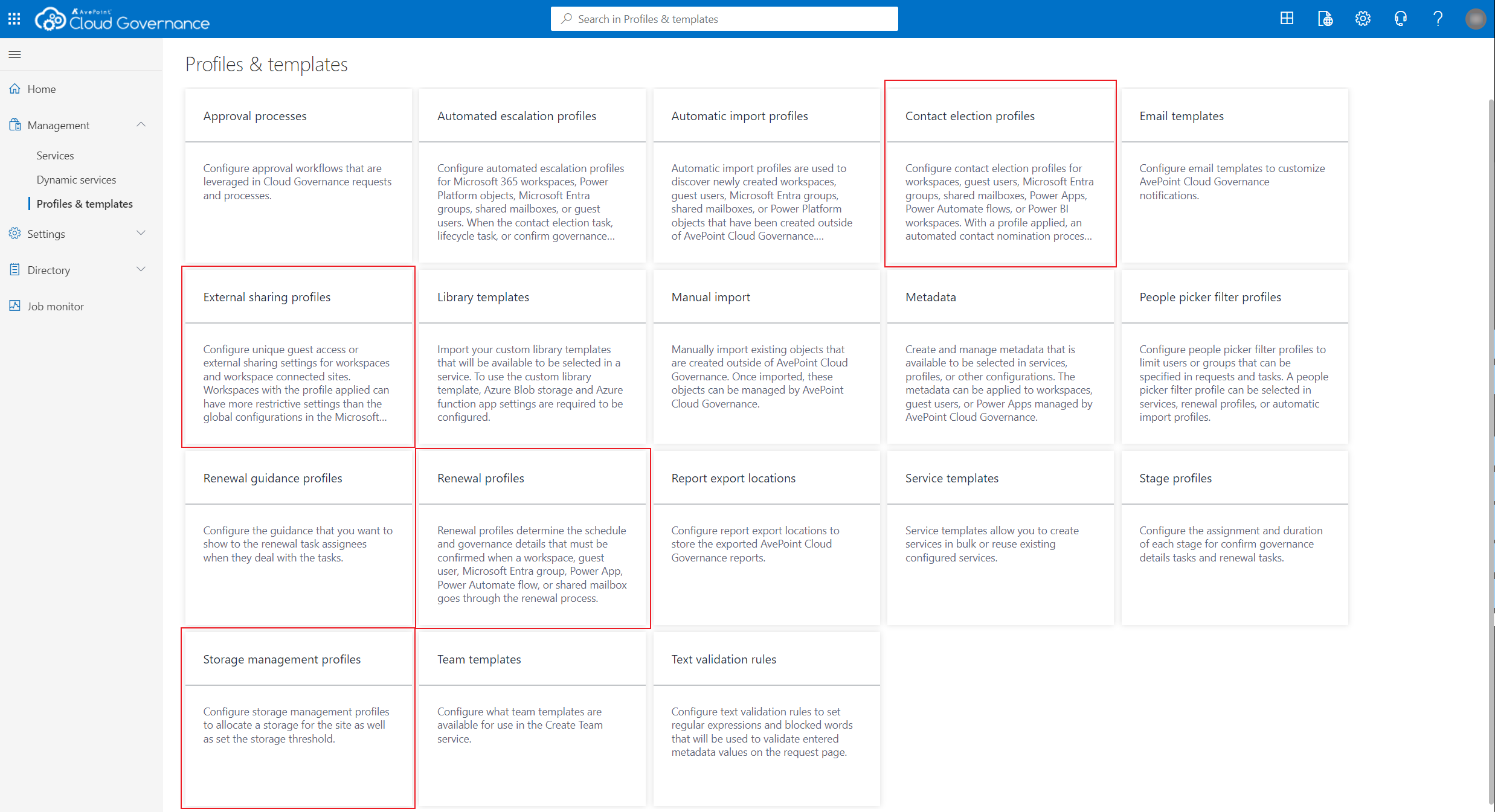
In Management > Profiles & templates of the modern Cloud Governance admin center, create the following profiles:
-
Contact election profiles
-
External sharing profiles
-
Renewal profiles
-
Storage management profiles
-
-
In Directory > Workspace report, complete the following steps:
-
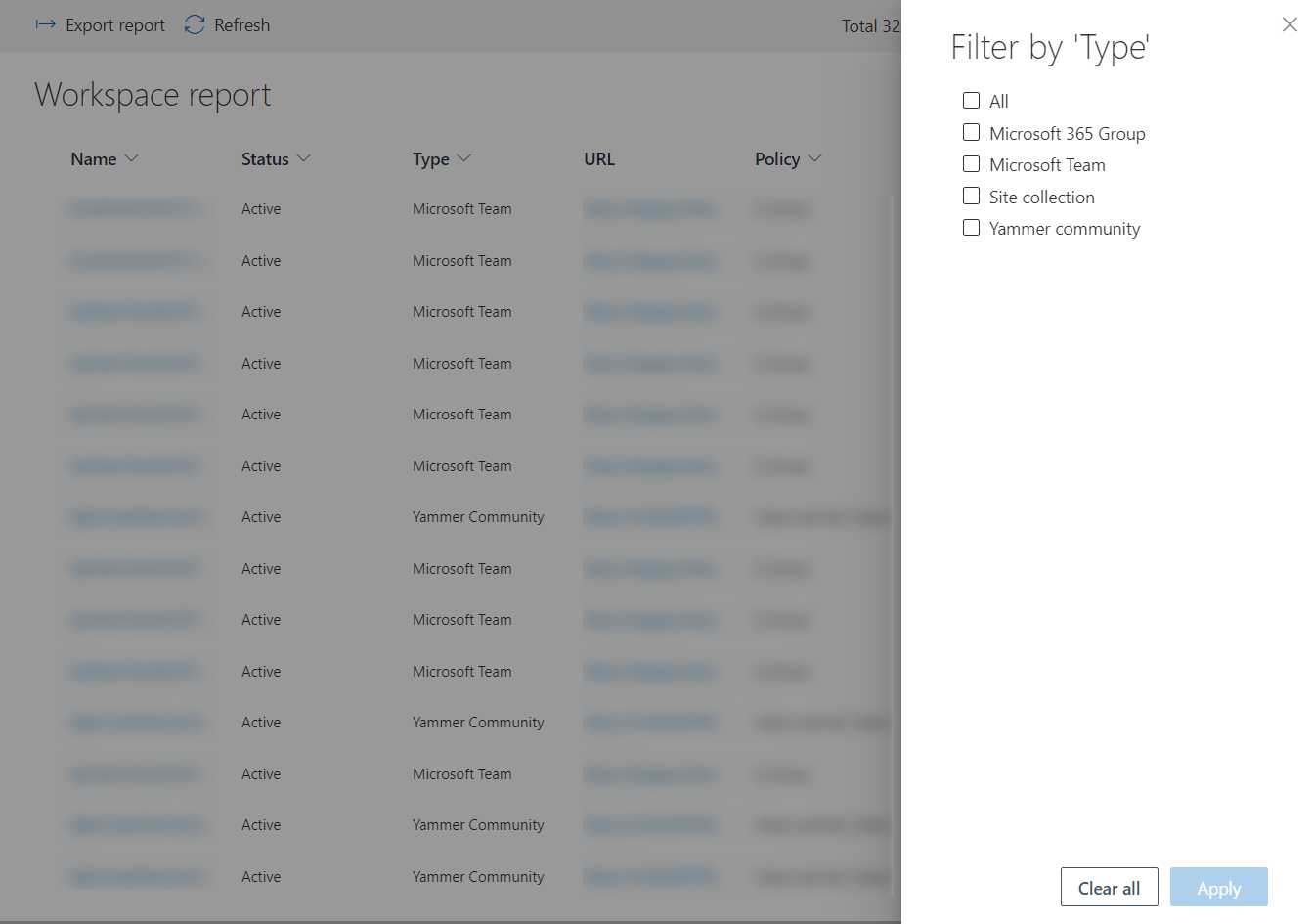
Click the Type column > Filter by, select Microsoft 365 Group, Microsoft Team, or Site collection in the Filter by ‘Type’ panel, and then click Apply.
NOTEMake sure to select only one workspace type for applying profiles in bulk. If you select multiple workspace types, Apply profile will not be available.
-
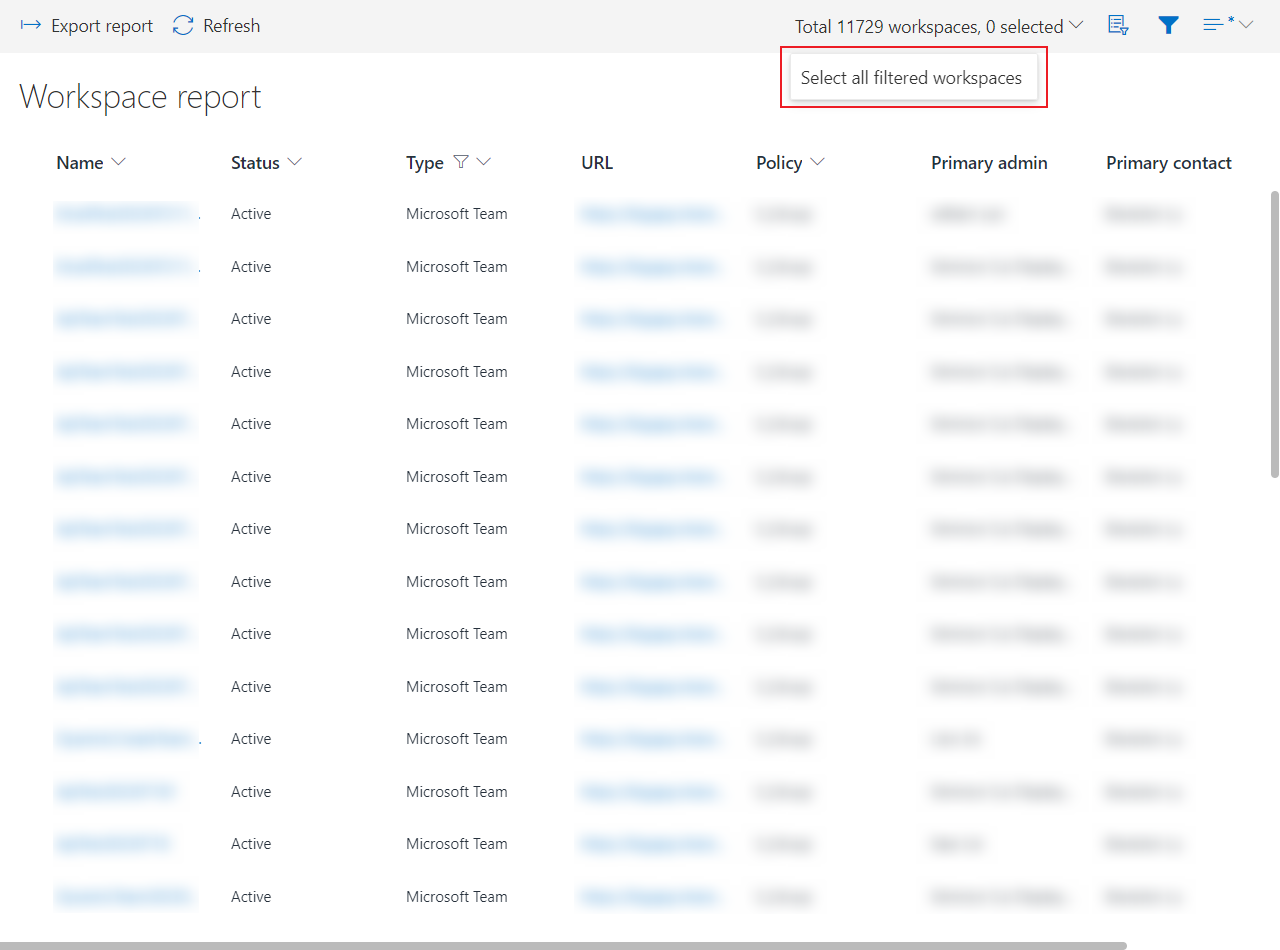
Choose Select all filtered workspaces in the upper-right corner.
NOTEWith Select all filtered workspaces selected, make sure to set the Type filter and select only one workspace type in the Filter by 'Type' panel.
-
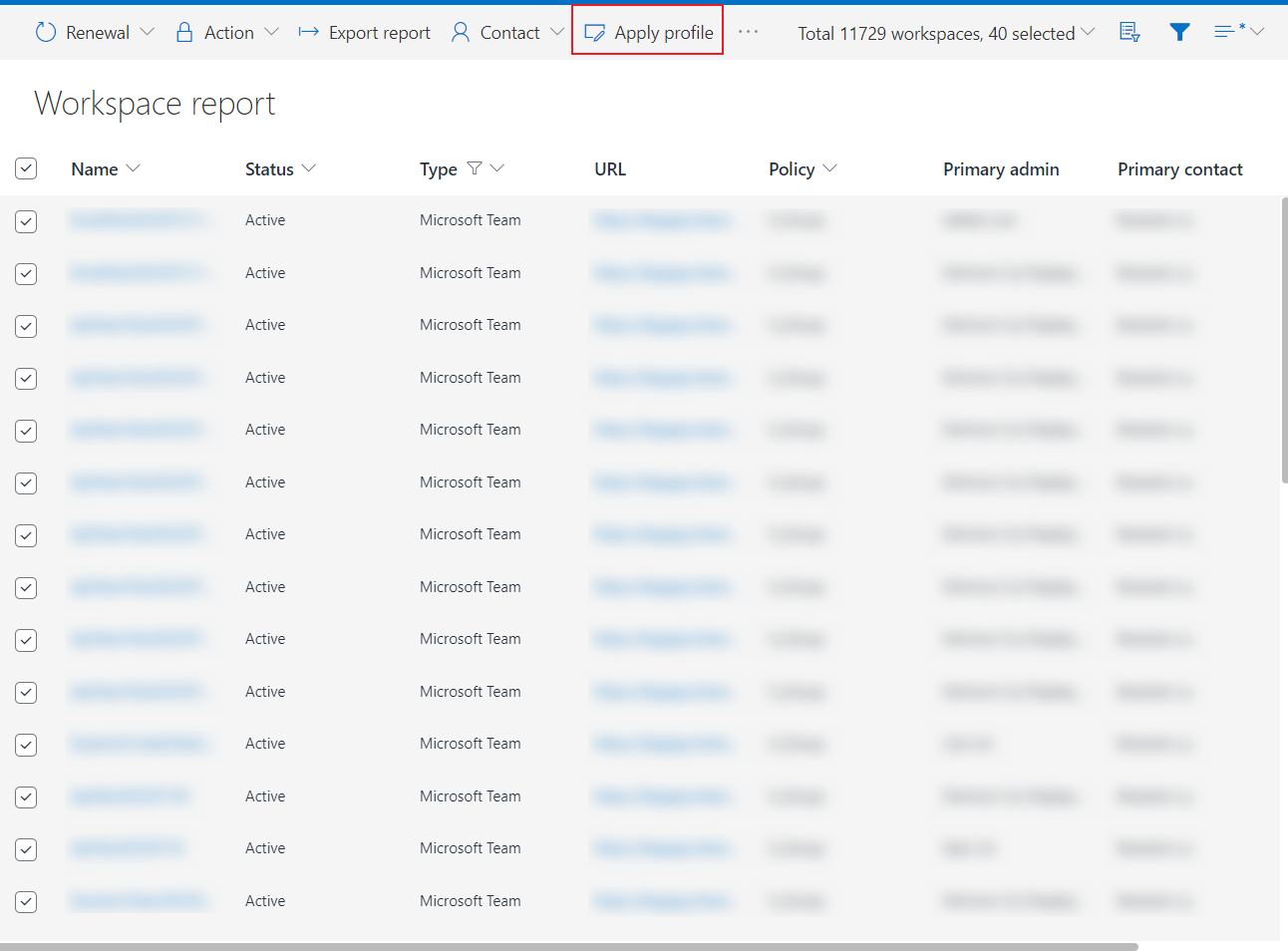
Click Appy profile on the ribbon.
-
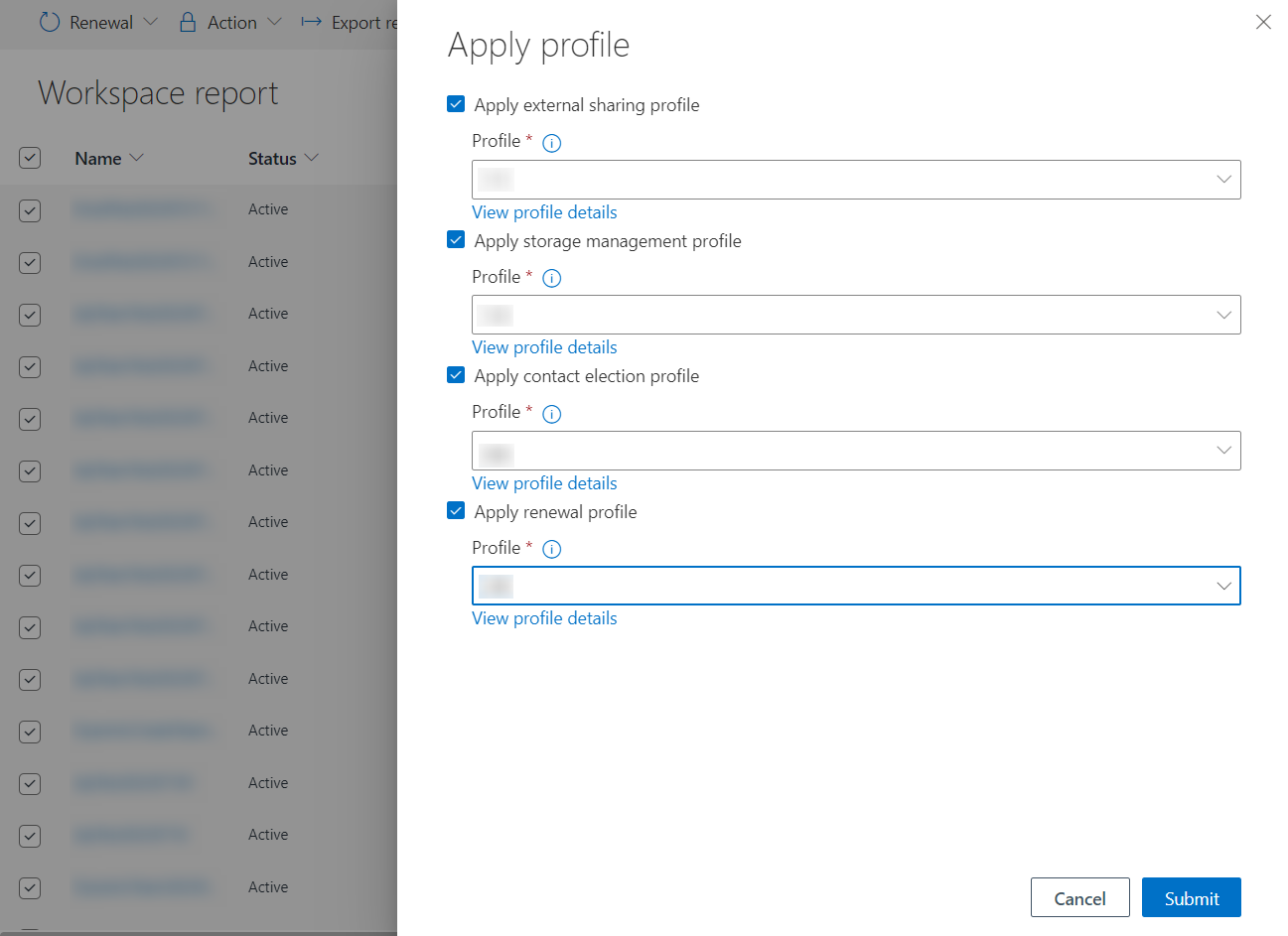
In the Apply profile panel, you can choose to:
-
Apply external sharing profile – With the option selected, select an external sharing profile to be applied to your selected workspaces. For more details about the external sharing profile, refer to Configure Team External Sharing Profiles, Configure Microsoft 365 Group External Sharing Profiles, Configure Site Collection External Sharing Profiles, and Configure Viva Engage Community External Sharing Profiles.
-
Apply storage management profile – With the option selected, select a storage management profile to be applied to your selected workspaces. For more details about the storage management profile, refer to Configure Team Storage Management Profiles, Configure Microsoft 365 Group Storage Management Profiles, Configure Site Collection Storage Management Profiles, and Configure Viva Engage Community Storage Management Profiles.
Keep existing site storage limit – You can choose to keep the existing site storage limit if you have specified a site storage for the selected profile.
-
Apply contact election profile – With the option selected, select a contact election profile to be applied to your selected workspaces. For more details about the contact election profile, refer to Configure Team Contact Election Profiles, Configure Microsoft 365 Group Contact Election Profiles, and Configure Site Collection Contact Election Profiles, and Configure Viva Engage Community Contact Election Profile.
-
Apply renewal profile – With the option selected, select a renewal profile to be applied to your selected workspaces. For more details about the renewal profile, refer to Configure Team Renewal Profiles, Configure Microsoft 365 Group Renewal Profiles, Configure Site Collection Renewal Profiles, and Configure Viva Engage Community Renewal Profiles.
For existing workspaces that have policies applied, if there are ongoing tasks generated from applied policies, you can choose how to handle such workspaces while applying profiles. Note that applying profiles will replace the policies and cancel all the ongoing tasks. With profiles applied, you cannot apply policies to the workspaces again.
-
If one or more workspaces have ongoing contact election tasks, you can choose how to handle workspaces that have ongoing tasks by choosing from one of the following options:
-
Do not apply the new profile to these workspaces – Select this option to skip all workspaces that have ongoing contact election tasks.
-
Cancel all ongoing contact election tasks, escalation tasks, and apply the new profile – Select this option to cancel all ongoing contact election tasks and escalation tasks before the new profile is applied to the selected workspaces. You can also choose to Send a cancellation email to the task assignees and select an email template for the cancellation email.
-
-
If one or more workspaces have ongoing renewal tasks, you can choose how to handle workspaces that have ongoing tasks by choosing from one of the following options:
-
Do not apply the new profile to these workspaces – Select this option to skip all workspaces that have ongoing renewal tasks.
-
Cancel all ongoing renewal tasks, escalation tasks, and apply the new profile – Select this option to cancel all ongoing renewal tasks and escalation tasks before the new profile is applied to the selected workspaces. You can also choose to Send a cancellation email to the renewal task assignees and select an email template for the cancellation email.
-
-
If one or more workspaces have ongoing contact election tasks and renewal tasks, you can choose how to handle workspaces that have ongoing tasks by choosing from one of the following options:
-
Do not apply the new profile to these workspaces – Select this option to skip all workspaces that have ongoing contact election tasks and renewal tasks.
-
Cancel all ongoing contact election tasks, escalation tasks, renewal tasks, and apply the new profile – Select this option to cancel all ongoing contact election tasks, escalation tasks, and renewal tasks before the new profile is applied to the selected workspaces. You can also choose to Send a cancellation email to the task assignee and select an email template for the cancellation email.
-
-
-
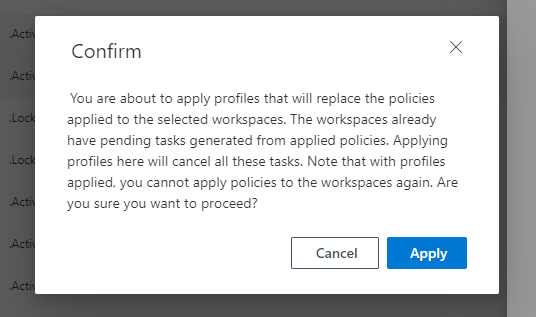
Click Submit when you finish the configuration. Then, if there are pending tasks, a Confirm window appears as a reminder for ongoing tasks. Click Apply to confirm.
-
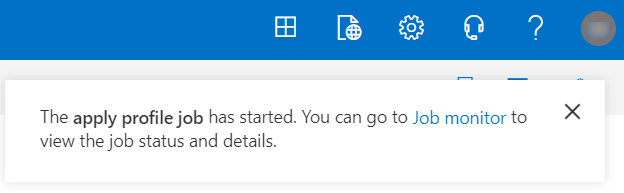
A notification message appears in the upper-right corner claiming the job has started. Click the Job monitor link in the message and go to view apply profile results in Job monitor.
-
-
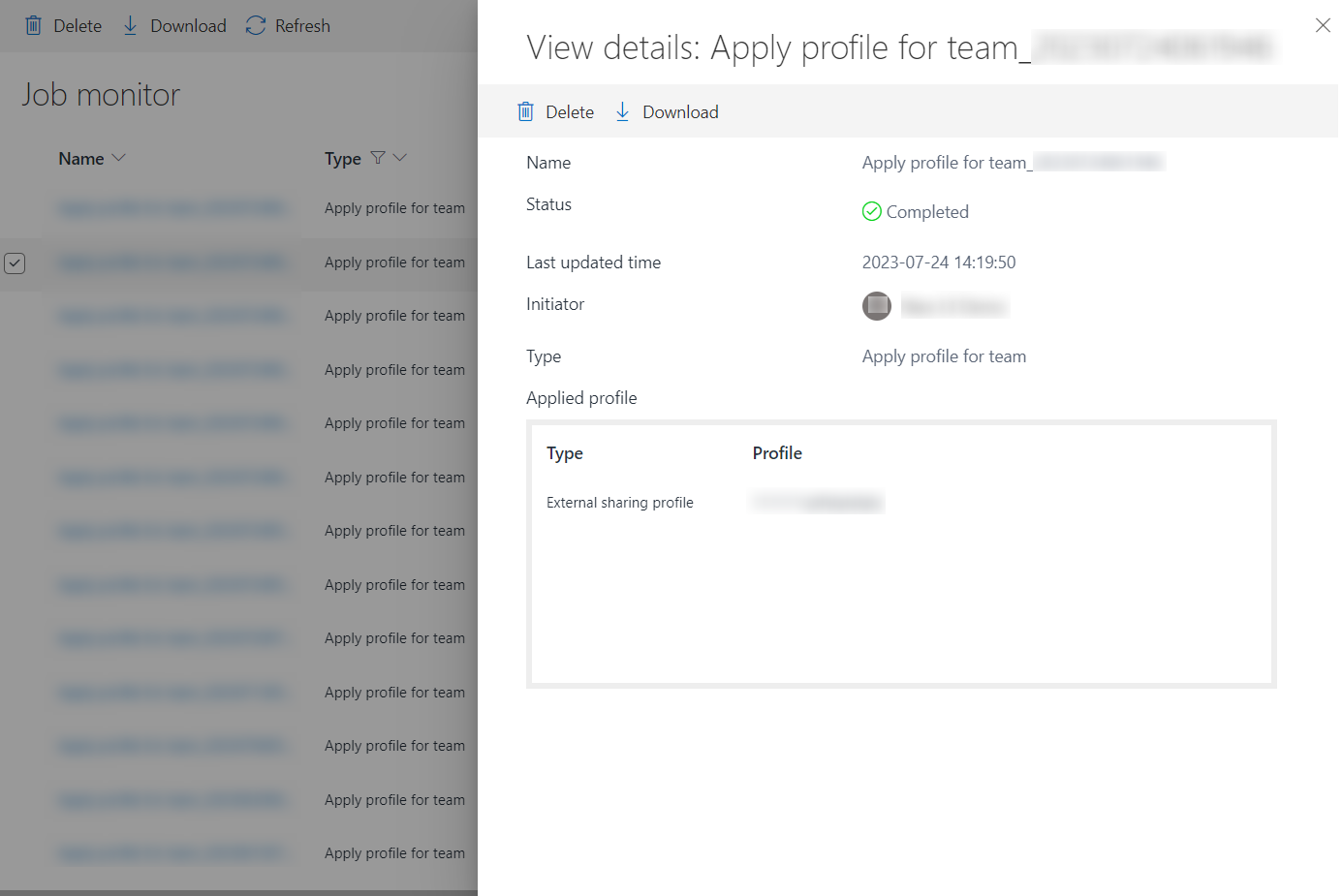
In Job monitor, click the job name to view the job details. For a completed job or a job completed with an exception, you can click Download to download the job result report in an Excel file.
-
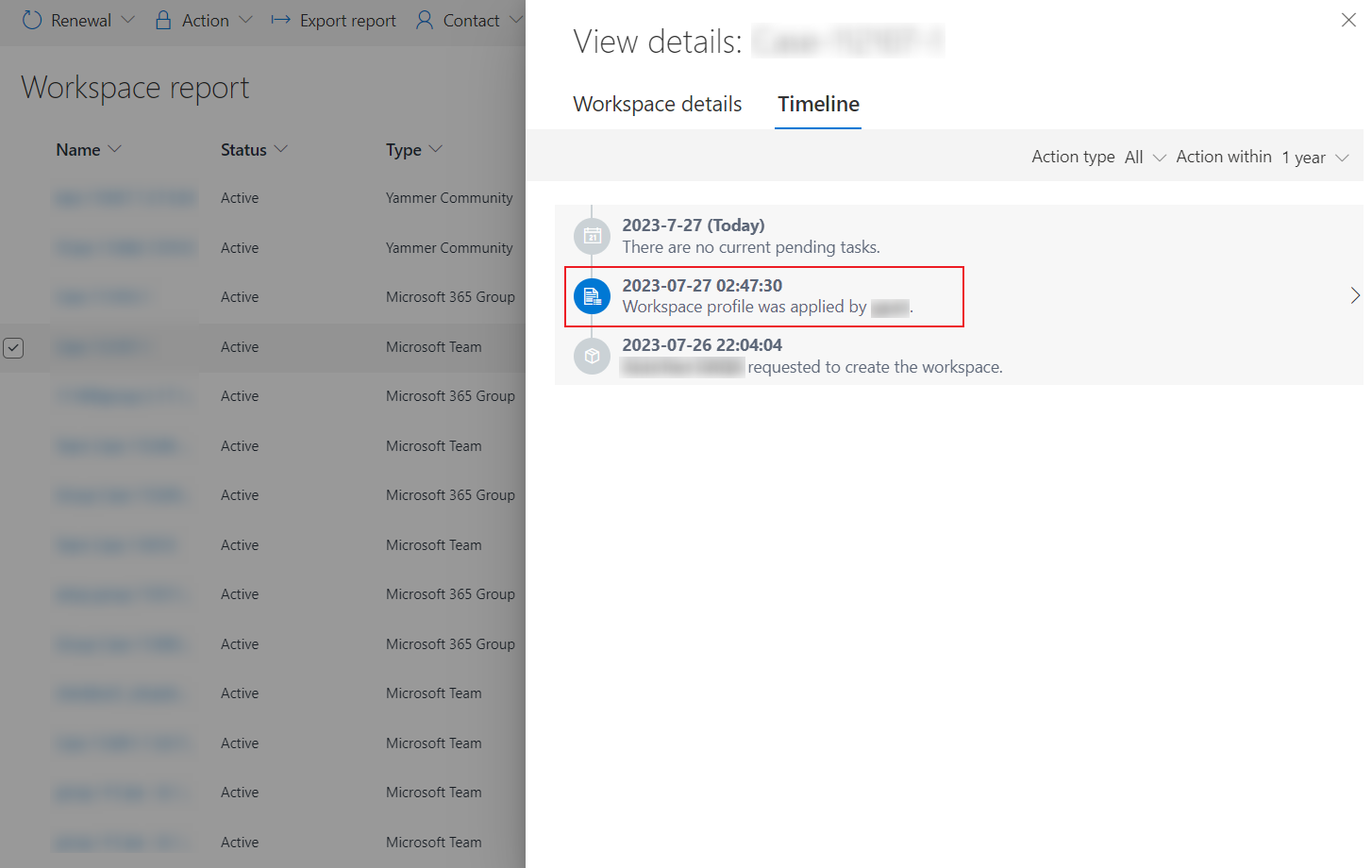
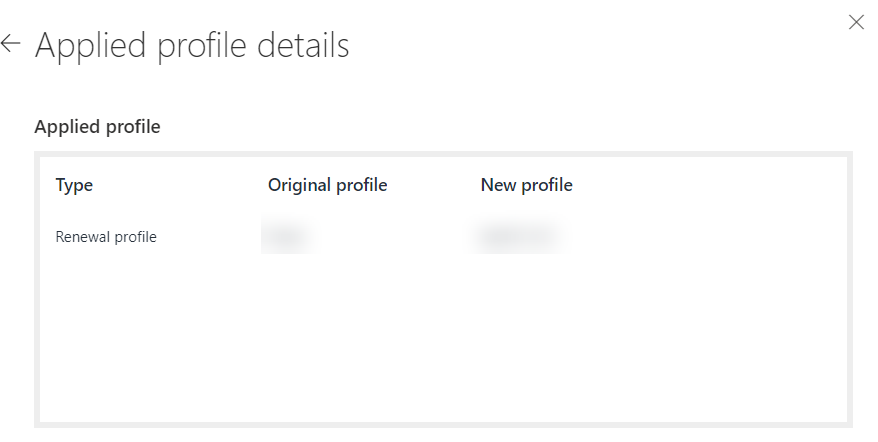
After successfully applying profiles, in Management > Workspace report, you can click the workspace name, click Timeline, and view the apply profile details in the View details panel. You can view both new and original profiles applied to workspaces.
Note the following:
-
If a workspace is created via a service configured in the classic Cloud Governance admin center, after applying profiles, the Original profile will show the policy name.
-
If you select None when applying profiles, no profile will be applied, and New profile will show None.
-
The apply profile process will be skipped and no profile will be applied in the following scenarios:
-
The team status is Archived,
-
The Archived team governance setting is enabled, and the corresponding group team site status is Locked.
-
The Archived team governance setting is disabled.
-
-
The team status is Deleted.
-
The site collection status is Archived, Deleted, Site locked, or Temporarily locked.
-
The newly applied profile is the same as the original profile.
-
The newly applied profile belongs to a different tenant from the workspace.
-
A policy is being applied to the workspace, and the policy status is Updating or Pending update.
-
The workspace is in any of the following phases:
-
Governance details confirmation overdue
-
Import process completed with exception
-
Import processing
-
Pending confirmation of governance details
-
When the apply profile result is Skip, the New Profile will show the original profile in the apply profile result file.