
Home > Appendices > Appendix O - How to Assign the Groups Administrator Role to an App?
Download this articleAppendix O - How to Assign the Groups Administrator Role to an App?
To use the following features in AvePoint Cloud Governance, you must assign the Groups Administrator role to the AvePoint Cloud Governance for Microsoft365 app automatically created in your Microsoft Entra:
-
Configure external sharing settings for the Create Microsoft 365 Group service or Create Microsoft Teams service
-
Enable site collection provisioning or group team site provisioning in multi-geo locations for the corresponding service
-
Configure Group/Team advanced settings in system settings
To assign the Groups Administrator role to the app, refer to the following steps:
-
Log in to Microsoft Entra admin center (or Microsoft Azure portal) and go to Microsoft Entra ID.
-
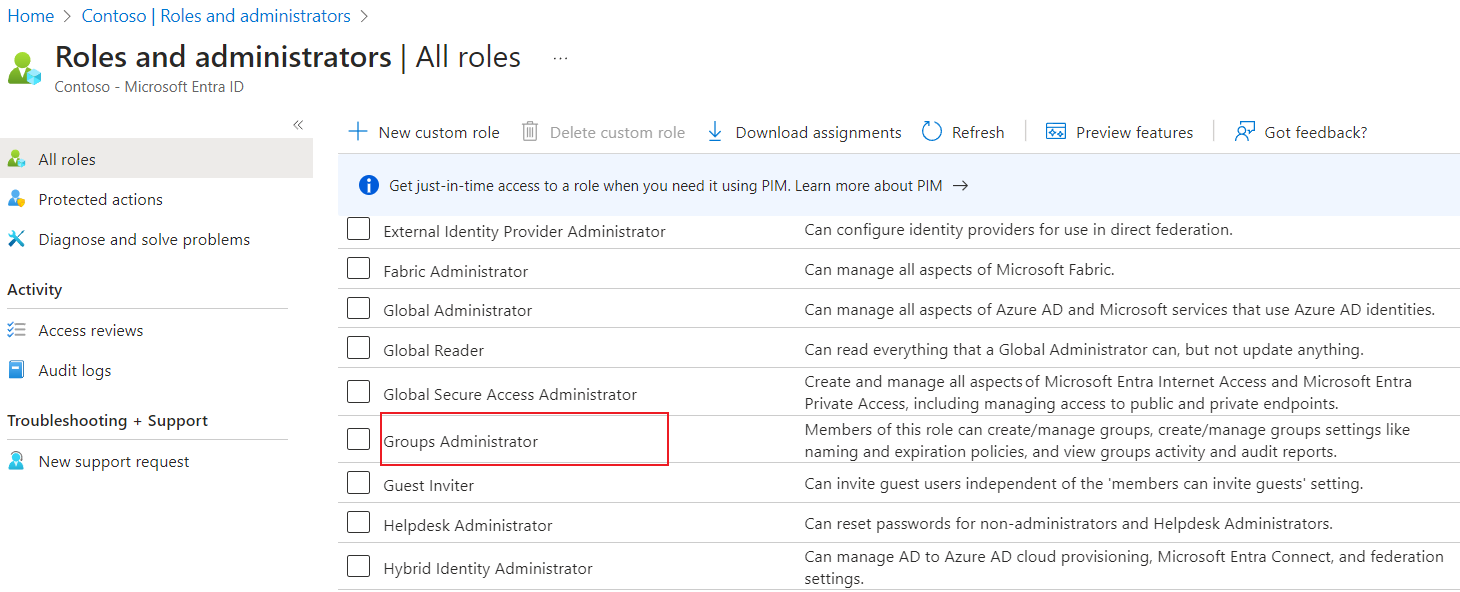
Click Roles & admins (or Roles and administrators) in the left pane, and click the Groups Administrator role you want to assign.
-
On the Assignments page that opens, click Add assignments.
-
On the Add assignments page, you can enter an application ID in the search box to search for the app to which you want to assign the role.
NOTEYou can get an app's application ID when you create/re-authorize the related app profile and the Microsoft 365 account sign-in page appears. The application ID will be displayed as the value of the client_id in the URL.

-
Select the app, and click Add to assign the role. Note that the assigned role will take effect in about 30 minutes.