
Home > Appendices > Appendix D - Register an Actionable Email Provider
Download this articleAppendix D - Register an Actionable Email Provider
If you use custom email settings to send AvePoint Cloud Governance notification emails and want to enable actionable messages, you must register an actionable email provider.
To register a provider, complete the following steps:
-
Sign in to the Actionable Email Developer Dashboard with a Microsoft 365 account.
-
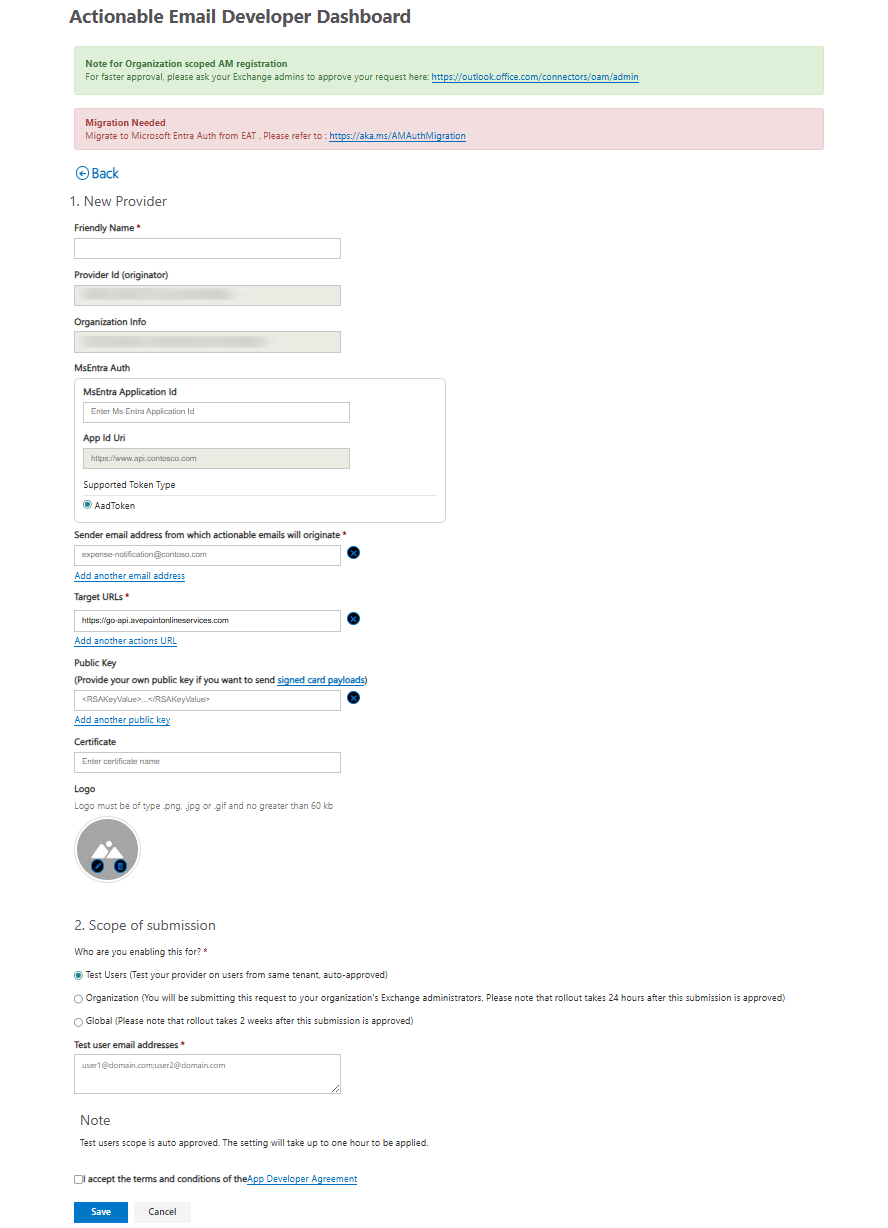
Click New Provider and configure the following sections in the request form.
-
New Provider – Provide the following information:
-
Friendly Name – Enter a name for the provider.
-
Provider Id (originator) – Copy the displayed provider ID. You need to enter this provider ID in AvePoint Cloud Governance > System settings > Email settings > Actionable messages.
-
MsEntra Application Id – Copy the MsEntra application ID. If you do not have a Microsoft Entra app or want to create a new app, see instructions in Register an app in Azure to create one. You need to enter this MsEntra application ID in AvePoint Cloud Governance > System settings > Email settings > Actionable messages.
-
Sender email address from which actionable emails will originate – Enter the email address of your email sender. The email address must be the same as the one entered when you Configure Email Settings.
-
Target URLs – Enter one of the following AvePoint Cloud Governance API URLs according to the environment you are using:
-
The production environment for commercial use - Enter one of the following URLs based on your data center:
-
Australia Southeast (Victoria): https://graph-au.avepointonlineservices.com/governance
-
Canada Central (Toronto): https://graph-ca.avepointonlineservices.com/governance
-
East US (Virginia): https://graph-us.avepointonlineservices.com/governance
-
France Central (Paris): https://graph-fr.avepointonlineservices.com/governance
-
Germany West Central (Frankfurt): https://graph-de.avepointonlineservices.com/governance
-
Japan West (Osaka): https://graph-jp.avepointonlineservices.com/governance
-
Korea Central (Seoul): https://graph-kr.avepointonlineservices.com/governance
-
North Europe (Ireland): https://graph-ne.avepointonlineservices.com/governance
-
South Africa North (Johannesburg): https://graph-za.avepointonlineservices.com/governance
-
Southeast Asia (Singapore): https://graph-sg.avepointonlineservices.com/governance
-
Switzerland North (Zurich): https://graph-ch.avepointonlineservices.com/governance
-
UK South (London): https://graph-uk.avepointonlineservices.com/governance
-
West Europe (Netherlands): https://graph-we.avepointonlineservices.com/governance
-
-
The production environment for U.S. Government Public Sector
-
The Insider environment – the East US (Virginia) data center
https://insider-governance-api-us-east.avepointonlineservices.com
-
The Insider environment – the North Europe (Ireland) data center
https://insider-governance-api-north-europe.avepointonlineservices.com
-
-
-
Scope of submission – Choose Organization.
NOTEThe provider registration requires approval from your organization’s Exchange Administrators. After you save this form, the Exchange Administrators will receive a notification email and you will also be copied on the email.
-
Additional Information – You can enter the email addresses of additional recipients who will be notified about the provider registration. You can also enter comments that can help your Exchange Administrators quickly understand your request.
-
Select the I accept the terms and conditions of the App Developer Agreement checkbox and click Save.
After your request is approved by your Exchange Administrators, you will receive a notification email. It will take up to one hour for the registration to take effect. When the registration is in effect, actionable messages will take effect in AvePoint Cloud Governance notification emails.