
Home > Manage Templates > Configure Team Templates
Download this articleConfigure Team Templates
In a Create Team service, you can allow business users to create a team from the team template and add one or more team templates. Then business users will be able to select a team template to create a team in the request form. The team templates can be built-in templates provided by Microsoft or your custom templates created in the Microsoft Teams admin center. To use custom team templates to create teams via AvePoint Cloud Governance requests, you must add your custom team templates to AvePoint Cloud Governance.
You can view the built-in team templates and manage your custom team templates in AvePoint Cloud Governance. To access Team templates, click the Team templates card on the Profiles & templates page. For the known issues about using the team templates, refer to the Release Notes.
Add a Custom Team Template
To add a custom team template that has been created in the Microsoft Teams admin center, click Add on the ribbon to open the Add a custom team template panel. Then, configure the following settings in the panel:
-
Published by – Select a tenant from the drop-down list. Make sure the custom team template that you’re about to add to Cloud Governance has been created in this tenant.
-
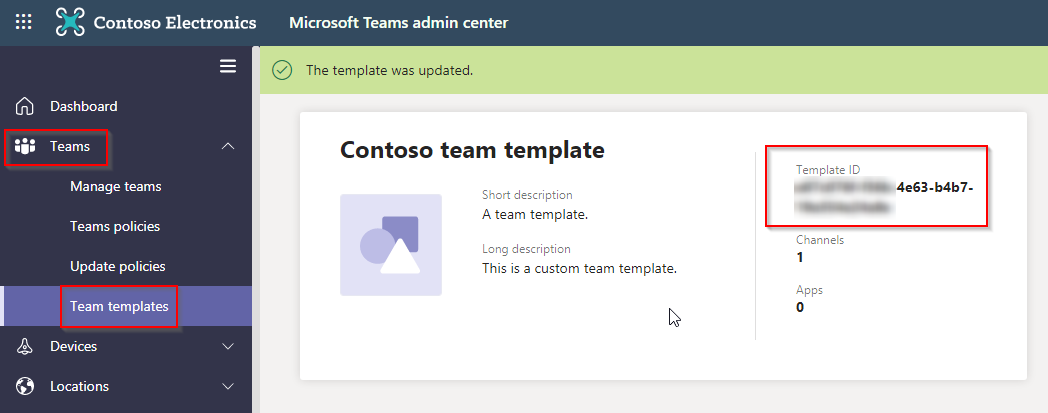
Template ID – Enter the ID of the team template.
To get the team template ID, navigate to Teams > Team templates in the Microsoft Teams admin center. You can see the Template ID when viewing a specific template.
If you want to add a team template in a Microsoft Team for Education type, which is Class, Professional Learning Community (PLC), Staff, or Other, enter one of the following template keys:
-
educationClass
-
educationProfessionalLearningCommunity
-
educationStaff
-
educationStandard or standard
For more instructions, refer to Microsoft Teams for Education.
-
-
Template name – Enter a name for the team template.
NOTEAvePoint recommends that you enter the same template name defined in the Microsoft Teams admin center.
-
Description – Enter a description for the team template.
Click Save when you finish all your configurations.