
Home > Appendices > Appendix M - Configure Function Apps in the Azure Portal
Download this articleAppendix M - Configure Function Apps in the Azure Portal
To successfully use and deploy the custom action provided by AvePoint Cloud Governance, you must create a function app in your Azure portal and configure the diagnostic settings. For more details, refer to the instructions in the corresponding section below.
Create a Function App in the Azure Portal
To create a function app, complete the following steps:
-
Navigate to All services > Internet of things in the Azure portal, and then click Function App.
-
Click Create to create a function app.
-
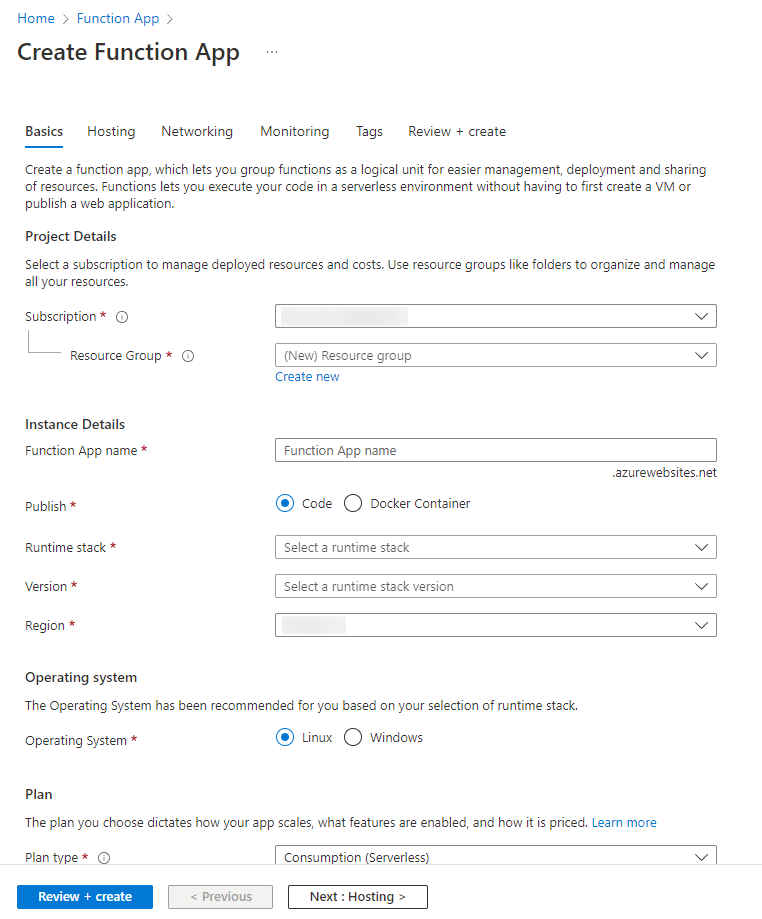
On the Create Function App page, configure the Project Details and Instance Details:
-
Subscription – Select a subscription.
-
Resource Group – Select a resource group.
-
Function App name – Enter a function app name.
-
Publish – Select Code.
-
Runtime stack – Select .Net.
-
Version – Use the default version 3.1.
-
Region – Select a region from the drop-down list.
-
-
Click Next: Hosting.
-
On the Hosting page, configure the following settings:
-
Storage account – Select a storage account. The storage account is configured in All services > Storage in the Azure portal.
-
Operating system – Select Window.
-
Plan type – Select Consumption (Serverless) or App service plan from the drop-down list.
For more detailed instructions, you can refer to the Microsoft instructions: Azure Functions Hosting Options.
-
-
Click Next: Networking (preview).
-
On the Networking page, select Off for Enable network injection.
-
Click Next: Monitoring.
-
On the Monitoring page, in the Enable Application Insights field, select No.
-
Click Next: Tags. You can skip the tag configurations as they’re not required for the function app creation.
-
Click Next: Review + create to review all your configurations above. After your confirmation, click Create to start to create the function app.
-
Click Functions > Create on the left navigation menu to create functions.
Note that you can use the private endpoint for your function app. For instructions about how to configure the private endpoint, refer to Configure a Private Endpoint.
With the private endpoint enabled, to successfully create and upload the function app via PowerShell, you need to create another private endpoint connection from your VM VNET subnet to your function app by completing the following steps:
-
Navigate to the function app > Private Endpoint connections, and then click Add on the ribbon.
-
In the Add Private Endpoint panel, configure the following settings:
-
Name – Enter a name for the private endpoint connection.
-
Subscription – Select a subscription.
-
Virtual network – Select a virtual network.
-
Subnet – Select a subnet of the virtual network.
-
Integrate with private DNS zone – Choose Yes.
When you finish, click OK to save your configurations.
-
-
After the private endpoint connection is created. Navigate to the Private Link Center > Private endpoints in the Azure portal, and click the private endpoint.
-
On the DNS configuration page, copy the DNS records and then paste it into your desired location, such as Notepad.
-
Add the DNS records that you copied to the local host file in your virtual network.
-
-
After the function app is successfully created, click the function name, and then click Get Function Url. Copy the URL and paste it into your desired location, such as Notepad. Note that this URL should be provided back to the AvePoint Development team later.

Configure a Private Endpoint
You can use a private endpoint according to your organization's security policy. A private endpoint is a network interface that uses a private IP address from your virtual network. This network interface connects you privately and securely to a service that's powered by Azure Private Link.
After successfully creating the function app, you can configure a private endpoint. To configure a private endpoint, complete the following steps:
-
Navigate to the function app > Properties.
-
On the Properties page, copy the Resource ID, and then paste it into your desired location, such as Notepad. Then, provide the resource ID to AvePoint.
-
AvePoint will create a private endpoint using the resource ID to connect to your function app.
-
After the private endpoint is created, navigate to the function app > Private Endpoint connections.
-
Click the private endpoint, and then click Approve on the ribbon.
-
When the Connection state of the private endpoint is Approved, the private endpoint will be successfully connected.
Note that an error may occur during the approval process if the connection initialization has not finished yet. Please wait a while, and then approve the private endpoint again by repeating the steps above.
The Inbound IP Address Allowed List and Outbound DNS URL
To make your custom actions work, AvePoint will access your function app, and your function app also needs to send requests to AvePoint and Microsoft. IP addresses in the inbound allowed IP address list are allowed to access your function app, and your function app will send requests to specific outbound DNS URLs.
You can contact AvePoint to obtain the inbound IP address allowed list and outbound DNS URLs.
Configure Diagnostic Settings
To configure the diagnostic settings, complete the following steps:
-
Click Diagnostic settings (preview) on the left navigation menu to configure the streaming export of platform logs and metrics.
-
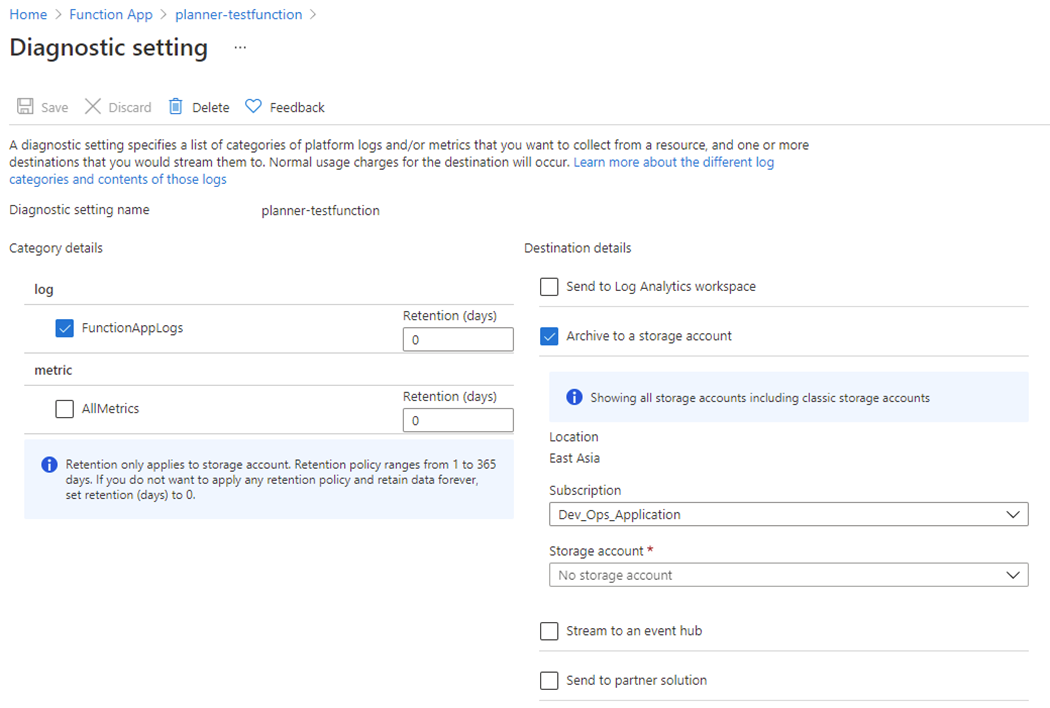
On the Diagnostic settings (preview) page, click Add diagnostic setting, and configure the following settings:
-
log ‒ Select the FunctionAppLogs checkbox, and specify the Retention (days).
-
Archive to a storage account ‒ Select the checkbox.
-
Subscription ‒ Select a subscription.
-
Storage account ‒ Select a storage account.
-
-
Click Save when you finish the configuration.