Home > Manage Templates > Configure Library Templates > Best Practices for Setting Up Library Templates
Download this articleBest Practices for Setting Up Library Templates
To configure library templates effectively, it is suggested to use the following settings:
Create a Function App in the Azure Portal
Create a function app in your Azure portal following the instructions in Create a Function App in the Azure Portal.
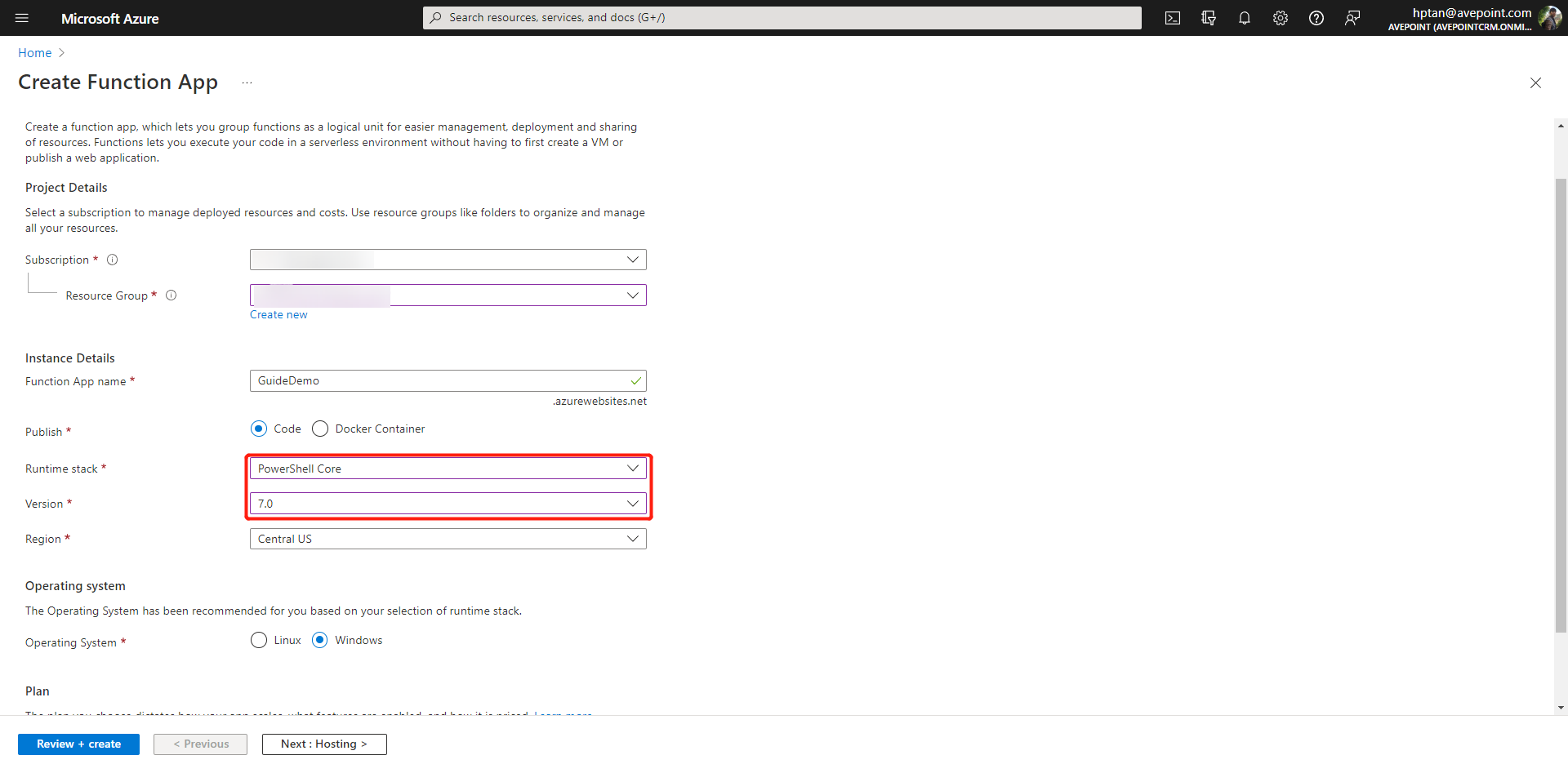
Note that you should configure the Runtime stack and Version as shown below:
-
Runtime stack – Select PowerShell Core.
-
Version – Select 7.0.
Configure the Connect-PnPOnline App-Only
Configure the Connect-PnPOnline App-Only by completing the following steps:
-
Sign in to the Microsoft Entra admin center (or Microsoft Azure portal), and then register an application by completing the following steps:
-
Navigate to Microsoft Entra ID.
-
Click App registrations on the left navigation menu, click New registration to register an application.
-
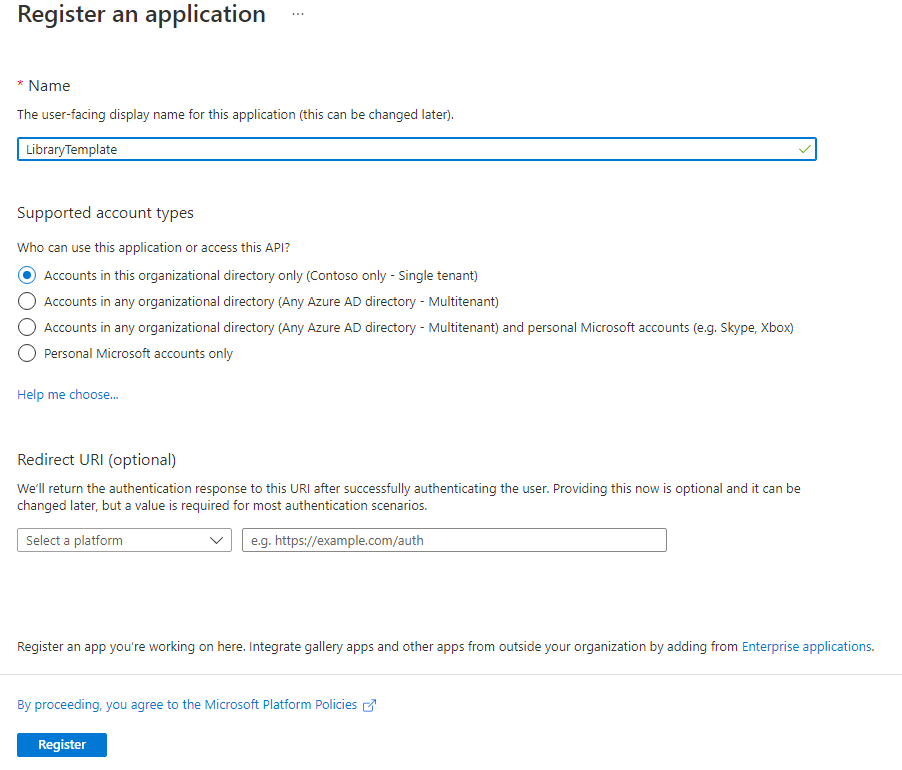
Complete the required fields as shown below, and then click Register.
-
-
Upload the certificate by completing the following steps:
-
Click App registrations on the left navigation menu, and then click the name of your newly created app.
-
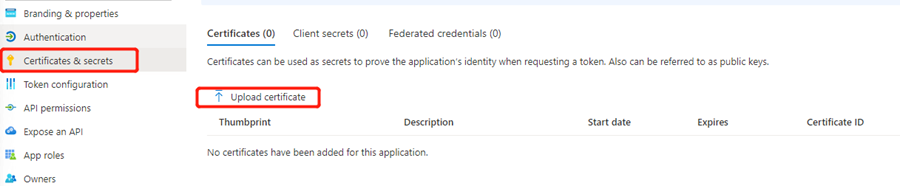
Click Certificates & secrets on the left navigation menu, and then click Upload certificate.
-
In the Upload certificate panel, upload the certificate file.
-
-
Add SharePoint API application permissions Sites.FullControl.All and User.ReadWriteAll by completing the following steps:
-
Click API permissions on the left navigation menu.
-
Click Add a permission to add permissions.
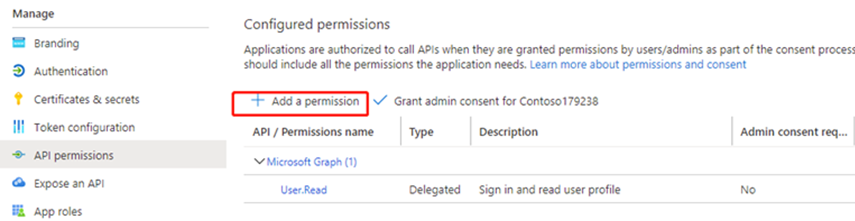
-
In the Request API permissions panel, click SharePoint under Microsoft APIs.
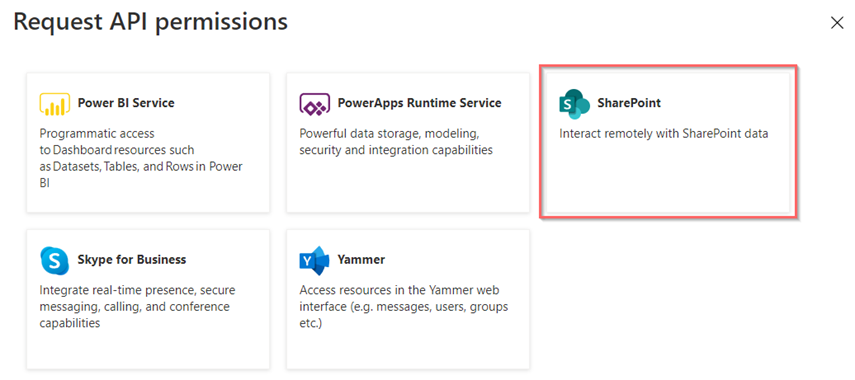
-
Click Application permissions under SharePoint, and then add the Sites.FullControl.All and User.ReadWriteAll permissions.
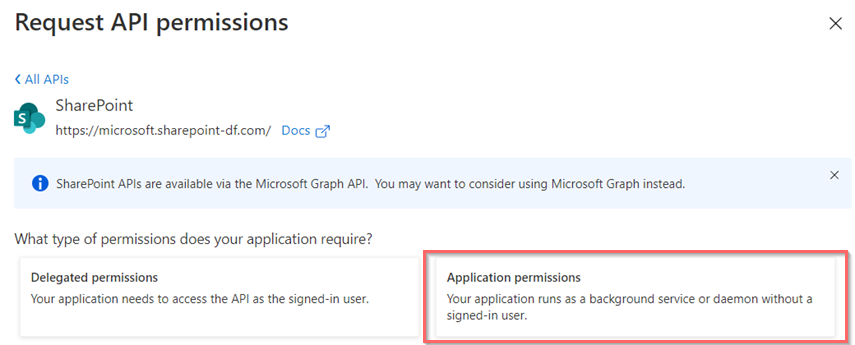
-
Click Grant admin consent for Contoso. Note that Contoso will be replaced with your organization name.
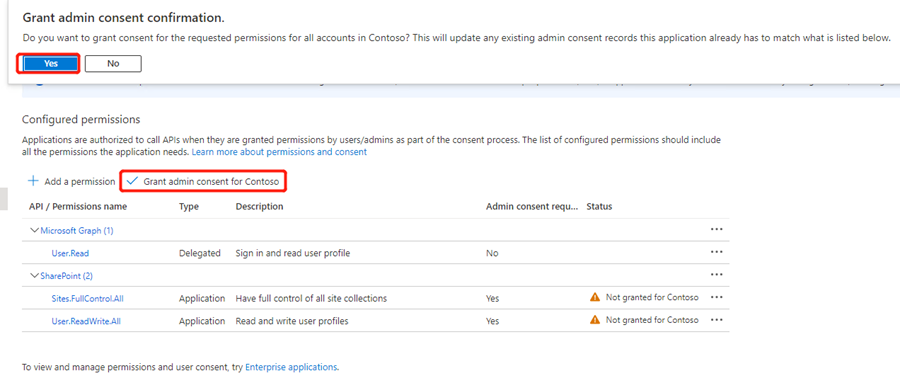
-
-
Configure the certificate by completing the following steps:
-
Navigate to All services > Internet of things in the Azure Portal.
-
Click Function app on the left navigation menu, and then click TLS/SSL settings.
-
On the TLS/SSL settings page, click Import App Service Certificate under Private Key Certificates(.pfx).
-
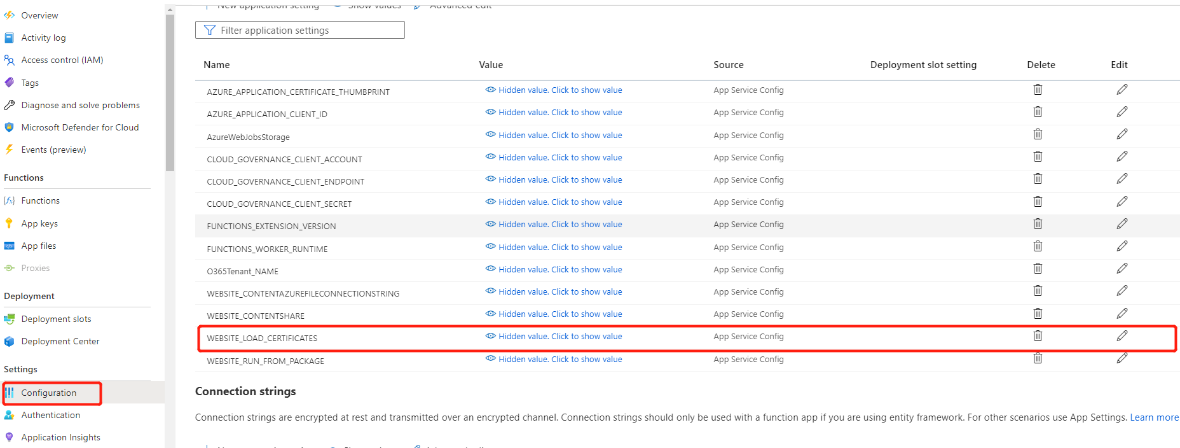
Click Configurations on the left navigation menu, and then click New application setting. In the Add/Edit application setting panel, add a new setting as below. Then, click OK to save.
-
Name ‒ Enter WEBSITE_LOAD_CERTIFICATES as the name.
-
Value ‒ Enter * as the value.
-
-
-
With the authentication of your Azure Application, connect to SharePoint online using PowerShell. For more information, refer to Connect-PnPOnline.
Configure Environment Variables in Azure Function
In the Azure Portal, complete the following steps to configure environment variables for the Azure function.
-
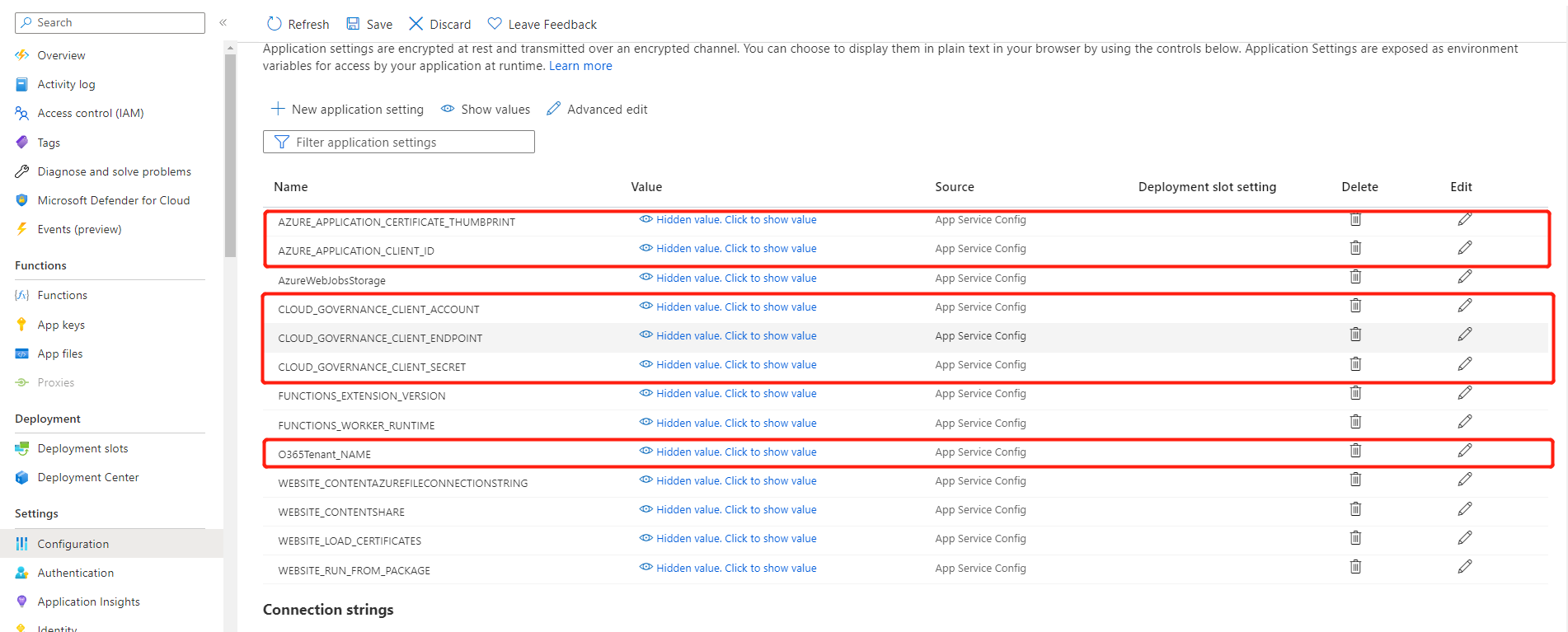
Click Configuration on the left navigation pane, and then click New application setting.
-
In the Add/Edit application setting panel, enter all names and corresponding values based on description in the following table. When you finish, click OK to save.
Name Value O365Tenant_NAME Enter your Microsoft 365 tenant name. AZURE_APPLICATION_CLIENT_ID Enter the client ID of your Azure application.
For how to obtain the client ID, refer to Register Your App.AZURE_APPLICATION_CERTIFICATE_THUMBPRINT Enter the thumbprint of your Azure application’s certificate. CLOUD_GOVERNANCE_CLIENT_ENDPOINT The API URL is https://go-api.avepointonlineservices.com if you’re using the AvePoint Cloud Governance commercial environment.
Note that the API URLs vary with AvePoint Cloud Governance environments. For more information, refer to AvePoint Cloud Governance API.CLOUD_GOVERNANCE_CLIENT_SECRET Enter the client secret to authenticate with AvePoint Cloud Governance API.
For how to obtain the client secret, refer to Manage API Authentication Profiles.CLOUD_GOVERNANCE_CLIENT_ACCOUNT Enter the sign-in name of an AvePoint Cloud Governance user, which will be used to invoke the AvePoint Cloud Governance API.
Make sure the user has been added to AvePoint Online Services and has the subscription for AvePoint Cloud Governance. To invoke system level APIs, make sure the user is the Service Administrator of AvePoint Cloud Governance.
Sample Scripts
You may want to create a library via a Create library dynamic service request, with pre-defined metadata and library template configured in the service. After the service request is completed and a library is successfully created, create a folder and content type in the library based on the metadata value. AvePoint Cloud Governance provides the sample scripts for the additional library template configuration and Azure function configuration, which are available for such use case, and you can find the sample script here:
To configure library templates, metadata, and a Create library dynamic service, complete the following steps:
-
Configure the Azure Blob Storage and Azure function app following the instructions in Configure the Azure Blob Storage and Azure Function App.
-
Import library templates following the instructions in Import Library Templates.
-
Create a Choice type metadata naming Library management following instructions in Configure Metadata.
-
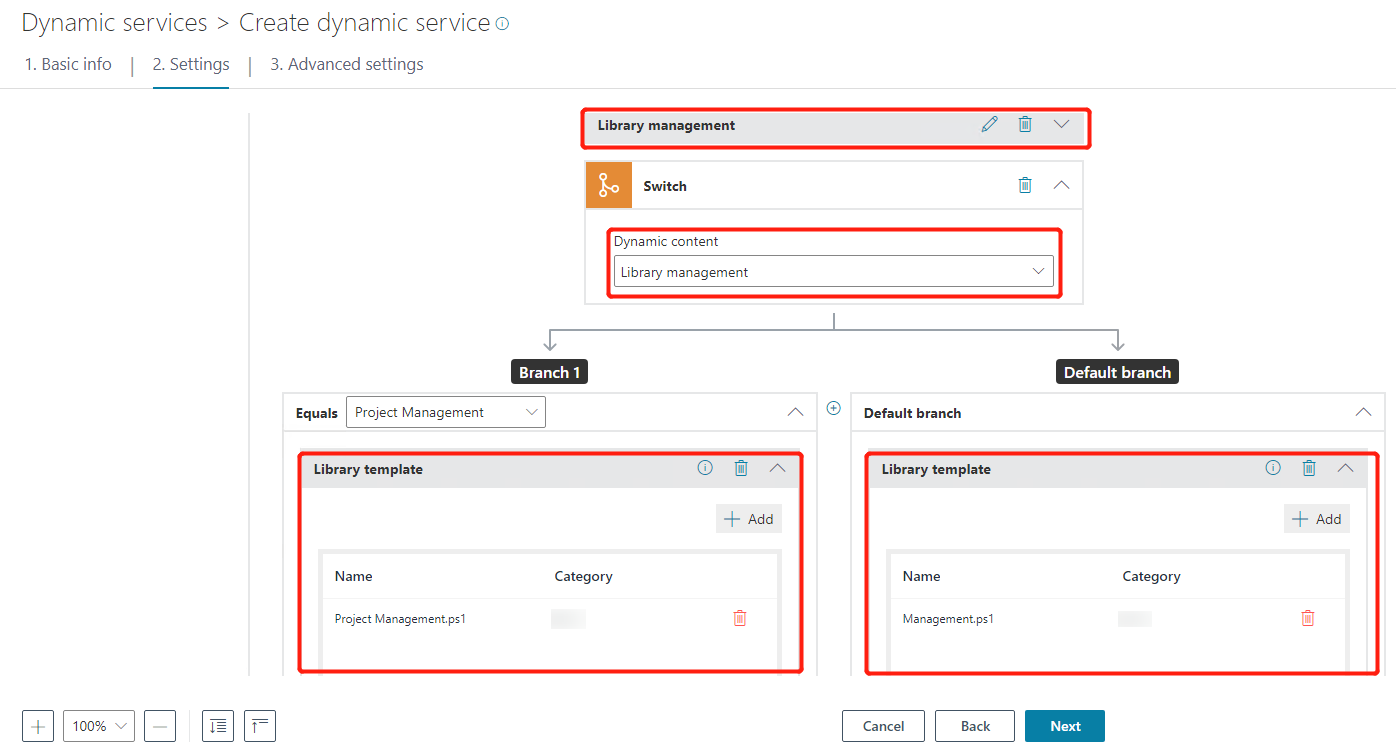
Create a Create library dynamic service in Management > Dynamic services with the metadata Library management added in the service as a dynamic condition content, as well as the library template configured in the service. You can refer to the configurations as shown below. For how to configure a dynamic service, refer to Manage Dynamic Services.
-
After the service is successfully created, submit a request using this service.