
Home > Get Started > Configure Language and Time Zone Settings
Download this articleConfigure Language and Time Zone Settings
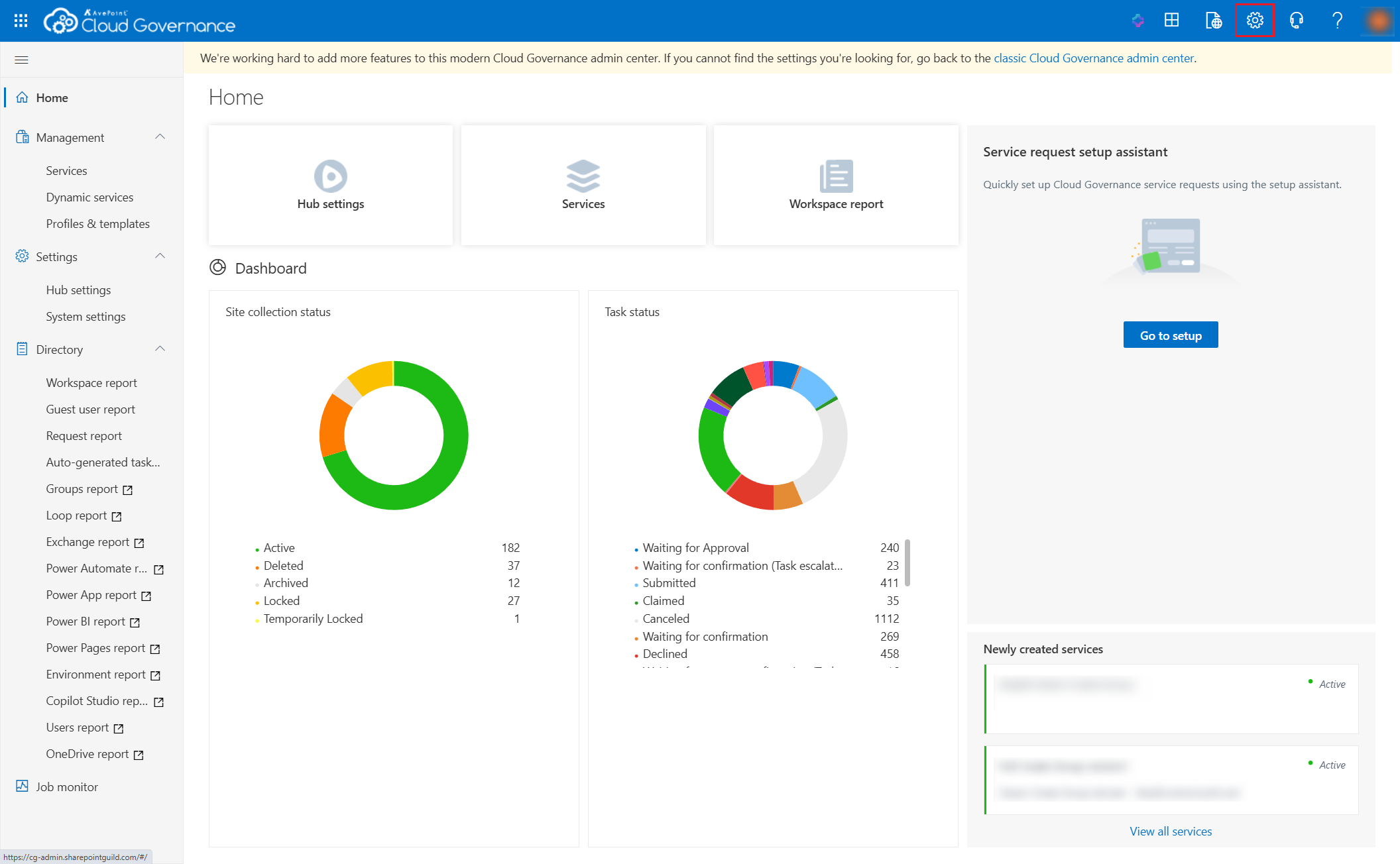
To configure the personal settings for your AvePoint Cloud Governance platform, click the Settings button in the upper-right corner of the system. You can configure the following personal settings in the Settings panel:
-
Time zone – Select a time zone from the drop-down list to set it as the display time zone. The time zone selected here decides the display time of data in the AvePoint Cloud Governance interface. If your time zone observes daylight saving time, you can choose to Adjust for daylight saving time automatically.
-
Language – Select a language from the drop-down list to set it as the display language.
-
Date format – Select a date format from the drop-down list to display dates in the selected format in the AvePoint Cloud Governance interface.
-
Time format – Select a time format from the drop-down list to display time in the selected format in the AvePoint Cloud Governance interface.
Click Save to save your configurations.