
Home > Appendices > Appendix N - How to Check and Grant Consent to the AvePoint Online Services App
Download this articleAppendix N - How to Check and Grant Consent to the AvePoint Online Services App
From the June 2023 release, Cloud Governance supports AvePoint Online Services single sign-on. After that, business users may fail to sign in to the Cloud Governance web portal (end user portal and admin center) when both of the following situations occur:
-
The IT administrator has never granted consent to the AvePoint Online Services app on behalf of all users of the organization.
-
Your organization does not allow end users to consent to the app.
The following steps detail if you, an IT administrator, need to grant consent on behalf of your organization and how to consent to the app.
-
Log in to the Microsoft Entra admin center (or Microsoft Azure portal) using your Microsoft 365 Global Administrator credentials.
-
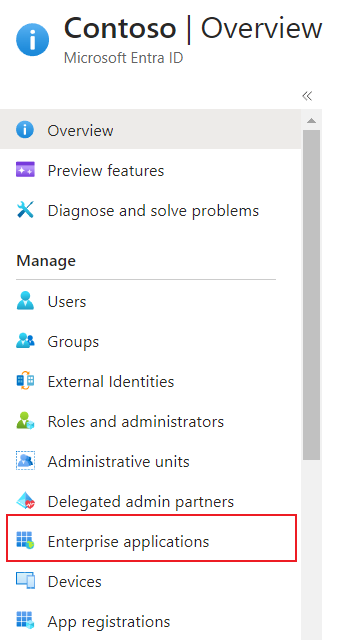
Navigate to Enterprise applications.
-
Search for the AvePoint Online Services app by the app name, and then click the app name to view details.

Refer to the following table to see the app names for different AvePoint Online Services environments.
Sign in With Commercial Production Environment U.S. Government Production Environment 21Vianet FedRamp Cloud Microsoft 365 account AvePoint Online Services AvePoint Online Services for Public Sector AvePoint Online Services AvePoint Online Service Authenticator (Project Hosts) Microsoft 365 U.S. Government account / AvePoint Online Services for Public Sector / AvePoint Online Service Authenticator (Project Hosts) -
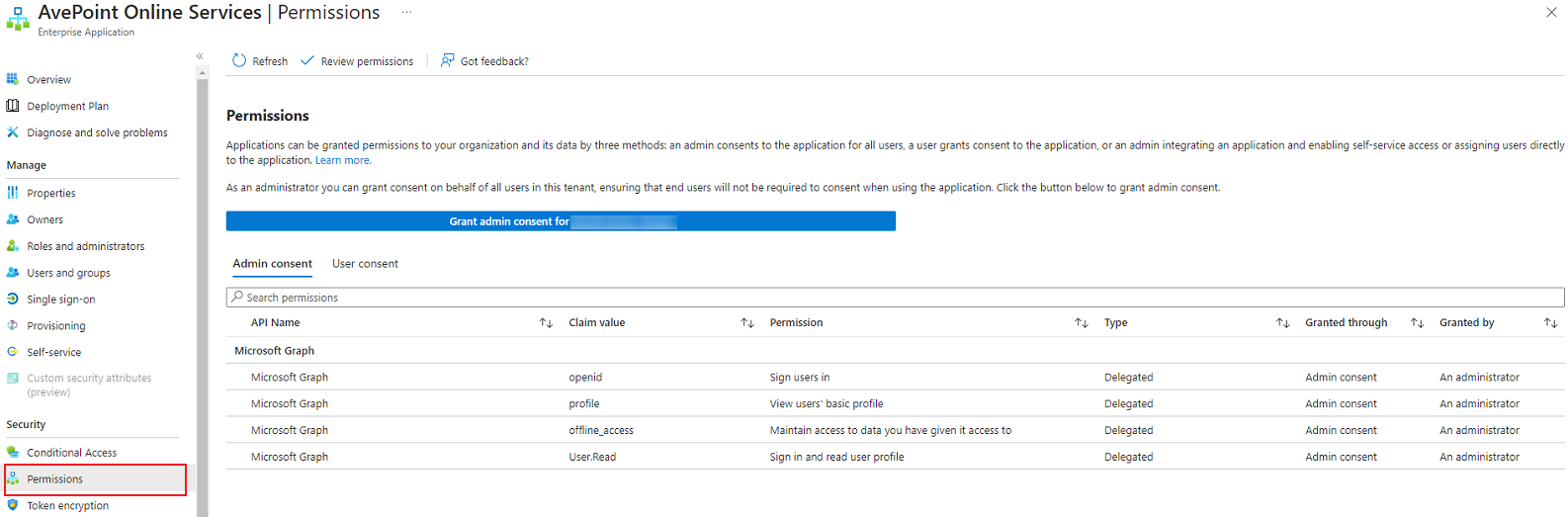
Click Permissions in the left navigation pane.
-
Under the Admin consent tab, check if consent has been granted.
-
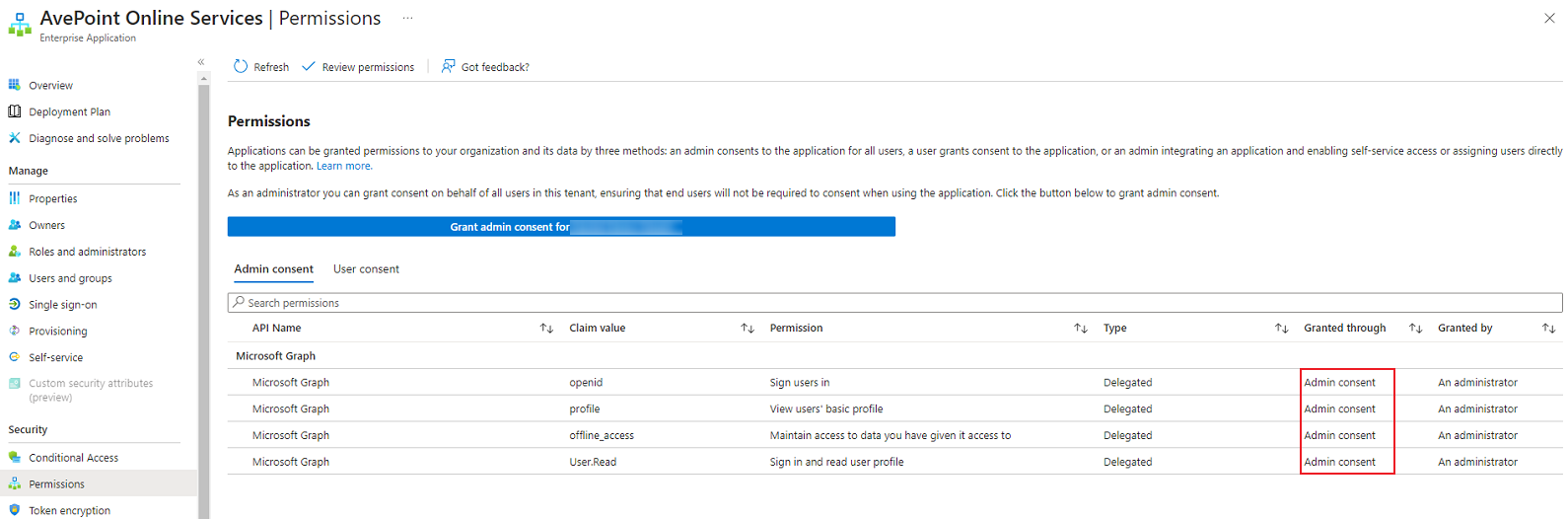
If permission records with the Admin consent granted are displayed, it means that an IT administrator has already consented on behalf of the organization and no further action is needed.
-
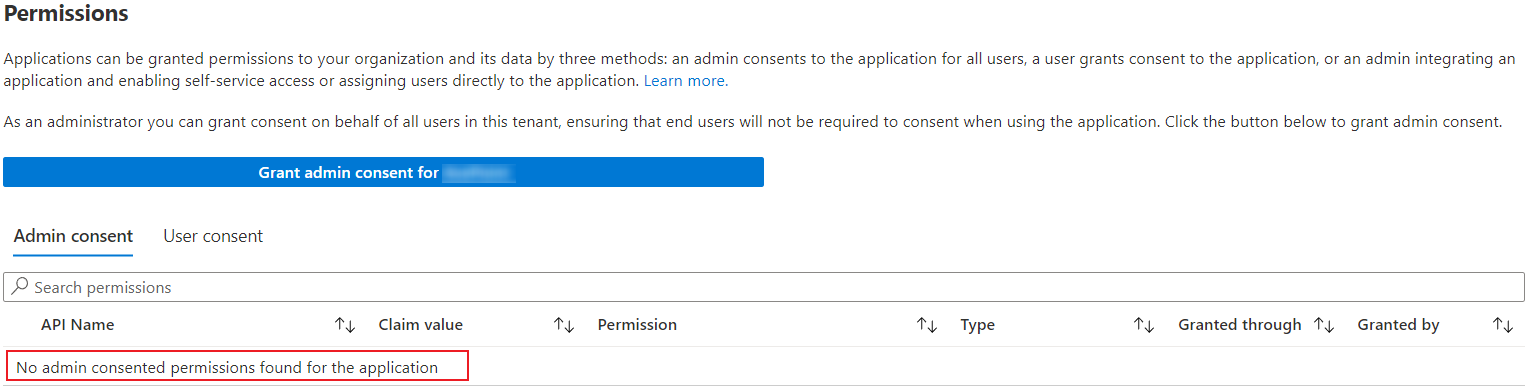
If the message No admin consented permissions found for the application is displayed, it means that an IT administrator has not consented on behalf of your organization. Proceed to the next step to grant consent.
-
-
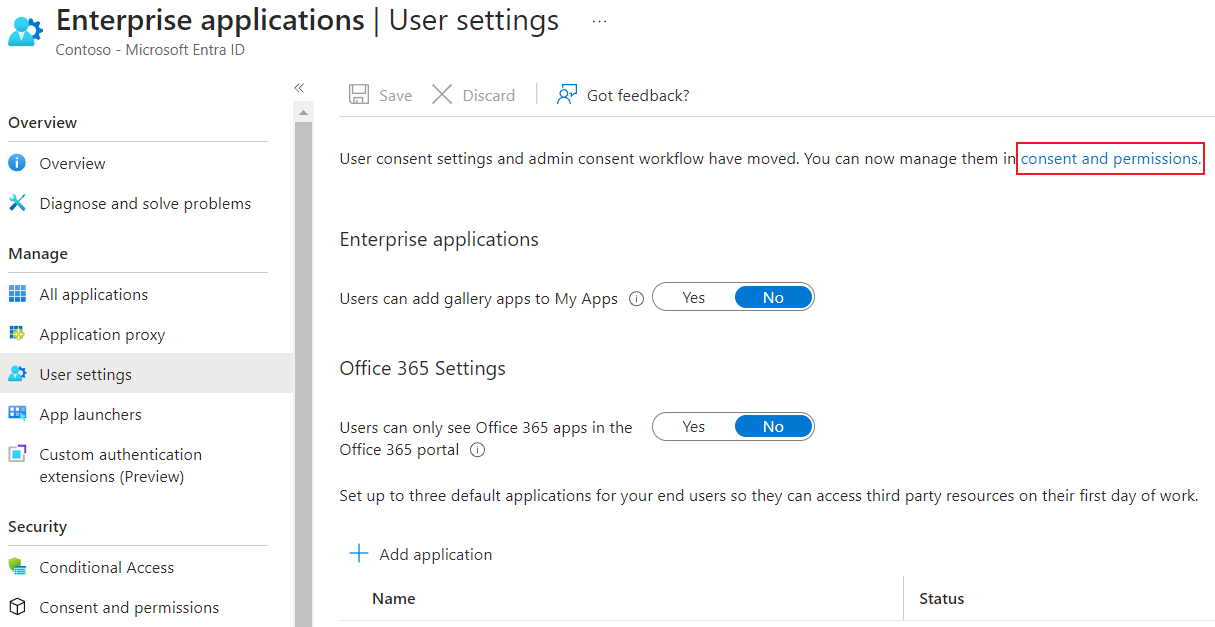
Navigate to Enterprise applications > User settings, and then click the consent and permissions link.
-
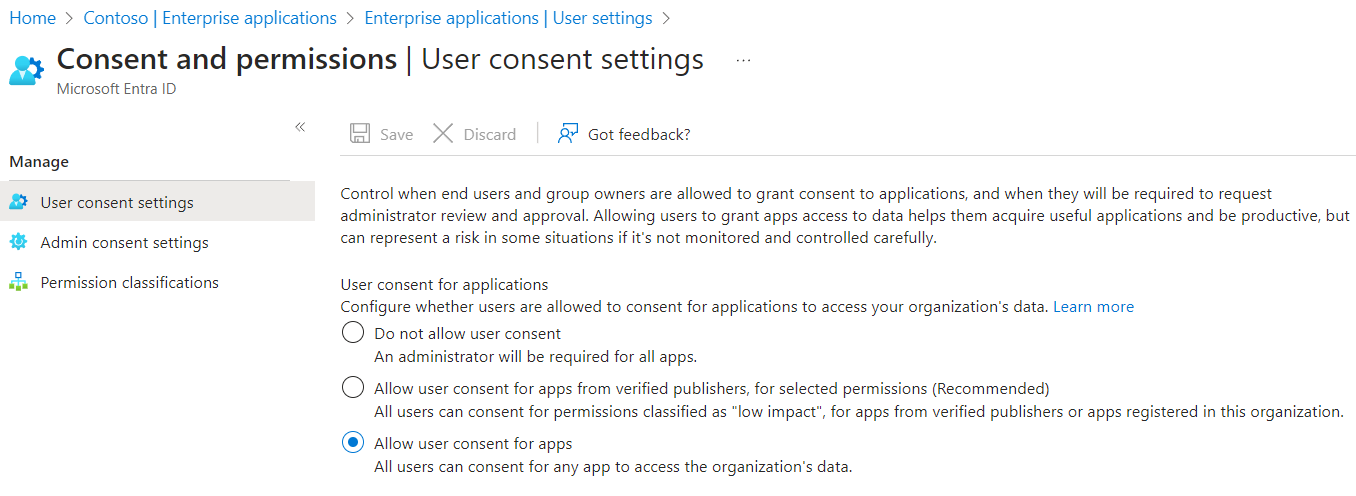
On the User consent settings page:
-
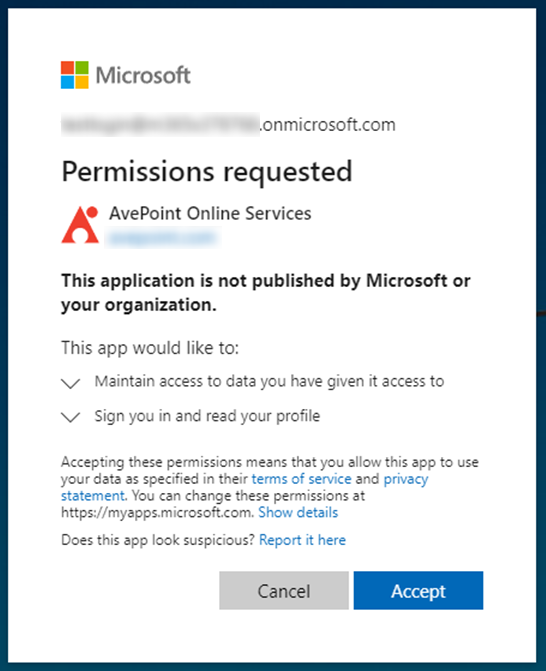
If the Allow user consent for apps option is selected, it means that your end users will be able to consent to the AvePoint Online Services app on their own before accessing the Cloud Governance web portal. You do not have to consent to the app.
-
If the Do not allow user consent or Allow user consent for apps from verified publishers, for selected permissions (Recommended) option is selected, it means that your end users will not be able to consent to the AvePoint Online Services app. As an IT administrator, you can consent to the app by referring to the instructions in What If Your Tenant Does Not Allow Users to Consent to Apps?, and make sure the Consent on behalf of your organization option is selected.
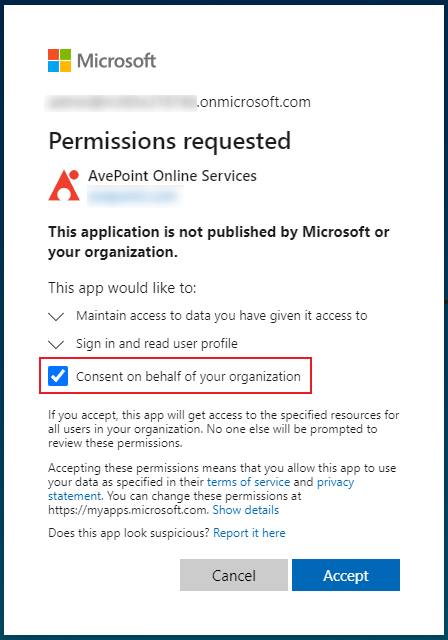
After granting consent, you can also refer to the instructions in step 5 to check if admin consent has been granted.
-