
Home > Show Reports in Microsoft Power BI
Download this articleShow Reports in Microsoft Power BI
You can connect AvePoint Cloud Governance to Microsoft Power BI to visualize your Cloud Governance data into the Power BI reports. To show reports in Power BI, make sure that you have downloaded and installed the Power BI Desktop application on your computer.
Prepare for Authentication
To connect Cloud Governance data to Power BI, authentication with Cloud Governance API is required. Complete the following steps to obtain a client secret to authenticate with Cloud Governance API:
-
Navigate to System settings >API authentication profiles and click Create on the ribbon.
-
Enter a name for the profile.
-
Configure a duration for the client secret. The start time is the profile created time. Enter a number in the text box and select Days, Weeks, Months, or Years as the unit.
-
Click Save to save your configurations.
-
The Note window appears displaying the API authentication details. Click the Copy button to copy the client secret to your clipboard. The client secret will be used when you connect Cloud Governance to Power BI.
NOTEThe client secret will only be displayed one time, and you cannot retrieve it after you close the window.
Open the Template in Power BI
Cloud Governance provides a template that you can download, and the template consists of a Site collection landscape report, Teams landscape report, Group landscape report, and Governance Service Usage report. Complete the following steps to open the template in Power BI to view reports:
-
If you are using the Cloud Governance commercial production environment, download the Cloud Governance template.
If you are using the Cloud Governance U.S. Government production environment, download the Cloud Governance template.
-
Open the Power BI Desktop.
-
Navigate to the location where the template file is saved, and double-click the template file to automatically launch Power BI Desktop and load the template.
-
You will be directed to the Anonymous page in Power BI. To view reports in Power BI using the template, click Basic and complete the following steps to configure the authentication with Cloud Governance:
-
Username – Enter the username that will be used to call the Cloud Governance API. The user must be a Cloud Governance administrator.
-
Password – Enter the client secret that you got after configuring the API authentication profile.
-
Select which level to apply these settings to – Select the URL that ends with /admin/report to retrieve Cloud Governance data that will be shown in Power BI reports.
-
Click Connect in the lower-right corner. A pop-up window appears showing that the Cloud Governance data is still loading.
-
-
After the loading process completes, you will be directed to the Power BI homepage to view the reports.
View Reports in Power BI
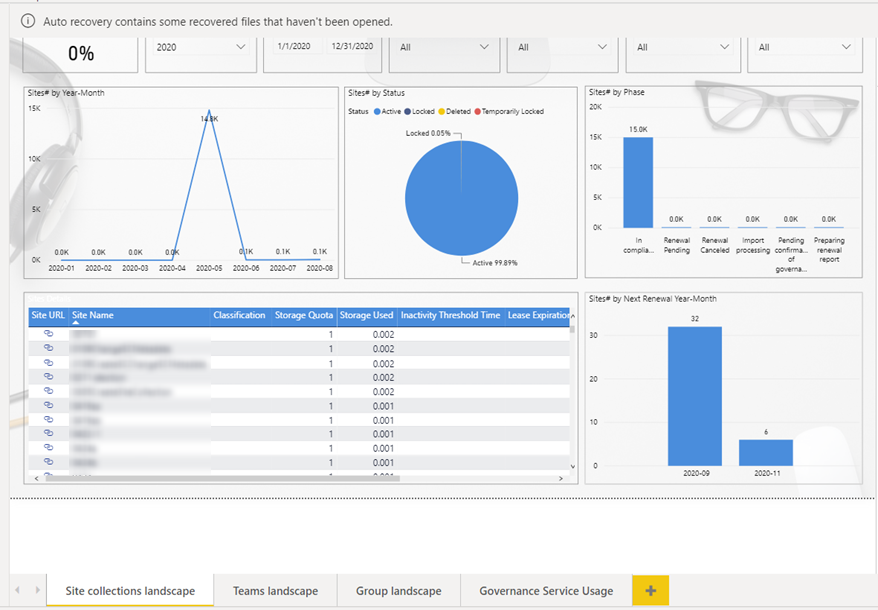
You can see the following four reports:
-
Site collection landscape – This report shows the following site collection information:
-
Number of site collections calculated by site collection created date
-
Number of site collections calculated by site collection phase
-
Number of site collections that have pending renewal tasks in the next six months
-
Site collection status summary
-
A table shows detailed site collection information, site names, contacts, storage quota, etc.
-
-
Teams landscape – This report shows the following team information:
-
Number of teams calculated by team created date
-
Number of teams calculated by team phase
-
Number of teams that have pending renewal tasks in the next six months
-
Team status summary
-
A table shows detailed team information, team names, contacts, group team site storage quota, etc.
-
-
Group landscape – This report shows the following group information:
-
Number of groups calculated by group created date
-
Number of groups calculated by group phase
-
Number of groups that have pending renewal tasks in the next six months
-
Group status summary
-
A table shows detailed group information, group names, contacts, group team site storage quota, etc.
-
-
Governance Service Usage – This report shows the following task information:
-
Number of tasks calculated by task created date and task status
-
Number of tasks calculated by service type
-
A table shows detailed task information, due date, requester, assignee, etc.
-