
Home > Appendices > Appendix G - Supported References in Email Templates
Download this articleAppendix G - Supported References in Email Templates
AvePoint Cloud Governance can send notification emails to users when different events occur, for example, when a user has a new task that needs approval or a user’s request has been approved by the approver.
The notification emails are sent based on the corresponding email templates. AvePoint Cloud Governance provides built-in email templates. You can edit the built-in email templates, as well as create custom email templates. Each email template can contain references. A reference is a parameter that will call up the corresponding information for each request, task, or event.
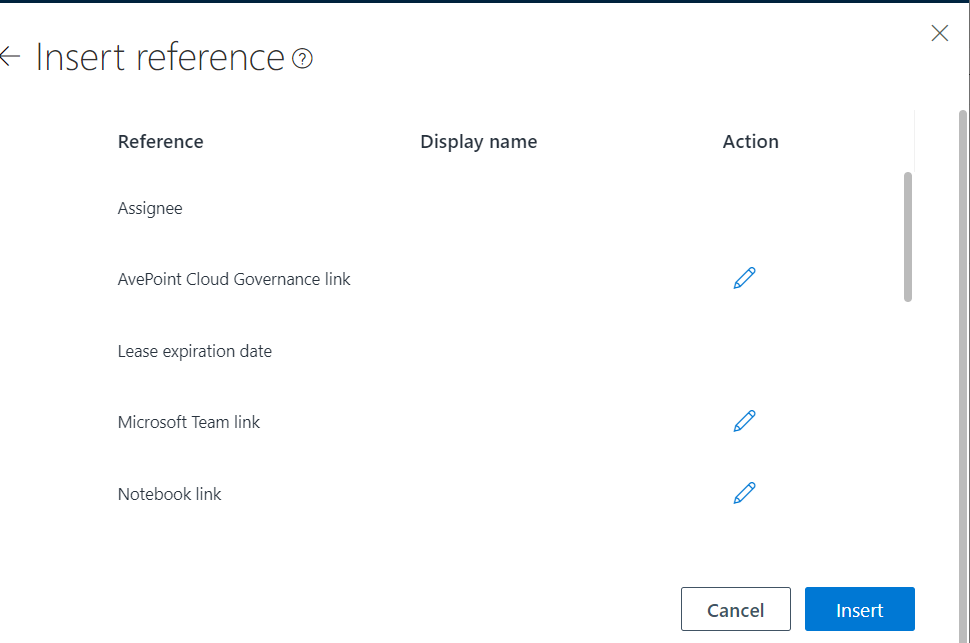
The references that can be added to each email template vary with template types. After you click Insert reference in the panel for configuring the email subject and message body, the panel only shows the references that are supported in the current email template. The table below lists all supported references in modern email templates configured in the Cloud Governance admin center. For all available references to be inserted for each template type, refer to the Available References for Each Template Type section.
| Supported Reference | Reference Description |
|---|---|
| Accept invitation | A button in the guest user welcome email. Guest users can click the button to accept the invitation. |
| Action reason | The reason why a request or task is canceled or rejected. |
| Approve | This will be displayed as a button in the notification e-mail. |
| Approved time | The time when the approver approves the request. |
| Approver | The user who is set as an approver. |
| Assignee | The user who is the task assignee. |
| AvePoint Cloud Governance link | The link to the AvePoint Cloud Governance website. |
| Canceled by | The user who manually canceled the request. |
| Comments | The comments that an approver enters when the approver approves or rejects a request. |
| Error message | The detailed error information for an error task. An error task is generated when a request encounters an error. The detailed error information for a renewal process that encounters an error. |
| File location | The location where an automatic import result file is stored. The file provides the import results of the site collections, Microsoft 365 Groups, or Microsoft Teams that are imported via an automatic import process. |
| File name | The name of an automatic import result file. The file provides the import results of the site collections, Microsoft 365 Groups, or Microsoft Teams that are imported via an automatic import process. |
| Lease expiration date | The date when a workspace lease expires. |
| Microsoft Team link | The link of a Microsoft Team. |
| Next action | The upcoming escalation action when a task is not completed within the specified time. For example, a site collection will be locked, or a team will be archived. |
| Next action executed time | The time when a workspace will be deleted, archived, locked, or restricted access. |
| Notebook link | The link of a Microsoft 365 Group’s notebook in OneNote. |
| Object creator | The creator of an object. If the object is created by AvePoint Cloud Governance, this reference cannot be replaced. Guest users do not have the creators and this reference will not be replaced for guest users. |
| Object identity | The unique identity of an object. For example, the email address of a guest user, or the primary email address of a Microsoft 365 Group. |
| Object list | The list containing objects with the following information: Object name Object type Object identity Object creator |
| Object name | The name of an object. For example, the display name of a guest user. |
| Object status | The status of an object. For example, a site collection is locked. |
| Object type | The type of an object, such as site collection, or guest user. |
| Object URL | The URL of the object, such as site collection and site. |
| Planner link | The link of a Microsoft 365 Group’s plan in Planner. |
| Previous assignee | The user who is the previous task assignee of a task that involves in multiple approval stages. |
| Primary contact | The primary contact of an object. |
| Profile name | The name of a profile. |
| Reason | The reason why a request is canceled. |
| Reject | This will be displayed as a button in the notification e-mail. |
| Rejected time | The time when a request is rejected. |
| Rejecter | The user who rejects a request. |
| Remaining days | The task status or an object status will be changed after a certain time based on the predefined configuration in the profile. This is for indicating the remaining days before the status changes. |
| Request final status | The final status of a request, such as Rejected and Completed. |
| Request ID | The ID of a request. This is automatically generated by AvePoint Cloud Governance. |
| Request summary | The summary entered by a requester. It reflects the request’s purpose or function to help the approver quickly understand the business reason behind the request. |
| Requester | The user who submits a request. |
| Retry | This will be displayed as a button in the notification e-mail about an error task. An error task is generated when a request encounters an error. |
| Secondary contact | The secondary contact of an object. |
| Skip | This will be displayed as a button in the notification e-mail about an error task. An error task is generated when a request encounters an error. |
| Source URL | The URL of a source SharePoint site. |
| Storage limit (GB) | The site storage threshold that has been allocated. |
| Storage percentage | The percentage of site storage that has been used. |
| Storage used (GB) | The site storage that has been used. |
| Task created date | The date when a task is generated. |
| Task created time | The time when a task is generated. |
| Task overdue time | The time that a task is overdue. |
| Task link | Clicking the link will open the task details panel in the AvePoint Cloud Governance Portal. For a renewal task or confirm governance details task, clicking the link opens the task directly for the task assignee to manage the renewal task or confirm the governance details for a newly imported workspace. |
| Task name | The name of a task. |
| Task submitter | The user who submitted the task. |
| Tenant name | The name of a Microsoft 365 tenant. |
| To-do list link | Clicking the link will open the To-do list page in the AvePoint Cloud Governance Portal. |
| Viva Engage community URL | The URL of a Viva Engage community. |
| Metadata | The object or service metadata in tasks. |