
Home > Get Started
Download this articleGet Started
This section walks you through the essential steps to set up Insights so you can start analyzing risk and sensitivity in your environment.
To learn about how AvePoint charges for licenses for AvePoint Insights, refer to Subscription and Licensing Information.
Microsoft 365 / Google / Salesforce
-
Complete the following settings in AvePoint Online Services.
-
To sign up for Insights, you must first sign up for an AvePoint Online Services account. For details on signing up, refer to Sign up for AvePoint Online Services.
-
To view and manage risky data across your tenants within Insights, Tenant Owners or Service Administrators must connect your tenants to AvePoint Online Services. For details, refer to Connect Your Tenants to AvePoint Online Services.
-
AvePoint Online Services Auto discovery uses app profile authentication to scan and register your Microsoft 365/Google objects you want to protect in Insights. Before creating an auto discovery scan profile, you must create app profiles for the objects you want to manage. For the app profile with the least permissions, refer to Permissions for App Authorization. For details about creating a custom Azure/Google app, creating an app profile, and consenting to custom apps, refer to App Management.
-
To scan your Microsoft 365/Google objects you want to protect in Insights, navigate to Auto discovery > Scan profiles and configure scan profiles. For details, refer to Create Scan Profiles to Scan Your Objects.
To scan your Salesforce objects, navigate to Settings > Risk definition > Scan scope definition to create containers with desired object scopes. For details, refer to Scan Scope Definition.
-
To allow users in your organization to view statistics in Insights, they must be added to AvePoint Online Services and assigned the Insights service and permissions in Management > User management. For details on how to add users, refer to Manage Users.
-
-
Complete the following settings in your Microsoft 365 or Google environment before signing in to Insights.
-
Microsoft 365: Turn on Audit Log Search
-
-
When you sign in to Insights for the first time, an onboarding wizard will guide you through the initial configurations for your tenants. For details, refer to Initial Configurations.
-
After the initial configurations are applied, a full scan will start to scan objects for analysis. When the full scan is complete, you’ll receive an email notification, and you can begin your journey in Insights. For details on how data is processed, refer to Data Processing.
-
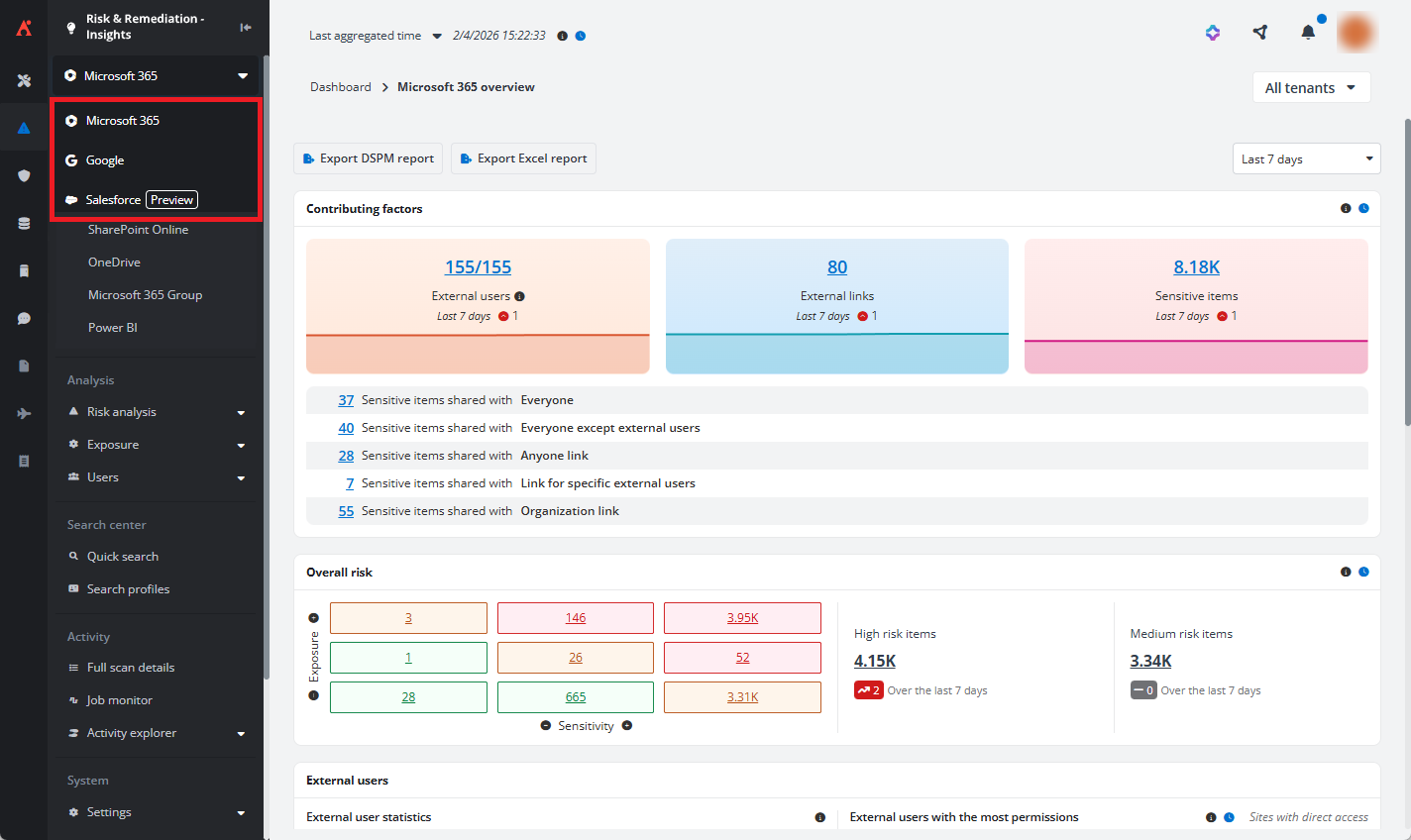
After you sign in to Insights, you’ll be directed to the dashboard page.
If you have subscriptions for Microsoft 365 and Google/Salesforce module, you’ll initially access Insights for Microsoft 365 to gain insights into risky data across your workspaces. You can easily switch to the other platform using the drop-down list in the upper-left corner of any page. To get familiar with Insights pages, refer to Familiarize Yourself with Insights.
-
You can manage users within Insights and grant them different permissions by assigning them to security groups. For details, refer to User Management.
AWS
To connect to AWS and start analyzing risk and sensitivity of your data, refer to the essential steps below.
-
To sign up for Insights, you must first sign up for an AvePoint Online Services account. For details on signing up, refer to Sign up for AvePoint Online Services.
-
To view and manage risky data across your Amazon services within Insights, Tenant Owners or Service Administrators must connect your tenants to AvePoint Online Services. For details, refer to Connect Your Tenants to AvePoint Online Services.
-
You must create app profiles for the objects you want to manage. For the app profile with the least permissions, refer to Permissions for App Authorization. For details about creating an app profile, refer to App Management.
-
When you sign in to Insights for the first time, an onboarding wizard will guide you through the initial configurations for your tenants. For details, refer to Initial Configurations.
-
After the initial configurations are applied, a full scan will start to scan objects for analysis. When the full scan is complete, you’ll receive an email notification, and you can begin your journey in Insights.
-
You’ll initially access Insights for Microsoft 365 to gain insights into risky data across your workspaces. You can easily switch to the Amazon S3 platform using the drop-down list in the upper-left corner of any page.
Amazon S3
To connect to Amazon S3 and start analyzing risk and sensitivity of your data, refer to the essential steps below.
-
To sign up for Insights, you must first sign up for an AvePoint Online Services account. For details on signing up, refer to Sign up for AvePoint Online Services.
-
To view and manage risky data across your Amazon services within Insights, Tenant Owners or Service Administrators must connect your tenants to AvePoint Online Services. For details, refer to Connect Your Tenants to AvePoint Online Services.
-
You must create app profiles for the objects you want to manage. For the app profile with the least permissions, refer to Permissions for App Authorization. For details about creating an app profile, refer to App Management.
-
After you sign in to Insights, you can configure the connections to your tenant. For details, refer to Data Connector.
-
After the connection is set up, assign a risk definition profile to the connection. A full scan will start to scan data in the file system path for analysis. When the full scan is complete, you can begin your journey in Insights.
You’ll initially access Insights for Microsoft 365 to gain insights into risky data across your workspaces. You can easily switch to the Amazon S3 platform using the drop-down list in the upper-left corner of any page.
File System
To connect to file system data sources and start analyzing risk and sensitivity in your file system, refer to the essential steps below.
-
To sign up for Insights, you must first sign up for an AvePoint Online Services account. For details on signing up, refer to Sign up for AvePoint Online Services.
-
Register an AvePoint API app in AvePoint Online Services and create the required certificate files for the agent configuration. For details, refer to Configure App Registrations.
-
Download, install, and configure the AvePoint Insights Scanner agent. For details, refer to Configure the Scanner Agent.
-
After you sign in to Insights, you can configure the connections to the file system path. For details, refer to Data Connector.
-
After the connection is set up, assign a risk definition profile to the connection. A full scan will start to scan data in the file system path for analysis. When the full scan is complete, you can begin your journey in Insights.
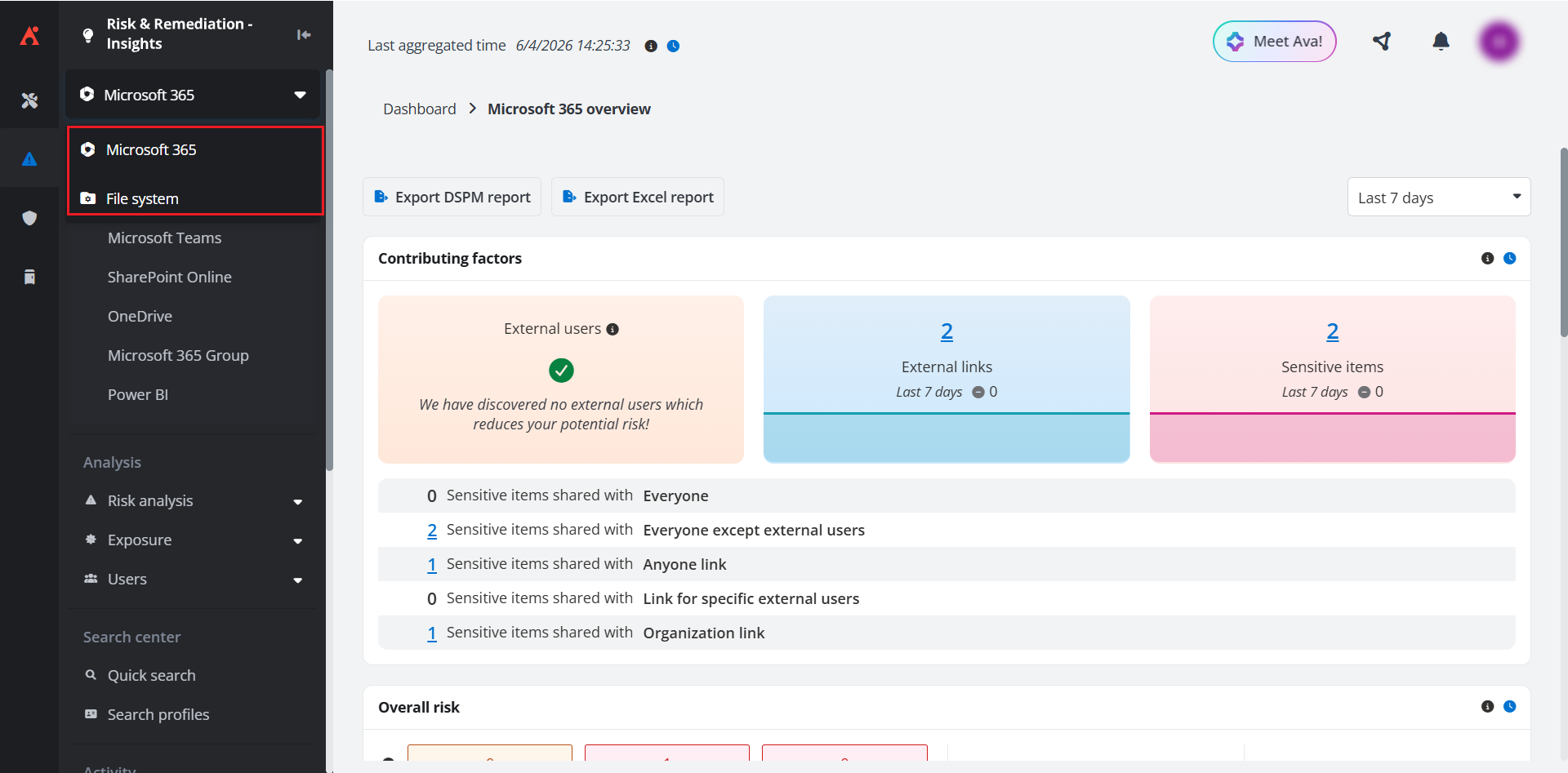
You’ll initially access Insights for Microsoft 365 to gain insights into risky data across your workspaces. You can easily switch to the File system platform using the drop-down list in the upper-left corner of any page.
Box / DocuSign / Jira / Confluence / monday.com
To connect to Box/DocuSign/Jira/Confluence/monday.com and start analyzing risk and sensitivity in your data source, refer to the essential steps below.
-
To sign up for Insights, you must first sign up for an AvePoint Online Services account. For details on signing up, refer to Sign up for AvePoint Online Services.
-
Create application connection profiles for the objects you want to manage. For details about creating an app profile, refer to Manage Connections for SaaS Applications.
-
After you sign in to Insights, you can configure the connections to your tenant. For details, refer to Data Connector.
-
After the connection is set up, assign a risk definition profile to the connection. A full scan will start to scan data in the file system path for analysis. When the full scan is complete, you can begin your journey in Insights.
You’ll initially access Insights for Microsoft 365 to gain insights into risky data across your workspaces. You can easily switch to the Box/DocuSign/Jira/Confluence/monday.com platform using the drop-down list in the upper-left corner of any page.
Subscription and Licensing Information
To find out how AvePoint charges for user seats for the Insights service, refer to Licensing Information.
Preview Features
The following features are currently in preview and available on demand. For access or more information, please contact AvePoint Technical Support or your sales representative.
-
Activity overview, Risky users (Insights detected), Risky applications, Risky user / Risky app definition type in Insights for Microsoft 365 – Public Preview
-
Premium scan mode in Insights for Microsoft 365 – Private Preview
Available to a set of invited customers. You can contact AvePoint Technical Support or your sales representative for more information.
-
Premium scan mode in Insights for Google – Private Preview
-
Google Cloud support – Private Preview
-
Salesforce support – Private Preview
-
AWS support – Private Preview
-
Data connector, connection to Amazon S3, Box, DocuSign, File system, Jira, Confluence, and monday.com, and related reports – Private Preview
Unlock Advanced Insights with Add-on Features
The following premium features are available for your Insights environment. To enable any of these add-ons, please contact AvePoint Technical Support or your sales representative.
-
Extend data retention period for the default Cosmos database. This is available for Insights for Microsoft 365, Insights for Google, and Insights for Salesforce.
-
Store Microsoft Entra activities in Insights to access extended audit logs and sign-in records on the Entra audit logs and Entra sign-ins pages.
-
Expand permission change tracking to more site collections and/or extend the retention period for permission history data.
Sign up for AvePoint Online Services
To sign up for Insights, you must first sign up for an AvePoint Online Services account. AvePoint provides the following methods to sign up for an AvePoint Online Services account:
-
Sign up on the AvePoint Online Services website.
-
On the AvePoint website, visit the AvePoint Online Services page.
-
To sign up for AvePoint Online Services for the U.S. Government Public Sector, which is a version available on Microsoft’s Cloud Platform for U.S. Government, access the following URL: https://usgov.avepointonlineservices.com/.
Insights functionalities in both versions (the U.S. Government Public Sector version and the Commercial version) of AvePoint Online Services are the same.
To access Insights, use one of the entries above to sign in to AvePoint Online Services. For details, refer to Getting Started.
Create Scan Profiles to Scan Your Objects
To use Insights to view compliance and security information of your Microsoft 365 objects, including SharePoint Online site collections, OneDrives, team sites of Microsoft Teams, Microsoft 365 Group team sites, and your Power BI objects, the objects must be scanned to specific containers. Similarly, to access compliance and security information for Google Workspace and Google Cloud, including Google users and shared drives, the objects must also be scanned to designated containers.
To scan and add objects, navigate to AvePoint Online Services > Auto discovery and configure scan profiles. With auto discovery scan profiles configured, the objects will be automatically scanned. After the scan process is finished, the detected objects are available in Insights. For more details, refer to Auto Discovery.
Refer to the steps below to create scan profiles to scan Google objects.
-
Navigate to Auto discovery > Scan profiles to start your setup. Select your tenant and object types that you want to scan.
NOTEOnly Google user and Shared drive are required for Insights for Google. However, if you own other AvePoint Google solutions, your configuration may include additional object types.
-
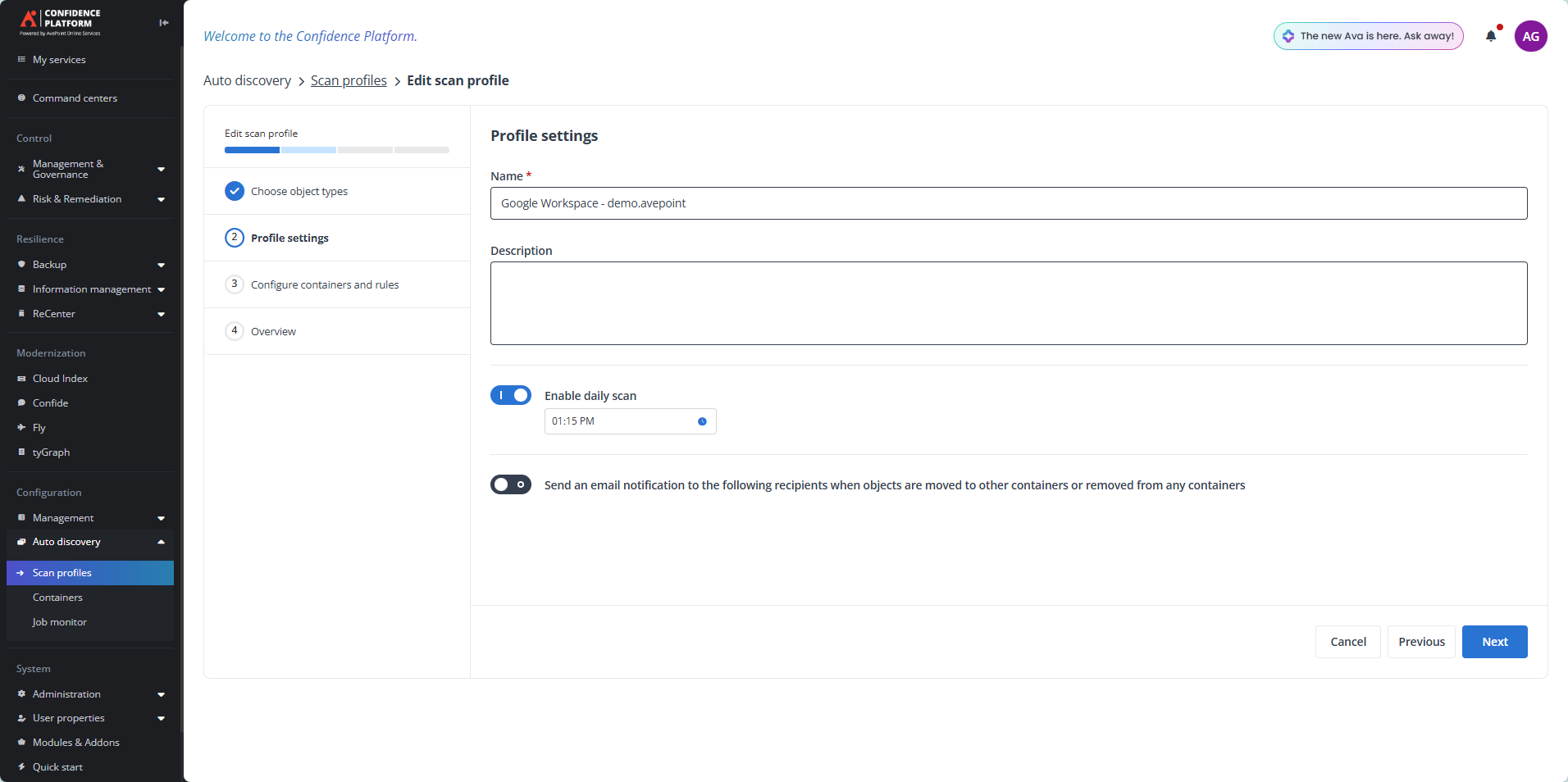
Under Profile settings, ensure that you have enabled daily scan.
-
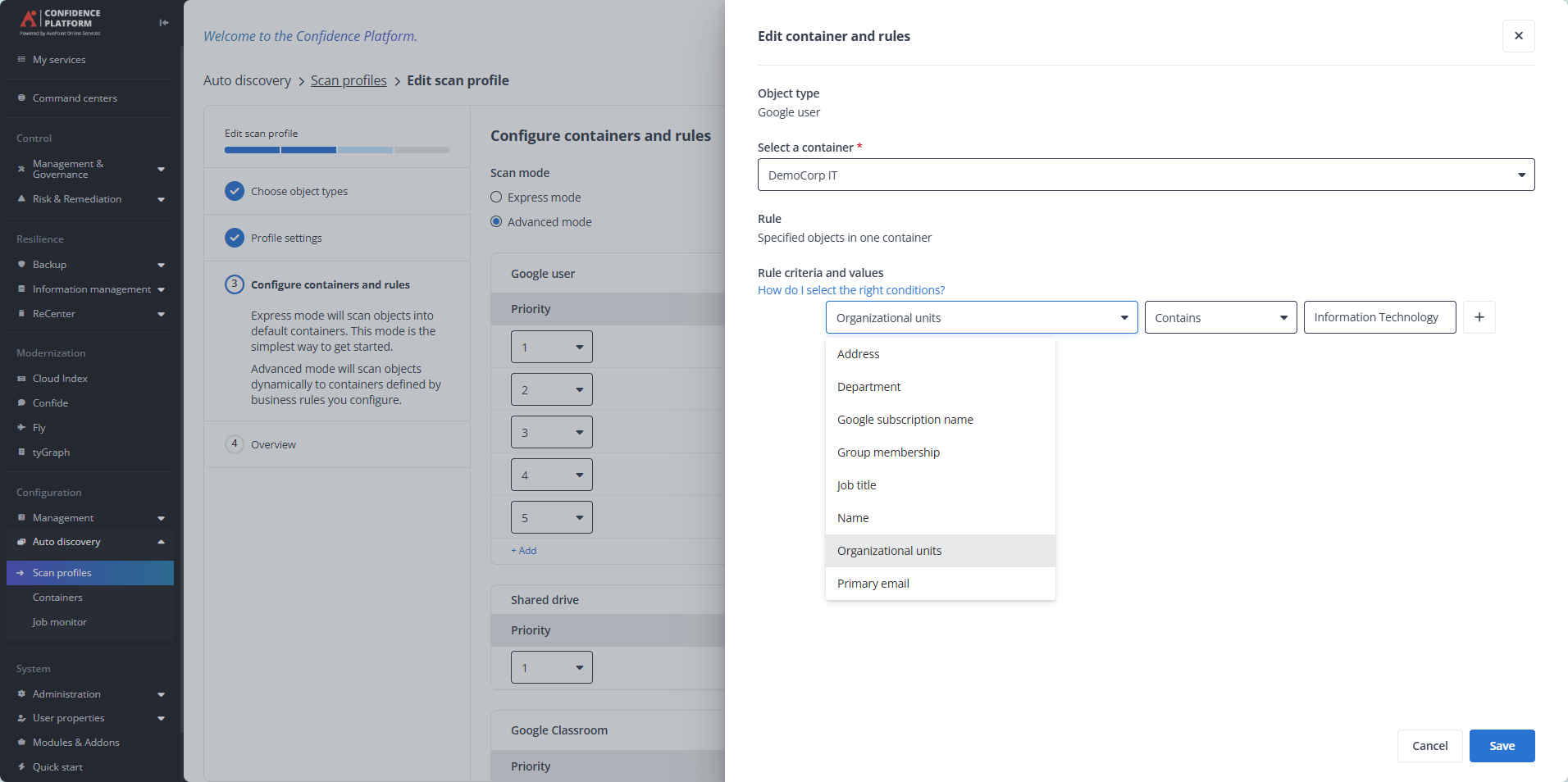
Under Configure containers and rules, choose a setup method:
-
Express mode – This will result in a quicker setup. However, this method will put all your objects in default containers, which will give you less granularity and control over scanned objects during the trial.
-
Advanced mode (Recommended) – You can choose to set up specific containers for your objects. This process can be done using Google Workspace metadata values including Organizational units, Email domain, Department, and more. This method takes more time, but lets you target specific groups in your organization during the trial scan and may produce more thorough reports.
-
-
Review your configurations and click Save and run.
Turn on Audit Log Search
Insights leverages on Microsoft 365 Activities Feed to track incremental changes. Before you access Insights to view risk analysis and other reports, you must enable auditing in Microsoft 365 for your organization. Audit logging is on by default for Microsoft 365 organizations. However, you must turn auditing on for your organization in the Microsoft Purview portal if you have manually turned it off.
It may take several hours after you turn on the audit log search before you can return the audit log search results. For more information, refer to Turn on audit log search.
Configure Google Labels and DLP Rules
If you do not have a sensitivity labeling system for Google Drive, you can set one up now. If you already use a labeling system, proceed to step 2.
-
Go to https://admin.google.com/ and navigate to Security > Access and data control> Label manager to create a new label.

-
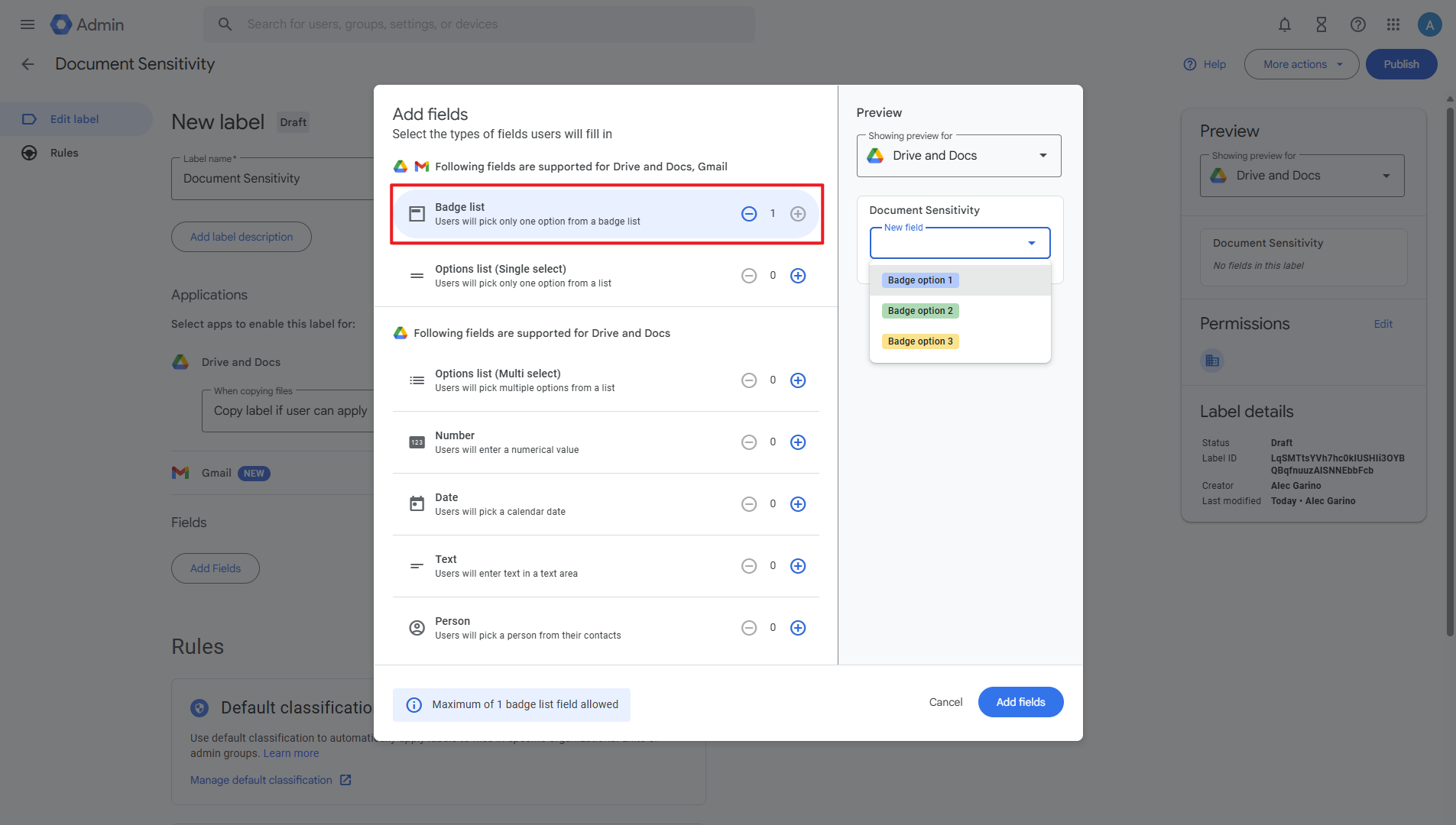
Select Drive and Docs. Give this label a name (for example, Document Sensitivity) and add a Badge list (use as example below) or Options list field.
-
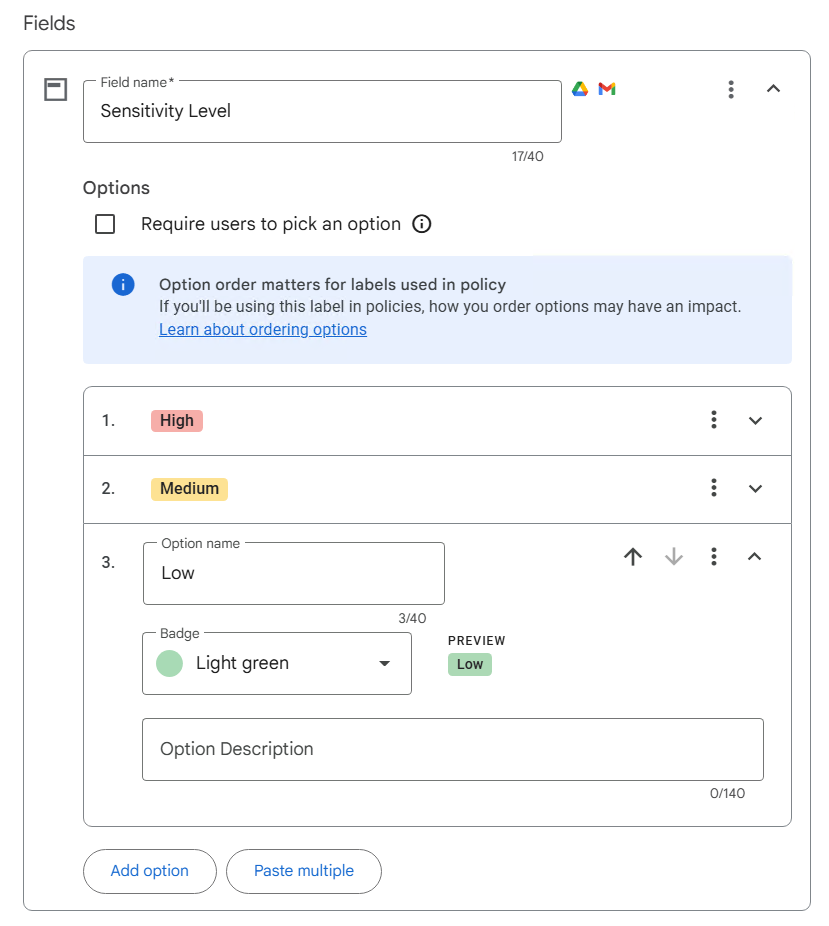
Once added, you can give this field a name (for example, Sensitivity Level). You can add as many options for this field as you wish, but we recommend starting with three: High, Medium, and Low.
-
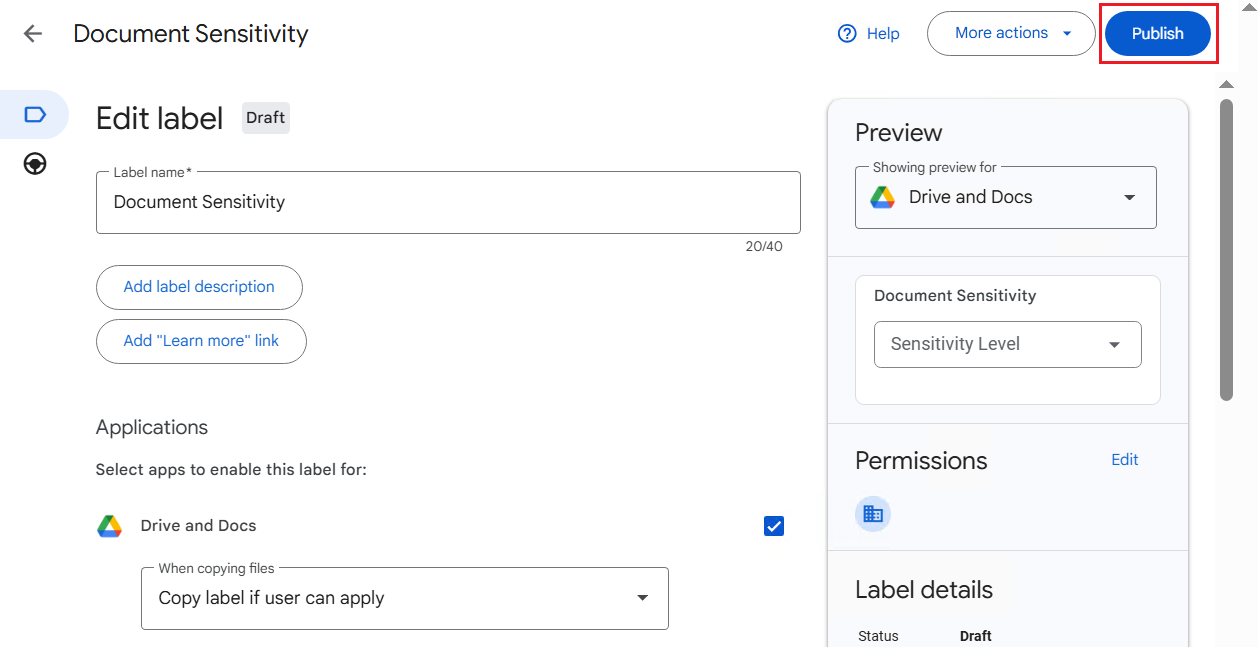
Click Publish.
-
-
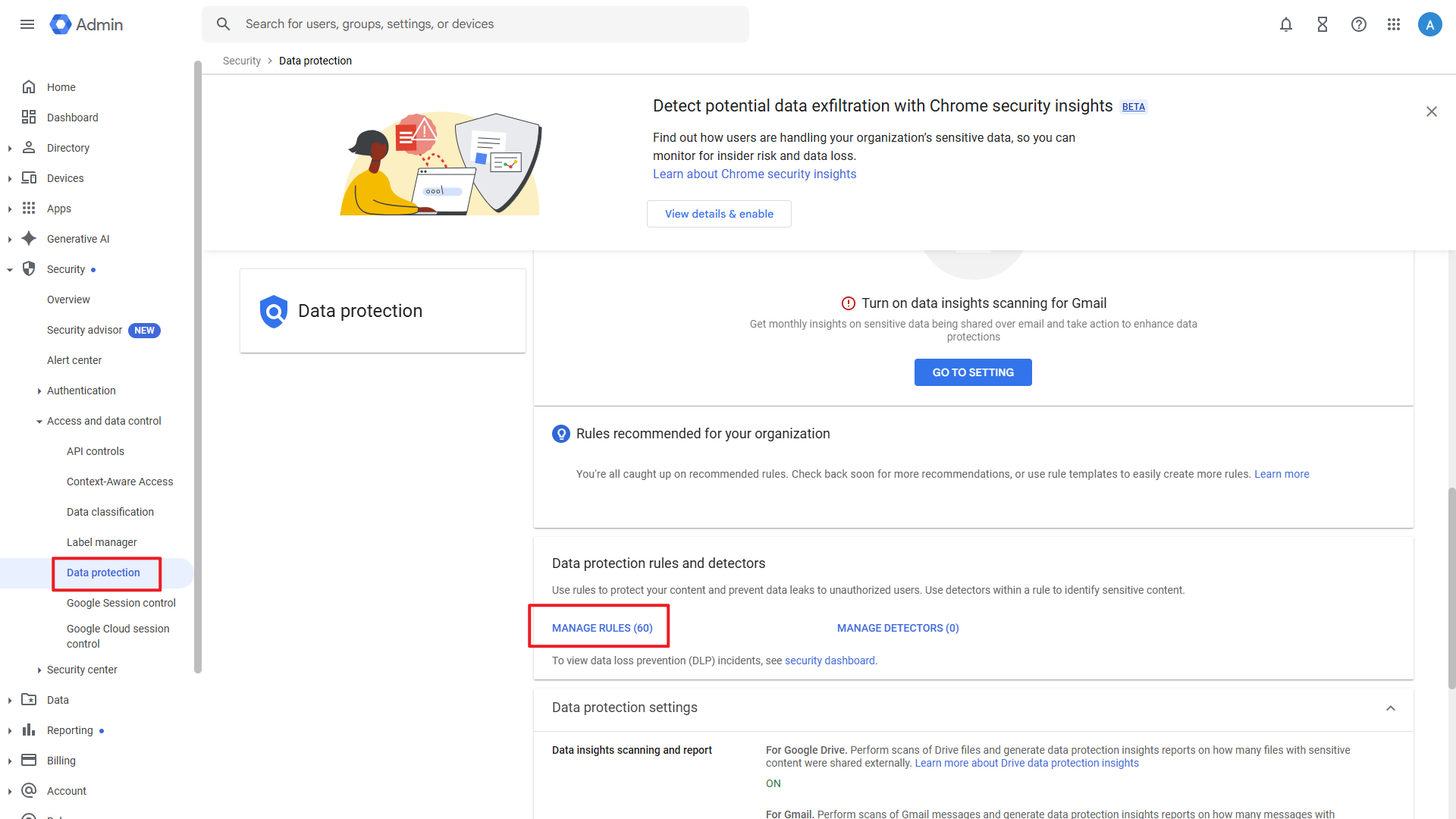
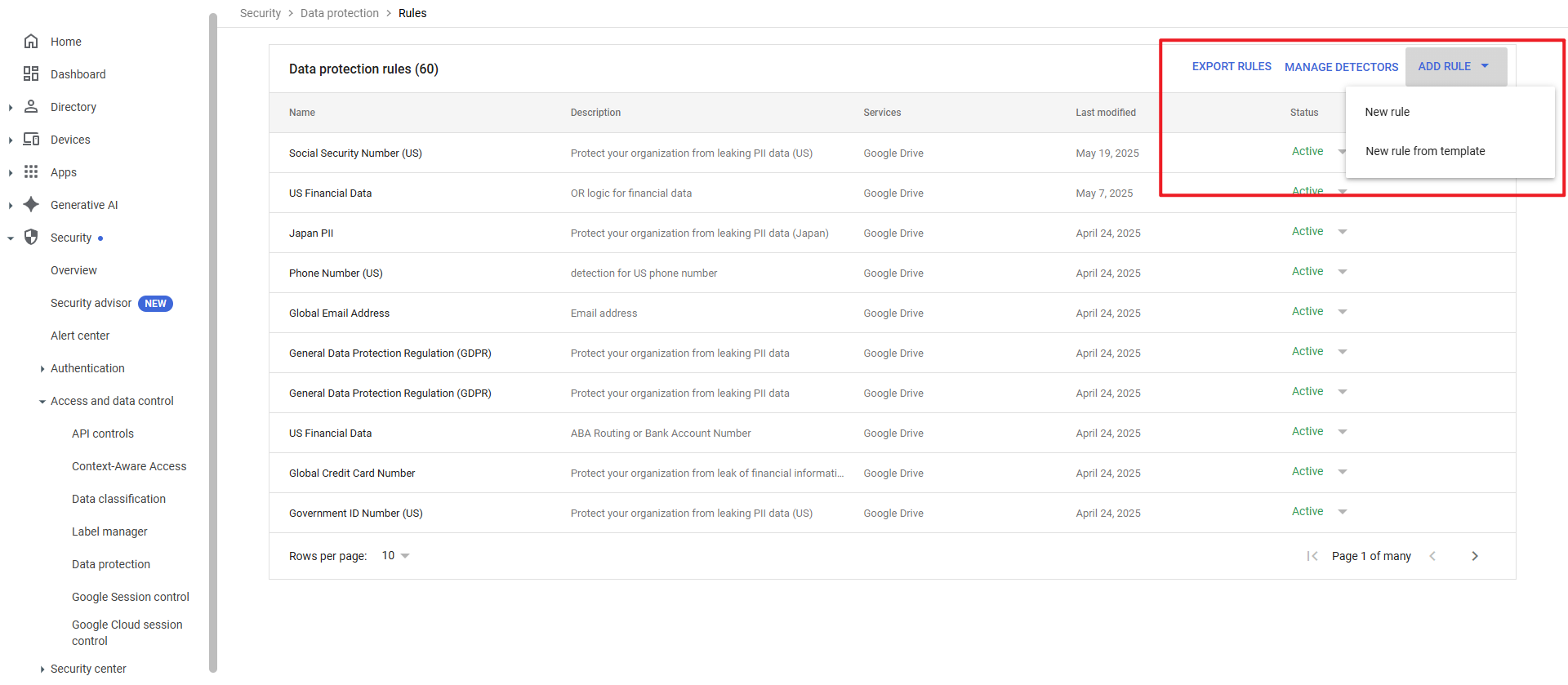
Go to https://admin.google.com/ and navigate to Security > Access and data control > Data protection. From Data protection rules and detectors, click MANAGE RULES.
-
From ADD RULE you can create a new rule either from a or template or from scratch. We recommend starting with Google’s templates until you have an exact understanding of the sensitive data types in your environment.
-
Choose a template that applies to your company, industry, and location.
-
Once chosen, you can give your DLP rule a name and decide which organizational units and groups you would like to apply this rule to. Alternatively, you can also apply it to your entire organization.
-
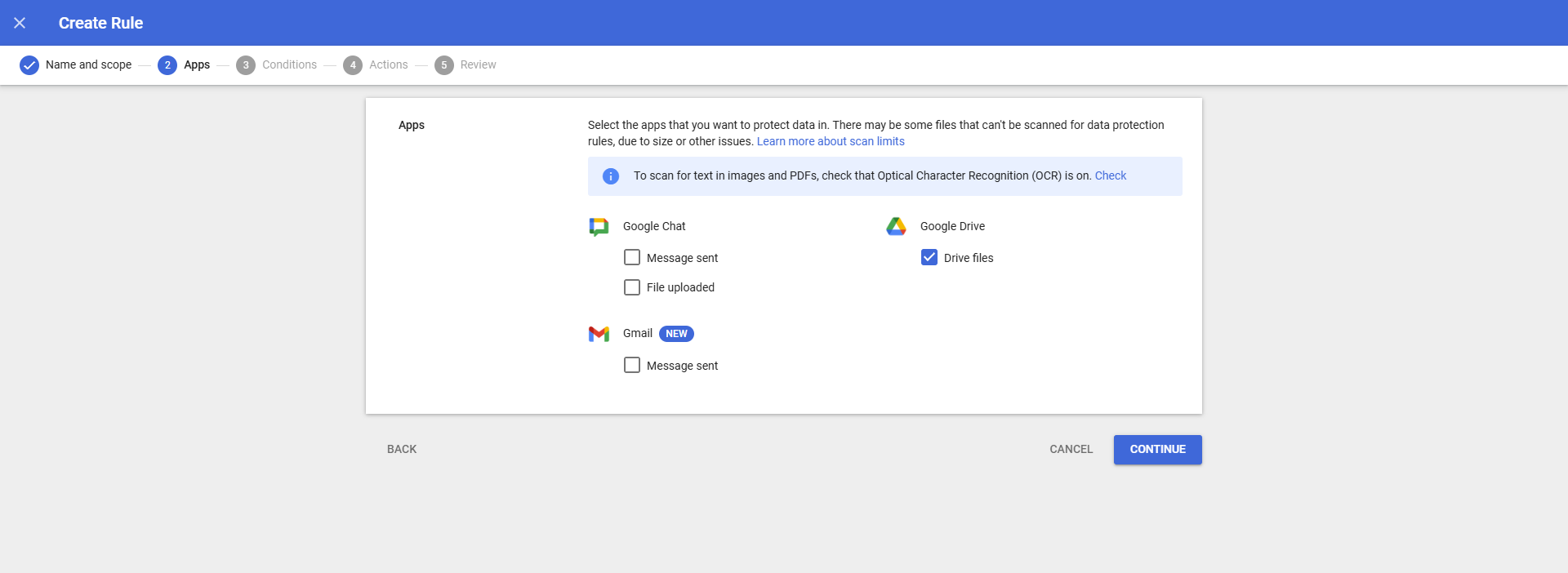
Select the apps that you would like to apply this rule to. For Insights for Google Workspace, only Google Drive is required.
-
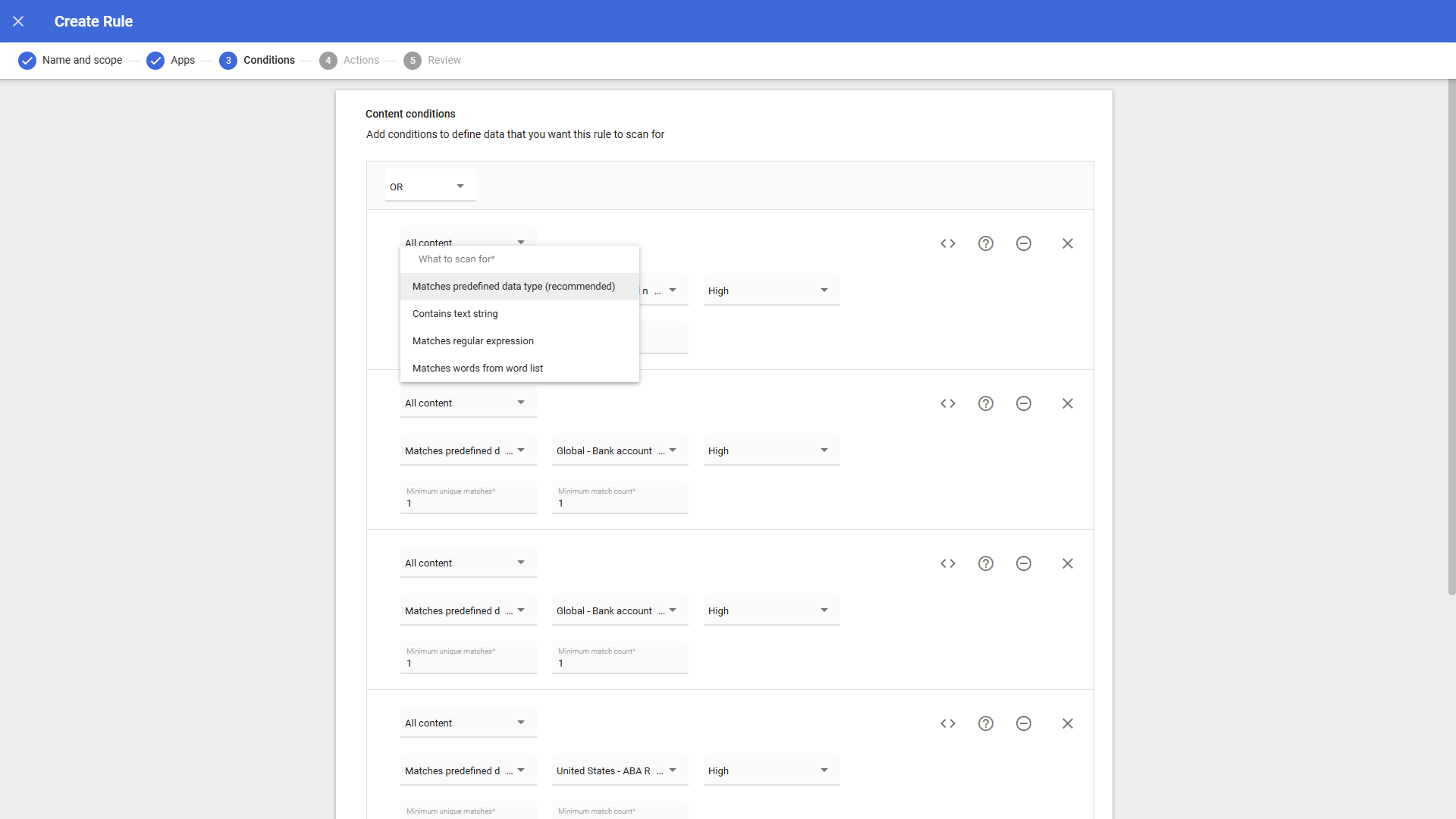
Select the sensitive data types you would like to scan for. This can include predefined data types (recommended) but can also include regular expression or text string. Choose as many strings as needed for this rule; fewer strings will flag fewer items as sensitive.
-
Under Actions, choose Apply Classification labels. Select the label you created in step 1, or use an existing label, and assign a value to it. This choice will influence sensitivity and risk reporting in Insights. If the relative sensitivity of a data type is unclear, consider applying a higher sensitivity label, as these labels can be adjusted later within Insights.
-
Review your choices, ensure that Rule status is set to Active, and click Create.
Data Processing
After completing the initial configurations and clicking Apply, the full scan for the data in the configured scope will start.
The steps below detail the data processing flow, and there are no additional user actions required for these processes to occur.
-
The full scan starts to scan data in the selected scope for each enabled workspace, discover the objects that have unique permissions or contain sensitive items, and build the permission cache in the Azure Cosmos Database.
-
Data analysis commencement:
-
Exposure: Insights calculates data exposure levels based on the permission cache, the information of users and groups, and the configured exposure definitions.
-
Sensitivity: Insights leverages SharePoint search to search for sensitive info types (both synchronized from Microsoft 365 and customized in Insights) and sensitivity labels configured in sensitivity definitions.
-
-
The dashboard pages, risk analysis, and exposure reports that are aggregated in real-time based on the scanned data are available for each enabled workspace.
When the full scan is completed, you can view the complete data analysis results.
Data and permission changes in Microsoft 365 that occur after the scan completes will take Insights some time to show the updated statistics since this is based on the updates of the Microsoft 365 Activity Feed. You can view the updated statistics in Insights after the corresponding activities are audited in Microsoft 365.
-
For the data that is aggregated every 12 hours, which is marked with the blue clock icon, the analysis and aggregation results will be available when the aggregation is completed. You can view the last aggregated time in the upper-left corner of the pages where the aggregated data is displayed. For more information, refer to Appendix A: Data Aggregation Details.
As each customer site and permission structure may vary, the time to process each workspace may vary accordingly. You can view the progress from the Scan Details page.
Familiarize Yourself with Insights
Insights mimics the look and feel of many Windows products, making for an intuitive and familiar working environment. While there are many windows, pop-up displays, and messages within Insights, they share similar features and are navigated in the same ways.
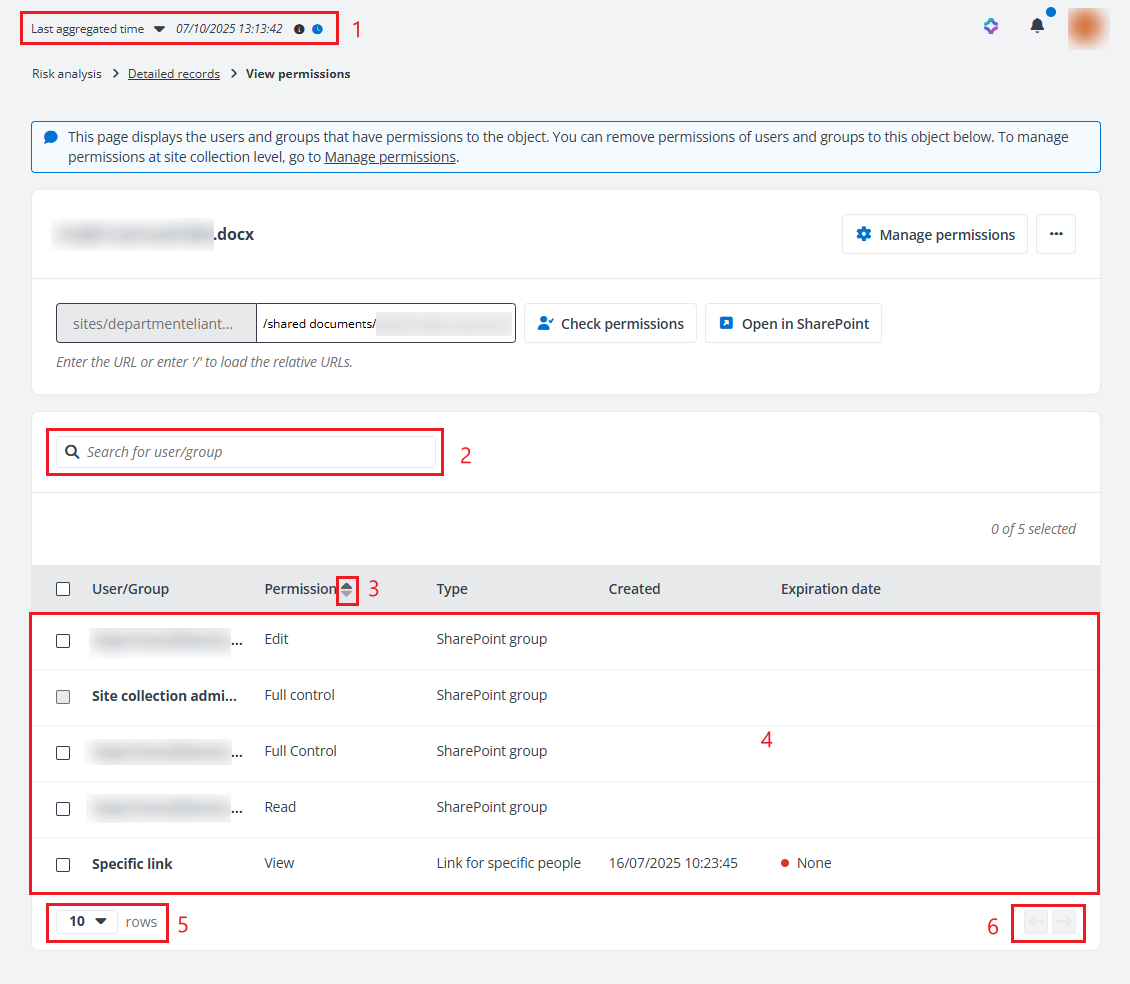
Below is a sample window in Insights for Microsoft 365. It features a familiar, dynamic ribbon and a searchable content list view.
-
View three types of times – Select Last aggregated time, Full scan completed time, or Initial setup completed time from the drop-down list and view the corresponding time to the right.
-
Search – Allows users to find desired items by values of specific properties. Different pages will have different properties for searching. Enter the partial or full text of the property in the search box, and then click the magnifying glass button or press Enter on the keyboard. All matching items are displayed.
-
Sort columns – Allows users to sort the displayed content by column. Click the sort button to sort the content by the column name in descending order. Click the sort up button to sort the content in ascending order. You can then click the sort down button to sort the content in descending order again.
-
Management pane – Displays the actionable content of Insights.
-
Show rows – Allows users to define how many items will be displayed on each page.
-
Page navigation – Allows users to navigate to the previous or next page where information displayed in the table spans over more than one page.
The left navigation can be hidden by clicking the Collapse button in the upper-right corner of the navigation.