View Reports
To view reports provided in Cloud Backup for Google Workspace, refer to the following sections.
Storage Consumption
For the organization who is using the BYOS (Bring your own storage) subscription, Cloud Backup for Google Workspace supports the Storage consumption report. The report provides an overview of storage consumption by different service types, the history and trends of storage usage, and utilization information of containers. If you want to add this report, you can contact AvePoint support for help.
Click Storage consumption on the left navigation. On the Storage consumption page, you can view reports under Dashboard, Usage, and Utilization tabs. When you view reports under each tab, you can click Download report to export the report.
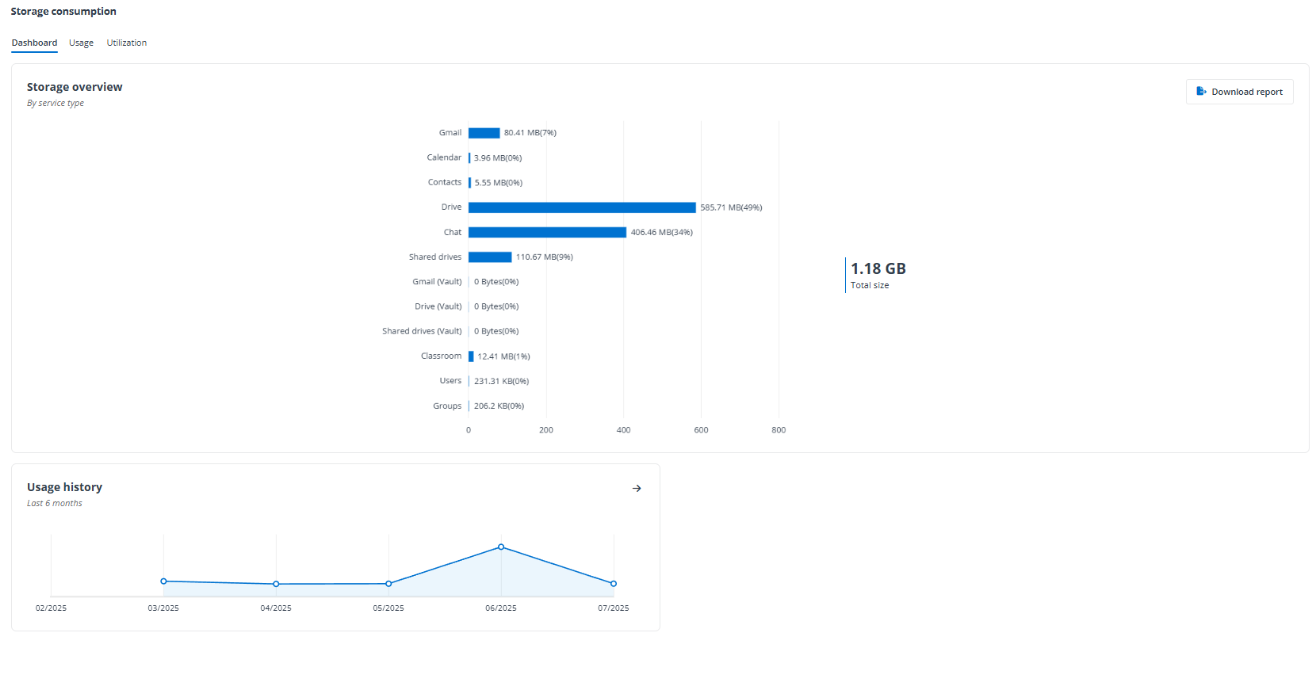
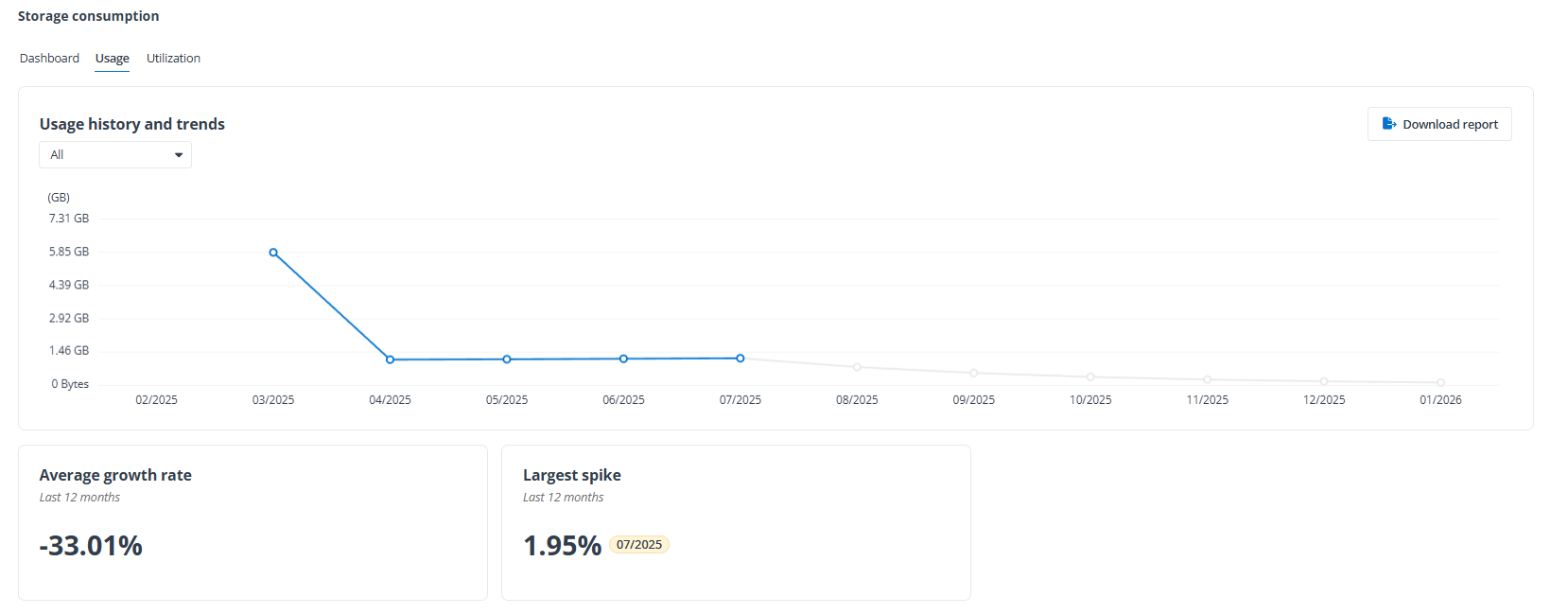
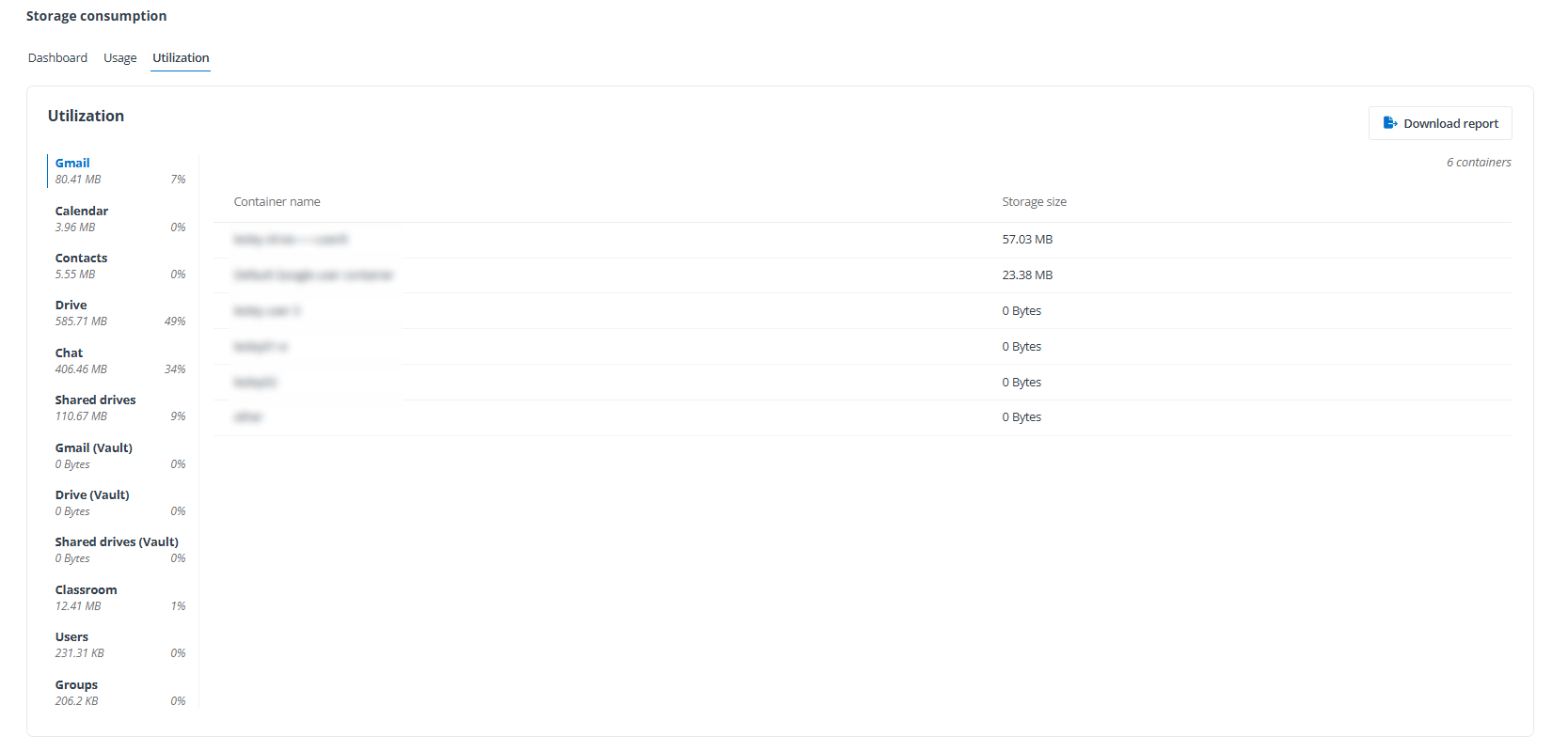
Note the following:
- Only users in the Administrator group can view the reports.

- The system will refresh the reports every seven days.

- For the organization with the Multi-Geo function enabled, the reports can only display data of the current data region.
Unusual Activities Analysis
This function is only available for organizations that have the Google Workspace module in their Cloud Backup for Google Workspace subscription.
The Unusual activities analysis report shows the unusual activities detected in your backup data of drives and shared drives. This report requires the drives / shared drives to have at least 12 days of incremental backups with changes. The unusual activities analysis report can detect up to 1000 drives / shared drives.

Based on the unusual activities detected in the backup data, Cloud Backup for Google Workspace will help you analyze whether there are suspicious drives / shared drives under potential ransomware attack. You can also select suspicious drives / shared drives and recover them to a safe state.
You can configure notification for unusual activities detected in the report. For details, refer to Configure Job Status Notification Settings.
In the Unusual activities analysis report, both the Drive and Shared drives tabs contain the Dashboard and Details sections. Follow the instructions below to use the report:
- **Dashboard** – On the **Dashboard**, there is an overview of the unusual activities tracked over the last 30 days. In the **Unusual** **activities** **trends** section, you can customize the **Time** **range** **(UTC)** filter to view the trends in different periods, and you can hover the mouse over the line chart to view details of files that are **Under potential ransomware attack** / **With unusual activities**.

- **Details** – To open the **Details** page, you can choose one of the following methods:
- Click the **Details** tab.
- Click the button in the **Unusual** **activities** **trends** section under **Dashboard**.
- Click Suspicious drives / Suspicious shared drives under Dashboard.
- Click a point **With** **unusual activities** on the line chart.

On the **Details** page, you can take the following actions:
- Customize the **Time** **range** **(UTC)** filter to view details in different periods.
- To view details of a suspicious drive / shared drive, click the link in the **Drive** / **Shared** **drive** column.
On the **View** **details** page, you can customize the **Time** **range** **(UTC)** filter and hover the mouse over the line chart to view details of unusual activities detected in the drive / shared drive. You can click a point on the chart to view details of that day, and you can also do the following:
- Click **Download** **list** to download the report on that day for further investigation.
- Click **Go to** **restore** to restore your files to a healthy state.

- Click **Download** **report** to export the unusual activities report as an Excel file.
- Select items in the **Drive** / **Shared** **drive** column, and click **Restore** to restore files to a healthy state.
