
Home > User Guide > Recover Google Classroom Data > Recover Selected Items in a Class via Search Mode
Export to PDFRecover Selected Items in a Class via Search Mode
If you want to recover specific items in Announcements, Classwork, People, Grades, or Drive, follow the steps below:
-
Click Restore on the left navigation.
*Note: On the Restore page, click the Google Classroom tab if your organization also has other modules.
-
Select the Search mode tab.
-
To search for a class, enter keywords of the class name in the Search by class name field and select a class from the drop-down list.
-
Click Search. The Select and restore the Google Classroom data page appears. The Class name field displays the name of the selected class.
-
On the right of the Class name field, select the Selected items option.
-
Based on the object type you want to recover, select the Announcements, Classwork, People, Grades, or Drive tab. Then, refer to the following sections to proceed.
Announcements
Under the Announcements tab, follow the steps below to search and recover specific items:
-
To search for the specific items, refer to the following instructions to configure search conditions:
-
Backup time range – Click this field and set a time range to search for the backup data that you want to recover.
-
Announcement – In this field, you can enter keywords of announcement content text.
-
Created by – In this field, you can enter keywords of users’ email addresses.
-
Created date – You can click this field and set a time range.
-
-
Click Search.
-
In the search results table, find the item you want to recover. In order to select the status you want to recover for this item, select a backup job time in the drop-down list under the Recovery point column.
-
You can take the following actions to recover data:
-
To restore items, select the checkboxes next to the items, and click Restore above the table.
-
To export backup data of items, select the checkboxes next to the items, and click Export above the table.
-
-
To configure settings for restore or export, follow the instructions below.
-
After you click Restore, the Restore pane appears on the right. Refer to the following instructions to configure settings:
-
The restore method is Restore the data to its original location, and the related drive files will be restored together.
-
Refer to the information below to select a content-level conflict resolution:
-
Skip – Existing data in the destination will remain unchanged.
-
Append – All announcements included will be recovered as new announcements. This option has the best performance but may result in duplicate announcements if they already exist.
-
-
If you want to restore backup data stored on the Azure archive storage tier, select the Automatically rehydrate if backup data is in Azure archive storage tier checkbox.
*Note: This setting is only for the Microsoft Azure Blob custom storage location in a BYOS (Bring your own storage) subscription. For AvePoint default storage, the restore job will automatically rehydrate data.
-
If necessary, enter your comments in the Description field for this restore job.
-
Click Next to have an overview of the restore settings.
-
Click Restore to start the restore job. If you want to go back to edit restore settings, click Back.
-
-
After you click Export, the Export pop-up window appears, and the data will be exported as the ZIP format. Click Export to start the export job. After the export job is finished, to get the exported data, see Download Data of Export Jobs.
-
-
After the restore or export job is finished, you can navigate to Job monitor to view job details and download job reports. For details, see Monitor Jobs and Download Job Reports.
Classwork
Under the Classwork tab, follow the steps below to search and recover specific items:
-
To search for the specific items, refer to the following instructions to configure search conditions:
-
Backup time range – Click this field and set a time range to search for the backup data that you want to recover.
-
Type – Select All, Assignment, Short answer, Multiple choice, or Material from the drop-down list.
-
Title – In this field, you can enter keywords of classwork titles.
-
Created by – In this field, you can enter keywords of users’ email addresses.
-
Created date – You can click this field and set a time range.
-
-
Click Search.
-
In the search results table, find the item you want to recover. To select the status you want to recover for this item, select a backup job time in the drop-down list under the Recovery point column.
-
You can take the following actions to recover data:
-
To restore items, select the checkboxes next to the items, and click Restore above the table.
-
To export backup data of items, select the checkboxes next to the items, and click Export above the table.
-
-
To configure settings for restore or export, follow the instructions below.
-
After you click Restore, the Restore pane appears on the right. Refer to the following instructions to configure settings:
-
The restore method is Restore the data to its original location, and the related drive files will be restored together.
-
Refer to the information below to select a content-level conflict resolution:
-
Skip – Existing data in the destination will remain unchanged.
-
Append – All classwork included will be recovered as new classwork. This option has the best performance but may result in duplicate classwork if it already exists.
-
-
If you want to restore backup data stored on the Azure archive storage tier, select the Automatically rehydrate if backup data is in Azure archive storage tier checkbox.
*Note: This setting is only for the Microsoft Azure Blob custom storage location in a BYOS (Bring your own storage) subscription. For AvePoint default storage, the restore job will automatically rehydrate data.
-
If necessary, enter your comments in the Description field for this restore job.
-
Click Next to have an overview of the restore settings.
-
Click Restore to start the restore job. If you want to go back to edit restore settings, click Back.
-
-
After you click Export, the Export pop-up window appears, and the data will be exported as the ZIP format. Click Export to start the export job. After the export job is finished, to get the exported data, see Download Data of Export Jobs.
-
-
After the restore or export job is finished, you can navigate to Job monitor to view job details and download job reports. For details, see Monitor Jobs and Download Job Reports.
People
Under the People tab, follow the steps below to search and recover specific items:
-
To search for the specific items, refer to the following instructions to configure search conditions:
-
Backup time range – Click this field and set a time range to search for the backup data that you want to recover.
-
Role – Select All, Student, or Teacher from the drop-down list.
-
User name – In this field, you can enter keywords of users’ names.
-
User email address – In this field, you can enter keywords of users’ email addresses.
-
-
Click Search.
-
In the search results table, find the item you want to recover. In order to select the status you want to recover for this item, select a backup job time in the drop-down list under the Recovery point column.
-
You can take the following actions to recover data:
-
To restore items, select the checkboxes next to the items, and click Restore above the table.
-
To export backup data of items, select the checkboxes next to the items, and click Export above the table.
-
-
To configure settings for restore or export, follow the instructions below.
-
After you click Restore, the Restore pane appears on the right. Refer to the following instructions to configure settings:
-
The restore method is Restore the data to its original location.
-
The content-level conflict resolution is Skip. After the restore, existing data in the destination will remain unchanged.
-
If you want to restore backup data stored on the Azure archive storage tier, select the Automatically rehydrate if backup data is in Azure archive storage tier checkbox.
*Note: This setting is only for the Microsoft Azure Blob custom storage location in a BYOS (Bring your own storage) subscription. For AvePoint default storage, the restore job will automatically rehydrate data.
-
If necessary, enter your comments in the Description field for this restore job.
-
Click Next to have an overview of the restore settings.
-
Click Restore to start the restore job. If you want to go back to edit restore settings, click Back.
-
-
After you click Export, the Export pop-up window appears, and the data will be exported as the ZIP format. Click Export to start the export job. After the export job is finished, to get the exported data, see Download Data of Export Jobs.
-
-
After the restore or export job is finished, you can navigate to Job monitor to view job details and download job reports. For details, see Monitor Jobs and Download Job Reports.
Grades
Under the Grades tab, follow the steps below to search and recover specific items:
-
To search for the specific items, refer to the following instructions to configure search conditions:
-
Backup time range – Click this field and set a time range to search for the backup data that you want to recover.
-
Student email address – In this field, you can enter keywords of students’ email addresses.
-
Classwork title – In this field, you can enter keywords of classwork titles.
-
-
Click Search.
-
In the search results table, find the item you want to export. In order to select the status you want to recover for this item, select a backup job time in the drop-down list under the Recovery point column.
-
To export backup data, select the checkboxes next to the items, and click Export above the table.
-
After you click Export, the Export pop-up window appears, and the data will be exported as the ZIP format. Click Export to start the export job. After the export job is finished, to get the exported data, see Download Data of Export Jobs.
-
After the export job is finished, you can navigate to Job monitor to view job details and download job reports. For details, see Monitor Jobs and Download Job Reports.
Drive
Under the Drive tab, follow the steps below to search and recover specific items:
-
To search for the specific items, refer to the following instructions to configure search conditions:
-
Level – Based on the object type that you want to recover, select Folder or File from the drop-down list.
-
Backup time range – Click this field and set a time range to search for the backup data that you want to recover.
-
Owner email address – You must specify an owner of folders or files according to your selected level. Enter keywords of owners’ email addresses, and then select an owner from the drop-down list. The email addresses in the drop-down list are retrieved from the backup data of Classroom Drive.
-
Folder name – In this field, you can enter keywords of folders’ names.
-
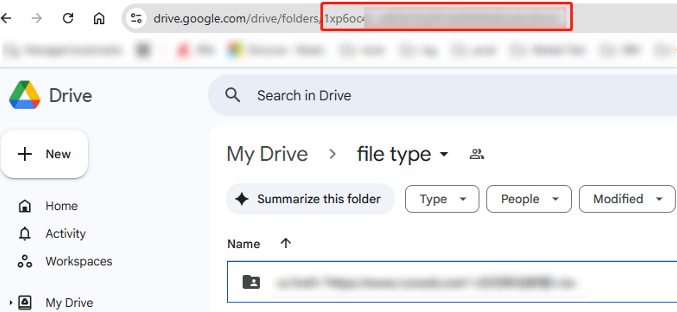
ID – In this field, you can enter keywords to search for backup folders using their unique IDs.
*Note: When there are folders with the same name in the backup data, you can configure the ID condition to locate the folder that you want to recover. The unique ID of a folder is a part of the folder’s URL.
If you select the File level, you can also configure the following conditions:
-
File name – In this field, you can enter keywords of files’ names.
-
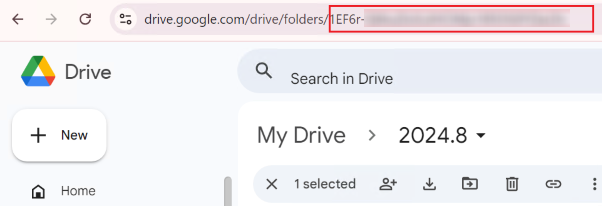
ID – In this field, you can enter keywords to search for backup files using their unique IDs.
*Note: When there are files with the same name in the backup data, you can configure the ID condition to locate the file that you want to recover. The unique ID of a file is a part of the file’s URL.
-
Created date – You can click this field and set a time range.
-
File size – You can set a range of file sizes to search for files.
-
-
Click Search.
-
In the search results table, find the item you want to recover. To select the status you want to recover for this item, select a backup job time in the drop-down list under the Recovery point column.
-
You can take the following actions to recover data:
-
To restore items, select the checkboxes next to the items, and click Restore above the table.
-
To export backup data of items, select the checkboxes next to the items, and click Export above the table.
-
-
To configure settings for restore or export, follow the instructions below.
-
After you click Restore, the Restore pane appears on the right. Refer to the following instructions to configure settings:
-
The selected items will be restored to a new folder in the class owner’s drive. If necessary, you can change the default folder name in the Restore to a new folder in the class owner’s drive field.
*Note: If this folder name conflicts with another folder name in the destination, this folder name will be appended with “_1”.
-
If you want to restore backup data stored on the Azure archive storage tier, select the Automatically rehydrate if backup data is in Azure archive storage tier checkbox.
*Note: This setting is only for the Microsoft Azure Blob custom storage location in a BYOS (Bring your own storage) subscription. For AvePoint default storage, the restore job will automatically rehydrate data.
-
If necessary, enter your comments in the Description field for this restore job.
-
Click Next to have an overview of the restore settings.
-
Click Restore to start the restore job. If you want to go back to edit restore settings, click Back.
-
-
After you click Export, the Export pop-up window appears, and the data will be exported as ZIP format. Click Export to start the export job. After the export job is finished, to get the exported data, see Download Data of Export Jobs.
-
-
After the restore or export job is finished, you can navigate to Job monitor to view job details and download job reports. For details, see Monitor Jobs and Download Job Reports.