
Home > User Guide > Recover Google Directory Data > Restore or Export Groups Data
Export to PDFRestore or Export Groups Data
To restore or export Groups data, refer to the instructions below:
-
First, you Select Groups Backup Data via Search Mode or Select Groups Backup Data via Calendar Mode.
-
Configure the related settings to proceed with the data recovery:
-
Export – Export Groups Data
Select Groups Backup Data via Search Mode
Complete the steps below to search a group and select backup data.
-
Click Restore on the left navigation.
-
On the Restore page, select the Search mode tab and select the Group option.
*Note: On the Restore page, click the Google Directory tab if your organization also has other modules.
-
Enter keywords in the Search by group email address field and select the desired group email address from the drop-down list.
-
Click Search. The Select and restore the group data page appears. The Group email address field displays the email address of the selected group.
-
Click the Backup time range field and set a time range to search for the backup data you want to recover.
-
Click Search. The search results table lists the group backup data in the selected backup time range.
-
In the drop-down list under the Recovery point column, select a time when the data you want to recover has been backed up.
-
You can take the following actions to recover data:
-
Select the group backup data, and then click Restore above the table. To continue with the restore settings, refer to Configure Settings to Restore Groups Data.
-
Select the group backup data, and then click Export above the table. For additional details, see Export Groups Data.
-
Select Groups Backup Data via Calendar Mode
Complete the steps below to select backup data from a specific recovery point.
-
Click Restore on the left navigation.
-
On the Restore page, select the Calendar mode tab.
*Note: On the Restore page, click the Google Directory tab if your organization also has other modules.
-
Select the Groups option from the drop-down list at the top of the calendar.
-
By default, only the successful backup jobs are displayed on the calendar. If you also want to check backup jobs with exceptions, select the Include jobs with partial backup data option.
-
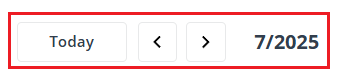
Each recovery point on the calendar represents the start time of a backup job. By default, the calendar displays the current month’s page. You can click components on the calendar to find the month page which lists your desired recovery points.
-
Click a recovery point, and you are directed to the table listing groups that are in the backup scope.
*Note: By default, the scope contains historical backup data. If you want to recover contents that were just backed up by the selected backup job, select the Include data from this backup only option.
-
Select the groups that you want to recover, and then click Restore or Export above the table.
-
To continue with the restore settings, refer to Configure Settings to Restore Groups Data.
-
To export the selected backup data, refer to Export Groups Data.
-
Configure Settings to Restore Groups Data
After you click Restore, the Restore pane appears and you can configure the restore settings.
-
The default restore method Restore the data to its original location is selected and cannot be changed.
-
Select a conflict resolution from the following options:
-
Skip – Skips the restoration of the backup data and keeps the destination objects intact.
-
Merge – Adds backup data to the destination for the properties that support adding new items.
-
Overwrite – Removes the conflicting objects from the destination and restores the backup data.
-
-
If necessary, enter your comments in the Description field for this restore job.
-
Click Next to have an overview of the restore settings.
-
Click Restore to start the restore job. If you want to go back to edit restore settings, click Back.
Export Groups Data
After you click Export, the Export pop-up window appears. The selected backup data will be exported as a Google CSV file. Click Export to start the export job. After the export job is finished, to get the exported data, see Download Data of Export Jobs.