
Home > Standalone Tool > Data Export Service > Get Started > Export Encryption Keys
Export to PDFExport Encryption Keys
Backup data generated by Cloud Backup for Google Workspace is encrypted. You need encryption keys to help you convert the backup data to a plain file format during the restore job. Your tenant administrator in the AvePoint Online Services platform can export the encryption keys from the Cloud Backup for Google Workspace interface directly.
The encryption key file will be exported separately for each object type for which you have performed a backup. To export the encryption keys, complete the steps below:
-
Go to the Cloud Backup for Google Workspace interface.
-
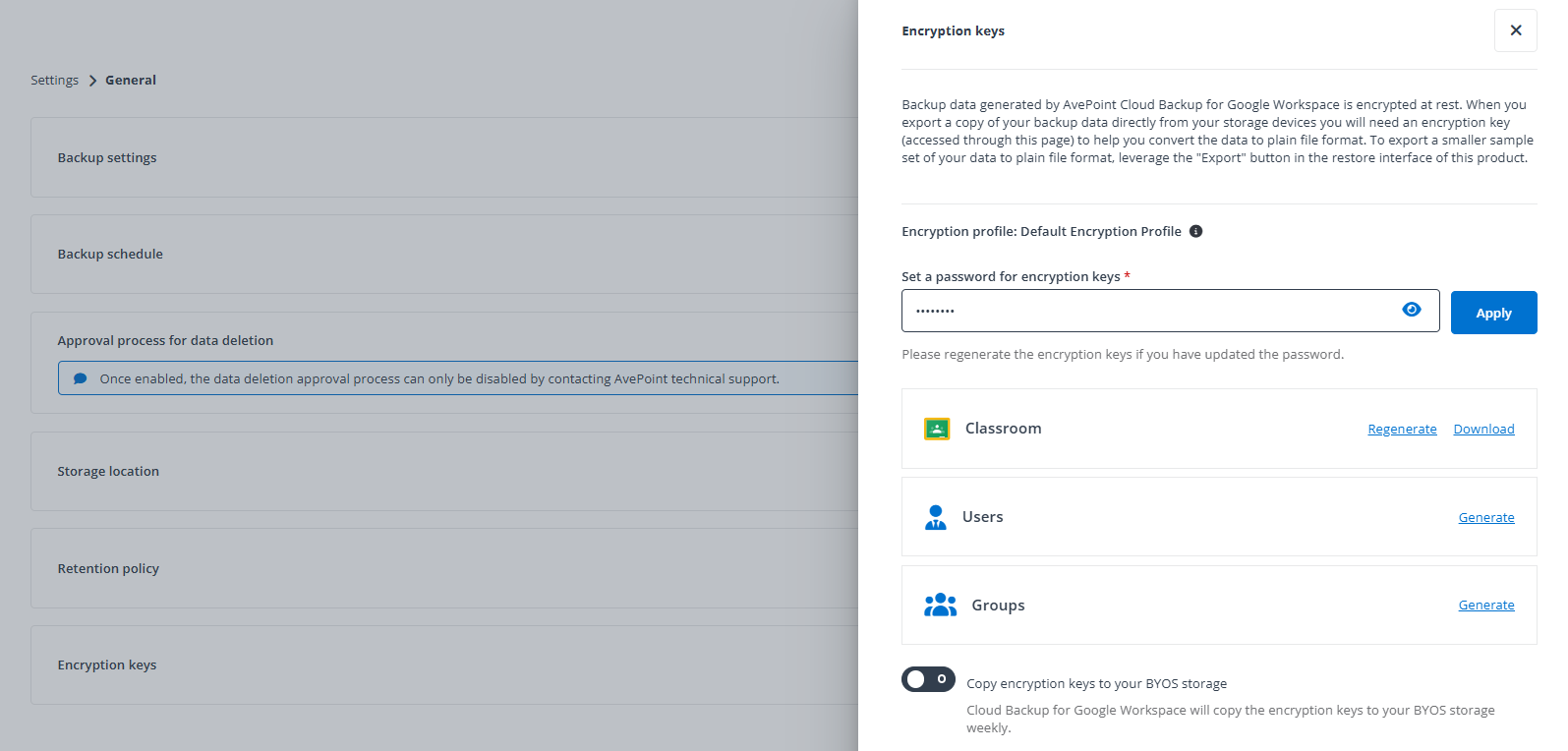
Navigate to Settings > General > Encryption keys.
-
Set a password for encryption keys and click the Apply button to apply the password. The password is used to access the encryption keys in the standalone tool. You can also configure whether to allow Cloud Backup for Google Workspace to copy the encryption keys to your BYOS storage weekly.
-
-
To generate and download the encryption keys for the service types that you have performed a backup with, click the Generate button to generate the key, and then click Download to download the ZIP file and save it to your local computer.
If you have performed backups or updated the password after the last time you generated the key, click Regenerate to regenerate the keys and download the file again.