
Home > Standalone Tool > Data Export Service > Edit the JSON File
Download this articleEdit the JSON File
Before using the standalone tool, you need to follow the instructions below to edit the JSON file.
-
Extract the AvePoint Cloud Backup for Google Workspace Standalone Tool.zip package and find the standalonetool.appsettings.json file.
-
Open the standalonetool.appsettings.json file in a text editor.
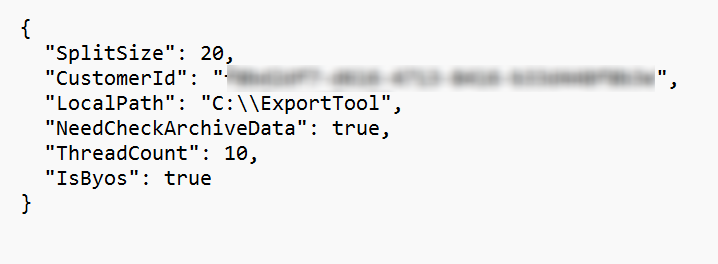
-
Refer to the following information to edit parameters in the JSON file.
-
LocalPath – This parameter specifies the temporary storage path for files during the execution of the tool, such as downloaded index databases. Set this to a valid directory path where temporary files can be stored.
-
SpiltSize – This parameter defines the maximum size of a single zip package in gigabytes (GB). Adjust this value according to your storage and processing capabilities.
-
NeedCheckArchiveData – This parameter determines whether to rehydrate the backup data stored in Azure archive storage tier. The default value is false. Enabling this option may incur additional costs, so set it based on your needs.
NOTEThis parameter is only for the Microsoft Azure Blob custom storage location in a BYOS (Bring your own storage) subscription.
-
IsByos – This parameter determines whether your subscription is BYOS. The default value is true. This parameter must be set to false when the AvePoint operations team is running the tool for organizations using AvePoint-provided default storage.
-
ThreadCount – This parameter controls the level of concurrency during execution. The default value is usually sufficient, so you may not need to change it unless you have specific performance requirements.
-
CustomerId – This parameter represents the tenant ID of the organization for which you run the tool.
-
-
Save the file ensuring it remains in valid JSON format (UTF-8 encoded).