
Home > Monitor Jobs and Download Job Reports > Troubleshooting
Download this articleTroubleshooting
This troubleshooting guide is aimed at addressing unexpected issues and errors that you may encounter when using AvePoint Cloud Backup for Google Workspace.
ArchivedUser
Issue:
The archived user failed in the job with the following error code:
- ArchivedUser
Solution:
Due to the Google API limitations, Cloud Backup for Google Workspace cannot support Google users with the Archived or Suspended status. If you want to include these Google users in the protection scope of Cloud Backup for Google Workspace, you can change the status of these Google users and purchase more user seats in the subscription of Cloud Backup for Google Workspace.
B-ClassNotExist
Issue:
The class failed in backup with the following error code:
- B-ClassNotExist
Solution:
From when the class was deleted from the Google tenant, there is no scan job for the corresponding scan profile to update the objects in the container. Go to AvePoint Online Services > Auto discovery and run the scan profile, or wait for the next scan job to be completed if the scan profile has enabled daily-scan.
B-GoogleAPI404NotFound
Issue:
The file failed in backup with the following error code:
- B-GoogleAPI404NotFound
Solution:
The path of the file can be displayed in the job report. Manually download the file to check whether it is a damaged file. Usually, the size of a damaged file is below 1 KB. A file may have been damaged during the creation process. If it is confirmed that the file is damaged, you can ask the file owner to try deleting the file not to affect the backup job status.
B-GoogleAPIRiskFile
Issue:
The file skipped in backup with the following error code:
- B-GoogleAPIRiskFile
Solution:
The Drive and Shared Drive services do not support backing up virus-contaminated files.
B-GoogleAPIServiceError
Issue:
The file failed in backup with the following error code:
- B-GoogleAPIServiceError
Solution:
The path of the file can be displayed in the job report. Manually download the file to check whether it is a damaged file. Usually, the size of a damaged file is below 1 KB. A file may have been damaged during the creation process. If it is confirmed that the file is damaged, you can ask the file owner to try deleting the file to not affect the backup job status.
B-NoDownloadPermission
Issue:
A file skipped in backup with the following error code:
- B-NoDownloadPermission
Solution:
Check whether the current Google user has permission to download the file.
B-SDNoMember
Issue:
The shared drive skipped in backup with the following error code:
- B-SDNoMember
Solution:
Go to https://admin.google.com/ and navigate to Apps > Google Workspace > Settings for Drive and Docs > Manage shared drives. Add members and ensure there is at least one member who has the Manager permission to the shared drive.
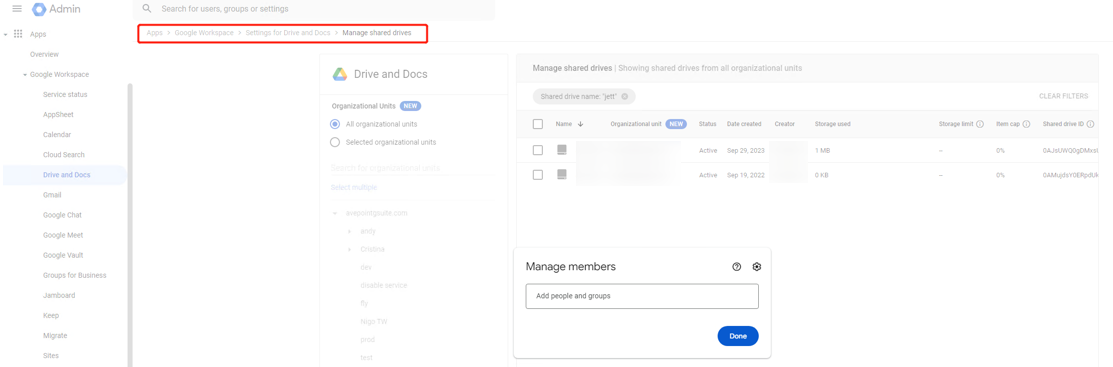
B-SDNotExist
Issue:
The shared drive failed in backup with the following error code:
- B-SDNotExist
Solution:
From when the shared drive was deleted from the Google tenant, there is no scan job for the corresponding scan profile to update the objects in the container. Go to AvePoint Online Services > Auto discovery and run the scan profile, or wait for the next scan job to be completed if the scan profile has enabled daily-scan.
B-UserNotExist
Issue:
A user failed in backup with the following error code:
- B-UserNotExist
Solution:
From when the user was deleted from the Google tenant, there is no scan job for the corresponding scan profile to update the objects in the container. Go to AvePoint Online Services > Auto discovery and run the scan profile, or wait for the next scan job to be completed if the scan profile has enabled daily-scan.
In the system, user ID is the unique identifier of Google users. If your organization creates a new user whose email address is the same as a previous user, the system will treat them as two different users.
GoogleAPIFailedPrecondition
Issue:
A job failed with the following error code:
- GoogleAPIFailedPrecondition
Solution:
A Failed precondition error occurs when calling the Google API.
GoogleAPIQuota
Issue:
The job failed with the following error code:
- GoogleAPIQuota
Solution:
This is a temporary error caused by the Google API quota. You can try to configure a custom Google app to avoid this error.
R-ChangeSubscription
Issue:
The restore failed with the following error code:
- R-ChangeSubscription
Solution:
The restore job failed due to the Google API exception. For example, after the Calendar service has been backed up, modify the user’s email and run the scan profile again. Then, perform the backup job and restore the default calendar using the previous email.
R-GoogleAPIAbortedError
Issue:
The job failed in restore with the following error code:
- R-GoogleAPIAbortedError
Solution:
This exception is usually caused by a concurrency conflict. If multiple jobs calling the Google API at the same time to create the same object, the Google API may return the Aborted Error.
R-GoogleAPIAlreadyExistsError
Issue:
The job failed in restore with the following error code:
- R-GoogleAPIAlreadyExistsError
Solution:
If multiple jobs calling the Google API at the same time to create the same object, the Google API may return the Already Exists Error.
R-GoogleAPICannotCreateTeamDriveError
Issue:
The job failed in restore with the following error code:
- R-GoogleAPICannotCreateTeamDriveError
Solution:
Go to https://admin.google.com/ and navigate to Apps > Google Workspace > Settings for Drive and Docs > Sharing settings. Disable the setting that prevents users in your organization from creating new shared drives.
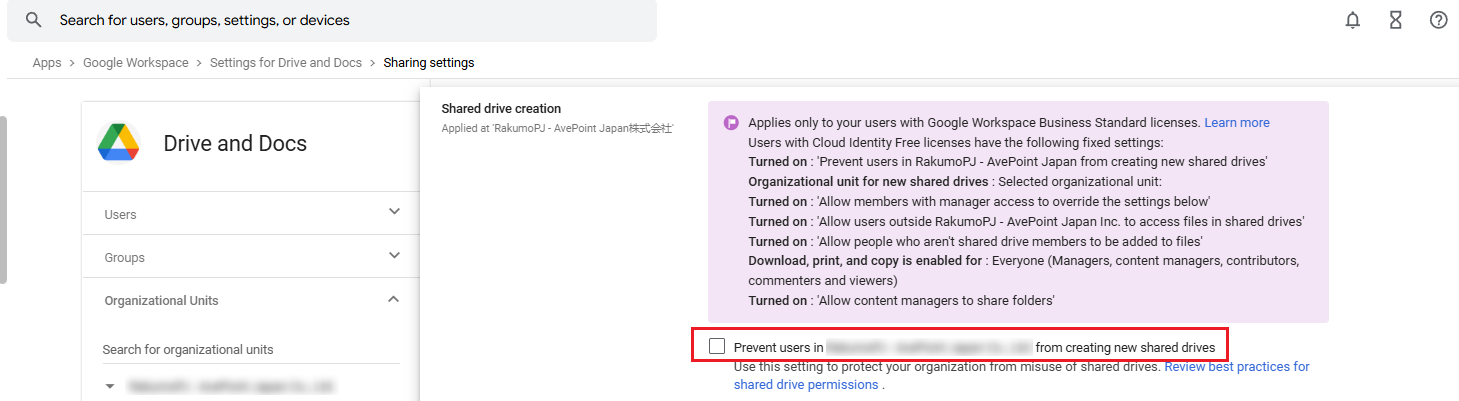
R-GoogleAPIFieldValueExceedsLimit
Issue:
The job failed in restore with the following error code:
- R-GoogleAPIFieldValueExceedsLimit
Solution:
When calling the Google API to create an object but the provided value exceeds the maximum limit, the API may return the Field Value Exceeds Limit Error.
R-GoogleAPIInvalidArgument
Issue:
The job failed in restore with the following error code:
- R-GoogleAPIInvalidArgument
Solution:
When calling the Google API to create an object but a field in the request body is invalid, the API may return the Invalid Argument Error.
R-SDNoAvailableMember
Issue:
The shared drive failed in restore with the following error code:
- R-SDNoAvailableMember
Solution:
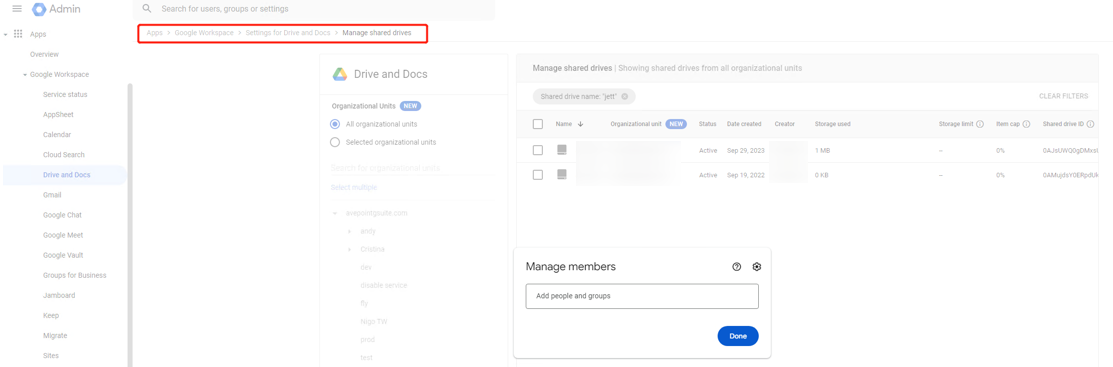
Go to https://admin.google.com/ and navigate to Apps > Google Workspace > Settings for Drive and Docs > Manage shared drives. Add members and ensure there is at least one member who has the Contributor permission to the shared drive.
R-SDNoManagerPermission
Issue:
The shared drive failed in restore with the following error code:
- R-SDNoManagerPermission
Solution:
Go to https://admin.google.com/ and navigate to Apps > Google Workspace > Settings for Drive and Docs > Manage shared drives. Add members and ensure there is at least one member who has the Manager permission to the shared drive.
R-SDNotFound
Issue:
The shared drive failed in restore with the following error code:
- R-SDNotFound
Solution:
From when the shared drive was deleted from the Google tenant, there is no scan job for the corresponding scan profile to update the objects in the container. Go to AvePoint Online Services > Auto discovery and run the scan profile, or wait for the next scan job to be completed if the scan profile has enabled daily-scan.
RetrieveUsersInfoError
Issue:
The job failed with the following error code:
- RetrieveUsersInfoError
Solution:
Unable to obtain user information through the Google API. Connecting a Google tenant requires an account with the Users > Read, Groups > Read, and License Management > License Read privileges in the same tenant. Please check if the account used for connecting your Google tenant has the required permissions.
SharedWithMeError
Issue:
The folder/file failed in restore/export with the following error code:
- SharedWithMeError
Solution:
The shared objects can be restored/exported only when they have been backed up by the owner. Check whether the owner’s My Drive has been successfully backed up.
SharedWithMeFileError
Issue:
The file failed in export/restore with the following error code:
- SharedWithMeFileError
Solution:
The shared objects can be exported/restored only when they have been backed up by the owner. Check whether the owner’s My Drive has been successfully backed up.
SharedWithMeFolderError
Issue:
The folder failed in export/restore with the following error code:
- SharedWithMeFolderError
Solution:
The shared objects can be exported/restored only when they have been backed up by the owner. Check whether the owner’s My Drive has been successfully backed up.
SuspendedUser
Issue:
The suspended user failed in the job with the following error code:
- SuspendedUser
Solution:
Due to the Google API limitations, Cloud Backup for Google Workspace cannot support Google users with the Archived or Suspended status. If you want to include these Google users in the protection scope of Cloud Backup for Google Workspace, you can change the status of these Google users and purchase more user seats in the subscription of Cloud Backup for Google Workspace.
UnauthorizedClient
Issue:
The job failed with the following error code:
- UnauthorizedClient
Solution:
Unable to obtain user data through the Google API. This problem is usually caused by uncompleted authorization. Go to the Google Admin console as a Super Admin, then check if Data Access and User Access have been successfully authorized.