
Home > User Guide > Export Google Vault Data
Export to PDFExport Google Vault Data
Follow the instructions below to export your desired Vault backup data:
-
Click Restore on the left navigation.
-
On the Restore page, select the Vault tab.
-
Select the User services or Shared drive option according to the content that you want to export:
-
To export the backup data of Gmail/Drive in Vault, select the User services option.
-
To export the backup data of shared drives in Vault, select the Shared drive option.
-
-
To search for a Google user or a shared drive, enter keywords of the object name in the Search by email address / Search by shared drive name field, and then select the desired object from the drop-down list.
*Note: To search for a shared drive deleted from Google Workspace, you could only enter the shared drive ID to search it.
-
Click Search. The configuration page appears, and you can refer to the following sections to select the backup Vault data to be exported.
Gmail (Vault)
Select the Gmail (Vault) tab, and refer to the steps below to select and export backup data:
-
In the Level drop-down list, select one of the following options based on the object type you want to export:
-
If you want to export Gmail data for the user, select User.
-
If you want to search for specific emails to export, select Mail.
-
-
Based on the level you select, configure the search conditions to search for the specific data you want to export:
-
If you select User, click the Backup time range field and set a time range to search for the backup data you want to export.
-
If you select Mail, configure the following conditions to search for backup emails:
-
Backup time range – Click this field and set a time range to search for the backup data you want to export.
-
Subject – In this field, you can enter keywords of subjects to search for emails.
-
Date sent – You can click this field and set a time range to search for emails.
-
Sent from, Sent to, and Sent cc – You can also enter information in these fields to search for emails.
-
-
-
Click Search to search for the backup data you want to export.
-
In the search results table, find the item you want to export. To select the status you want to export for this item, select a backup job time in the drop-down list under the Recovery point column.
-
To export backup data of items, select the checkboxes next to the items, and click Export above the table.
-
The Export pop-up window appears. Choose a format for the data you want to export:
-
EML – This file format represents email messages saved using Outlook and other relevant applications.
-
MBOX – The most common format for storing email messages.
-
PST – Files with .PST extension represent Outlook Personal Storage Files (also called Personal Storage Table) that store a variety of user information.
-
-
Click Export to start the export job.
-
After the export job is finished, to get the exported data, see Download Data of Export Jobs.
Drive (Vault)
Select the Drive (Vault) tab, and refer to the steps below to select and export backup data:
-
Choose a source where the data you want to export resides:
-
If you want to export the data in the user’s Drive, click My Drive.
-
If you want to export the data shared with this user, click Shared with me.
*Note: Under the Shared with me tab, the shared objects can be restored only when they have been backed up by the owner, and restoring multiple objects in batch is only supported when they belong to the same owner. You can contact the owner before the restore.
-
-
In the Level drop-down list, select one of the following options based on the object type you want to export:
-
Under the My Drive tab, select User if you want to export Drive data for the user, or select File if you want to search for specific files to export.
-
Under the Shared with me tab, select File.
-
-
Based on the level you select, configure the search conditions to search for the specific data you want to export:
-
If you select User, click the Backup time range field and set a time range to search for the backup data you want to export.
-
If you select File, configure the following conditions to search for backup files:
-
Backup time range – Click this field and set a time range to search for the backup data you want to export.
-
Owner – If you want to search and export files under the Shared with me tab, you must enter keywords of the username in this field and select the owner from the drop-down list.
-
File name – In this field, you can enter keywords of file names to search for files.
-
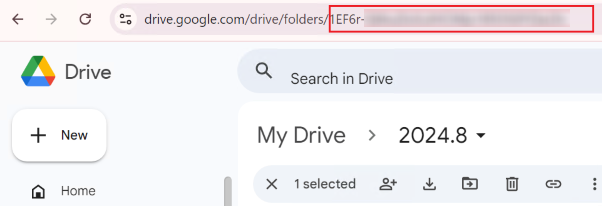
ID – In this field, you can enter keywords to search for backup files using their unique IDs.
*Note: When there are files with the same name in the backup data, you can configure the ID condition to locate the file that you want to export. The unique ID of a file is a part of the file’s URL.
-
Created date – You can click this field and set a time range to search for files.
-
File size – Under the My Drive tab, you can set a range of file sizes to search for files.
-
-
-
Click Search to search for the backup data you want to export.
-
In the search results table, find the item you want to export. To select the status you want to export for this item, select a backup job time in the drop-down list under the Recovery point column.
-
To export backup data of items, select the checkboxes next to the items, and click Export above the table.
-
The Export pop-up window appears. The selected backup data will be exported as a ZIP file. Click Export to start the export job. After the export job is finished, to get the exported data, see Download Data of Export Jobs.
Shared drives (Vault)
Refer to the steps below to select and export backup data of shared drives in Vault:
-
In the Level drop-down list, select one of the following options based on the object type you want to export:
-
If you want to export the shared drive backup data, select Shared drive.
-
If you want to search for specific files to export, select File.
-
-
Based on the level you select, configure the search conditions to search for the specific data you want to export:
-
If you select Shared drive, click the Backup time range field and set a time range to search for the backup data you want to export.
-
If you select File, configure the following conditions to search for backup files:
-
Backup time range – Click this field and set a time range to search for the backup data you want to recover.
-
File name – In this field, you can enter keywords of file names to search for files.
-
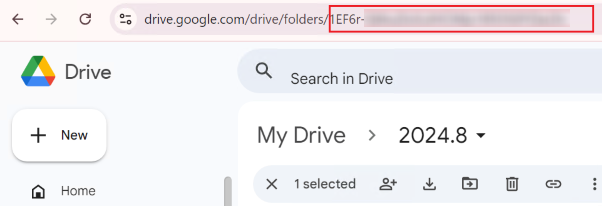
ID – In this field, you can enter keywords to search for backup files using their unique IDs.
*Note: When there are files with the same name in the backup data, you can configure the ID condition to locate the file that you want to recover. The unique ID of a file is a part of the file’s URL.
-
Created date – You can click this field and set a time range to search for files.
-
File size – In this field, you can set a range of file sizes to search for files.
-
-
-
Click Search to search for the backup data you want to export.
-
In the search results table, find the item you want to export. To select the status you want to export for this item, select a backup job time in the drop-down list under the Recovery point column.
-
To export backup data of items, select the checkboxes next to the items, and click Export above the table.
-
The Export pop-up window appears. The selected backup data will be exported as a ZIP file. Click Export to start the export job. After the export job is finished, to get the exported data, see Download Data of Export Jobs.