
Home > User Guide > About Cloud Backup for Google Workspace > Multi-Geo Support (for Enterprise Subscription)
Export to PDFMulti-Geo Support (for Enterprise Subscription)
If your Google organization has No preference, United States, or Europe data regions and wants to store backup data in separate storages based on the different data regions, the administrator can contact the AvePoint representative to enable the Multi-Geo function in your tenant’s enterprise subscription of Cloud Backup for Google Workspace. With the Multi-Geo support, you can configure data regions for user containers or shared drive containers in Cloud Backup for Google Workspace.
Refer to the following instructions to complete settings related to the Multi-Geo support:
-
You must first configure mappings between your Google Workspace geo locations and AvePoint Online Services data centers.
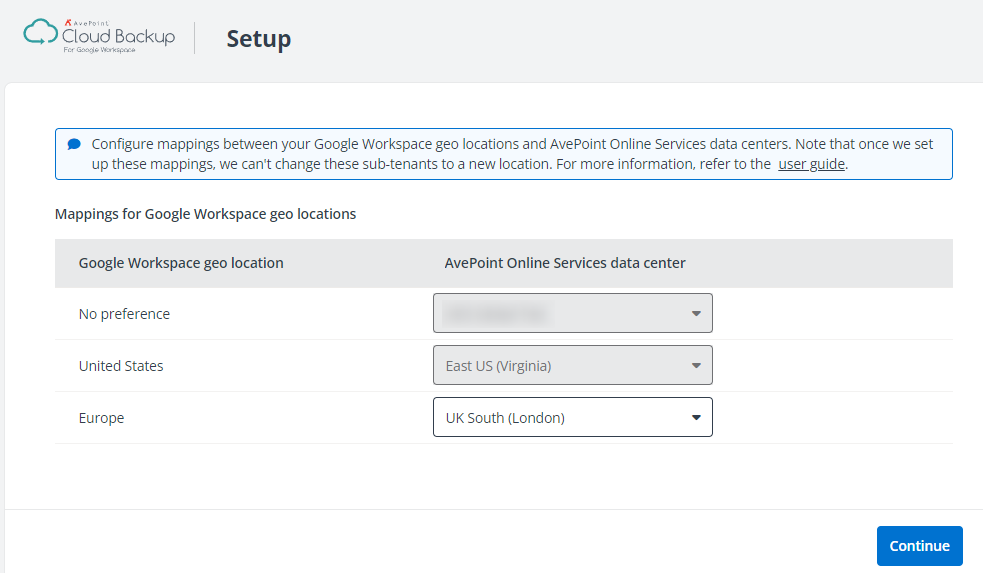
Note the following:
-
The No preference region is mapped to the AvePoint data center where your primary tenant initially signed up.
-
The United States region is mapped to the East US (Virginia) data center.
-
The Europe region is mapped to the UK South (London) data center by default. If you want to change this mapping, select a data center from the drop-down list. Note that if your organization’s storage location is AvePoint storage (Amazon S3), the West Europe (Netherlands) data center is unsupported. For more information, see Storage Location for Backup Data.
-
After you click Continue, the initialization for your multi-geo environment starts and you can no longer go back to change the mappings.
-
-
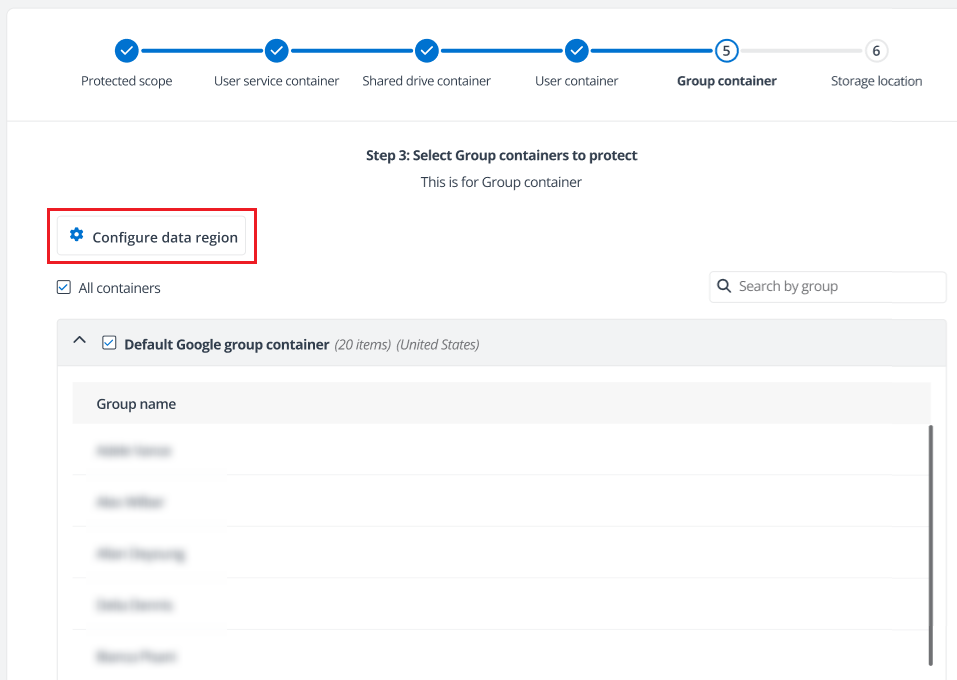
When you follow the steps on the wizard for the initial backup and you select containers to be protected, you can click Configure data region to configure data regions for the selected containers.
*Note: For Classroom containers, the data region is No preference and cannot be changed.
-
If your tenant’s subscription is BYOS (Bring your own storage), you must configure a storage location for each selected data region.
-
Service administrators and Application administrators have permission to all data regions. Standard users, when added to security groups within a specific data region, are limited to accessing only those containers that fall under their assigned security groups. Standard users’ access is restricted to the confines of that particular data region.
When users with permissions to multiple data regions access Cloud Backup for Google Workspace, they need to select a region to continue.
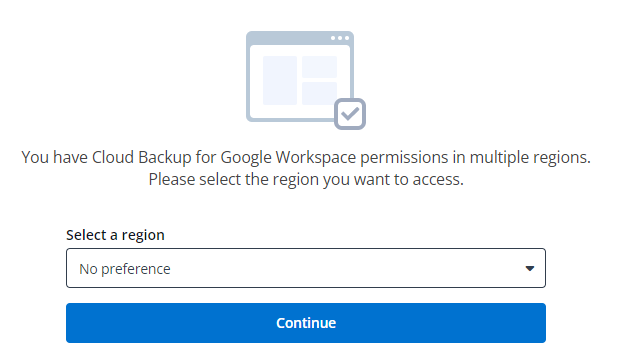
In Cloud Backup for Google Workspace, if they want to switch to another region, they can select a region from the drop-down list.
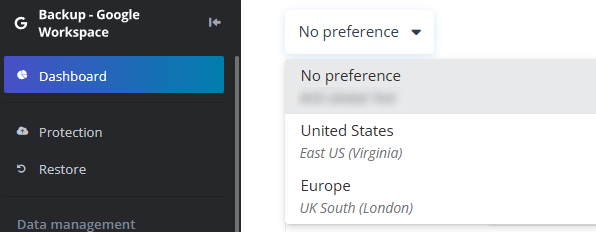
*Note: The Subscription and Self-service pages do not have the data region drop-down list, as they are global settings. The data region drop-down list on the Protection page contains the All option, which makes it easy for the administrators to have a global view when they configure data regions.
-
On the Protection page, when administrators configure the protected scope, they can configure data regions for containers.
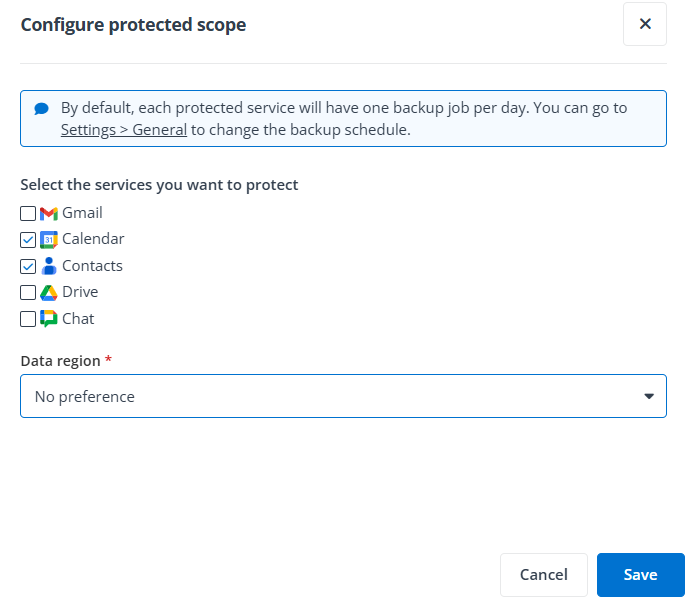
*Note: The Multi-Geo function is unsupported in the following scenarios: