
Home > User Guide > Configure Self-service Settings for ReCenter
Export to PDFConfigure Self-service Settings for ReCenter
This function is only available for organizations that have the Google Workspace module in their Cloud Backup for Google Workspace subscription.
To manage users’ access and actions in ReCenter, follow the steps below:
-
Click Settings on the left navigation, and then click Self-service in the drop-down menu.
-
On the Self-service page, you can configure the following.
-
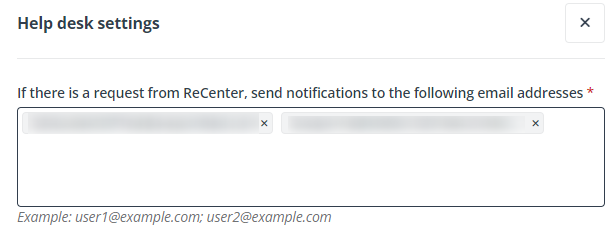
Once a user submits a request from ReCenter, a notification email will be sent to the Tenant Owner by default. If you want to update the recipients who will receive user requests from ReCenter, Click Help desk settings and enter email addresses. Then, click Save to save your changes. The updates will take effect immediately.
-
If you want to allow end-users to Restore archived data, click End-user restore settings and select the checkbox to Allow ReCenter users to restore archived data stored on the Archive tier. Then, click Save to save your changes.
*Note: This setting is only available to the organization whose subscription is Bring your own storage (BYOS) and the custom storage type is Microsoft Azure Blob Storage. You will see additional storage costs when end-users restore the data stored on the Archive tier. If you want to disable the archive setting, you can contact AvePoint support for help.
-
By default, all users added to your tenant in AvePoint Online Services can access ReCenter to restore and export backup data. If you want to change users’ permissions in ReCenter, click Access settings and refer to the steps in Manage Access.
-
Manage Access
Follow the steps below to manage users’ access in ReCenter.
-
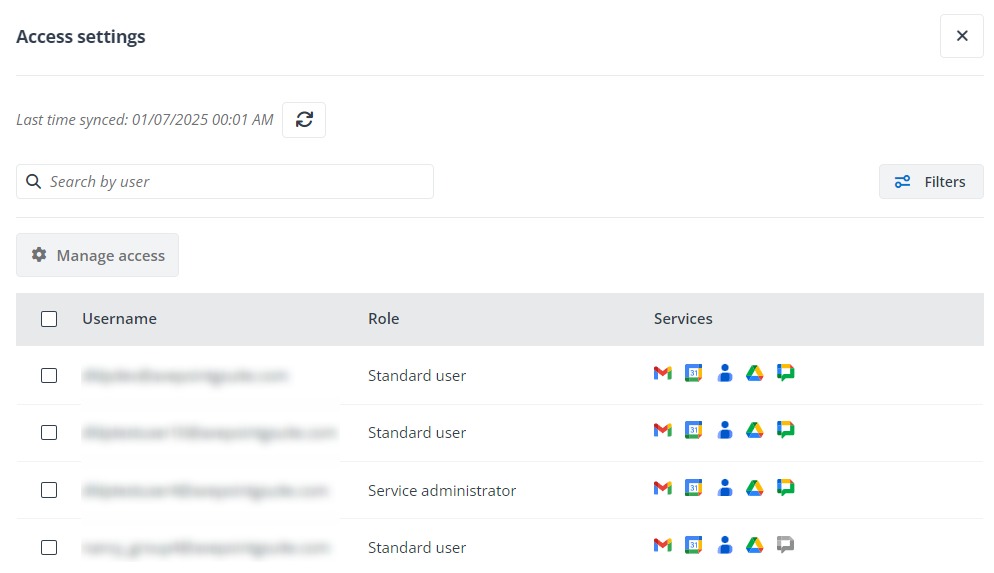
On the Self-service page, click Access settings. The Access settings pane appears, listing users synchronized from your tenant in AvePoint Online Services.
-
To synchronize the latest user information from your tenant in AvePoint Online Services, click the Sync button.
-
You can use the search box to search for specific users. You can also click Filters and configure the Role filter to filter users with the Standard user, Application administrator, or Service administrator role.
-
In the Access settings pane, the colorful icons in the Services column represent the users who have been granted with permissions. To manage access for one or multiple users, select the users and click Manage access above the table.
-
The Manage access pane appears on the right of the page. Refer to the instructions below to configure the settings.

-
Turn on the toggles of the services this user can access.
-
Select the actions this user can take.
-
Click Apply. The updates will take effect immediately.
-