
Home > User Guide > Recover Google Workspace Data > Bulk Restore for Gmail, Drive, Calendar, or Contacts
Export to PDFBulk Restore for Gmail, Drive, Calendar, or Contacts
As a user in the Administrators group, if you want to add multiple users in a restore queue to perform a bulk restore, refer to the steps below:
-
Click Restore on the left navigation.
-
On the Restore page, select the Calendar mode tab.
*Note: On the Restore page, select the Google Workspace tab if your organization also has other modules.
-
Select the Gmail, Drive, Calendar, or Contacts option from the drop-down list at the top of the calendar.
-
By default, only the successful backup jobs are displayed on the calendar. If you also want to check backup jobs with exceptions, select the Include jobs with partial backup data option.
-
Each recovery point on the calendar represents the start time of a backup job. By default, the calendar displays the current month’s page. You can click components on the calendar to find the month page which lists your desired recovery points.
-
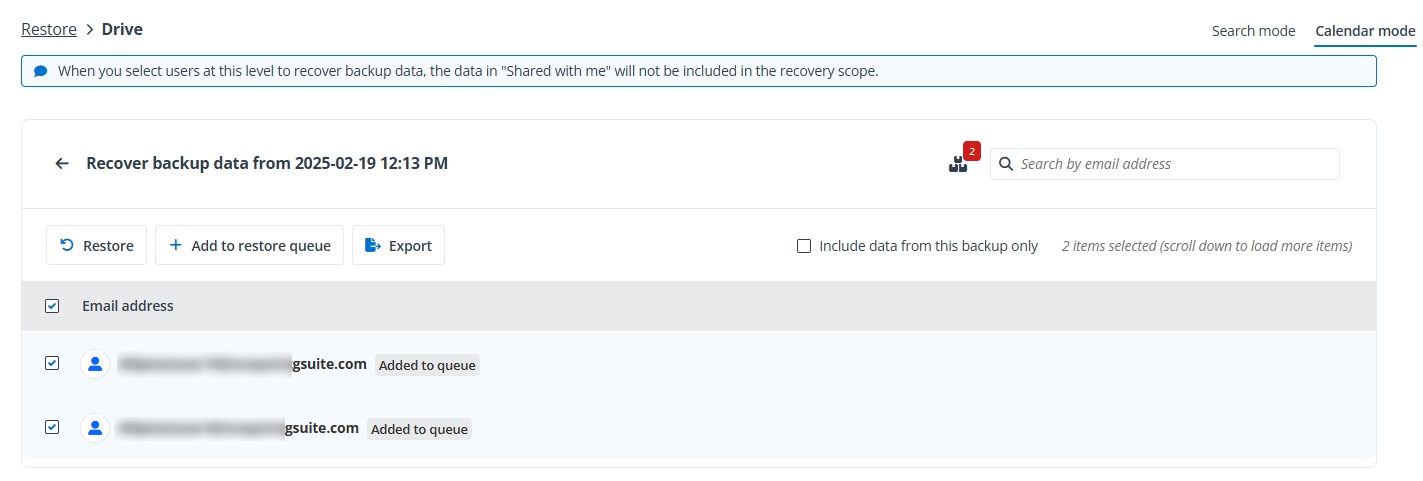
Click a recovery point, and you are directed to the table listing users who are in the backup scope.
*Note: By default, the scope contains historical backup data. If you want to recover contents that were just backed up by the selected backup job, select the Include data from this backup only option.
-
Select the users that you want to add to a restore queue, and then click Add to restore queue. You can use the search box on the upper-right corner to search for users. If you want to import users via uploading a CSV file, click the Restore queue icon and see Bulk Import for more details.
The users in the restore queue will be labeled as Added to queue, and the number shown on the Restore queue icon indicates the total users in the queue.
Note the following:
-
The restore queue has a maximum limit of 100 users.
-
If you want to upload a CSV file to bulk import users, the file size cannot exceed 10 MB.
-
-
Click the Restore queue icon. The Restore queue panel appears.
-
In the Restore queue panel, manage users in the queue.
-
Remove – If you want to remove users from the restore queue, you can click the Remove button to remove a single user, or you can select multiple users and click Remove at the top of the panel.
-
Bulk import – You can also use the Bulk Import function to add multiple users by uploading a CSV file.
-
-
In the Restore queue panel, select users and click Restore. The Restore panel appears. Refer to the Configure Settings for Bulk Restore section to configure restore settings.
Bulk Import
The Bulk import function is only available to users in the Administrators group. After clicking Bulk import in the Restore queue panel, the Bulk import panel appears. In the Bulk import panel, you can do the following:
-
Click Download CSV template.
-
Configure the downloaded CSV template to add the users whom you want to add to the restore queue. Note the following:
-
The restore queue has a maximum limit of 100 users.
-
The CSV file size cannot exceed 10 MB.
-
Ensure the added users’ backup data are covered by the selected recovery point.
-
-
Click Upload and select the configured CSV file.
-
Click Import.
-
The system will check objects imported via uploading a CSV file. In the Restore queue panel, an error message will be displayed under each invalid object. You can click Remove all invalid objects to clear them.
-
In the Restore queue panel, select users and click Restore. The Restore panel appears. Refer to the Configure Settings for Bulk Restore section to configure restore settings.
Configure Settings for Bulk Restore
After you select users and click Restore in the Restore queue panel, the Restore panel appears. Refer to the following sections to configure restore settings.
Gmail
Refer to the following instructions to configure restore settings for Gmail.
-
Choose where you would like to restore the selected backup data. Then, complete the following steps based on your choice.
-
Restore the data to its original location – Restore the data to where it was backed up. Follow the steps below to continue with this choice:
-
Choose how to handle container level conflict for the restore.
-
Skip – The destination container settings will remain unchanged.
-
Merge – The backup container settings and the content will be merged with the destination container.
-
-
Choose how to handle content level conflict for the restore.
-
Skip – Existing data in the destination will remain unchanged, and the associated labels will be restored.
-
Overwrite – Existing data will be replaced by the backup data.
-
-
-
Restore the data to another location – Restore the data to another destination. Follow the steps below to continue with this choice:
-
Enter keywords of the destination account’s address, and then select the destination account from the drop-down list.
*Note: The drop-down list only displays Google users scanned via Auto discovery in AvePoint Online Services.
-
View the default name of the new label where the selected data will be restored to the destination. You can customize the name of the new label. If this label name conflicts with another label name in the destination, this label name will be appended with “_1”.
-
-
-
If you want to restore backup data stored on the Azure archive storage tier, select the Automatically rehydrate if backup data is in Azure archive storage tier checkbox.
*Note: This setting is only for the Microsoft Azure Blob custom storage location in a BYOS (Bring your own storage) subscription. For AvePoint default storage, the restore job will automatically rehydrate data.
-
If necessary, you can enter your comments in the Description field for this restore job.
-
Click Next to have an overview of the restore settings.
-
Click Restore to start the restore job. If you want to go back to edit restore settings, click Back.
Drive
Refer to the following instructions to configure restore settings for Drive.
-
Choose where you would like to restore the selected backup data. Then, complete the following steps based on your choice.
-
Restore the data to its original location – Restore the data to where it was backed up. Follow the steps below to continue with this choice:
-
Choose to Restore content only or Restore all content and security.
*Note: The default option is Restore content only, which will not restore file labels and the locked status.
-
Choose how to handle container level conflict for the restore.
-
Skip – The destination container settings will remain unchanged.
-
Merge – The backup container settings and the content will be merged with the destination container.
-
-
Choose how to handle content level conflict for the restore.
-
Skip – Existing data in the destination will remain unchanged.
-
Overwrite – Existing data will be replaced by the backup data.
-
Append a number prefix to the file name – All data will remain untouched, and backup data will be restored with a sequential number prefix.
-
-
-
Restore the data to another location – Restore the data to another destination. Follow the steps below to continue with this choice:
-
Choose to Restore content only or Restore all content and security.
*Note: The default option is Restore content only, which will not restore file labels and the locked status.
-
Enter keywords of the destination account’s address, and then select the destination account from the drop-down list.
*Note: The drop-down list only displays Google users scanned via Auto discovery in AvePoint Online Services.
-
View the default name of the new folder where the selected data will be restored to the destination. You can customize the name of the new folder. If this folder name conflicts with another folder name in the destination, this folder name will be appended with “_1”.
-
-
-
If you want to restore backup data stored on the Azure archive storage tier, select the Automatically rehydrate if backup data is in Azure archive storage tier checkbox.
*Note: This setting is only for the Microsoft Azure Blob custom storage location in a BYOS (Bring your own storage) subscription. For AvePoint default storage, the restore job will automatically rehydrate data.
-
If necessary, you can enter your comments in the Description field for this restore job.
-
Click Next to have an overview of the restore settings.
-
Click Restore to start the restore job. If you want to go back to edit restore settings, click Back.
Calendar
Refer to the following instructions to configure restore settings for Calendar.
-
Choose where you would like to restore the selected backup data. Then, complete the following steps based on your choice.
-
Restore the data to its original location – Restore the data to where it was backed up. Follow the steps below to continue with this choice:
-
Choose how to handle container level conflict for the restore.
-
Skip – The destination container settings will remain unchanged.
-
Merge – The backup container settings and the content will be merged with the destination container.
-
-
Choose how to handle content level conflict for the restore.
-
Skip – Existing data in the destination will remain unchanged.
-
Merge – The backup data will be merged with the destination data.
-
-
-
Restore the data to another location – Restore the data to another destination. Follow the steps below to continue with this choice:
*Note: If you performed a job to restore a user’s primary calendar to another destination, after the restore, the primary calendar would be restored as a custom calendar in the destination, and guest users cannot update their replies to events on the restored calendar.
-
Enter keywords of the destination account’s address, and then select the destination account from the drop-down list.
*Note: The drop-down list only displays Google users scanned via Auto discovery in AvePoint Online Services.
-
View the default suffix, which will be added to the name of the data after the restore in the destination. You can customize this suffix. If the name of the restored item conflicts with the name of another item in the destination, this restored item’s name will be appended with “_1”.
-
-
-
If you want to restore backup data stored on the Azure archive storage tier, select the Automatically rehydrate if backup data is in Azure archive storage tier checkbox.
*Note: This setting is only for the Microsoft Azure Blob custom storage location in a BYOS (Bring your own storage) subscription. For AvePoint default storage, the restore job will automatically rehydrate data.
-
If necessary, you can enter your comments in the Description field for this restore job.
-
Click Next to have an overview of the restore settings.
-
Click Restore to start the restore job. If you want to go back to edit restore settings, click Back.
Contacts
Refer to the following instructions to configure restore settings for Contacts.
-
Choose where you would like to restore the selected backup data. Then, complete the following steps based on your choice.
-
Restore the data to its original location – Restore the data to where it was backed up. Follow the steps below to continue with this choice:
-
The resolution for container level conflict is Skip. After the restore, the destination container settings will remain unchanged.
-
The resolution for content level conflict is Append. After the restore, all contacts included will be recovered as new contacts.
*Note: With the Append content level conflict resolution, there may be duplicate contacts after the restore, and you can use the Merge duplicates method in Google Contacts to deal with the duplicates.
-
-
Restore the data to another location – Restore the data to another destination. Follow the steps below to continue with this choice:
-
Enter keywords of the destination account’s address, and then select the destination account from the drop-down list.
*Note: The drop-down list only displays Google users scanned via Auto discovery in AvePoint Online Services.
-
View the default suffix, which will be added to the name of the data after the restore in the destination. You can customize this suffix. If the name of the restored item conflicts with the name of another item in the destination, this restored item’s name will be appended with “_1”.
-
-
-
If you want to restore backup data stored on the Azure archive storage tier, select the Automatically rehydrate if backup data is in Azure archive storage tier checkbox.
*Note: This setting is only for the Microsoft Azure Blob custom storage location in a BYOS (Bring your own storage) subscription. For AvePoint default storage, the restore job will automatically rehydrate data.
-
If necessary, you can enter your comments in the Description field for this restore job.
-
Click Next to have an overview of the restore settings.
-
Click Restore to start the restore job. If you want to go back to edit restore settings, click Back.