
Home > User Guide > Salesforce Full Restore Best Practices
Export to PDFSalesforce Full Restore Best Practices
- AvePoint Cloud Backup for Salesforce® provides a comprehensive solution for Salesforce to assist you to perform the full restore of your organizations.
To make sure the restore jobs can be run successfully, refer to the instructions below to see how to prepare the destination Salesforce environments and configure the restore settings for the restore jobs.
Prepare Your Destination Environments
Refer to the illustrations below to prepare your destination environments before the full restore:
-
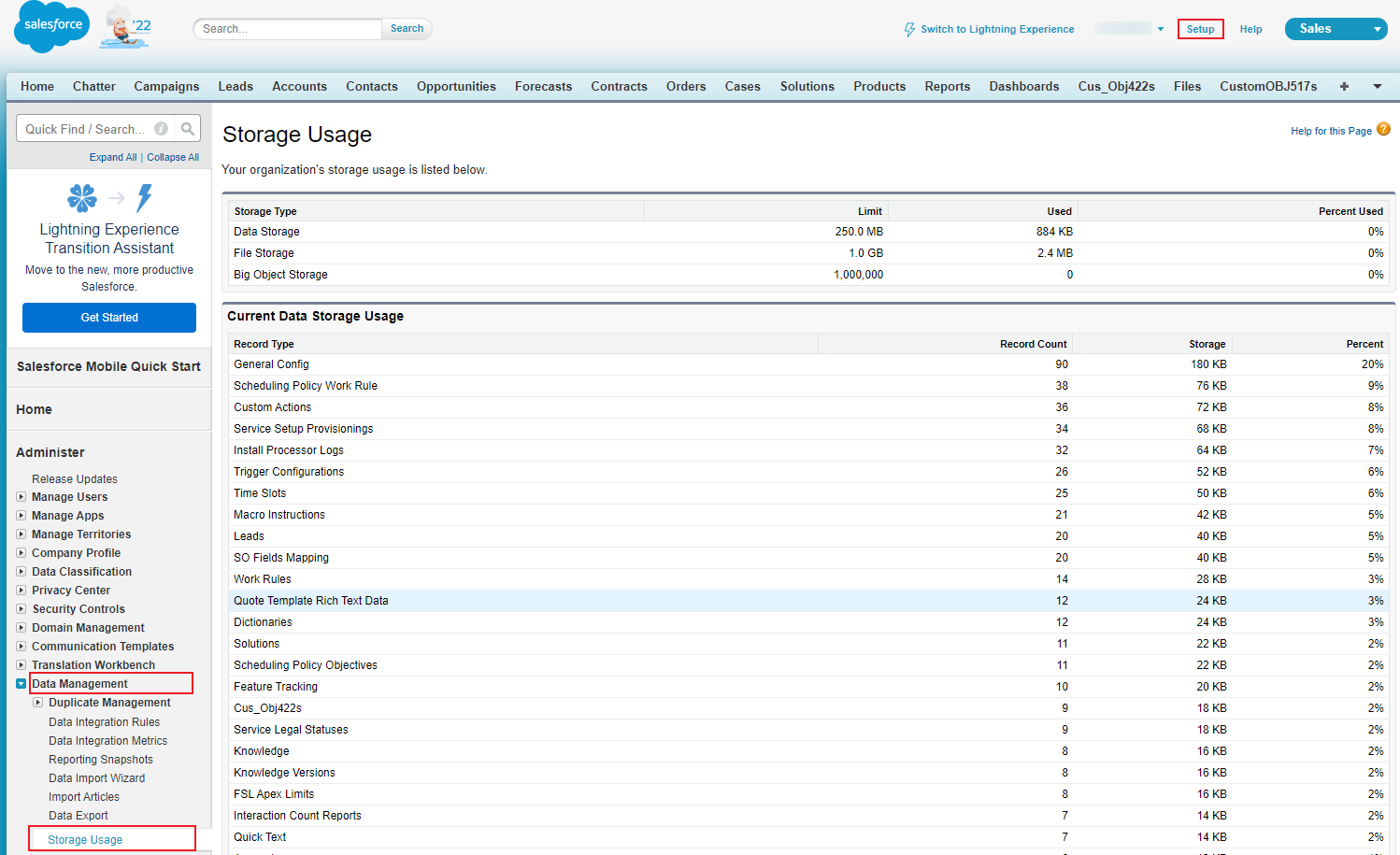
Make sure the storage size of the destination organization is sufficient. The storage size of the destination environment should be greater than that of the source environment.
To check the size of the destination Salesforce environment, go to Salesforce > Setup > Administer > Data Management > Storage Usage.
-
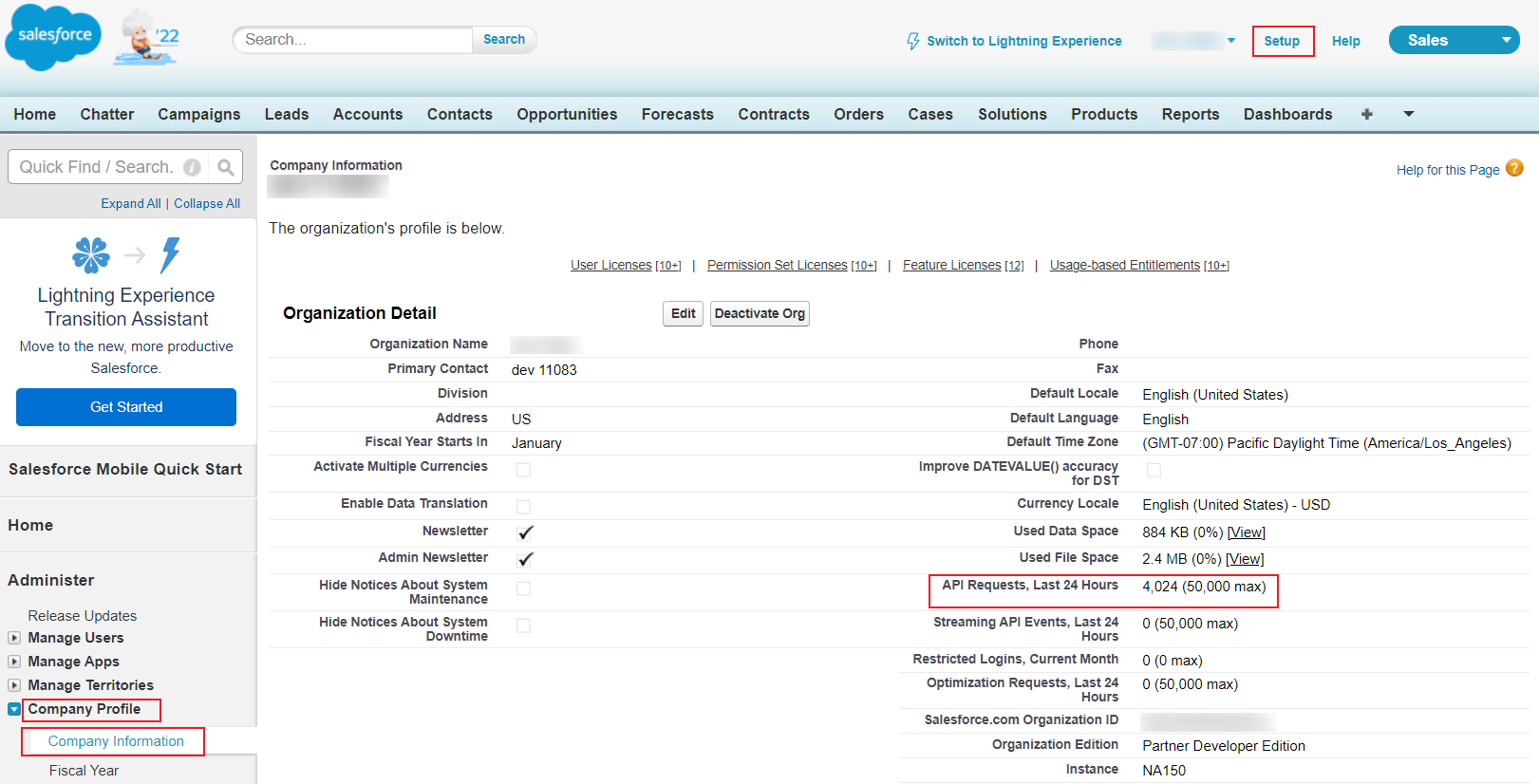
Make sure the API count of the destination environment is sufficient, and it depends on the number of records that will be restored:
-
If you restore records only, 3 APIs are required for every 200 records.
-
If you restore records together with attachments, 5 APIs or more are required for every 200 records.
Note that the restore job may consume more APIs if the total attachment size is large.
To check the API count of the destination Salesforce environment, go to Classic Salesforce > Setup > Administer > Company Profile > Company Information.
-
-
If you are about to restore your data to another organization, restore the metadata first to keep the metadata of the two environments consistent.
-
If you are about to restore your data to another organization, make sure you have configured a user mapping properly. You can set the Administrator of the destination organization as the Default User in your user mapping, and then users without mappings configured will be automatically mapped to the Default User.
-
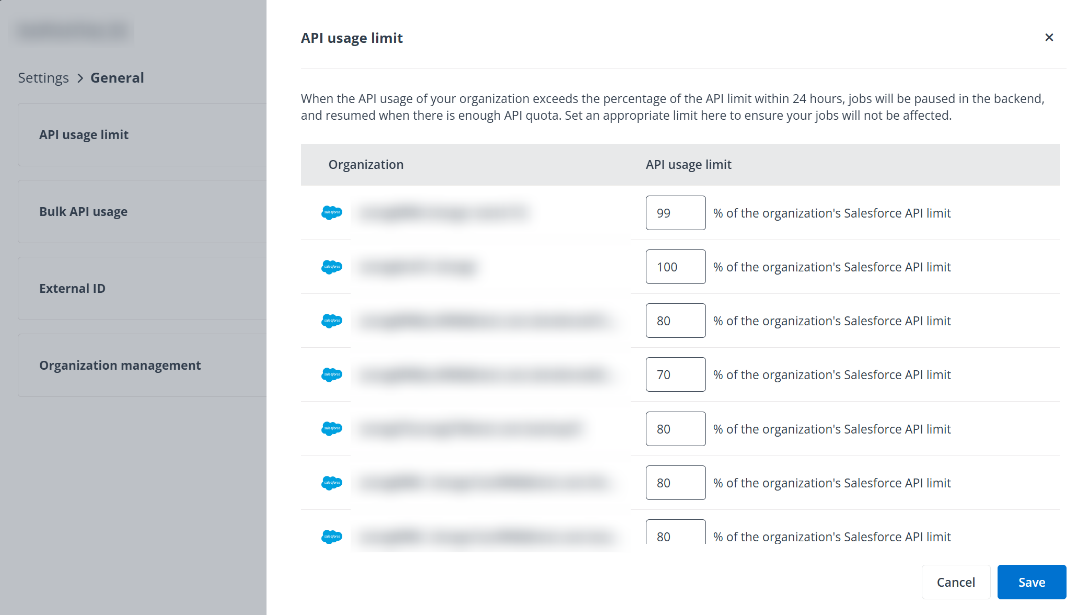
If end users are using a destination environment, to avoid affecting end user’s usage, configure the API limit of the destination environment since restoring mass data may consume a large number of APIs. The default value is 80%. If the destination environment is not used by users temporarily, it can be configured to a higher value, such as 90%.
-
If you have your own custom objects in your source organization, run a Restore Metadata job to restore the Custom Object metadata before the full restore.
-
If the number of records that you want to restore is greater than 8 million, for your best experience, contact AvePoint Support for assistance before running the retore jobs.
Run Restore Jobs in AvePoint Cloud Backup for Salesforce®
This section provides instructions on how to configure settings and run the restore jobs.
-
Click Restore in the left navigation.
-
On the Restore page, click the Restore button next to an organization that you want to restore.
-
Select the Restore data tile and select Organization from the Level drop-down list.
-
Click Next to configure the data scope.
-
In the Recovery point field, select the time from which you want to restore the data and click Apply.
-
Click Next to configure the restore settings.
-
In the Where do you want to restore the data? field, configure the following settings:
-
In-place restore (restore data to the original organization) – In the Select a default user for restoring records that belong to de-activated users text box, enter a keyword to load valid users and select a default user.
Note that the default user must have the Modify All Data permission to the specific objects.
-
Out-of-place restore (restore data to another organization) – Select the Restore the data toanother organization option. Then, select a destination organization from the drop-down list.
Select a user mapping profile from the Which user mapping profile do you want to apply drop-down list. You can click View details next to the drop-down list to view the details of the user mapping profile.
You can also click Create new in the drop-down list to go to the user mapping page and create a new user mapping profile. For details about user mapping, refer to User Mapping.
Then select the accuracy for restoring records:
-
Standard precision can accelerate your restore progress. Using this mode, if you are about to run multiple restore jobs of the same content, there may be duplicate records. If your restore is for single-use or an urgent request, we recommend that you select this mode.
-
If you plan on running the restore more than once, we recommend that you select the High precision.
-
-
-
Configure detailed settings for the restore job.
-
*Do you want to skip restoring the Share records? – Select if you want to skip restoring the *Share (e.g. AccountShare; CaseShare) records.
*Share records are related to the main records only for recording the relationships between records and the shared users. Normally, users cannot view these records in Salesforce. If you are facing data loss, want to restore the data as soon as possible, and do not care about the sharing relationships, you can skip restoring these records to save your restore time
-
How would you like to handle conflicts of restoring existing records?
-
If you encounter mass data loss, while you can make sure the data in the destination organization is correct and there is no need to change them, select Do not overwrite. This can save the restore time.
-
If you encounter malicious data corruption and have no idea if the data is reliable, select Overwrite. It may slow down the restore job, but it is worth taking more time to ensure that your data is accurate.
-
-
Deactivate related triggers, flows, workflow rules, and processes during the restore – Turn on the toggle.
In Salesforce, there may be some automations (triggers, flows, workflow rules, processes, and validation rules) that you do not want to trigger, or some automations may block the restore process. To save the restore time, you can turn on the toggle to temporarily disable the related automations. At the end of the restore jobs, AvePoint Cloud Backup for Salesforce® will automatically activate them.
-
Deactivate related validation rules during the restore – Turn on the toggle.
In Salesforce, there may be some automations (triggers, flows, workflow rules, processes, and validation rules) that you do not want to trigger, or some automations may block the restore process. To save the restore time, you can turn on the toggle to temporarily disable the related automations. At the end of the restore jobs, AvePoint Cloud Backup for Salesforce® will automatically activate them.
-
Restore audit fields – If you need to restore CreateById and CreatedDate fields, turn on the toggle.
-
Anonymize data in the restore based on the anonymization profile – Turn off the toggle.
If you anonymize the data in the restore, the restored data will be anonymized according to your configured template. This setting is designed for building sandboxes with high fidelity fake data. You do not need to use it for the full restore. For the details about data anonymization, refer to Configure Data Anonymization Profiles.
-
-
Click Next to go to the Overview page to view the settings of the restore job.
-
Click Restore to restore the organization data as your configurations.
After the job has started, you can go to the job monitor to view more job details. For details, refer to Job Monitor.