
Home > User Guide > Configure Settings > Configure Database for Data Service
Export to PDFConfigure Database for Data Service
If you have purchased subscriptions for both the Data service and the BYOS (Bring Your Own Storage), you can configure your own SQL Server or Databricks database to store data generated by Data service, instead of using the default AvePoint storage.
Complete the following steps to configure the data service database:
-
Navigate to Settings > Storage.
-
Click Data service database.
-
Enter a profile name for the database.
-
Select a Database type from the drop-down list, and complete the configurations based on your selection.
With SQL Server selected, configure the following settings to configure the database:
Note that the Enterprise edition of SQL Server 2014 or later is supported for the database. You can use either an online SQL server or an on-premises SQL server with the Enterprise edition. Ensure that AvePoint Cloud Backup for Salesforce® can connect to the SQL server.
-
Instance name – Enter the instance name of the SQL server where the database resides.
-
Database name – Enter the name of an existing database you want to use.
-
Authentication method – Select an authentication method from SQL authentication and Microsoft Entra authentication.
-
Username – Enter the username of the account that has the db_owner role of the above database.
-
Password – Enter the password of the above account.
-
Encrypt connection – Turn on/off the toggle to define if you want to encrypt the server certificate. The feature is enabled by default.
-
Trust server certificate – Turn on/off the toggle to define if you want to trust the server certificate.
-
Certificate file (.cer) – If your SQL server is protected by a custom SSL certificate, upload the certificate file to connect to your server.
Note that f you use the Amazon RDS for SQL Server and use the built-in certificate, the certificate file is not required here.
With Databricks selected, configure the following settings to configure the database:
-
Service principal client ID – Enter the client ID of the service principal.
-
Service principal client secret – Enter client secret for the service principal.
-
Workspace URL – Enter the URL of your Databricks workspace.
-
Volume path – Enter the path to the required volume.
-
-
Once completed, click Save.
Note that to use your own Databricks database for data service, the following permissions are required:
-
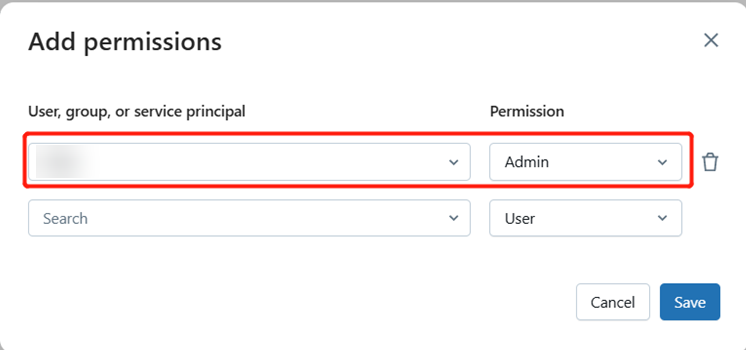
Admin permission for service principal – As an account admin, go to the account console > Workspaces > Permissions tab, click Add permissions to add Admin permissions for the service principle.
-
-
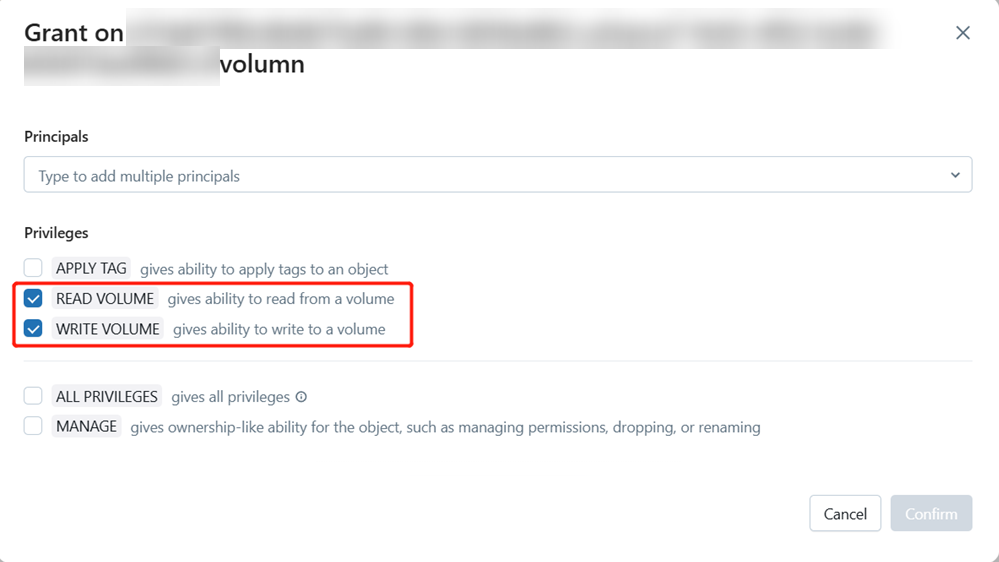
Read & write volume – Go to your Azure Databricks workspace > Catalog > required volume > Permissions tab, click Grant to grant READ VOLUME and WRITE VOLUME privileges for the volume.
-
-
After you add databases, you can perform the following actions to manage the databases:
To allow AvePoint Cloud Backup for Salesforce® to access your database
If your database has a firewall or IP access restrictions configured, you need to add the reserved IP address of AvePoint Cloud Backup for Salesforce® to the allowed list of your database. To download the reserved IP address, go to AvePoint Online Services > Administration > Security > Reserved IP addresses.
If you are using a SQL Server database, refer to How to Allow AvePoint Cloud Products to Access Your Storage for detailed instructions to add reserved IP addresses to the allowed list of your SQL server firewall.
If you are using a Databricks database, complete the following steps to configure the Databricks for AvePoint Cloud Backup for Salesforce® to access the database:
-
As an account admin, go to the account console.
-
In the left navigation, click Settings.
-
On the Security tab, click IP Access List.
-
Click Add rule and complete the following configurations:
-
Select ALLOW specify the set of IP addresses on the public Internet that are allowed access.
-
Label – Enter a label for the rule.
-
IP Addresses – Enter the IP address or address range.
-
Status – Turn on the toggle to enable the rule.
-
-
Select Save to apply your changes.