
Home > User Guide > Compare Backup Data
Export to PDFCompare Backup Data
AvePoint Cloud Backup for Salesforce® provides Compare data and Compare metadata to compare and show the differences between objects or metadata in two different backups. It can also compare the differences in objects/metadata between a backup and the current Salesforce environment. This feature is available to administrators and the users in the groups that have the Compare permission.
Compare Data
To compare objects, complete the following steps:
-
Click Compare in the left navigation, and then select Compare data.
-
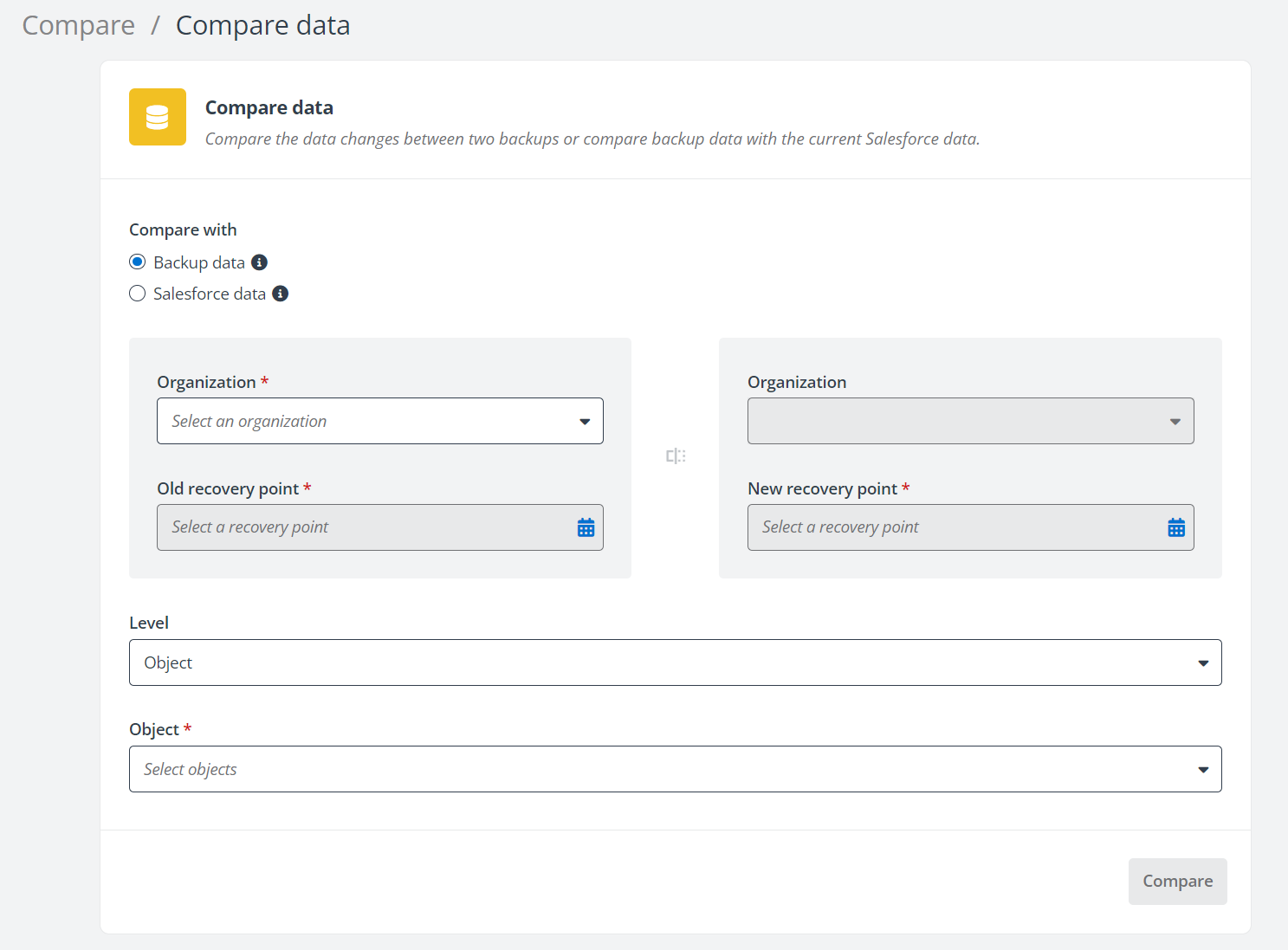
On the Compare data page, select to compare with the backup data or compare with the current Salesforce data.
-
To compare with backup data, in the left section, select the organization and the old recovery point. In the right section, select the new recovery point. You can only compare backup data in the same organization.
-
To compare with Salesforce data in the current organization, in the left section, select the organization and the old recovery point. In the right section, the current organization is automatically displayed. Note that Cloud Backup for Salesforce® now supports getting the deleted records of the AccountShare object when comparing the backup data with the current Salesforce data.
-
-
In the Level field, select whether you want to compare objects or records.
-
To compare objects, select the objects you want to compare from the Object drop-down list.
-
To compare records, complete the following steps:
-
Select the objects you want to compare from the Object drop-down list.
-
In the Keyword field, you can select to search for records by Record name or Record ID. Enter the Record ID or keywords of the Record name and then click Search. The default search condition is to search the backup data within the last backup cycle.
-
You can click the link in the Record ID column to view the record details.
-
Select the records you want to restore from the search results. If you click the checkbox next to the Record ID column, all the records that meet your search conditions will be selected.
-
-
-
Click Compare to start the compare process.
After the compare job has started, you can go to the job monitor to track the progress. After the job is finished, you can click the Job ID link to view the compare result. For details, refer to Job Monitor.
Compare Metadata
To compare metadata, complete the following steps:
-
Click Compare in the left navigation, and then select Compare metadata.
-
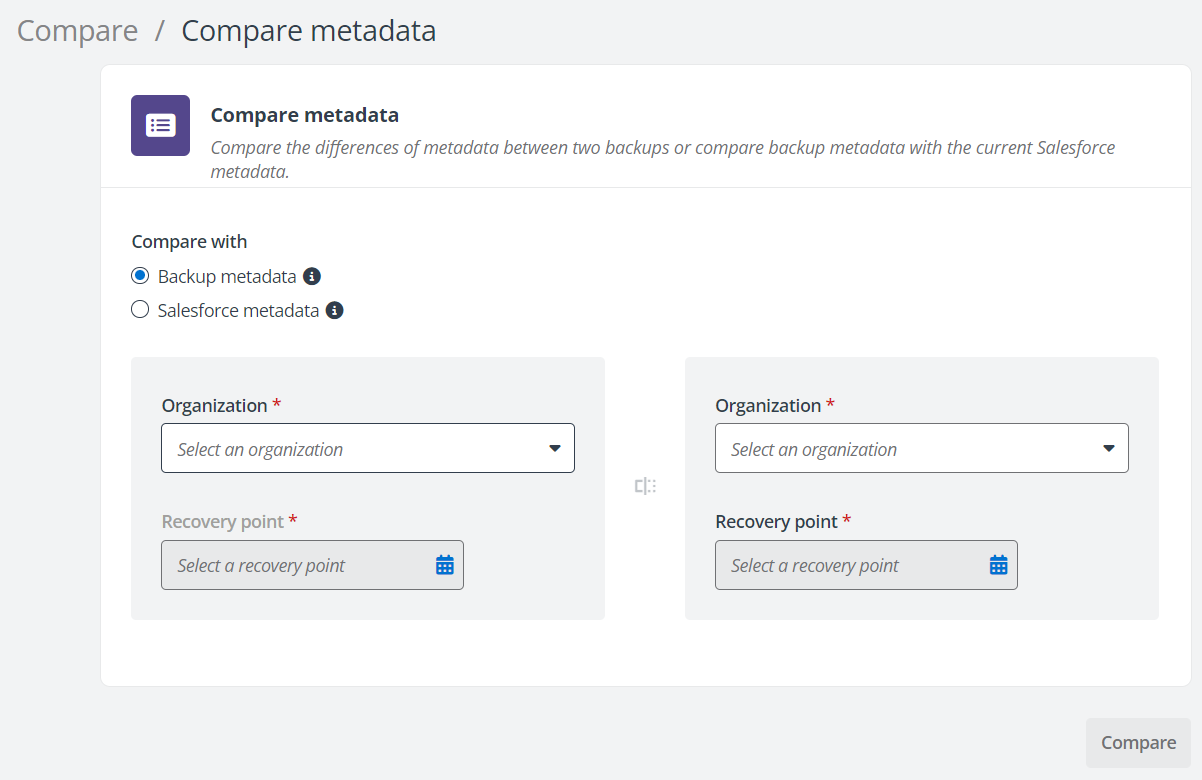
On the Compare metadata page, select to compare with the backup metadata or compare with the current Salesforce metadata.
-
To compare with backup metadata, in the left section, select the old organization and recovery point. In the right section, select the new organization and recovery point you want to compare.
-
To compare with Salesforce data, in the left section, select the old organization and recovery point. In the right section, select the new organization you want to compare.
-
-
Click Compare to start the compare process.
After the compare job has started, you can go to the job monitor to track the progress. After the job is finished, you can click the Job ID link to view the compare result. For details, refer to Job Monitor.