Home > User Guide > Integrate with Tableau and Power BI > Connect to Power BI > Generate a Data Report in Power BI
Export to PDFGenerate a Data Report in Power BI
-
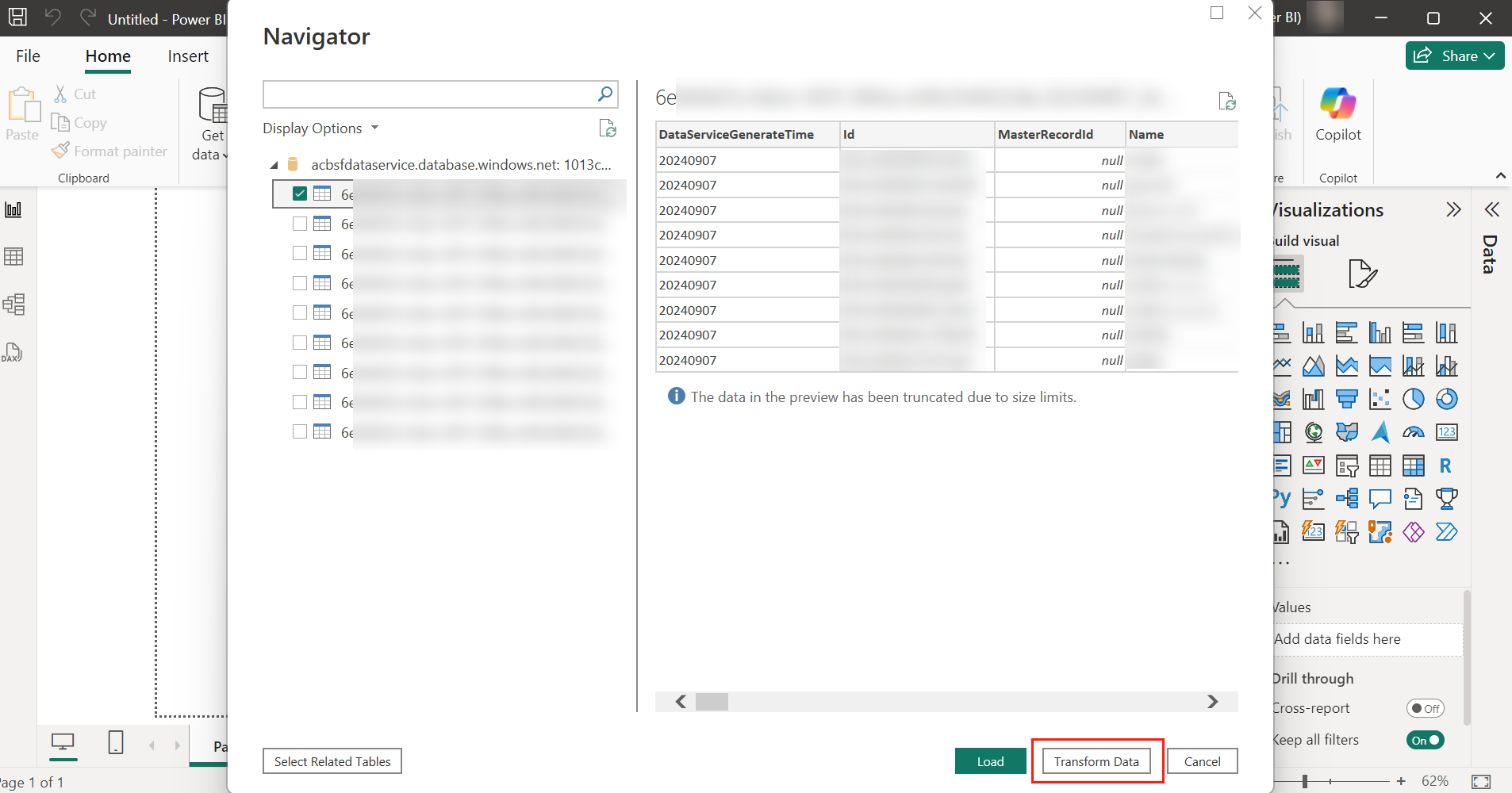
After connecting your Salesforce backup data, select the tables in the left pane and click Transform Data. The Power Query Editor window appears.
-
-
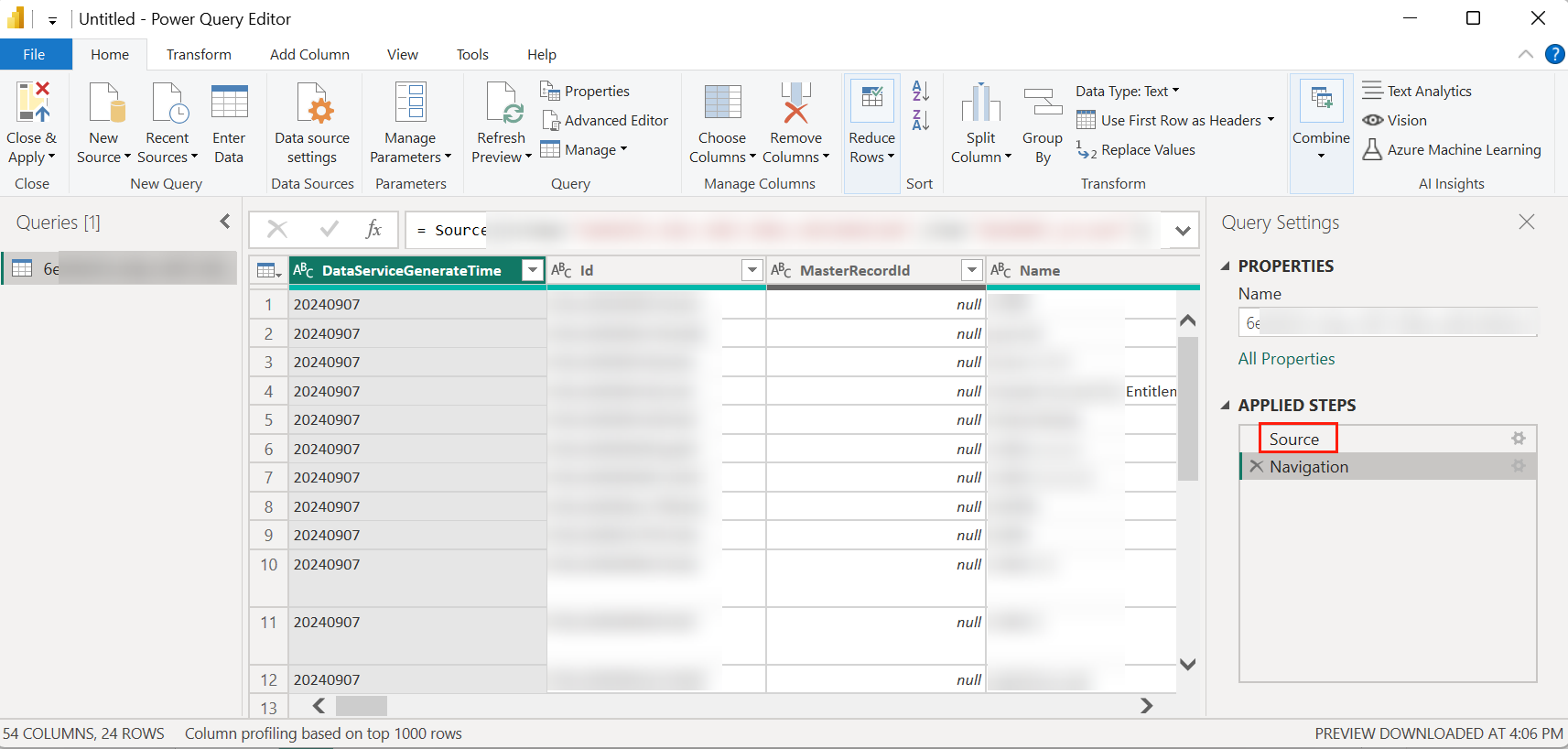
In the Power Query Editor window, click Source in the APPLIED STEPS section.
-
-
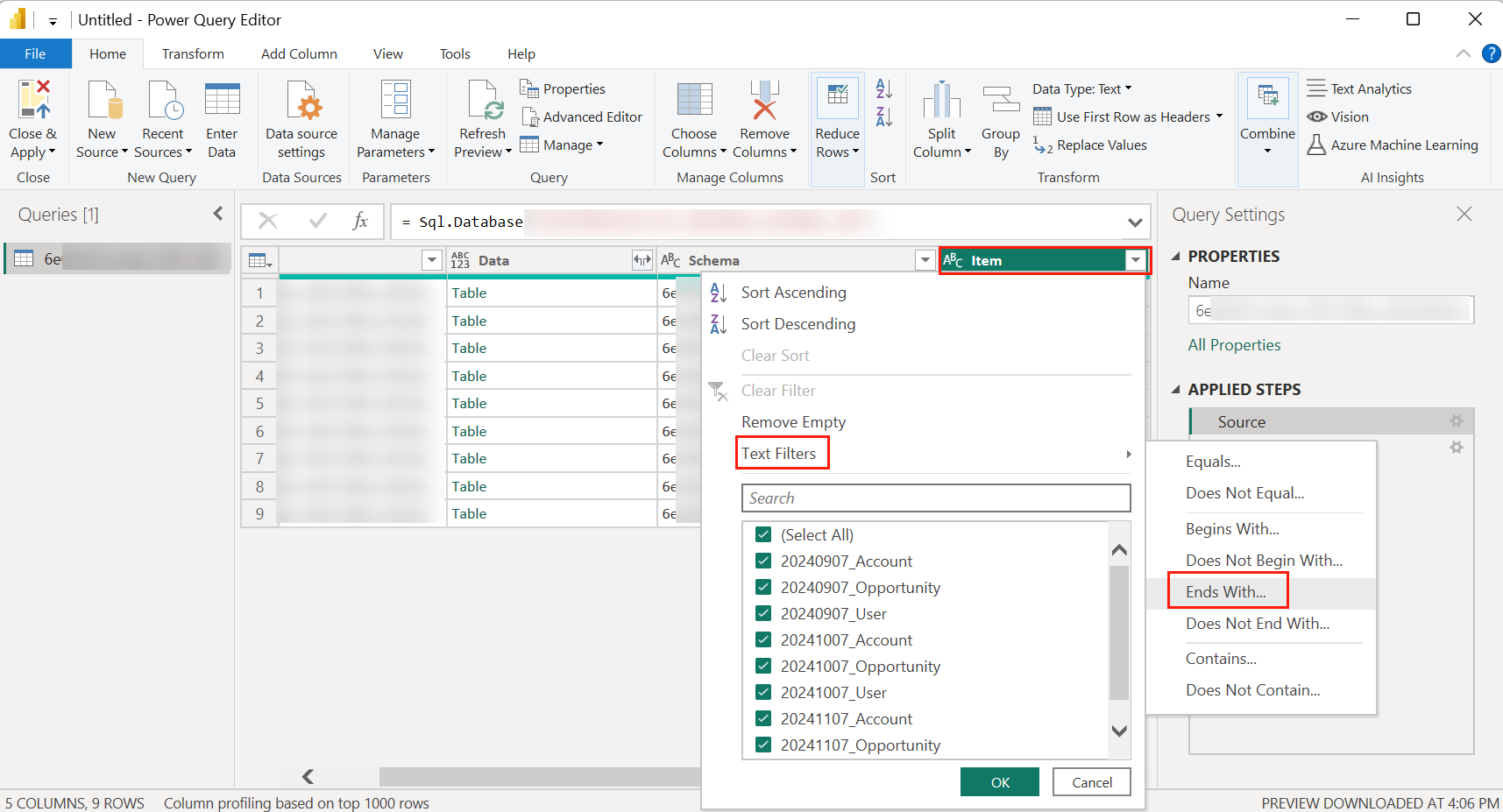
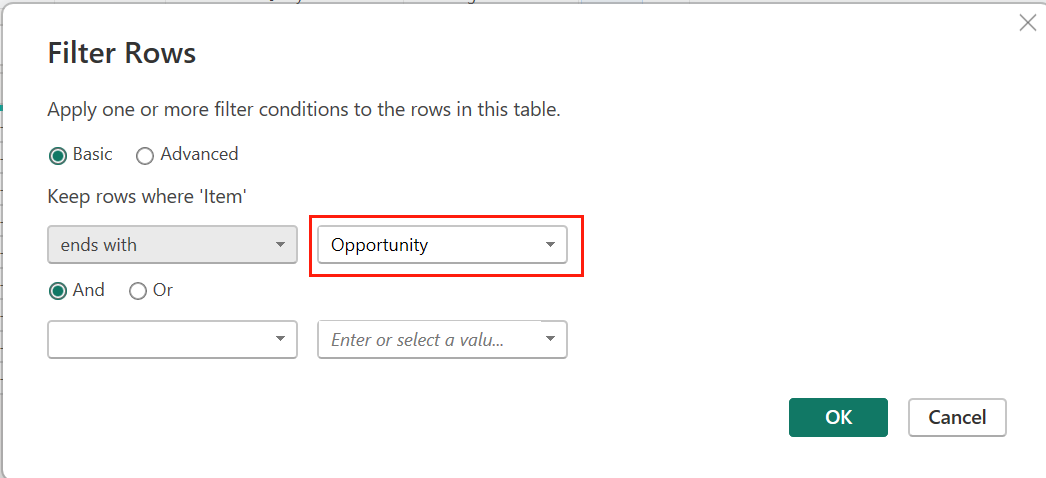
Then click the drop-down list of the Item column and use Text filters > Ends with to filter the data.
-
-
In the Filter Rows window, enter an object to filter the data.
-
-
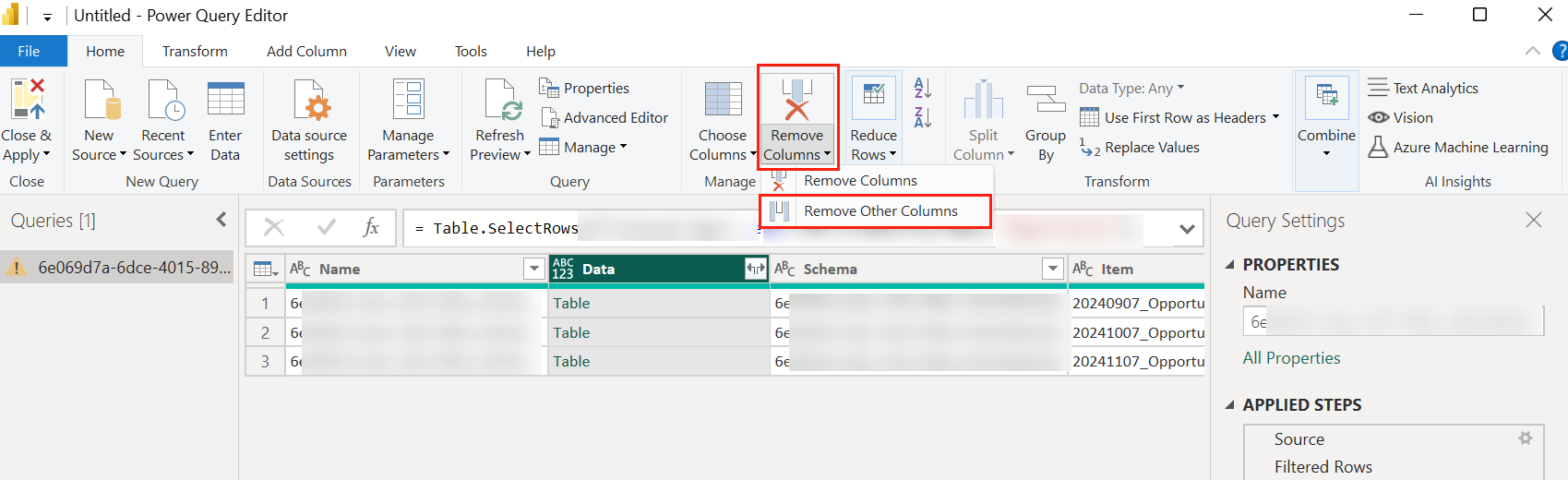
Click to select the Data column and click Remove Other Columns.
-
-
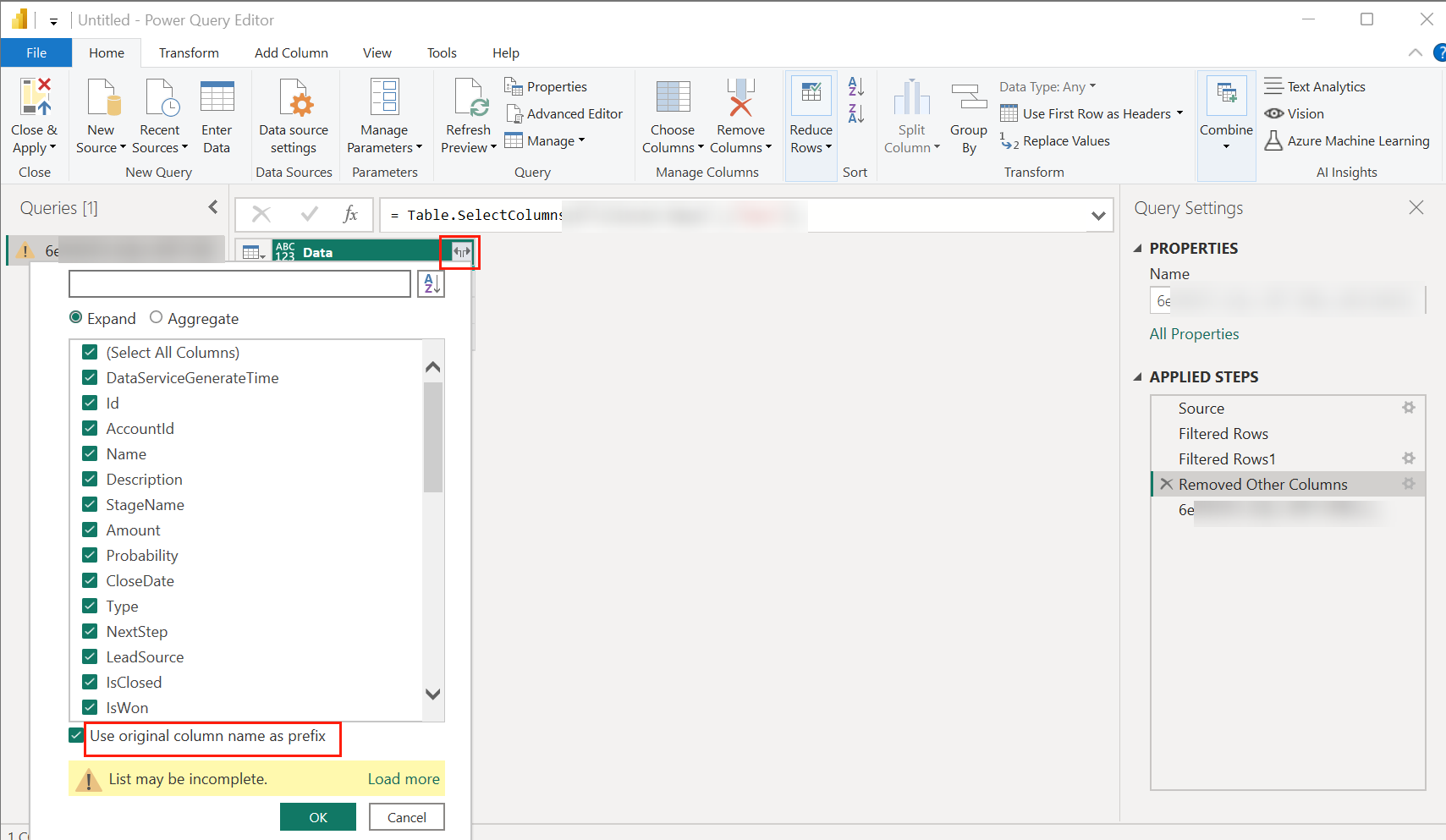
Click the Expand icon of the Data column. Then select some necessary columns such as DataServiceGenerateTime, Id, AccountId, Name, StageName, Amount, CloseDate, ForecastCategory, OwnerId, CreatedDate, LastModifiedDate, FiscalQuarter, FiscalYear, and Fiscal. Then, uncheck the Use original column name as prefix option and click OK.
-
-
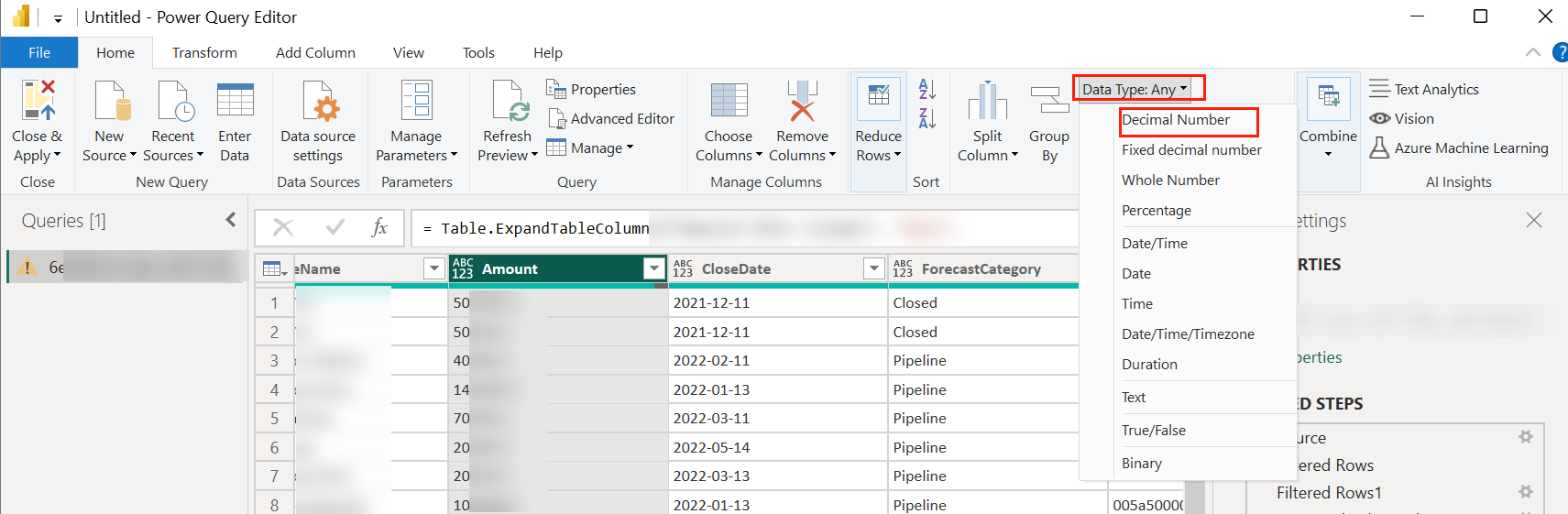
Click to select the Amount column and change the Data type to Decimal Number.
-
-
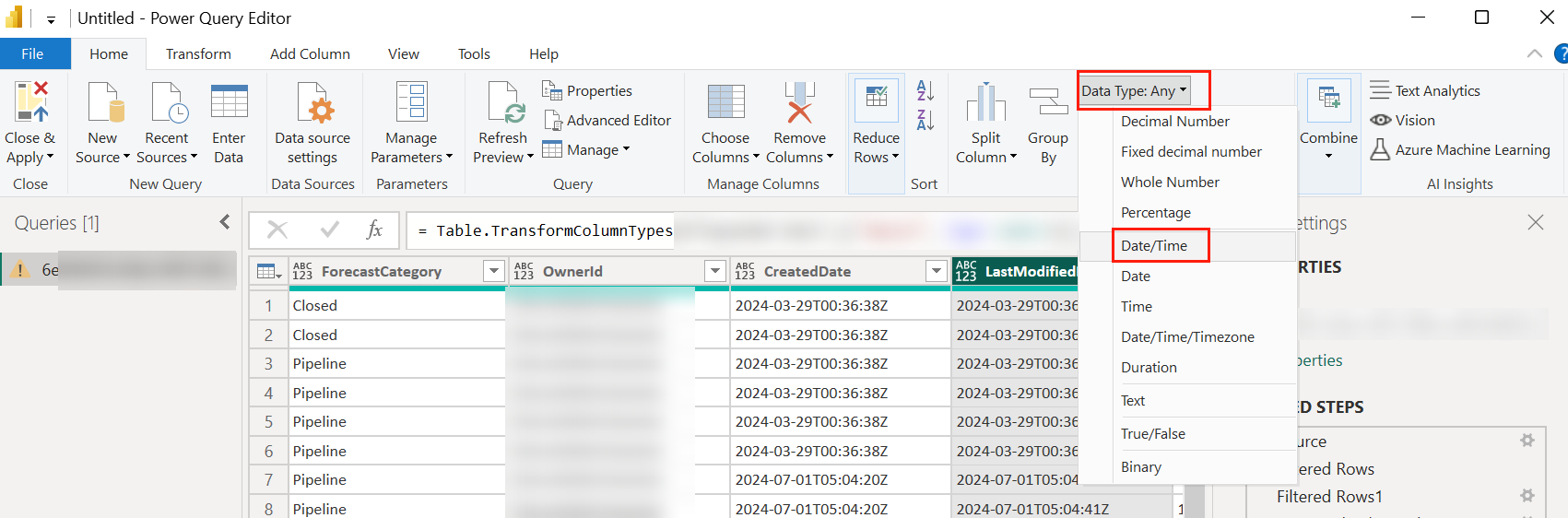
Click to select the LastModifiedDate column and change the Data type to Date/Time.
-
-
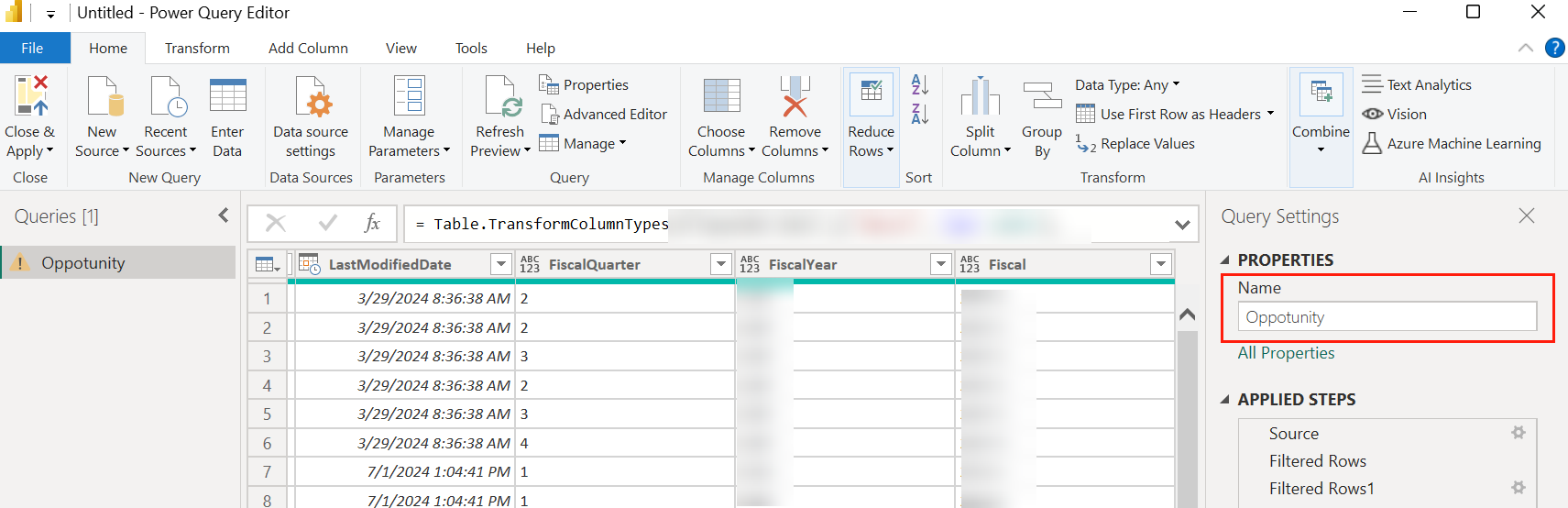
Rename the table to the corresponding object.
-
-
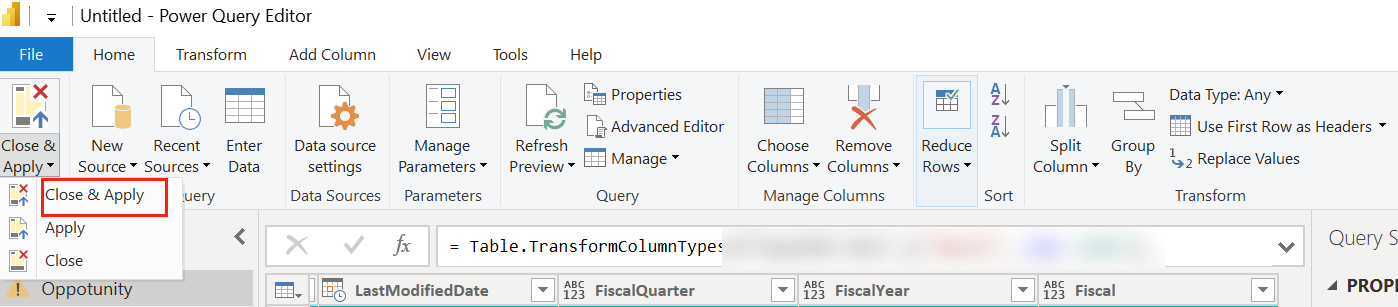
In the Home tab of the ribbon, click Close & Apply. Wait to load data.
-
-
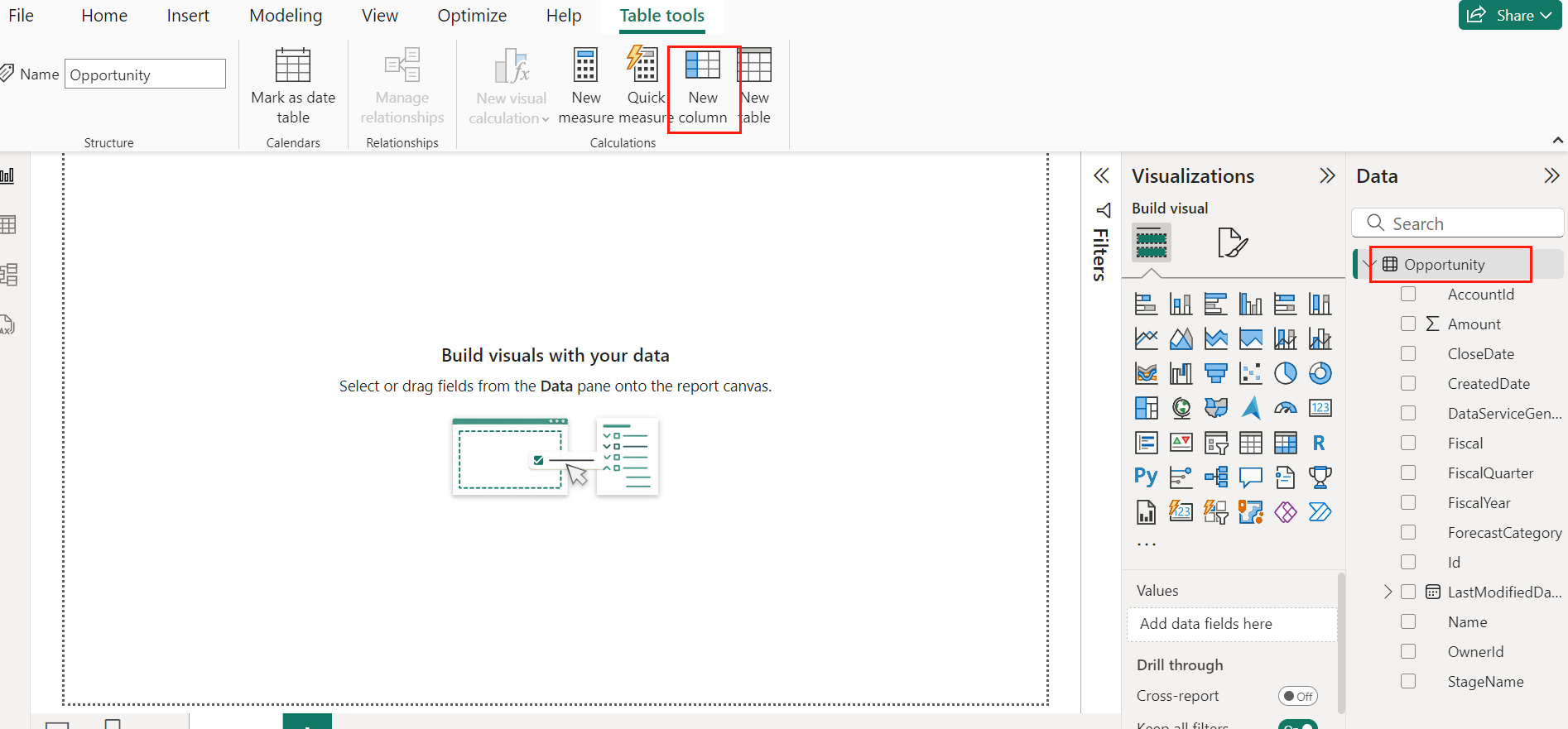
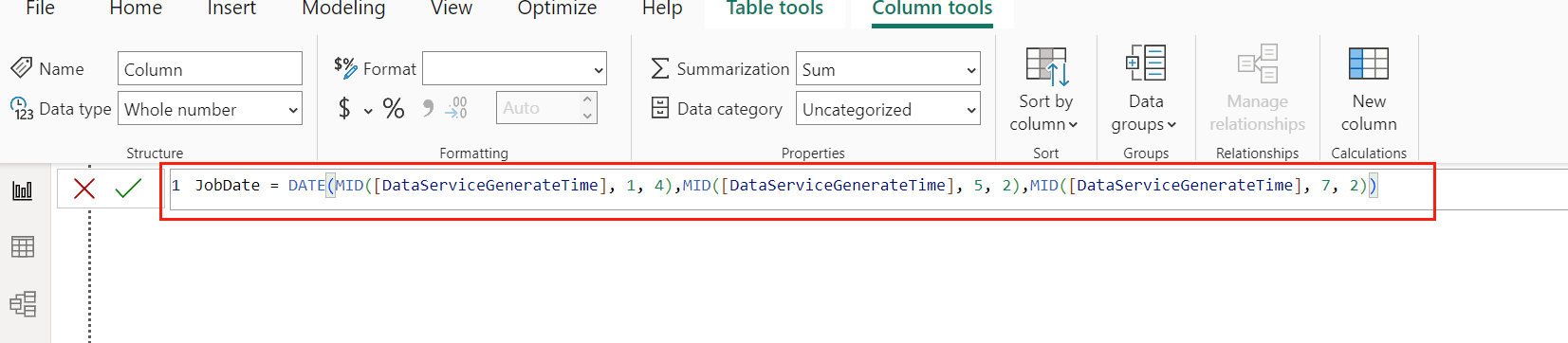
Click the Opportunity table in the right pane and click New column in the ribbon.
-
-
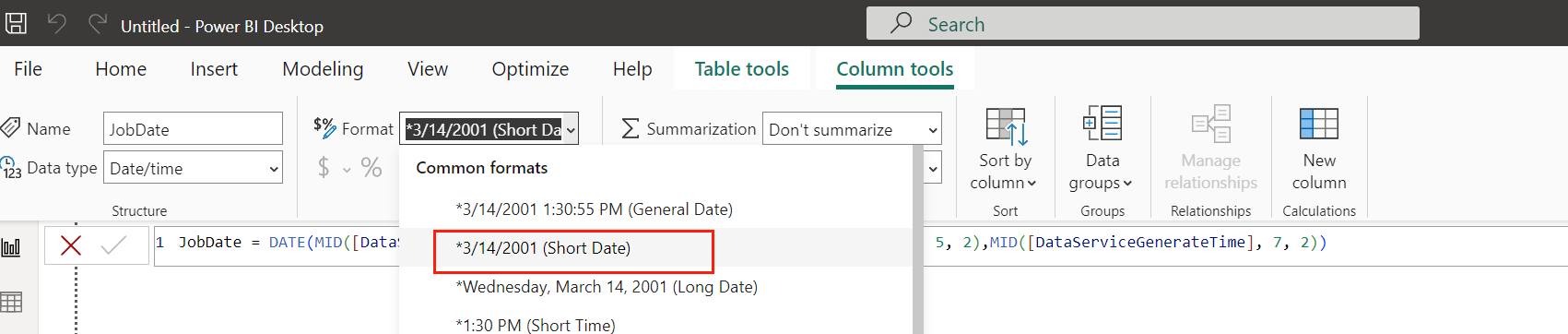
Enter the following formula to the text box and change its format to Short Date.
-
JobDate = DATE(MID([DataServiceGenerateTime], 1, 4),MID([DataServiceGenerateTime], 5, 2),MID([DataServiceGenerateTime], 7, 2))
-
-
-
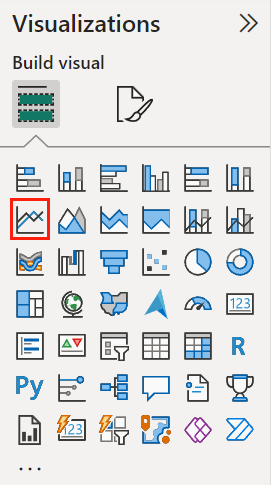
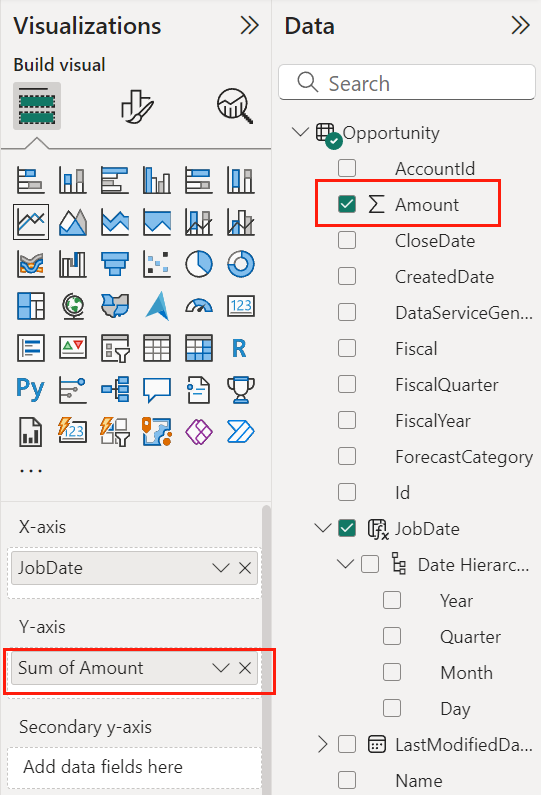
In Visualizations, click the Line chart button to create a line chart.
-
-
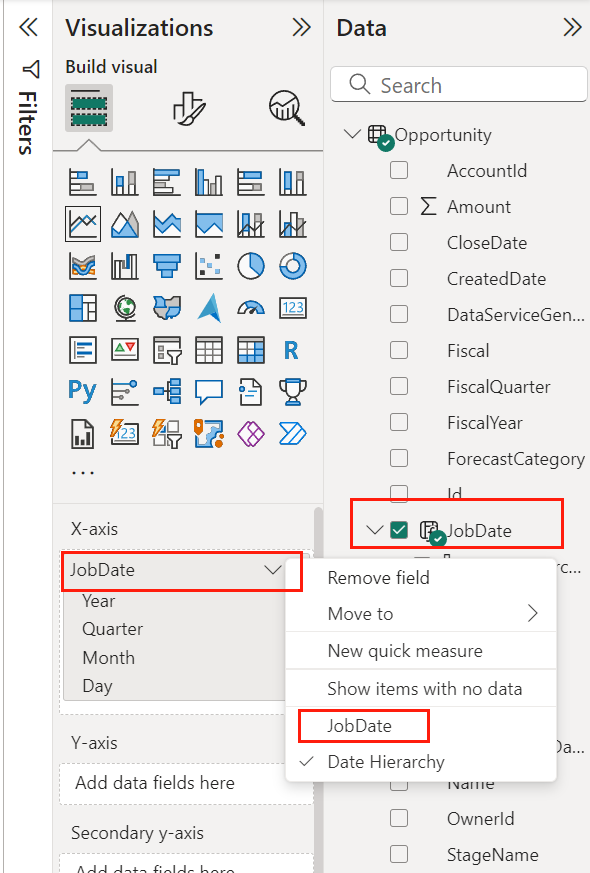
Select the newly created JobDate column to add it to the X-axis field. Then right-click the field and select JobDate.
-
-
Select the Amount column to add it to the Y-axis and then resize the chart.
-
-
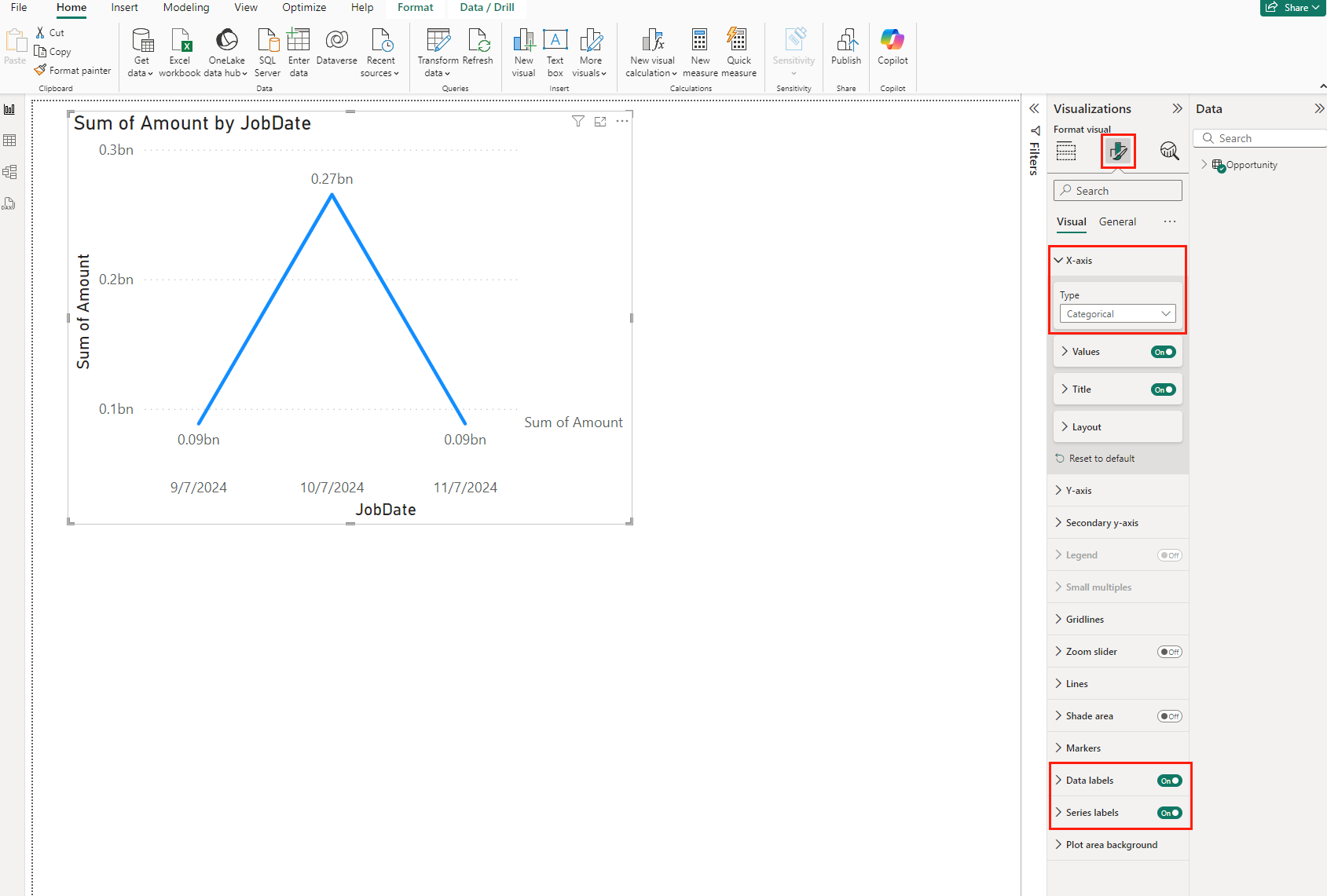
In Visualizations, click the Format your visual icon. Then change the Type in the X-axis section to Categorical, and enable Data labels and Total labels.
-
-
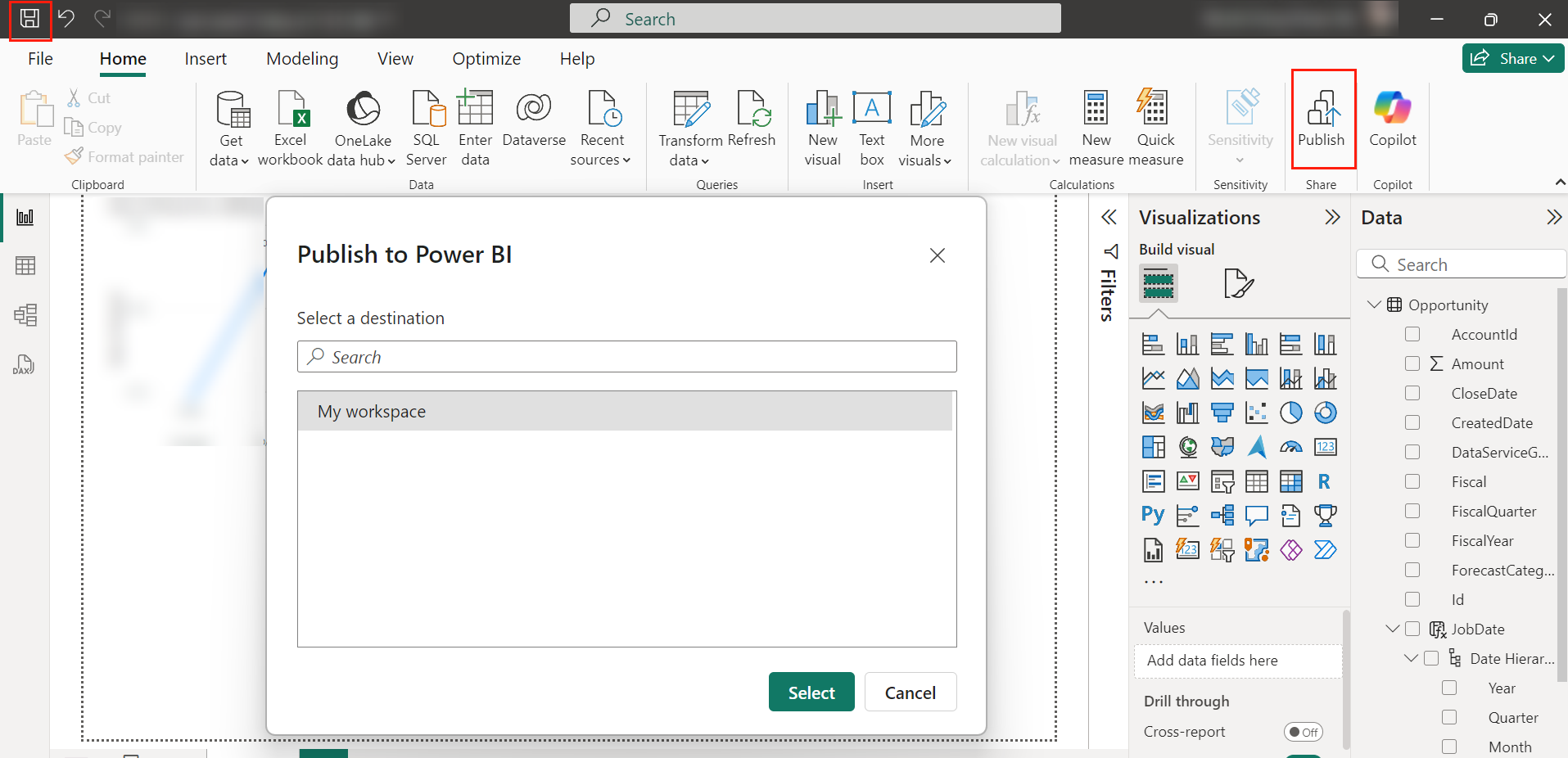
Click Save to save the report and then click Publish to publish it to Power BI.
-
-
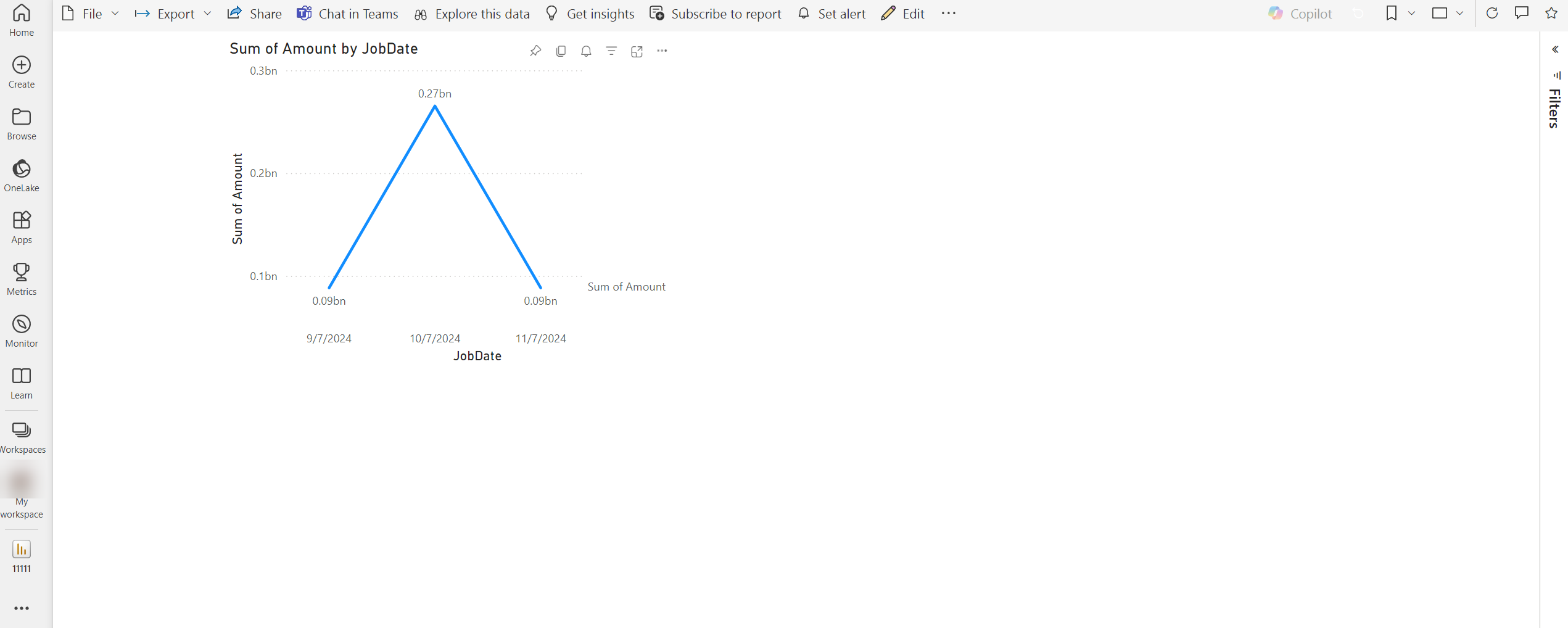
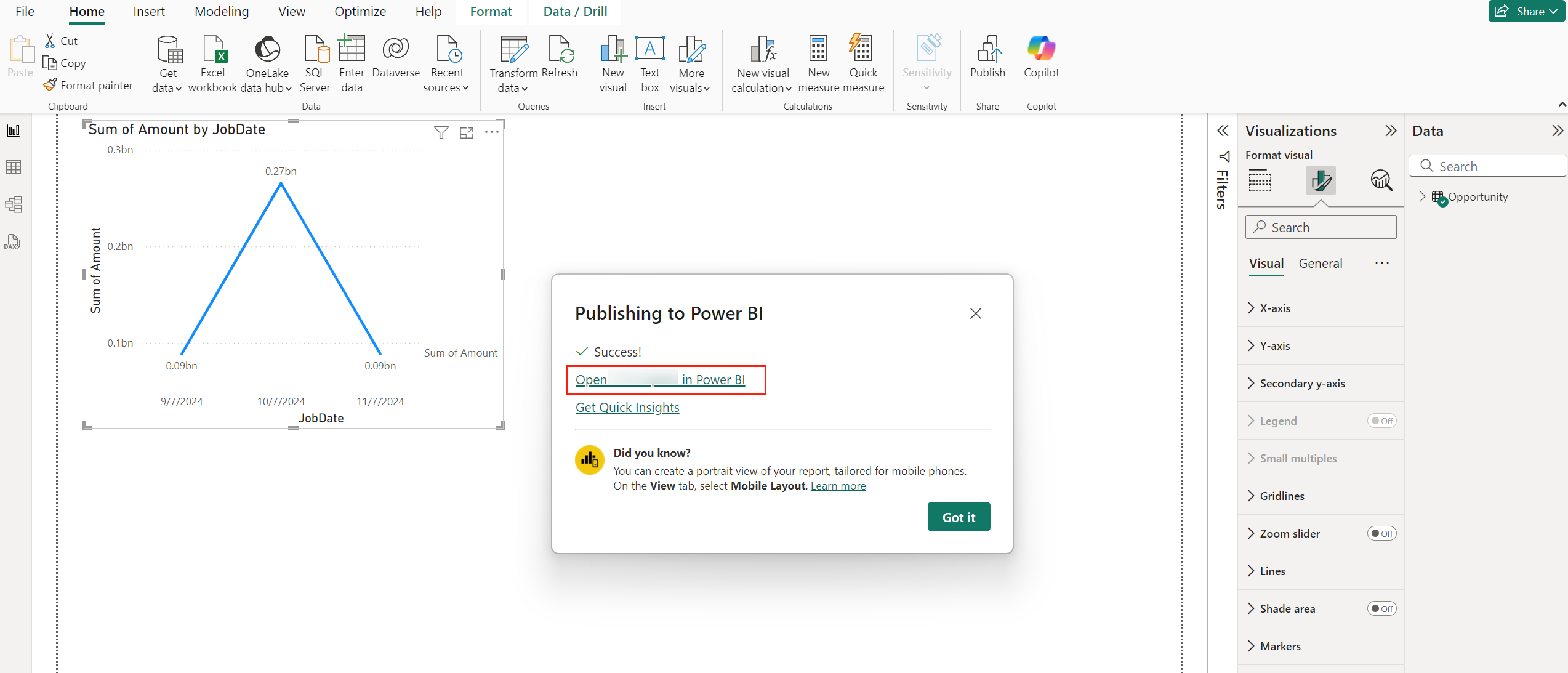
After successfully publishing the report to Power BI, click the option in the window to open it directly in Power BI.
-
-