
Home > User Guide > Back Up a Salesforce Organization > Back Up Data > Overview
Export to PDFBack Up Data
AvePoint Cloud Backup for Salesforce® service will automatically back up all your Salesforce records at 00:00 local time after your first login and perform one backup job every day. The backup files/attachments will be encrypted and stored in an Azure BLOB Storage, while other backup data will be encrypted and stored on an Azure Database.
When you first perform a backup job for an organization, a backup cycle is started. The backup cycle is one year. The first backup job in one cycle is a full job, and subsequent backup jobs only back up the changed data since the last job. Incremental backup jobs will continue to run during a full backup, giving you more comprehensive protection of your Salesforce environment.
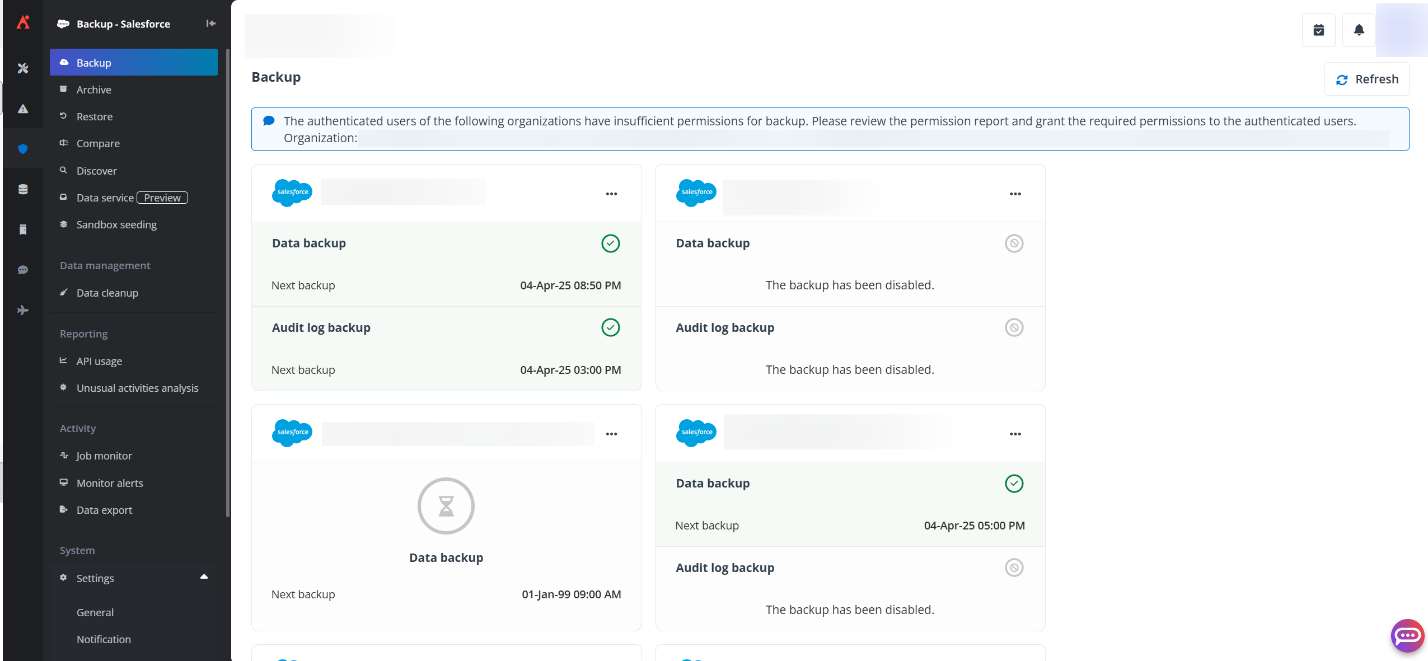
On the Backup page, you can view all organizations. Each organization has a separate tile displaying the last backup job status and the next backup job start time.
The Backup page will be automatically refreshed every 10 minutes and each time you navigate back to the Backup page. You can also click the Refresh button to manually retrieve the latest backup status for the organizations.
You can also perform the following actions to manage the backup for organizations:
-
After your first login, you can click the More commands button in the upper-right corner of the organization tile, click Back up now from the drop-down list, and select All objects in the panel to back up the entire organization for the first time or let AvePoint Cloud Backup for Salesforce® perform the first backup job automatically at 00:00 local time. You can also select custom backup scope and select the required object in the Back up now panel to run an on-demand backup job.
Note that the job will not start if there is already a running job for the organization. And you can only run on-demand backup jobs for specific objects after a full backup.
The Back up now button is only available to administrators and the user groups that have the Back up now permission. If the storage location has not been configured for the organization, the alert will appear. You can select to configure the storage location immediately or configure it later. To configure the storage location, refer to Configure a Custom Storage Location and Database for instructions.
-
After Continuous data protection is enabled for the organization, you can click the More commands button in the upper-right corner of the organization tile, and then click Generate recovery point from the drop-down list to generate a recovery point for the protected objects. In the Generate recovery point window, select required Objects and Requested recovery point, then click Generate to generate a recovery point for the selected objects and run a backup job for the objects on the requested recovery point.
You can refer to Enable Continuous Data Protection for instructions on how to enable continuous data protection for the organization.
-
The scheduled permission check for the authenticated user will be enabled by default. To disable scheduled permission check or configure permission check settings, click the More commands button in the upper-right corner of the organization tile and select Configure permission check settings. You can configure the following settings:
-
Start time – Select the start time of the schedule, and the first permission check will be automatically performed at that start time. By default, the start time is the date when the Salesforce organization is connected.
-
Interval – Configure the interval for the scheduled permission check. By default, the interval is 1 month.
To perform an immediate permission check, click the More commands button in the upper-right corner of the organization tile and select Check Permissions now. The permission report will be sent to administrators.
The following three lists will be included in the permission report. For the lack of permissions, you can grant the required permissions to the authenticated user and contact AvePoint support to perform a full backup for the unprotected objects.
-
FieldPermission: This list shows whether the authenticated user has the Read permission for each field. The Field Permission column displays both the field name and the name of the object it belongs to. Note that the field values that are not granted the Read permission to the authenticated user cannot be protected.
-
ObjectPermission: The objects that are not granted the Read permission for the authenticated user will not be included in this list and they cannot be protected. You can check whether the objects you want to protect are specified in this list.
-
UserPermission: This list shows the permissions required by the authenticated user for backup and restore. You can check whether each permission has been granted to the authenticated user. Additionally, you can find information on the intended use of any permissions that have not been assigned.
-
-
Administrators can configure the backup scope and frequency for the automatic backups. Click the More commands button in the upper-right corner of the organization tile and click Configure backup settings from the drop-down list. For detailed instructions, refer to Configure Backup Settings.
-
When you manage many organizations, and you want to hide specific organization cards from the Backup page, click the More commands button in the upper-right corner of the organization tile and click Hide organization from the drop-down list. The organization will be moved to the Hidden organizations section. You can then click Hide in the upper-right corner to hide the organization cards.
If you want to view the hidden organizations, click Show hidden organizations. If you want to always show an organization, click the More commands button in the upper-right corner of the organization tile and click Show organization from the drop-down list.
-
You can check the backup details of an organization by clicking on the corresponding organization tile. You can also click the More actions button in the upper-right corner of the organization tile and click View details from the drop-down list to view the backup details. For details, refer to Monitor and Manage Your Backup.
Note the following about backup:
-
To protect all files of an organization, the user who creates the Salesforce app profile must have the Query All Files permission. For details on connecting Salesforce organization, refer to .
-
Once your subscription expires, the backup schedule will be stopped.
-
The backup jobs will back up the objects with exceptions in the last backup job automatically.
-
Within 24 hours, you can perform different numbers of backup jobs for organizations with different subscription types. Refer to Appendix E - AvePoint Cloud Backup for Salesforce® Subscription Retention Information for details. Skipped and failed jobs are not included in the limitation on the number of jobs.
-
If AvePoint Online Services detects that the number of your active users in Salesforce has exceeded the number of purchased user seats for AvePoint Cloud Backup for Salesforce®, AvePoint Cloud Backup for Salesforce® will stop the backup feature. You can still restore or compare data using the previous backups.
The number of Sandbox users will not be counted as active users in Salesforce.