
Home > User Guide > Back Up a Salesforce Organization > Back Up Data > Monitor and Manage Your Backup
Export to PDFMonitor and Manage Your Backup
You can click an organization’s tile on the Backup page to view the data backup details of that organization. If you have audit log backup enabled for the organization, select the Data backup tab.
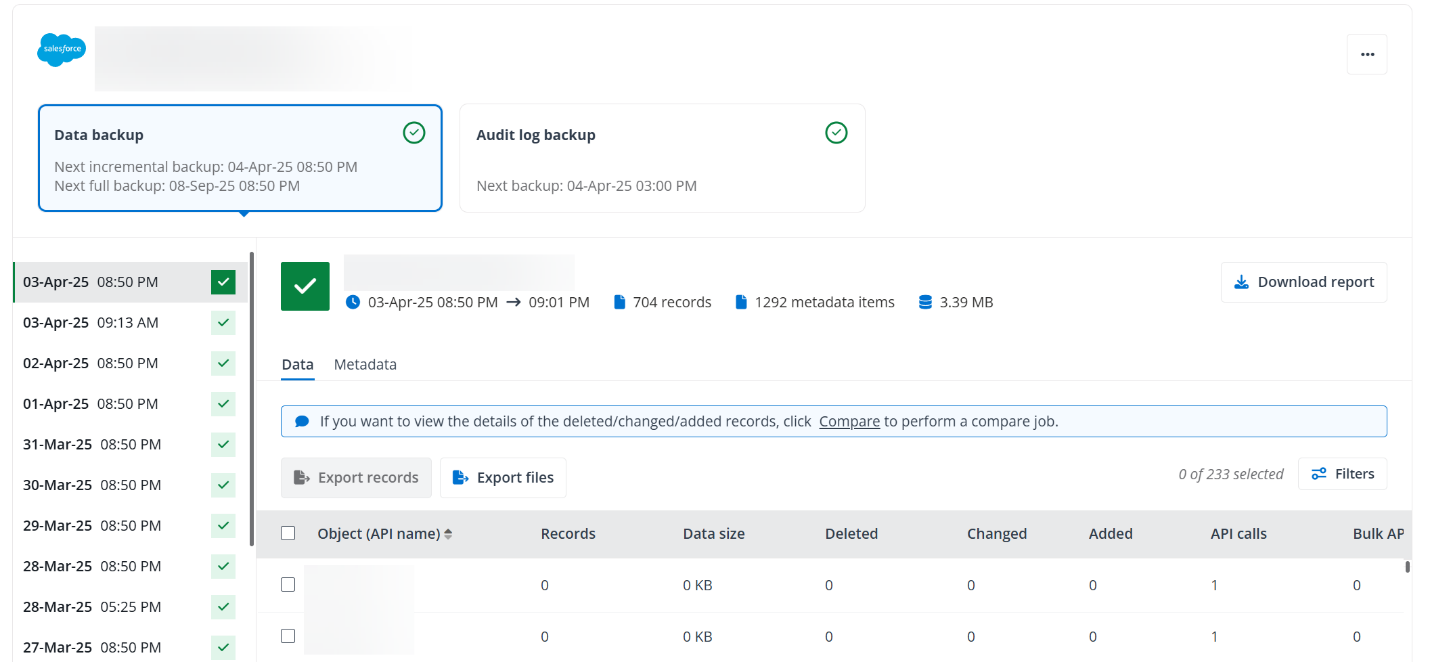
On the Organization details page, you can get the time for the Next incremental backup and Next full backup of the organization data. You can also switch to the desired backup job on the left, download job report, export data, download metadata, or perform a compare job to get the details of the deleted, changed, or added records. For backup jobs in progress, successful items and items with exceptions during the backup are provided.
You can also click the More commands button on the upper-right corner and select to manually start a backup job for this organization or configure the backup settings.
For details, refer to the following:
-
Click a backup time in the left pane, and the details of the corresponding backup job will be displayed in the right pane. You can view the start time, end time, number of records, number of metadata items, and backup size of the job. Click Download report to download the job report to the XLS file. We are implementing error codes into job reports as a self-service approach for troubleshooting. Clicking the error code link in the downloaded job report will open the .
-
Data – Under this tab, you can view, export, download, and compare the backup data.
-
View the number of records, backup data size, API usage, and backup details about different objects. You can click Filters to filter the objects by object type or number range of removed/changed/added records.
Note that if Bulk API is not enabled for backup in the current organization, the values for Bulk API usage and Bulk API 2.0 usage will be displayed as 0.
-
You can Export records or Export files of the protected objects.
To export records, select the objects that you want to export and click Export records. In the Export records panel, select whether to export detailed backup data to CSV files or MySQL files, and whether you want to export the changed data after the last backup job or export all backup data in the current cycle. Then click Export. An export job will be added to the job queue, and you can view the progress of the job in the job monitor.
To export files, click Export files directly. In the Export files window, select the objects for which you would like to export files, and whether you want to export the changed data after the last backup job or export all backup data in the current cycle, and then click Export. Only the following object types are supported: Attachment, Document, Static Resource, Mail Merge Template, and Content Version.
Note that you cannot start an export job when there is an existing export job running. There is a monthly limit (100 GB) on the capacity of files that can be exported.
After any export job is completed, two ways are available to download the export data:
-
In Job monitor, click the More commands button of the export job and select Download data. Then copy the password and click Download to download and save the CSV files or MySQL files to a local location.
-
On the Job monitor > Job details page, click Download export data to download and save the CSV files or MySQL files to a local location. To obtain the password of the downloaded files, click Show password.
-
-
If you want to compare the backup data of the current backup job with those of the latest backup job, click Compare link to start a compare job. You can go to Job monitor to follow up on the job progress and details.
-
-
Metadata – Under this tab, view the backup details of metadata. You can also search for specific metadata by entering the keyword of metadata type in the search box. You can click the Export metadata link to export metadata to a ZIP file.
Note that Several built-in Salesforce profiles do not have the same name when they are exported. If you create a custom profile with the same name as the exported name of the built-in Salesforce profile, the custom profile will overwrite the built-in profile. To avoid overwriting the built-in Salesforce profiles, refer to Appendix D - Exported Profile Names for Built-in Salesforce Profiles before naming a custom profile.