
Home > User Guide > AvePoint Cloud Backup for Salesforce® App User Guide
Export to PDFAvePoint Cloud Backup for Salesforce® App User Guide
AvePoint Cloud Backup for Salesforce® provides a comprehensive backup and restore solution. The AvePoint Cloud Backup for Salesforce® app enables you to directly restore record and field data in Salesforce from the backup data that is backed up through AvePoint Cloud Backup for Salesforce®. The app supports English and Japanese.
To use the AvePoint Cloud Backup for Salesforce® app to restore record or field data in Salesforce, you must subscribe to AvePoint Cloud Backup for Salesforce® in the AvePoint Online Service platform and install this app in your Salesforce environment. Note that users can only view and restore records based on their permissions to the corresponding object, records, and fields in the Salesforce environment.
You can navigate to the > Try Free for 30 days > Salesforce Services to start a free trial of AvePoint Cloud Backup for Salesforce®.
Installation Overview
With the AvePoint Cloud Backup for Salesforce® app installed, you can directly restore records via the AvePoint Cloud Backupbutton in Salesforce Lightning. Additionally, you can configure the location for the Restore action that links to the field-level AvePoint Cloud Backuppage to restore fields.
Complete the following steps to install the app and configure the Restore action for restoring fields:
-
Install the app package to your environment. For details, refer to Install the App Package.
-
Configure the security authentication. For details, refer to Configure Security Authentication.
-
Customize the location for the Restore action in Salesforce Lightning. For details, refer to Customize the Location for the Restore Action in Salesforce Lightning.
Install the App Package
Complete the following steps to install the app package:
-
Click one of the following entries to install the app package:
-
To install the app to your production environment, access the and sign in with Salesforce credentials.
-
To install the app to your sandbox environment, access the and sign in with Salesforce sandbox credentials.
-
-
Select Install for All Users.
-
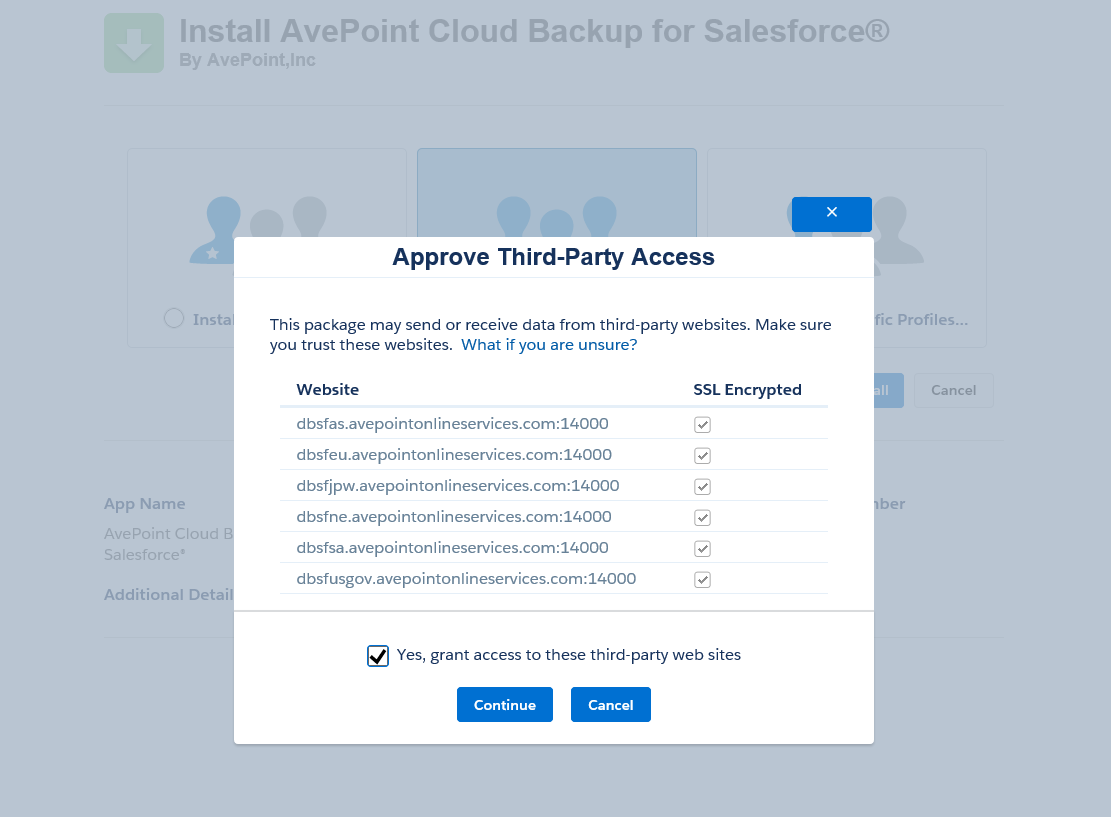
Click Install. The Approve Third-Party Access window appears.
-
Select Yes, grant access to these third-party web sites checkbox.
-
Click Continue to start the package installation process.
-
When the installation process is complete, the following page appears. Click Done to confirm the installation.
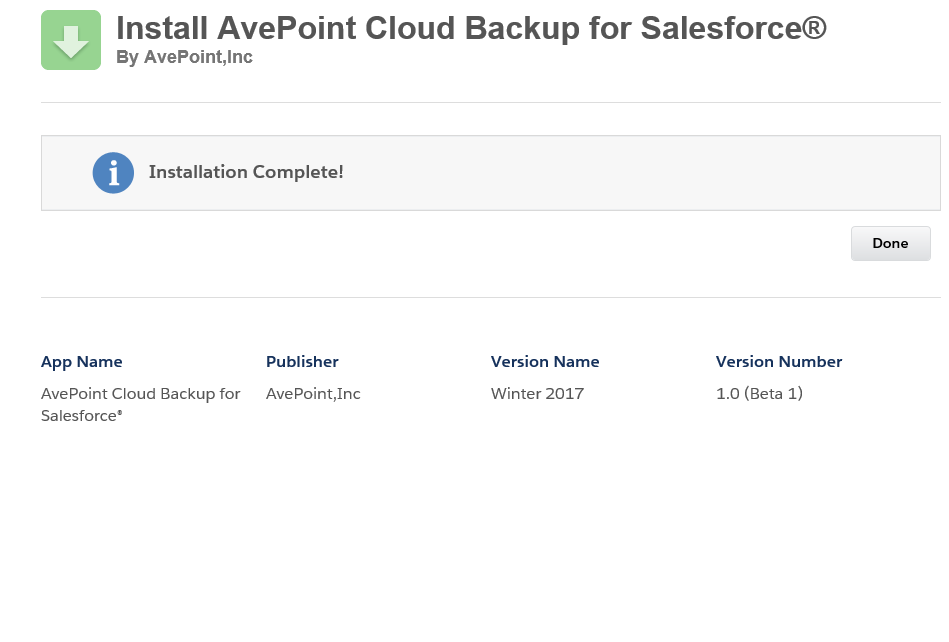
The app package is installed into your environment successfully.
Configure Security Authentication
After installing the app package, administrators need to follow the steps below to configure security authentication:
-
In AvePoint Online Services, the Tenant Owner and Service Administrators can register an app in Administration > App registrations. For details, refer to in the AvePoint Online Services user guide. Remember to copy and save the Client secret value for later use.
-
Click the registered app in AvePoint Online Services and copy the Application (Client) ID for later use.
-
In Salesforce Lightning, the Salesforce administrators can click the Setup icon in the upper-right corner and navigate to Setup.
-
In the left navigation, click SETTINGS > Security > Named Credentials, and then click the External Credentials tab.
Note that for non-admin users, Assign Permission Sets and Allow users to modify Named Credentials and External Credentials permissions are required to configure security authentication. You can navigate to Setup > ADMINISTRATION > Users > Profiles or Permission Sets to check the permissions.
-
Click the external credential generated after the app installation.
-
In the Principals section of the AvePoint Identity page, click the dropdown arrow in the Actions column for the corresponding principal to Edit it.
-
Paste the Client ID and Client secret that you copied from AvePoint Online Services. Once completed, click Save.
-
In the left navigation, click Users > Permission sets.
-
Click AvePoint_API, and then click Manage Assignments.
-
Click Add Assignment and select users to assign. Then click Next and select an expiration option for assigned users.
-
Once completed, click Assign.
-
Note that if you want to access the app in a different data center, navigate to Setup > SETTINGS > Security > Named Credentials in Salesforce Lightning and complete the following configurations:
-
In the Named Credentials tab, click the credential and then click Edit to update the named credentials. In URL field, enter the corresponding web API URL of the required data center.
-
In the External Credentials tab, click the credential and then click Edit to update the named credentials. In Identity Provider URL field, enter the corresponding identity provider URL of the required data center.
-
-
To check the data center of your tenant, sign in to AvePoint Online Services. Click your profile photo in the upper-right corner and click Organization profile. In the Organization profile panel, you can find the data center that your organization belongs to.
Customize the Location for the Restore Action in Salesforce Lightning
After installing the app package, you can customize where to place the Restore action for restoring fields in Salesforce Lightning. You can create the Restore action as the shortcut to jump to the field-level AvePoint Cloud Backup page and add the button into the required page layout by following the steps below:
-
In Salesforce Lightning, click the App Launcher button in the upper-left corner, and click AvePoint Cloud Backup in the App Launcher pane.
-
Click Button settings button in the upper-right corner of the app.
-
Click New Button, and configure the following fields:
-
Label – Enter the display text for the button. For example, Restore.
-
Name – Enter the unique name for the button. For example, Restore.
-
Description – Enter an optional description for the action.
-
Object – Select an object to add the restore button.
-
Page Layouts – Select the page layout from the Available layouts field that you want to add the restore button to, and then click the Move selection to Active layouts button to add the button to the selected layout.
-
-
Once completed, click Save.
Set Up the Archive Widget
With the archive widgets, you can restore the archived related records directly when you view a record in Salesforce Lightning.
Administrators can complete the following steps to add archive widgets to Salesforce Lightning:
-
In Salesforce Lightning, you can edit the record page in the following two ways:
-
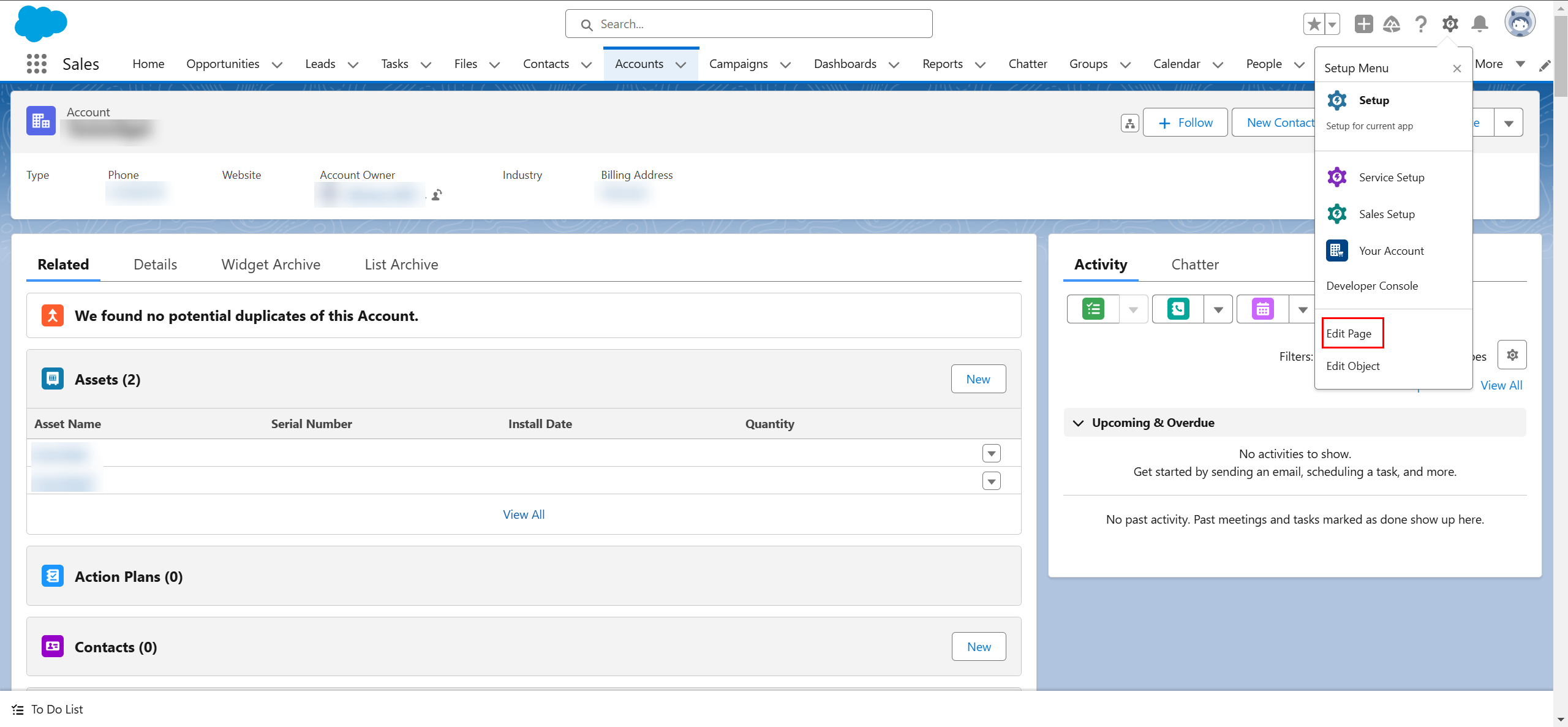
Click the App Launcher button in the upper-left corner, search and access the object page where you want to insert the widget. Select the required record, click the Setup button in the upper-right corner of the object page, and then click Edit Page.
-
-
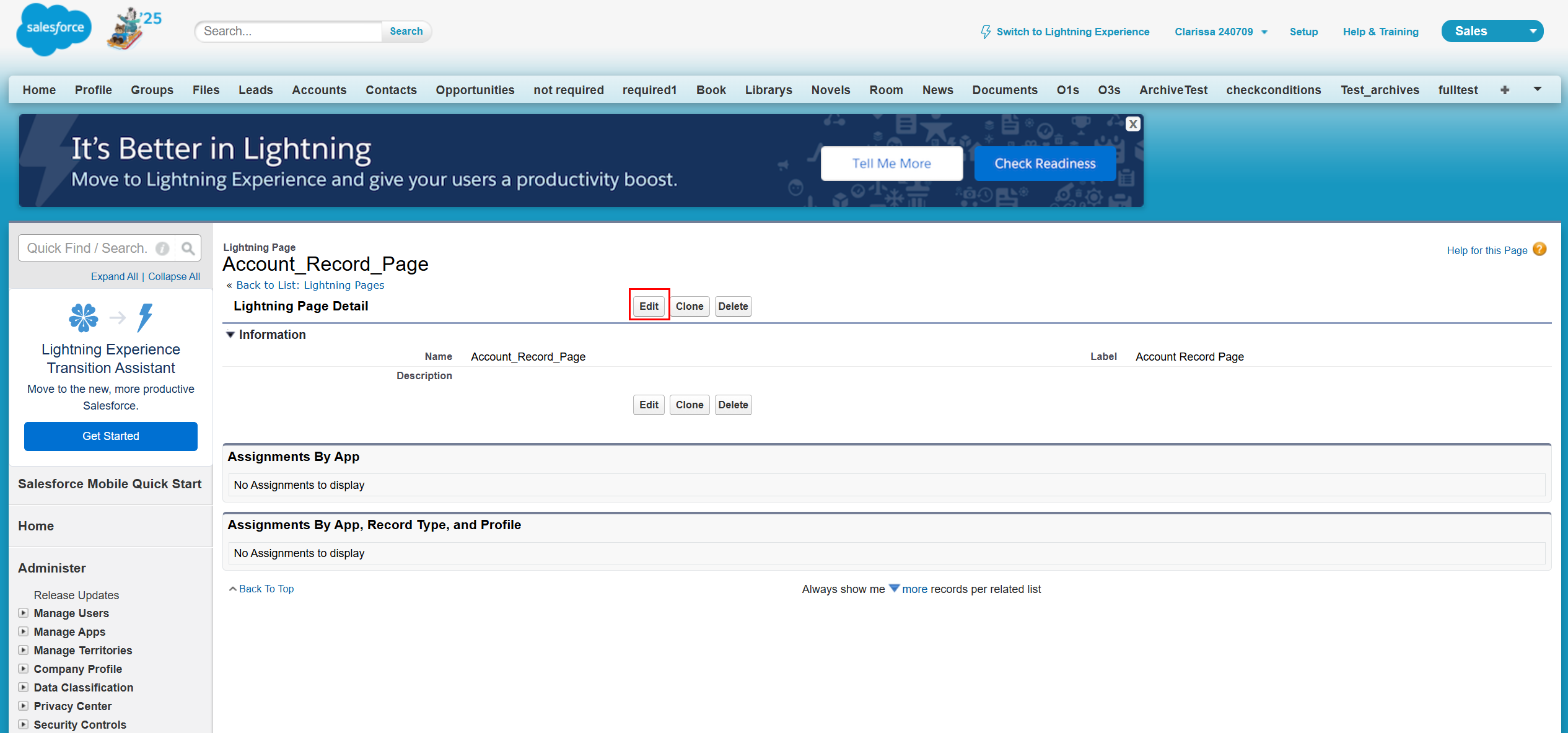
Navigate to Setup > Object Manager tab, select the required object where you want to insert the widget. Click Lightning Record Pages in the left navigation, and then select a record page or click New to create a new record page. On the record details page, click Edit.
-
-
-
On the Lightning App Builder page, click the middle section of the page and then click Add Tab in the Tabs pane to add a new tab.
-
Click the newly added tab, select Custom in the Tab Label field and enter a Custom Label.
-
To add a visibility rule to show or hide the tab, click Add filter > Advanced. Under the Advanced tab, select a field and an operator, and then enter a value for the filter. Once completed, click Done.
-
Click the newly added tab in the middle of the page.
-
In the Components tab of the left pane, drag custom widgets in the Custom - Managed section to the area under the newly added tab. Two types of widgets are provided:
-
CustomListRelatedRecordArchivedWidget – You can select up to 10 archived child objects in the right pane. All records of a particular archived related object are shown in a collapsible widget. You can click View All of each object for their archived records and click Unarchive to unarchive the desired record.
-
CustomSingleRelatedRecordArchivedWidget – You can select one default child object in the right pane. In the widget, you can click View All for all archived records of the object and click Unarchive to unarchive the desired record.
-
-
Once completed, click Save in the upper-right corner.
Restore Fields
In the field-level AvePoint Cloud Backup page, you can restore specific fields to the condition of a finished backup job on the Restore tab and view the history of restoring fields on the History tab.
To restore fields, complete the following steps:
-
Go to a page of a record.
-
In Salesforce Lightning, click the Restore action on the page layout. The field-level AvePoint Cloud Backup page appears.
-
In the Recovery Pointfield, select a recovery point.
-
The fields that have changes appear in the list. Select the fields you want to restore.
Note that you can select the Show Unchanged Fields checkbox to show the fields with no changes, but these fields cannot be selected to restore.
-
Click Restore Now to restore the fields.
Restore a Record
In the record-level AvePoint Cloud Backup page, you can restore a record to the condition of a finished backup job on the Restore tab and view the history of restoring records on the History tab.
To restore a record, complete the following steps:
-
In Salesforce Lightning, click the App Launcher button in the upper-left corner, and click AvePoint Cloud Backup button in the App Launcher pane.
-
In the Data Source field, select a data source.
Note that archived data can also be restored if archive widgets were added for the corresponding objects. You can go to a page of an object, locate a record under the corresponding tabs for widgets, and then click unarchive to restore the archived data. For details on how to add archive widgets, refer to Set Up the Archive Widget.
-
In the Recovery Point field, select a recovery point.
-
In the Object Type field, select the object types for the records.
-
In the Keywords field, enter a keyword to search the records whose record name contains the keyword. If you want to search all of the records that meet the criteria above, you can enter an asterisk (*) into the text box.
Note that this feature does not support wildcards as keywords.
-
Click Search.
-
All of the records that meet the above conditions appear in the list. You can click the Record ID to view the record details.
-
Select the records you want to restore.
-
Click Restore Now to restore the selected records.
View the Inactive Data Analysis Report
Under the Inactive Data Analysis tab on AvePoint Cloud Backup page, you can view the inactive data analysis reports for Archive with the latest analysis result of the current organization. The feature is currently in public preview. Refer to Run Inactive Data Analysis section for details on how to run an inactive data analysis job in AvePoint Cloud Backup for Salesforce®.
In the section with summary cards, the following are provided based on the last analysis job:
-
Inactive data count – Displays the total count of inactive data.
-
Inactive data size – Displays the total size of inactive data.
-
Inactive data storage usage – Displays the percentage of inactive data size relative to the total size in Salesforce.
-
Total data storage usage – Displays the percentage of all data size used relative to the total size in Salesforce.
-
Inactive file count – Displays the total count of inactive files.
-
Inactive file size – Displays the total size of inactive files.
-
Inactive file storage usage – Displays the percentage of inactive file size relative to the total size in Salesforce.
-
Total file storage usage – Displays the percentage of all file size used relative to the total size in Salesforce.
In the section for detailed information, you can select objects from the drop-down list above the table to view the detailed usage of inactive data/files in the table and their growth over time in the chart. By default, all objects within the scope of the last analysis job will be pre-selected.
In the Growth over time chart, there are two tabs: Year and Month. You can hover your mouse over each bar for specifics. For the monthly report, data for the last 24 months will be displayed, and you can select the time range from the drop-down list.