
Home > User Guide > Reporting > Use Unusual Activities Analysis Report
Export to PDFUse Unusual Activities Analysis Report
Cloud Backup for Salesforce® will learn from your backup statistics and warn you of organizations with unusual activities or that are under a potential ransomware attack.
Unusual activities are designed to provide visibility about atypical patterns within your environment, distinct from regular usage patterns. The unusual activities could be related to malware that is related to ransomware or non-ransomware. But in most cases, they can be legitimate operations. It might be normal for a user to make changes that do not match their day-to-day patterns. While you should be aware that these changes are happening, you likely do not have to respond to every unusual activity report.
However, a potential ransomware attack is much more serious and requires your immediate attention. It refers to the real suspicious files that were detected in an organization that requires investigation.
To learn how you use your environment and build the pattern, the Unusual Activities Analysis report requires at least 12 days of successful backups. Once any unusual activity or potential ransomware attack has been detected, you will receive an email notification. To enable the alert, refer to Configure Notifications.
View the Report
The Dashboard tab displays the number of organizations protected by Cloud Backup and the number of organizations with unusual activities. The main chart in the Dashboard tab shows the data tracked over the last 30 days for unusual activities and potential ransomware attacks.
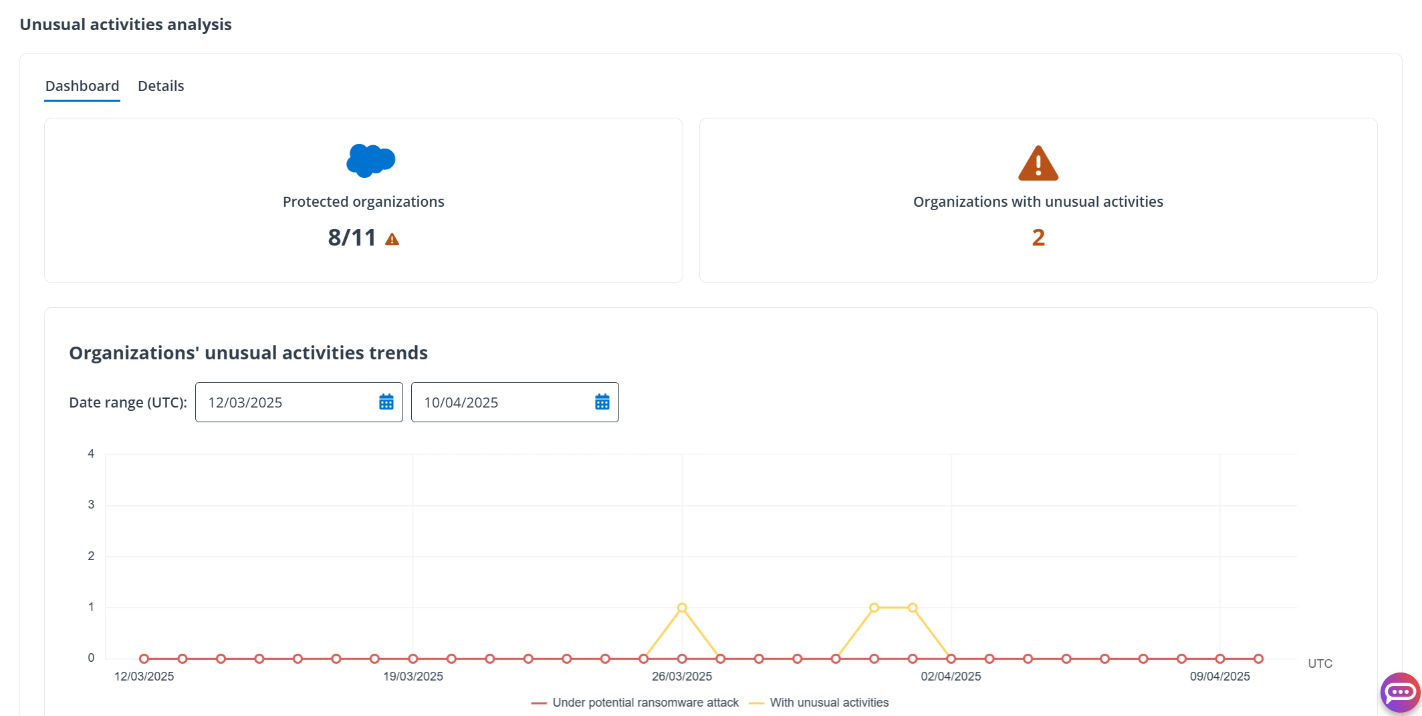
You can click the number to view the organizations with unusual activities or click the point on the chart to view the details of that specific date. The Details tab will show more information on the unusual activities and suspicious files for the reported organizations. You can download the report in an Excel file.
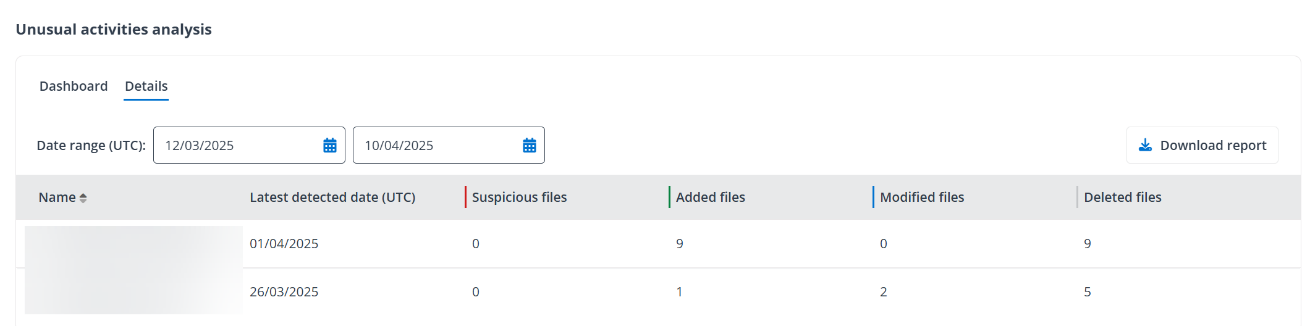
You can also go to the Details page directly to view the data in a table. You can adjust the time range to change the data scope or click an organization to view the report with its own details.
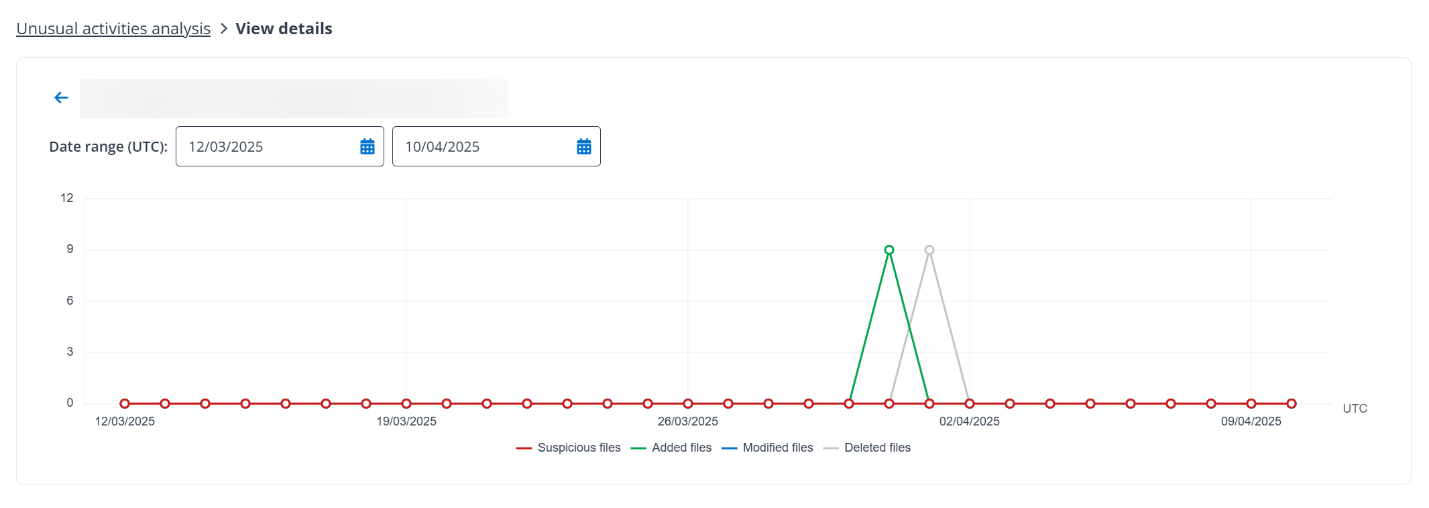
When you view the details of a specific organization, you can also adjust the time range to change the data scope and click a point in the chart to view the details of that date. The details are displayed below the chart. You can download a report of all files with unusual activities in the organization for record or for further investigation.
Recover Suspicious Files to a Healthy State
To recover suspicious files to a safe state, click the Restore suspicious files button on the details pane of an organization. Then find a safe date and select the proper recovery point to restore.
The Recovery Point calendar will display a yellow dot under the date where its recovery points are detected with unusual activities. For details on the common restore settings, refer to Restore Backup Data.
Note that to recover suspicious files of ContentVersion to a healthy state successfully, go to Salesforce and delete corresponding suspicious files first for the following reasons:
If the suspicious file in the Salesforce environment is a new version of the file before the ransomware attack, the file in the restore job will be skipped.
If the suspicious file in the Salesforce environment is a new file whose name is the same to the file before the ransomware attack, there will be two files with the same name in the Salesforce environment after the restore.