
Home > User Guide > Integrate with Tableau and Power BI > Connect to Power BI > Overview
Export to PDFConnect to Power BI
The following two endpoints are provided to connect to Power BI:
SQL Server
To connect Power BI to SQL Server, complete the following steps:
-
Launch Power BI Desktop on your computer.
-
Take actions according to the following two conditions:
-
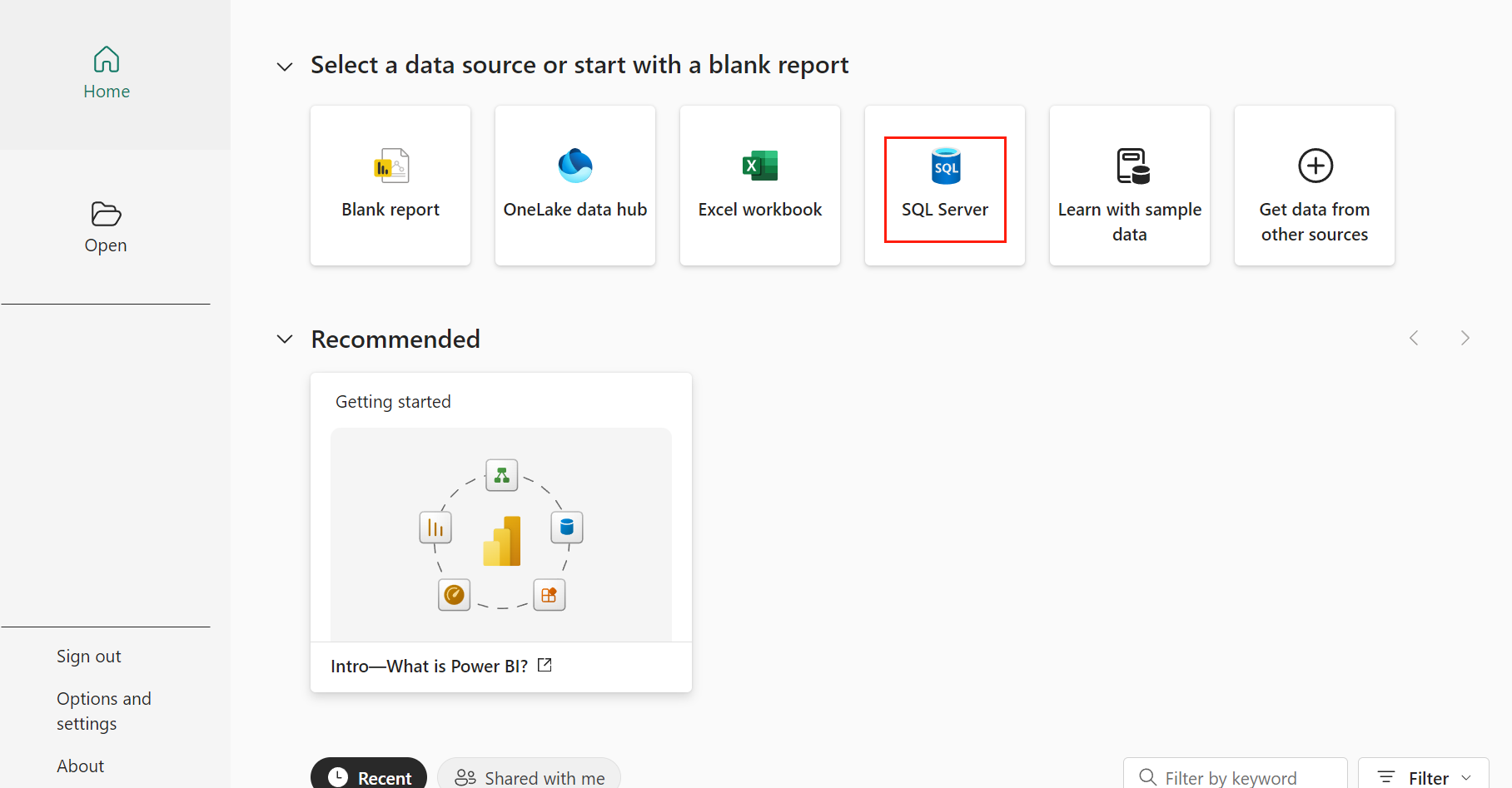
If you are in the Home page, click the SQL Server as the data source.
-
-
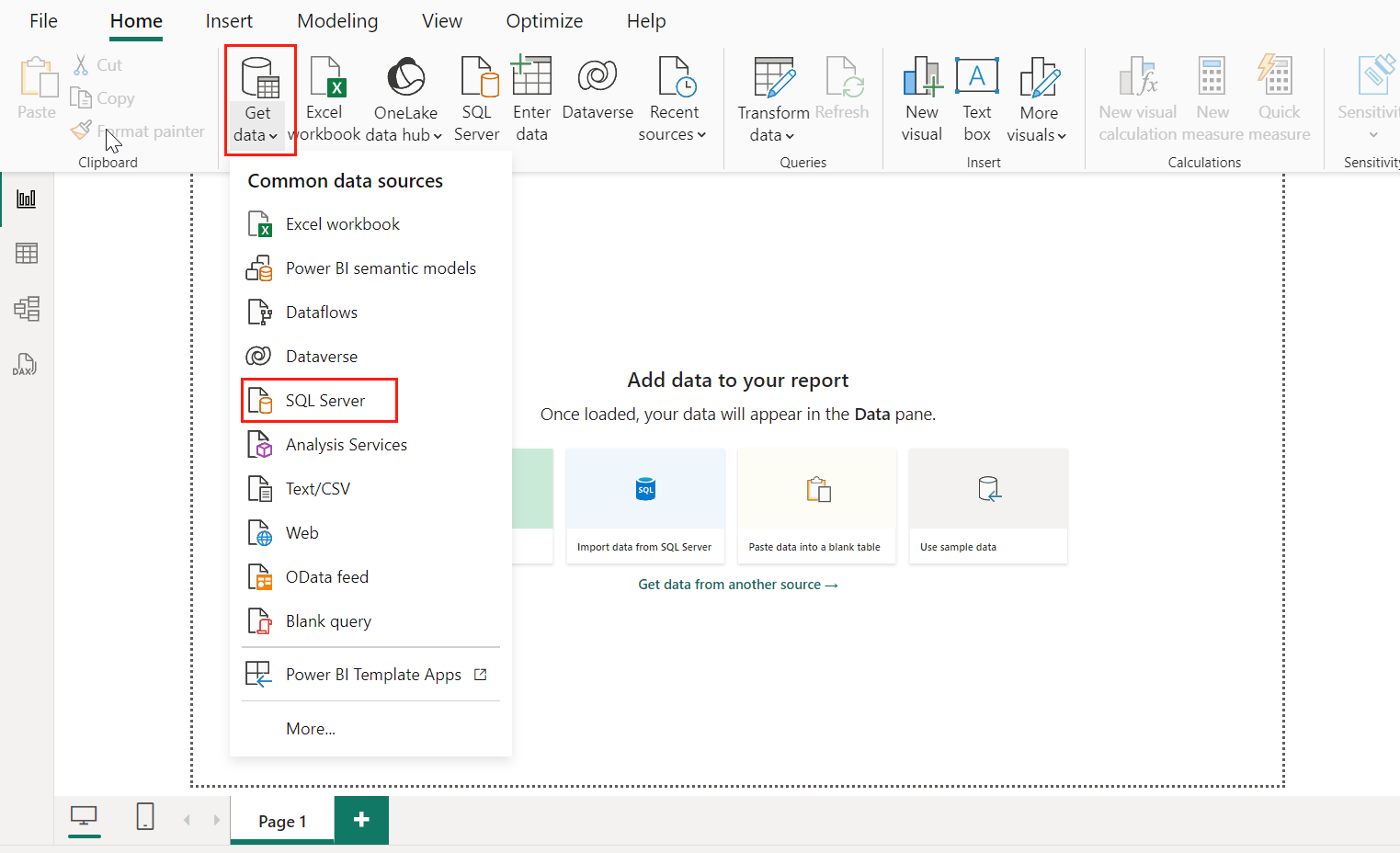
If you are already in the report page, click Get Data in the ribbon on the Home tab. Then select SQL Server.
-
-
-
In the SQL Server database window, enter the Server and Database. To get the Server and Database, complete the following steps:
-
Navigate to the Cloud Backup for Salesforce® interface.
-
Click Data service.
-
On the Data service page, click the More commands button on the upper right corner of the corresponding data service tile. Then select Get connection details.
-
In the Connection details page, you can click the Copy icon to copy the Server host name and Database of the SQL endpoint directly.
-
-
Select Import as the Data Connectivity mode, and click OK. Then refer to Generate a Data Report in Power BI to generate and publish a data report in Power BI.
Note that if it’s your first time to connect to the database, complete the following steps for authentication:
-
In the window for authentication, click Database.
-
Enter the User name and Password for authentication. To grant access to users to the SQL Server database, refer to Manage Users.
-
Select the option including both the server and database as the level to apply the settings.
-
Click Connect.
-
OData Feed
To connect Power BI to OData Feed, complete the following steps:
-
Launch Power BI Desktop on your computer.
-
Take actions according to the following two conditions:
-
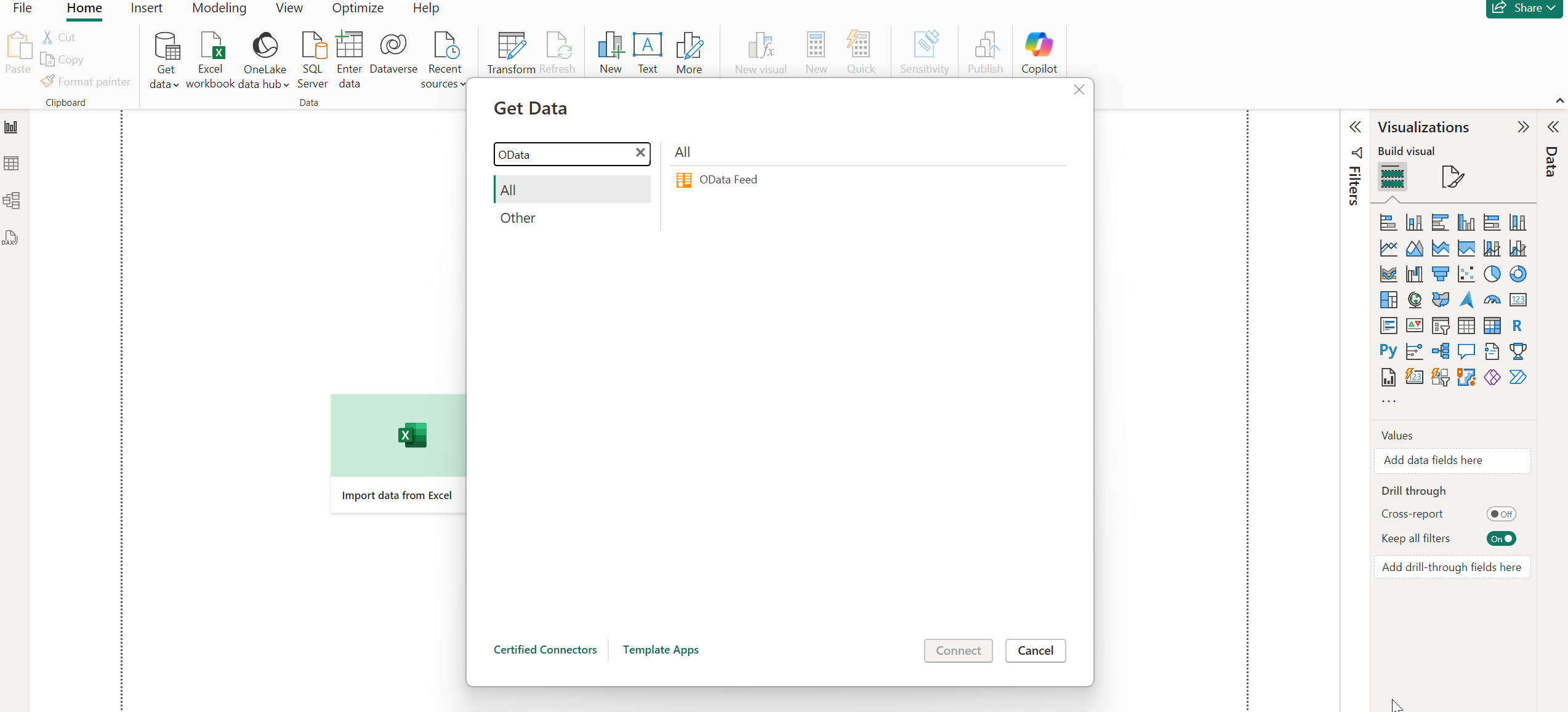
If you are in the Home page, click Get data from other sources. Then search and select OData Feed as the data source. Click Connect.
-
-
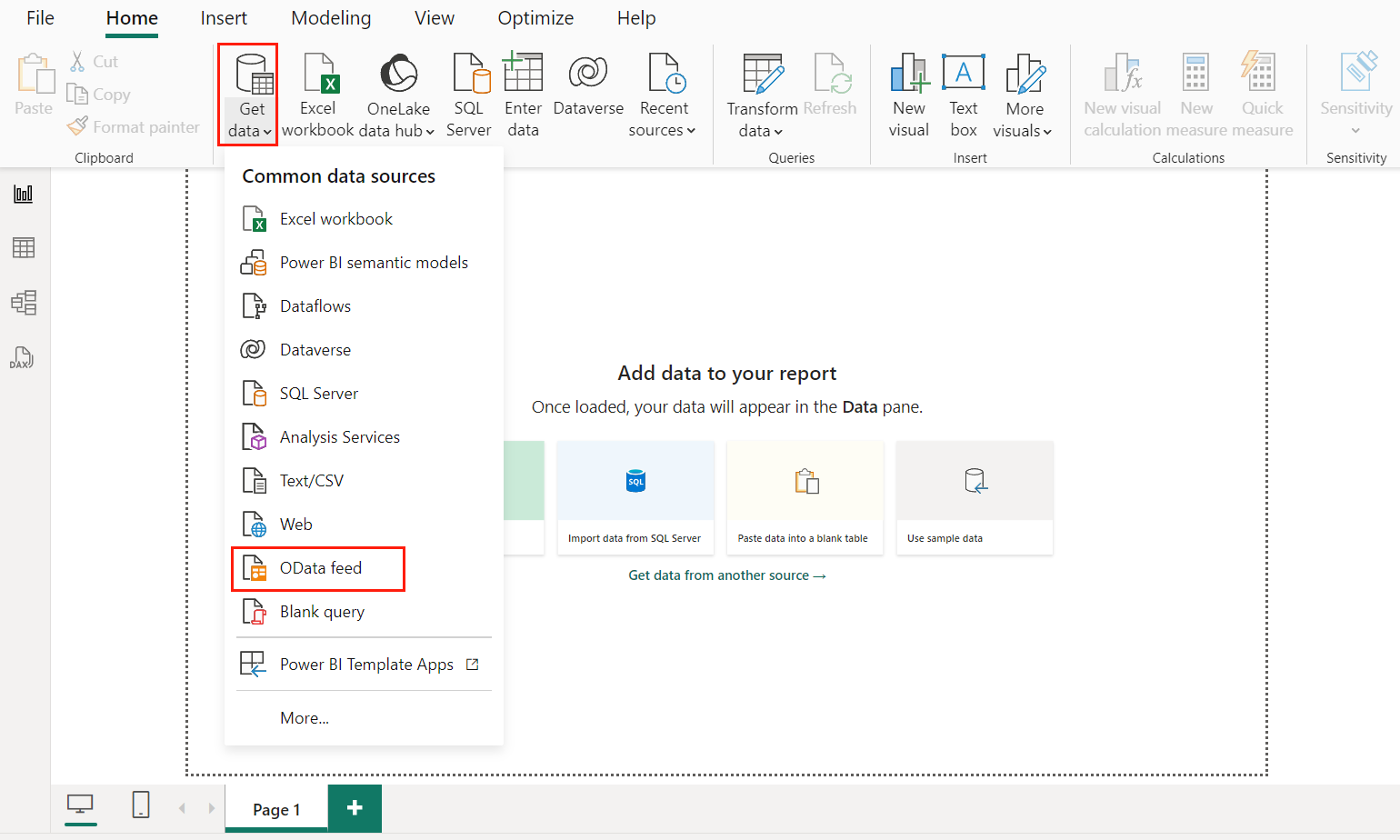
If you are already in the report page, click Get Data in the ribbon on the Home tab. Then select OData feed.
-
-
-
In the OData feed window, enter the URL. To get the URL, complete the following steps:
-
Navigate to the Cloud Backup for Salesforce® interface.
-
Click Data service.
-
On the Data service page, click the More commands button on the upper right corner of the corresponding data service tile. Then select Get connection details.
-
In the Connection details page, you can click the Copy icon to copy the URL of the OData endpoint directly.
-
-
Select Import as the Data Connectivity mode, and click OK. Then refer to Generate a Data Report in Power BI to generate and publish a data report in Power BI.
Note that if it’s your first time to connect to the OData feed, complete the following steps for authentication:
-
In the window for authentication, click Base.
-
Enter the User name and Password for authentication. To grant access to users to the OData feed, refer to Manage Users.
-
Select the option including the OData feed URL as the level to apply the settings.
-
Click Connect.
-