
Home > User Guide > Back Up a Salesforce Organization > Back Up Audit Logs
Export to PDFBack Up Audit Logs
Cloud Backup for Salesforce® now supports the backup and export of Login History, Field History Tracking, and Setup Audit Trail. To enable this feature, contact the AvePoint support team.
Configure Backup Settings
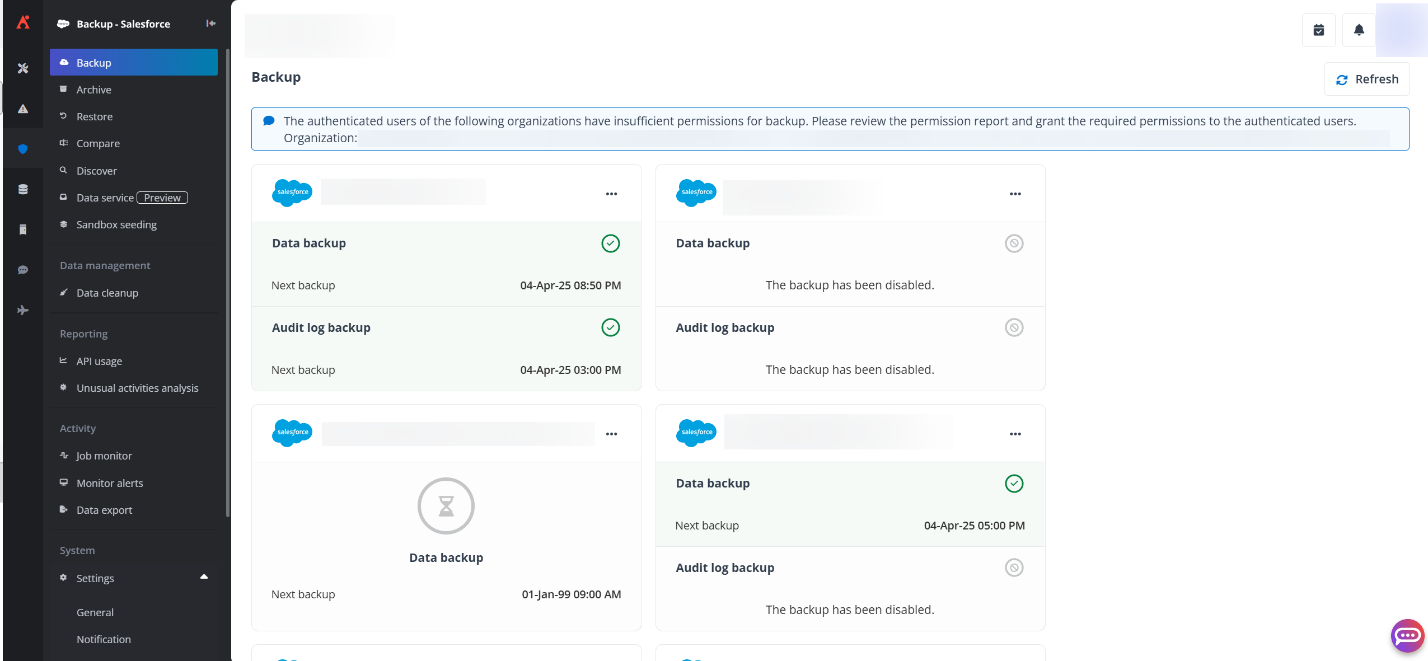
To configure backup settings for audit log backup, click the More commands button in the upper-right corner of the organization tile on the Backup page. Then click Configure backup settings from the drop-down list and select Audit log backup. You can turn on/off the toggle next to the organization name to enable/disable the audit log backup for the organization. Once the backup is enabled, you can set the start time for the daily audit log backup job. The audit log backup job will then run at the scheduled time every day.
*Note: If a backup job is already running for the organization, the scheduled backup job will be automatically skipped.
Monitor and Manage Your Backup
You can click an organization’s tile on the Backup page and select the Audit log backup tab to view the audit log backup details of that organization.
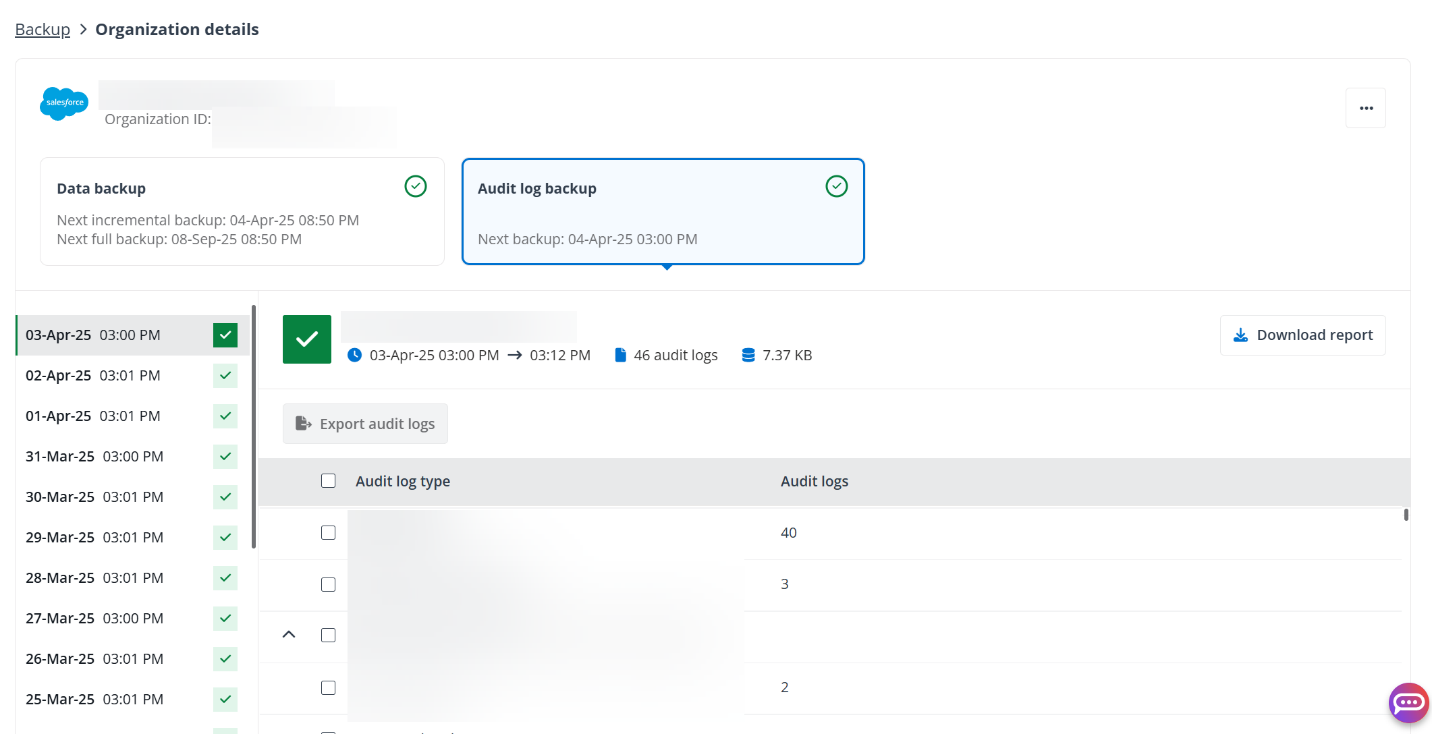
On the Organization details page, you can get the time for the Next backup of audit logs in the organization. You can also switch to the desired backup job on the left, download job report, and export audit logs.
For details, refer to the following:
-
Click a backup time in the left pane, and the details of the corresponding backup job will be displayed in the right pane. You can view the start time, end time, number of audit logs, and backup size of the job. Click Download report to download the job report to the XLS file.
-
To export audit logs that were updated since the last backup job to CSV files, select the audit logs that you want to export and click Export audit logs. Then click Export to confirm. An export job will be added to the job queue, and you can view the progress of the job in the job monitor.
Note that there is a monthly limit (100 GB) on the capacity of audit logs that can be exported.
After any export job is completed, two ways are available to download the export data:
-
In Job monitor, click the More commands button of the export job and select Download data. Then copy the password and click Download to download and save the CSV files to a local location.
-
On the Job monitor > Job details page, click Download export data to download and save the CSV files to a local location. To obtain the password of the downloaded files, click Show password.
-