
Home > Manage the Backup Scopes for Virtual Machines > Create a New Backup Scope for Google VM Instance > Use the SaaS Infrastructure Mode
Export to PDFUse the SaaS Infrastructure Mode
To create a new backup scope, follow the steps below:
- Go to the Backup page on the new UI.
Click on the Virtual Machine service tile or click the More actions button on the upper-right corner of the Virtual Machine service tile and click Configure backup scope from the drop-down list.
In the Configure backup scope for virtual machines page, all the existing backup scopes for Azure virtual machines, Amazon EC2 instances, and Google VM instances are listed in the table. You can use the search box to search for the backup scopes by name and manage the columns to adjust the view of the backup scopes.
-
Click the Create button and select Google VM instance
-
In the Select VM instances step, select the instances that you want to add to the backup scope. You can use Filters to find the instances you want to protect or use the Search box to search for the instances via the keywords in the name. The number of your selection will be displayed on the row of the tenant name.
-
Click Next.
-
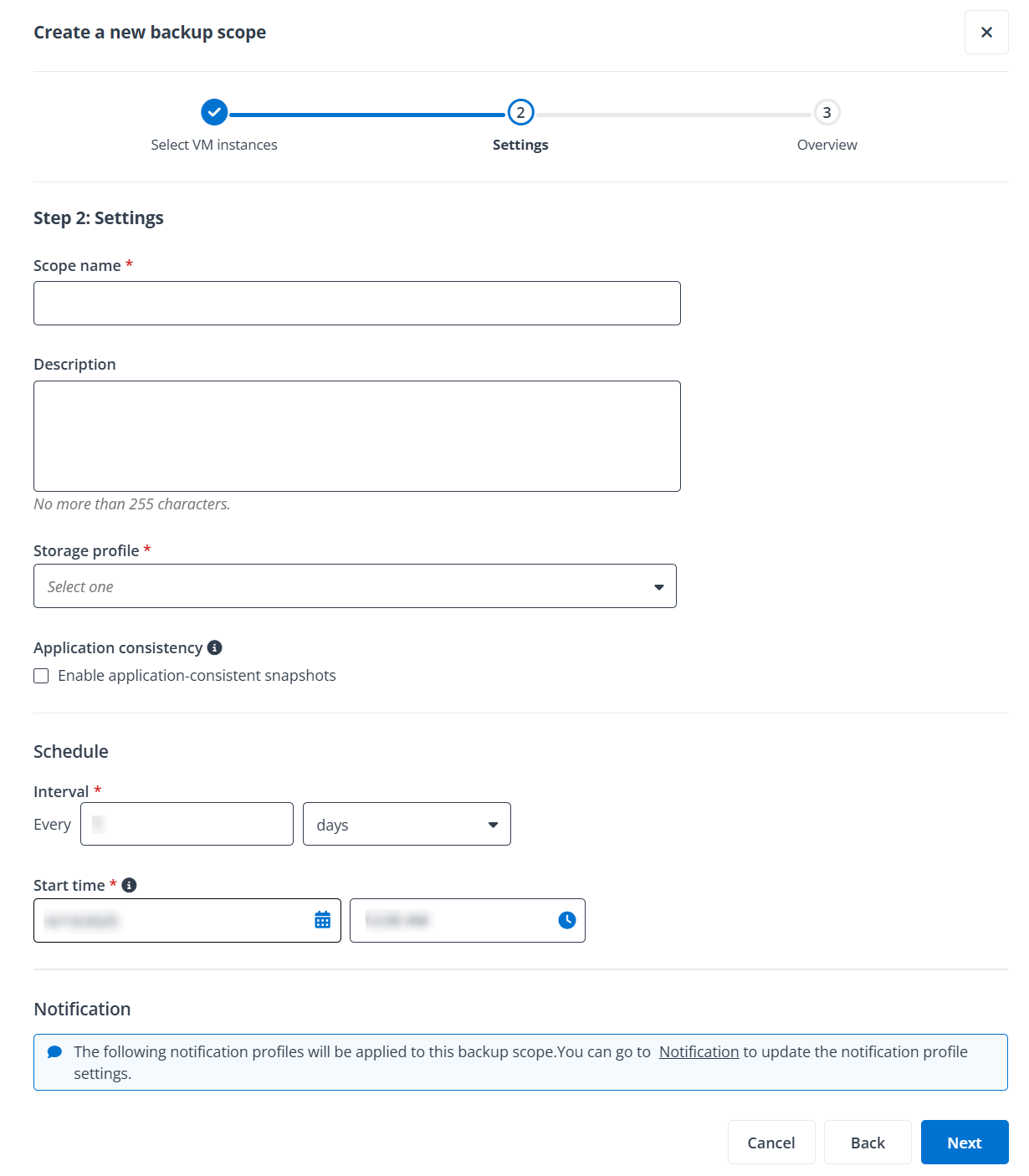
In the Settings step, complete the following settings:
-
Scope information – Enter a name and description for the scope you are creating. The description is optional.
-
Storage profile – You can select a storage profile from the drop-down list to use or click the + Create a storage profile link next to the list to create a new storage profile for this backup scope. For details on configuring storage profiles, refer to Manage Your Storage.
-
Application consistency – Select the Enable application-consistent snapshots option if you want to achieve a consistent backup without requiring VM shutdown. For details on how to enable application-consistent snapshots, refer to Enable Application-consistent Snapshots for Windows VMs or Enable Application-consistent Snapshots for Linux VMs.
-
Schedule – Select days, weeks, months, or years as the unit of time for the backup interval, enter a number in the text box after Every, and then configure the start time for your first backup job.
-
Notification – Check the notification profiles which will be applied to the backup scope.
-
Retention policy – Configure when to prune the snapshots from Google Cloud Platform. You can choose the number of the latest snapshots to retain or choose for how long the snapshots will be retained after generation.
-
Click Next to review your settings.
-
Click Save to save this backup scope. The backup for the storages in this backup scope will roll out as scheduled. For more details about monitoring the backups, refer to Monitor Your Backup.
Enable Application-consistent Snapshots for Windows VMs
- Follow the steps below to enable application-consistent snapshots for Windows VMs:
Press Win + R to open the Run dialog.
Type services.msc and click OK.
In the Services window, locate "Volume Shadow Copy". Ensure the VSS service status is Running.
Enable Application-consistent Snapshots for Linux VMs
-
Follow the steps below to enable application-consistent snapshots for Linux VMs:
-
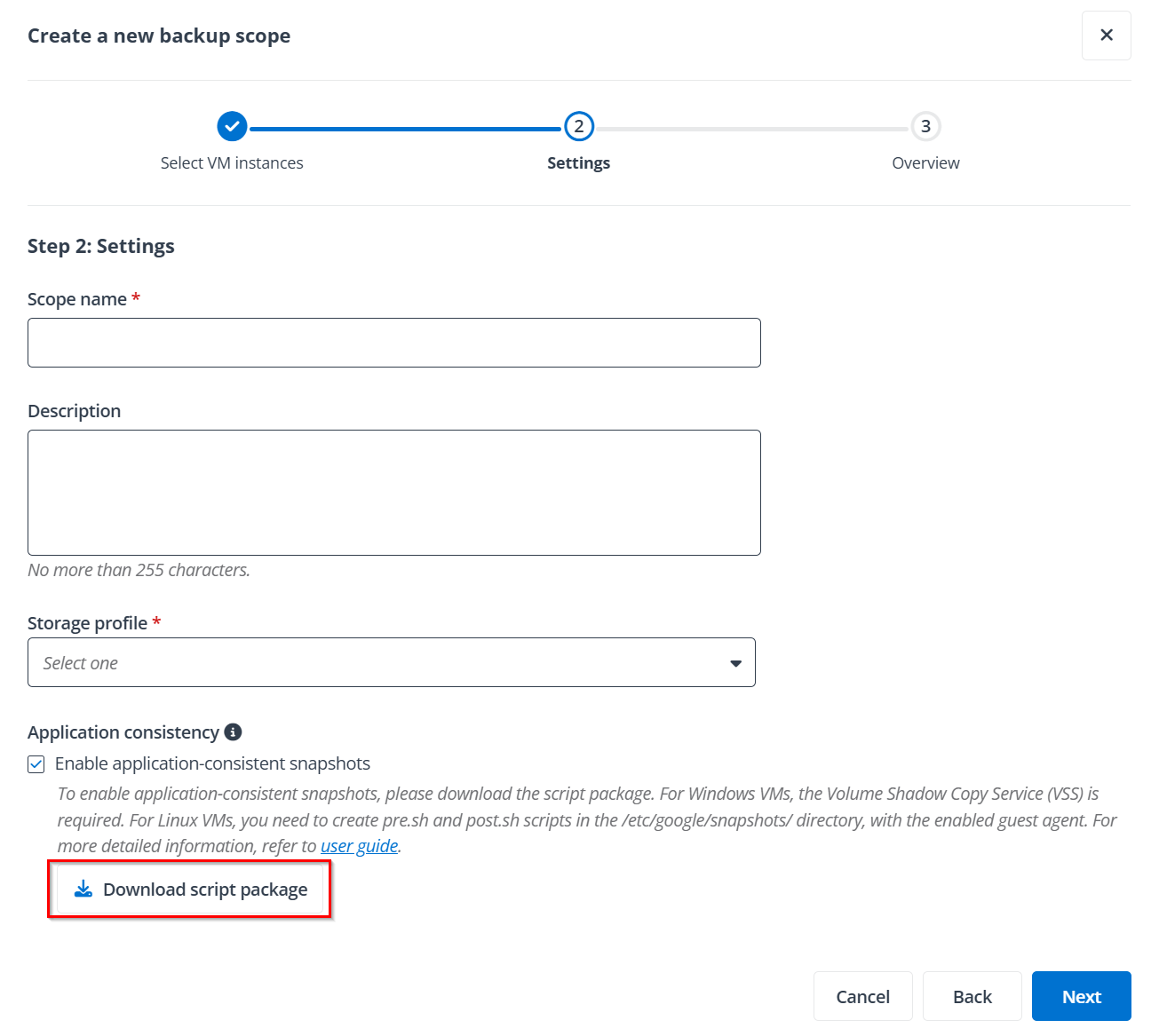
Click Download script package to download the provided scripts.
-
Find the Linux instance you want to enable application-consistent snapshots for in your GCP environment.
-
Open the downloaded package
-
Use the pre script to create the pre-process script file with the name pre.sh in the /etc/google/snapshots/ directory.
#!/bin/bash
sudo fsfreeze -f [example-disk-location]
-
Use the post script to create the post-process script file with the name post.sh in the /etc/google/snapshots/ directory.
#!/bin/bash
sudo fsfreeze -u [example-disk-location]
-
Open or create your guest environment configuration file.
-
edit /etc/default/instance_configs.cfg
-
Add the following section to the configuration file:
-
[Snapshots]
-
enabled = true
-
timeout_in_seconds = n
13. Save your configuration settings.
-
Execute the following command to restart the Guest Agent to save your configuration settings:
-
sudo systemctl restart google-guest-agent.service