
Home > Manage the Backup Scopes for Virtual Machines > Create a New Backup Scope for Google VM Instance > Use the CAP Gateway Mode
Export to PDFUse the CAP Gateway Mode
To create a new backup scope, follow the steps below:
- Go to the Backup page on the new UI.
Click on the Virtual Machine service tile or click the More actions button on the upper-right corner of the Virtual Machine service tile and click Configure backup scope from the drop-down list.
In the Configure backup scope for virtual machines page, all the existing backup scopes for Azure virtual machines, Amazon EC2 instances, and Google VM instances are listed in the table. You can use the search box to search for the backup scopes by name and manage the columns to adjust the view of the backup scopes.
-
Click the Create button and select Google VM instance
-
Select CAP Gateway mode and click Next.
-
In the Select VM instances step, select the project and instances that you want to add to the backup scope. You can use Filters to find the instances you want to protect or use the Search box to search for the instances via the keywords in the name. The number of your selection will be displayed on the row of the tenant name.
-
Click Next, and you will go to the Configure storage and gateway based on zone step to configure a storage profile and CAP Gateway for each zone. Currently, the only supported storage type is Google Cloud Storage.
-
You can use an existing storage profile or create a new storage profile to store the backup data for the storages in the same region. For details on configuring storage location, refer to Manage Your Storage.
-
For details on configuring CAP Gateways, refer to Manage CAP Gateways.
*Note: If you have enabled a firewall for your Google VM instances, you need to add the AvePoint IP addresses to your Google VM instance account firewall.
-
After you finish the storage configuration for each region, click Next to configure the scope information, schedule, and data retention settings. Refer to the following:
AI-generated content may be incorrect.](/en/iaas-paas/manage-the-backup-scopes-for-virtual-machines/create-a-new-backup-scope-for-google-vm-instance/images/image37.png "A screenshot of a computer
AI-generated content may be incorrect.")
Scope information – Enter a name and description for the scope you are creating. The description is optional.
-
Click Next to review your settings.
-
Click Save to save this backup scope. The backup for the storages in this backup scope will roll out as scheduled. For more details about monitoring the backups, refer to Monitor Your Backup.
Required Configurations for Index Generation
Follow the steps below to update the user of your CAP Gateway to root user.
-
Execute the following command:
sudo systemctl edit --full CAPGatewayService.service
-
Update the value of User and Group to root.
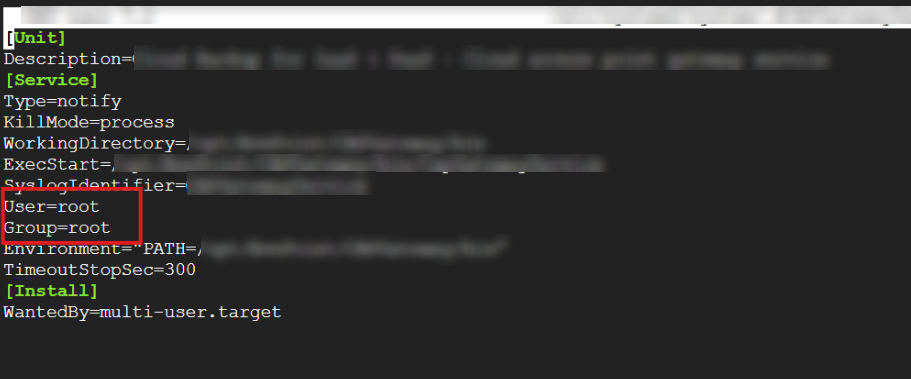
-
Execute the following command lines:
sudo systemctl daemon-reexec
sudo systemctl daemon-reload
sudo systemctl restart CAPGatewayService.service
-
Execute the following command to check results to make sure the user of your CAP Gateway is root user:
ps -ef | grep CapGatewayService
