Home > Get Started > Enable Backup for Azure Virtual Machines, Azure Storage, and Azure SQL
Export to PDFEnable Backup for Azure Virtual Machines, Azure Storage, and Azure SQL
Before you enable the backup service for Azure VM, Azure Storage, or Azure SQL, go to AvePoint Online Services to configure an app profile to register an app for Microsoft Delegate purposes. You can choose to register a delegated app or use a custom Azure app with the required Delegated permissions.
After registering the app to your tenant, the owner of each subscription where the VMs or storages to protect are running must add the AvePoint Online Services – Delegated App or the custom app with Contributor role to the subscription.
Note that if you have concerns about granting this app the Contributor role, you can create a custom role for this app. For details, refer to Add a Custom Role Using Azure Portal, CLI, or PowerShell.
Complete the following steps:
-
Go to Management > App Management in the AvePoint Online Services interface to create an app profile for Microsoft Delegate. For details, refer to Create an App Profile and Grant Consent.
-
Add this app to all the subscriptions where the VMs, storages, or databases that you want to protect are running and grant this app the Contributor role. For details, refer to Add to Subscriptions and Assign the Contributor Role. This guide will only introduce the steps of adding a role to a subscription through the Microsoft Azure Portal.
*Note: The user to add the app to the subscription and grant it the Contributor role must be the subscription owner or the User access administrator of your tenant, and if your tenant has new subscriptions to protect after the initialization, you must follow the same steps to add this app as Contributor as well.
If you are going to protect Azure storage or use your own storage device to store the backup data, read the instructions in Allow AvePoint Agent Servers to Access Your Storage Account section carefully and complete the settings upon your need.
If the storage account has disabled the “Allow storage account key access” feature, the app must also have the Storage Blob Data Contributor role to the subscription or storage account, in addition to the Contributor role. Additionally, in this case, only the Azure Blob Storage is supported; the Azure File Storage is not supported.
If you want to protect databases with the Azure SQL backup service, read the instructions in Grant a SQL Server Admin Role
-
After you have completed all the settings above, go to the Backup page of Cloud Backup for IaaS + PaaS, and then configure backup scopes for Azure Virtual Machine, Azure Storage, or Azure SQL. Note that before you start creating a backup scope, you can click the Refresh button in the upper-right corner of the service page to retrieve the latest status for the data to protect. The Last refreshed time is displayed next to the Refresh button.
For details on creating a backup scope, refer to
Create an App Profile and Grant Consent
To use backup and restore services for Azure VM, Azure Storage, or Azure SQL, it is necessary to create a delegated app or a custom Azure app with delegated permissions. This app must connect to your tenant and receive consent for the requested permissions.
Creating a delegated app profile requires a Microsoft 365 Global Administrator account to consent. However, to re-authorize an app with delegated permission, you can choose to end-user consent. For details, refer to .
*Note: To back up Azure VMs with Data access authentication mode enabled, the app profile you use must have the Data Operator for Managed Disks role.
Follow the steps below to create the delegated app:
-
On the Management > App management page, click Create on the action bar.
-
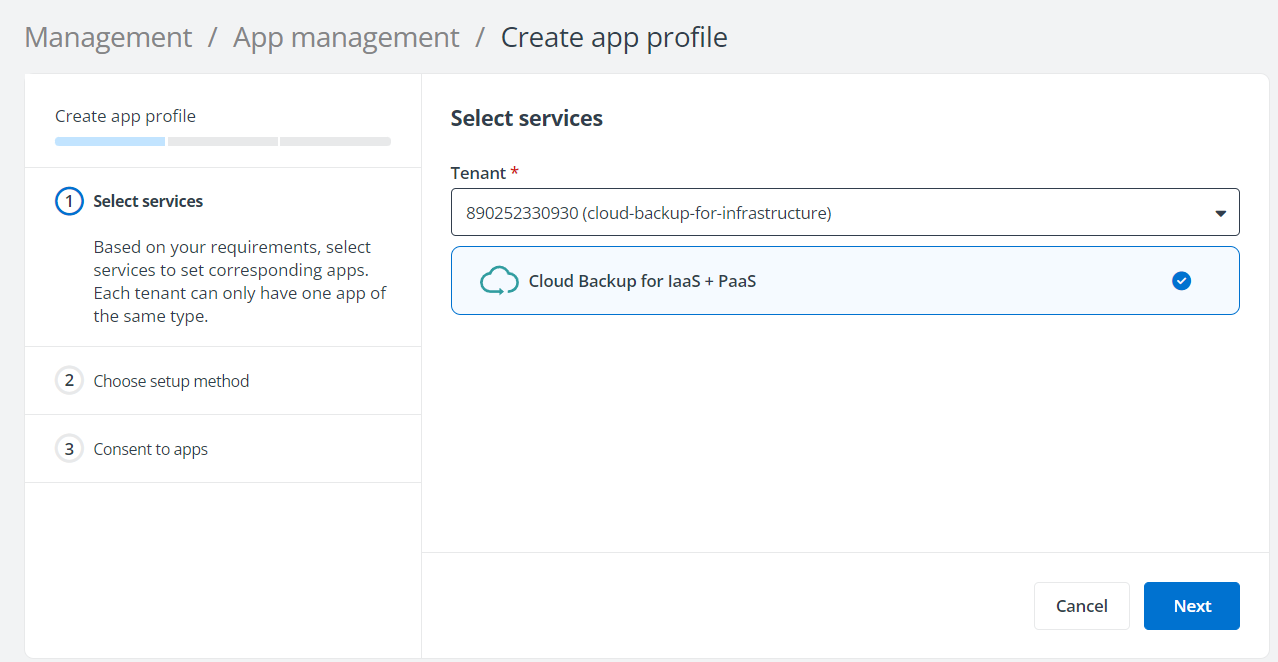
In the Select services step, select Cloud Backup for IaaS + PaaS.
-
In the Choose setup method step, select Modern mode if you want to consent a delegated app directly. You can also select Custom mode if you want to manually create and maintain a custom app with delegated permissions in your tenant. For details on creating a custom app with delegated permissions for Cloud Backup for IaaS + PaaS, refer to .
-
Click Next.
-
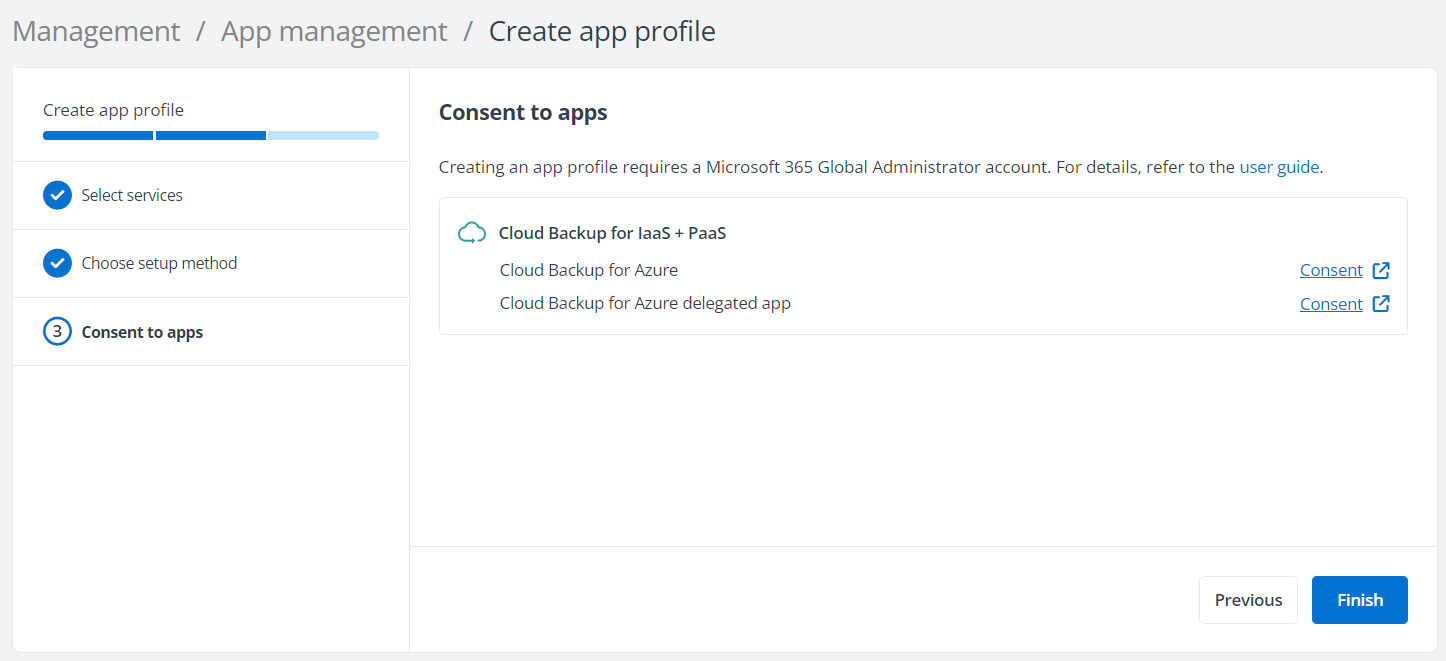
In the Consent to apps step for a Microsoft tenant, click Consent next to the Cloud Backup for Azure delegated app.
-
On the Microsoft 365 sign-in page, sign in with a Microsoft 365 Global Administrator account.
-
On the Permissions required page, review the permissions required and click Accept to continue. This delegated app must have the following Microsoft Azure API permissions:
-
Access Azure Service Management as you (Preview) – Allows the application to access Azure Service Management as you.
-
View your basic profile – Allows the app to see your basic profile (name, picture, username)
-
Maintain access to data you have given it access to – Allows the app to see and update the data you gave it access to, even when you are not currently using the app. This does not give the app any additional permissions. For example, for the functioning of Cloud Backup for IaaS + PaaS, you also need to add this app to the subscription where the VMs you want to protect are running as Contributor. The Contributor role in subscription allows the app to access and manage resources. This permission allows Cloud Backup for IaaS + PaaS to access and manage the resources via this app.
-
-
The app profile you created will be displayed on the App management page, and the AvePoint Online Services – Delegated App will be added to your Azure enterprise applications.
Add to Subscriptions and Assign the Contributor Role
After you complete the app profile creation in AvePoint Online Services, navigate to the Azure portal > Subscriptions. Follow the steps below to add the AvePoint Online Services - Delegated App, or the custom app you created with delegated permissions, to each subscription that includes the VM you intend to protect.
*Note: To add this app to the subscription and grant it the Contributor role, the user must be either the Owner of the subscription or the User access administrator of the tenant. If you have concerns about granting this app the Contributor role, you can create a custom role for this app. For details, refer to Add a Custom Role Using Azure Portal, CLI, or PowerShell.
If your storage account to protect has disabled the “Allow storage account key access” feature, the app must also have the Storage Blob Data Contributor role to the subscription or storage account, in addition to the Contributor role to protect the Azure Blob Storage, and in this case the Azure File Storage is not supported.
-
On the Subscriptions page, find the list of subscriptions. You can filter the subscriptions in the list or search for subscriptions via keywords.
-
Click a subscription.
-
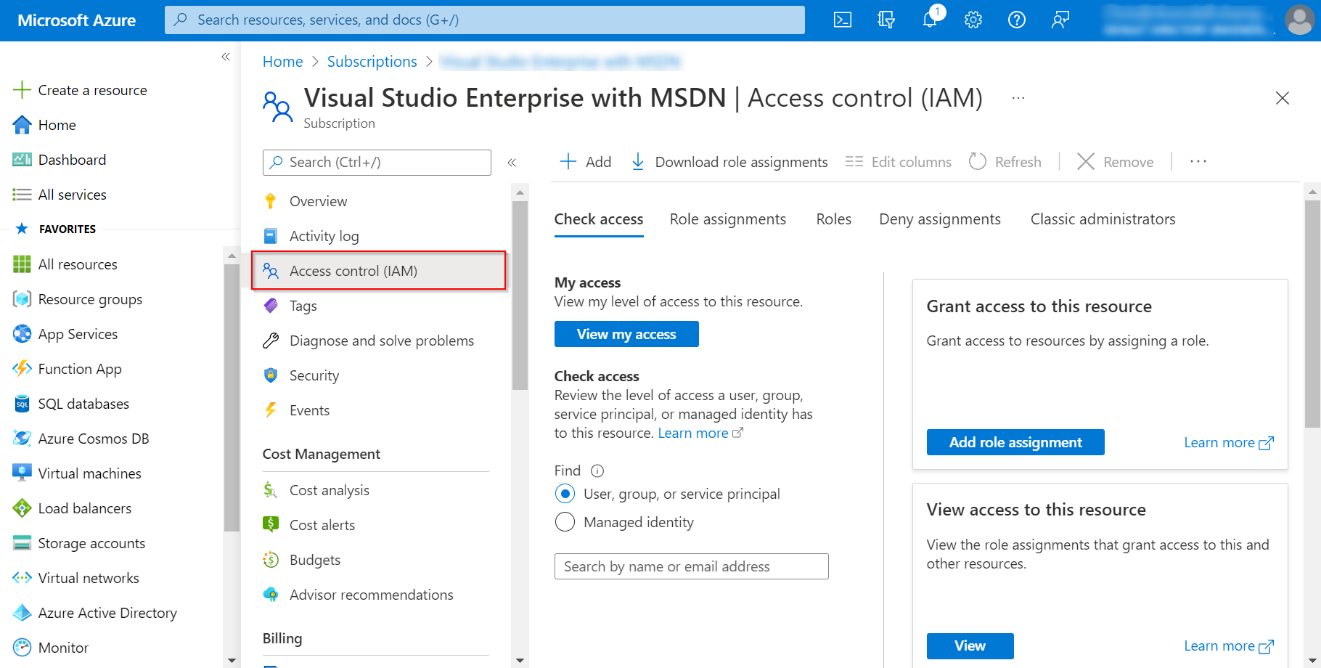
Click Access control (IAM) on the left pane.
-
On the Access control (IAM) page, click Add on the action bar and select Add role assignment from the drop-down list.
-
In the Add role assignment pane, go to the Privileged administrator roles tab, click Contributor from the Role tab, and then click Next.
-
In the Members list, find the Members field, and click Select members.
-
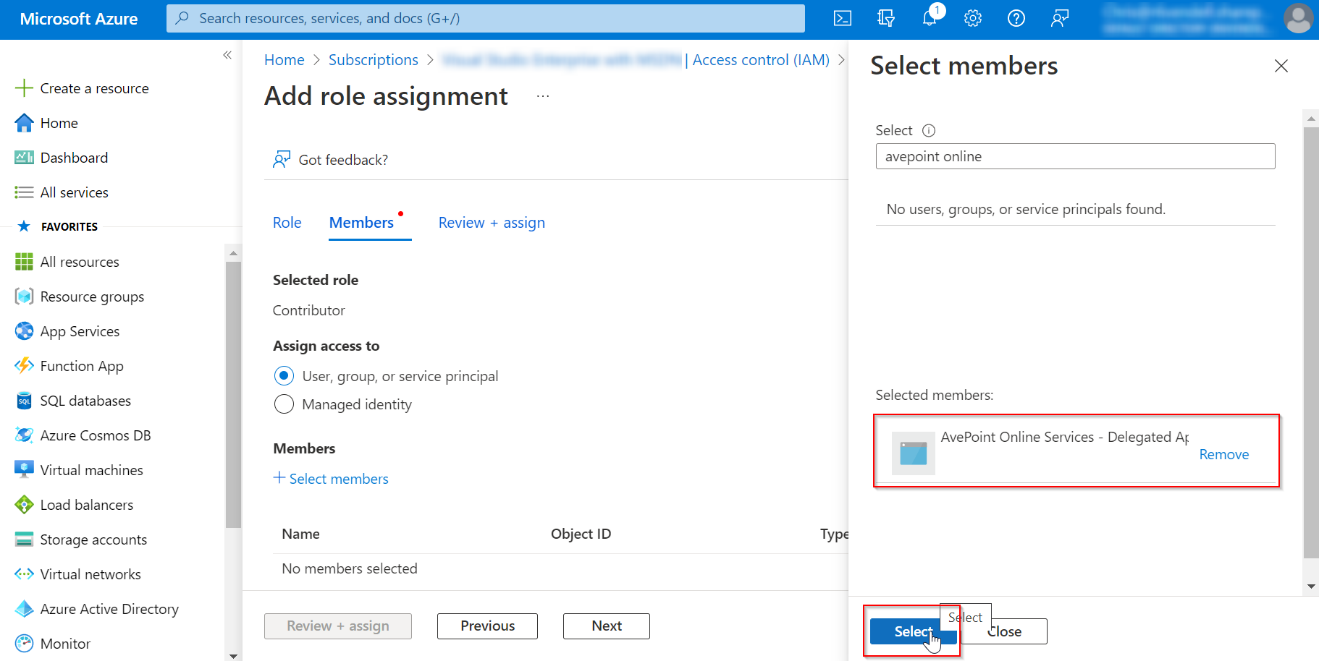
In the Select members pane, enter a keyword in the Select box to search for the AvePoint Online Services - Delegated App or the custom app that you created with delegated permissions. Click the app to add it to the Selected members field and click the Select button.
-
Click the Review + assign button to review the role assignment and click this button again to add this app as Contributor for your subscription.
Add a Custom Role Using Azure Portal, CLI, or PowerShell
Follow the steps below to add a custom role for the app that you want to use to protect Azure Virtual Machines, Azure Storage and Azure SQL databases:
-
Download the template from this link: .
-
In the extracted folder, open the file that you want to use to add the custom role.
-
Find the entry “AssignableScopes”:[“/subscriptions/#SubscriptionID#”] and replace #SubscriptionID# with your subscription ID.
-
For examples of creating a custom role using the Azure Portal, CLI, or PowerShell, refer to .
Grant a SQL Server Admin Role
To enable Azure SQL backup service, the SQL server admin role is required to grant to the delegated app. Follow the steps below to add a SQL server admin role for the app you want to use to protect Azure SQL databases.
-
Go to Azure portal > Azure SQL.
-
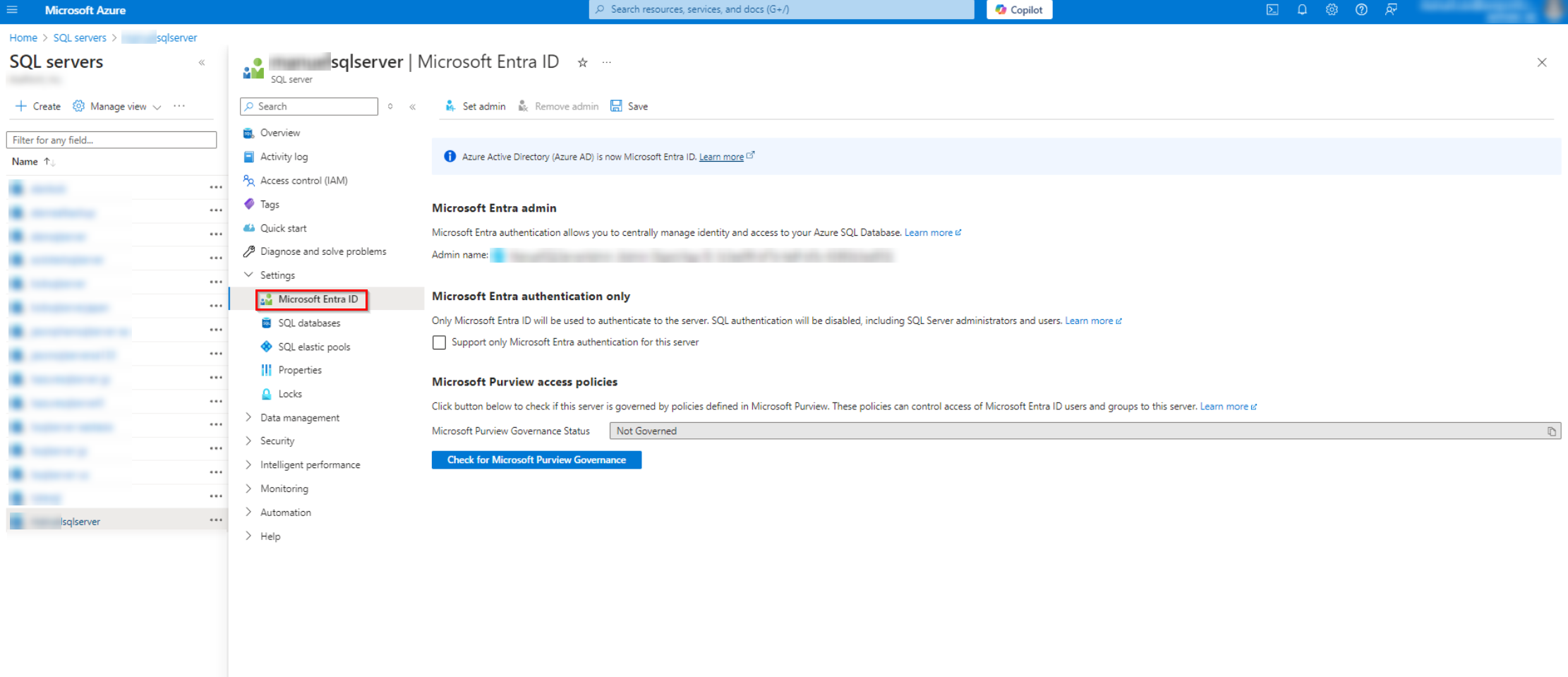
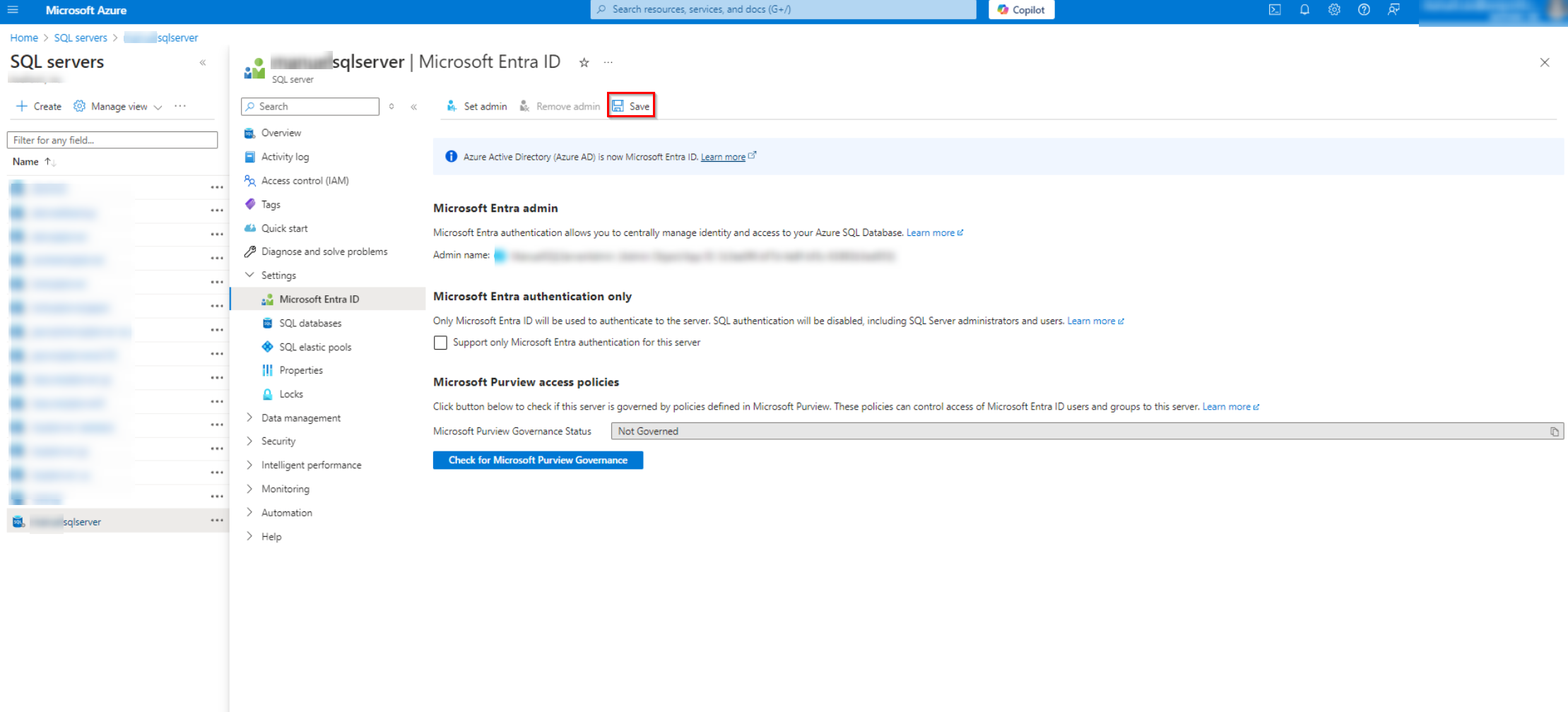
Click your app name and navigate to Settings > Microsoft Entra ID.
-
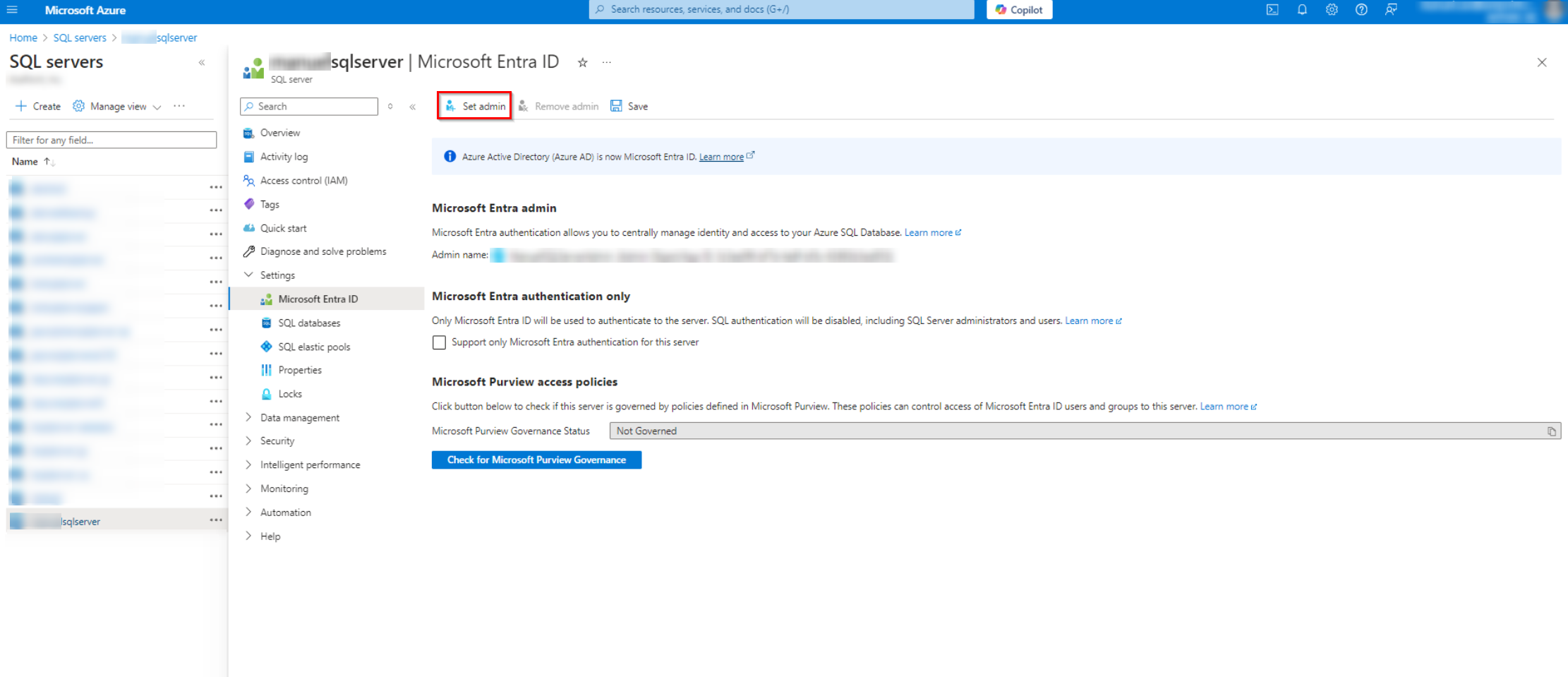
In the Microsoft Entra ID page, click Set admin.
-
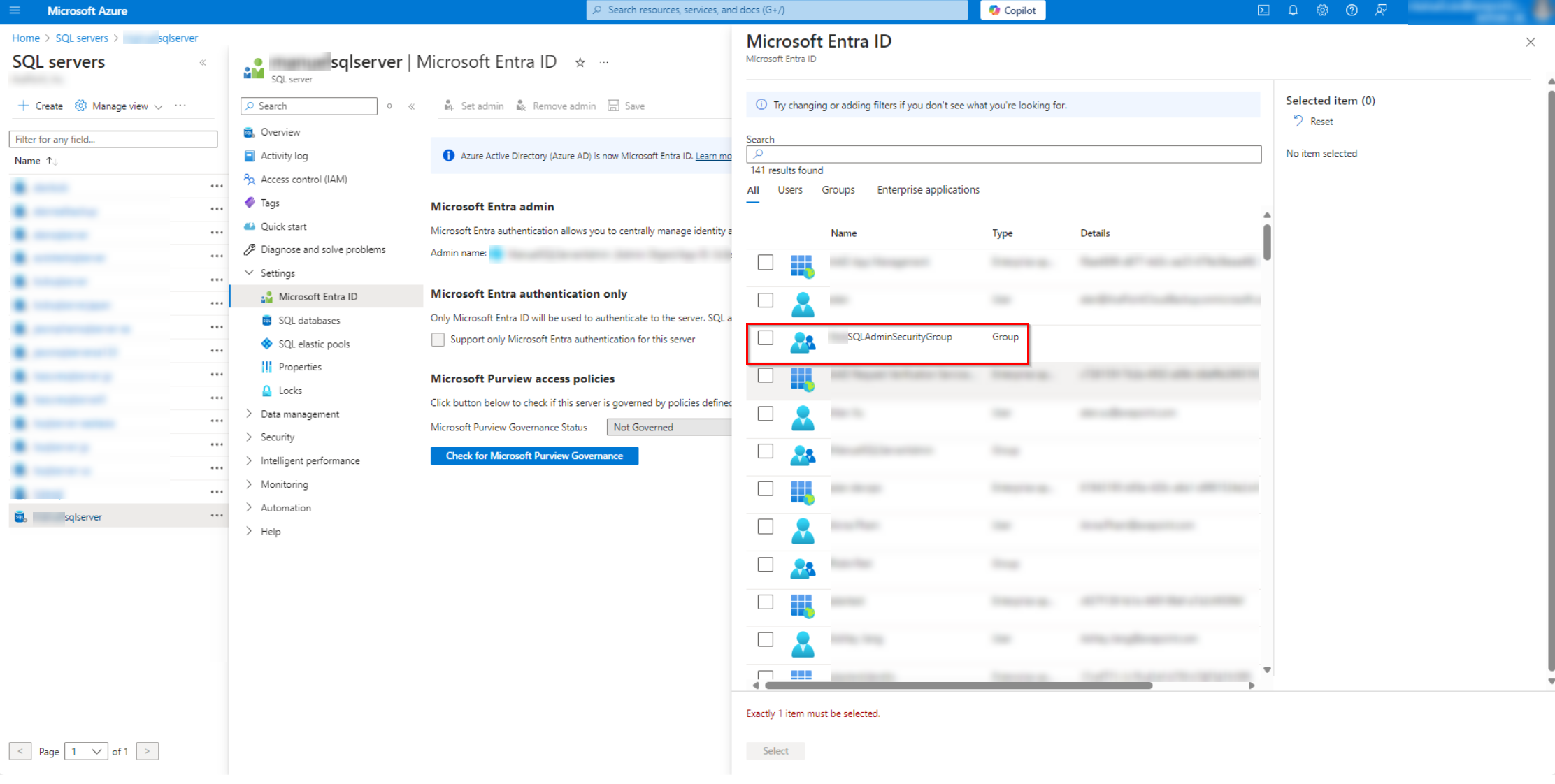
Select your admin group and then click Select.
-
After selecting, click Save to save changes.
-
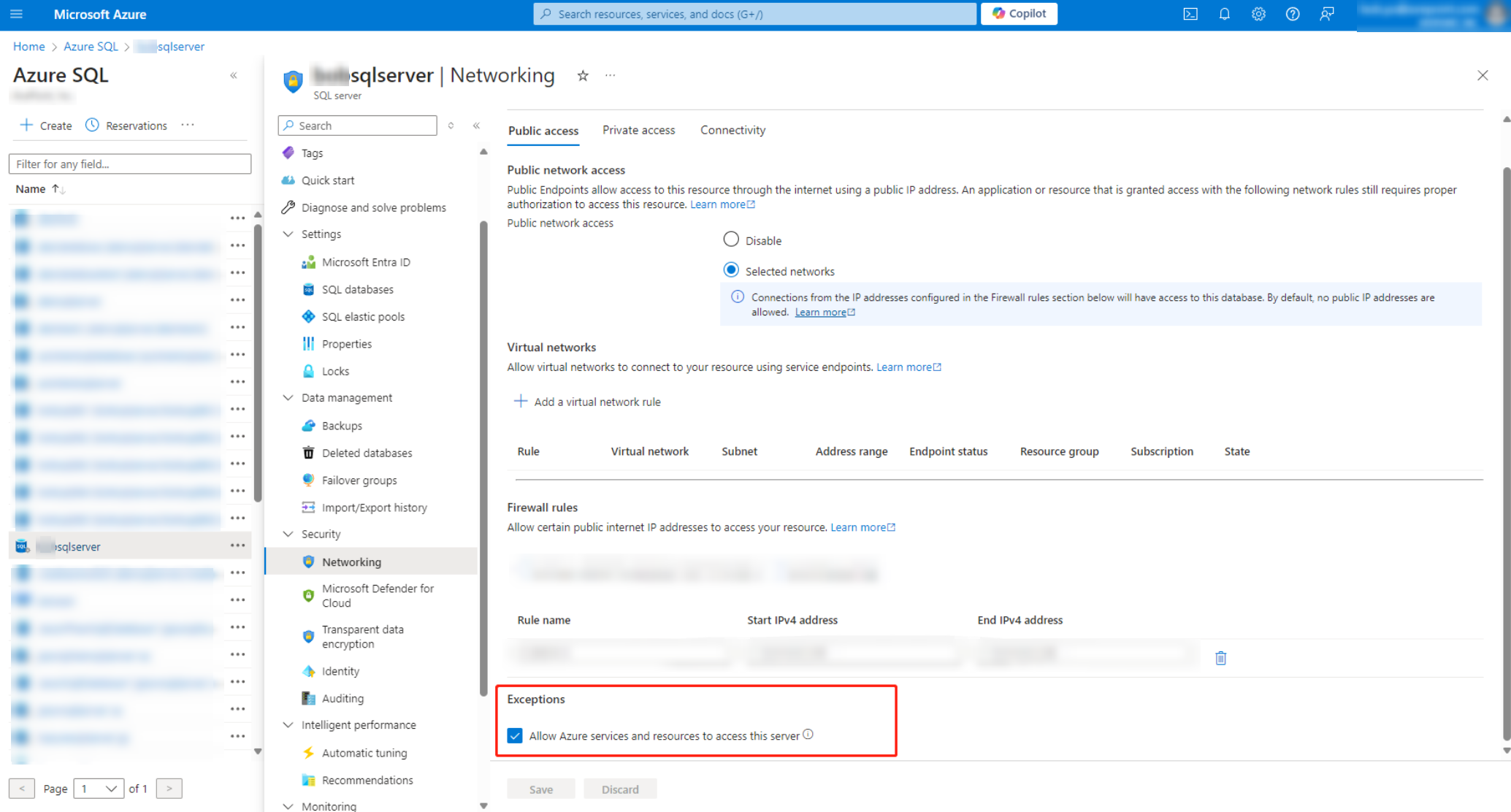
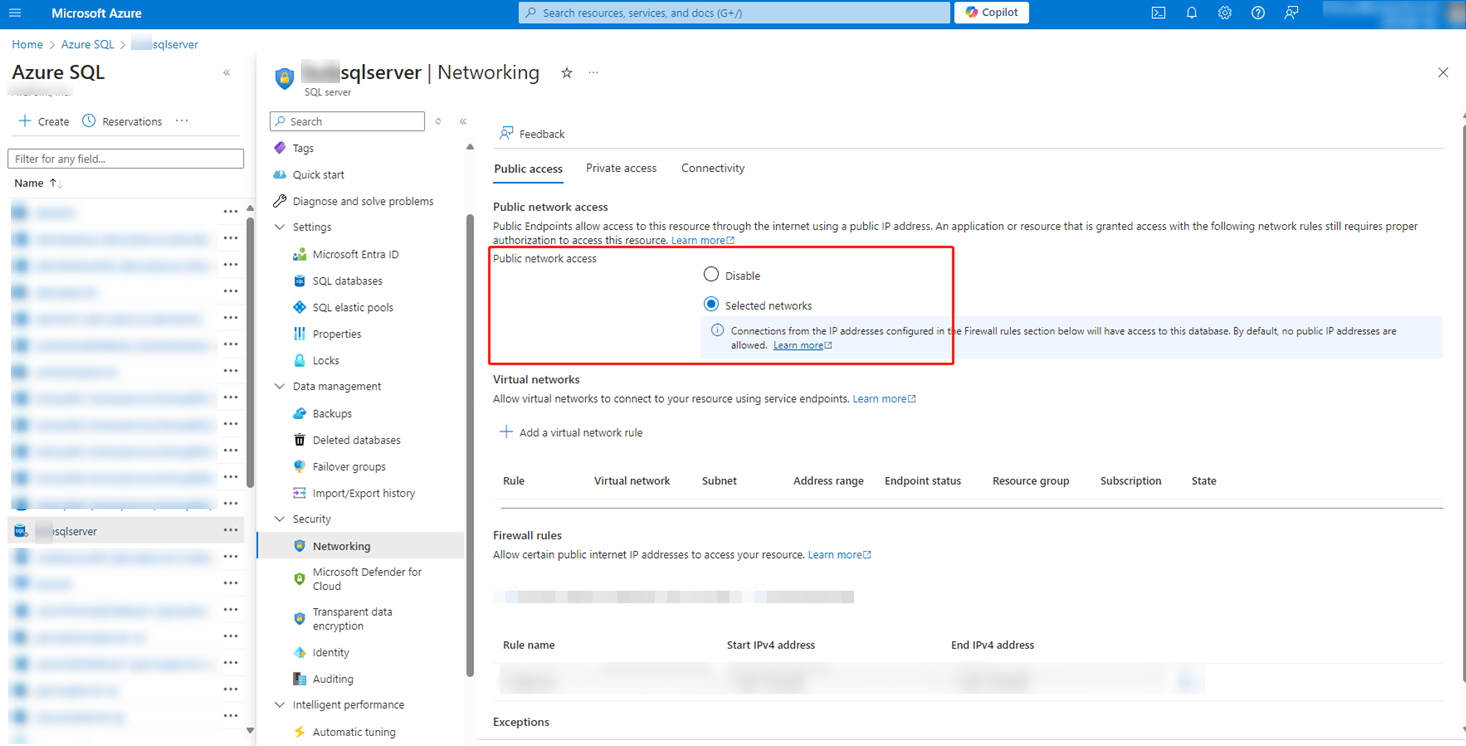
Navigate to Security > Networking > Public access tab.
-
In the Public network access field, select Selected networks to enable public network access.
-
In the Exceptions field, select the Allow Azure services and resources to access this server option.