
Home > Manage the Backup Scopes for Azure Storage > Create a New Backup Scope for Azure Storage > Use the SaaS Infrastructure Mode
Export to PDFUse the SaaS Infrastructure Mode
To create a new backup scope, follow the steps below:
-
Go to the Backup page on the new UI.
-
Click on the Azure Storage service tile or click the More actions button on the upper-right corner of the Azure Storage service tile and click Configure backup scope from the drop-down list.
-
In the Configure backup scope for Azure Storage page, all the existing backup scopes for Azure Storage are listed in the table. You can use the search box to search for the backup scopes by name and manage the columns to adjust the view of the backup scopes.
*Note: You can click the Refresh button in the upper-right corner of this page to retrieve the latest data list for Azure Storage. The Last refreshed time is displayed next to the Refresh button. Additionally, the data list will be automatically refreshed daily at 00:00 local time.
-
Click the Create button and select Blob Storage or File Share from the drop-down list.
-
In the Choose a mode for blob storage/Choose a mode for file shares page, select SaaS infrastructure mode.
-
Then, choose a method. You can choose to manually select the blob containers/files shares that you want to add to the backup scope, or you can configure a dynamic scope to use attribute-based rules to include the blob containers/files shares that meet your conditions to the backup.
-
Manually Select – In the Select blob containers/Select file shares step, select the tenant and the storages (blob containers or file shares) that you want to add to the backup scope. You can use filters to find the storage you want to protect.
The number of your selection will be displayed on the storage account row.
-
Dynamic rules – In the Select blob containers/Select file shares step, define the rule conditions for the blob containers/file shares that you want to include in this backup scope. You can add multiple rules to filter the Subscription name, Resource group, Name, Storage account, or Region of the blob containers/file shares. Click Apply when you complete the rule configuration, and then the blob containers/file shares that meet your rules will be displayed in the table and included for backup. The dynamic scope will automatically add or remove the blob containers/file shares according to your rules. The new blob containers/file shares that meet the configured rule conditions will also be automatically added to the backup scope.
-
-
Click Next, and you will go to the Configure storage based on region step to configure a storage profile for each region. You can select a storage type and then select storage profiles. You can use an existing storage profile or create a new storage profile to store the backup data for the storages in the same region. For details on configuring storage location, refer to Manage Your Storage.
*Note: If you have enabled a firewall for your Azure storage, you need to add the AvePoint IP addresses to your Azure storage account firewall or configure the firewall to allow AvePoint agent servers running on a dedicated ARM Vnet subnet to access your storage location. For details, refer to Allow AvePoint Agent Servers to Access Your Storage Account.
-
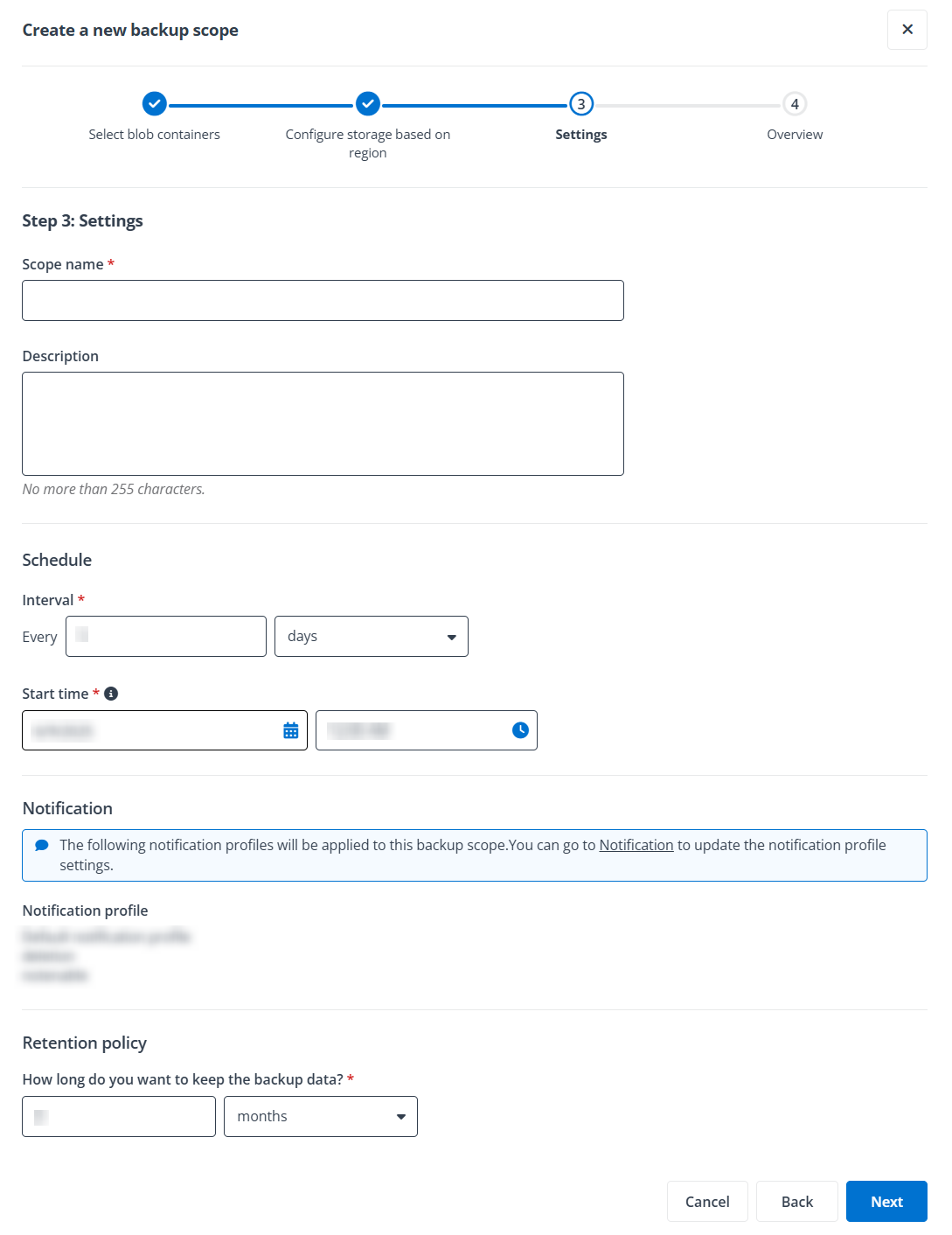
After you finish the storage configuration for each region, click Next to configure the scope information, schedule, and data retention settings. Refer to the following:
-
Scope information – Enter a name and description for the scope you are creating. The description is optional.
-
Schedule – Select days, weeks, months, or years as the unit of time for the backup interval, enter a number in the text box after Every, and then configure the start time for your first backup job.
-
Notification – Check the notification profiles which will be applied to the backup scope.
-
Retention policy – Configure when to prune the backup data from the storage location. Note that if you are using AvePoint storage, the retention policy for backup data is subject to your agreement and you can configure a custom retention period up to the retention policy in your subscription. If you are using AvePoint default storage with unlimited retention period, the Unlimited option is selected automatically in the list. If you want to use a custom retention period, select Custom from the list, enter a number in the text box and select weeks, months, or years from the drop-down list. The retention period cannot be less than 2 weeks. Note that if you have a retention policy with a fixed year in your subscription, the maximum retention period that you can configure will be displayed under this field.
*Note: When you configure the retention period for backup data using the Year unit, the Configure Full Backup Frequency section will appear. You can then select a number from the drop-down list to set the full backup frequency. If the retention period is set to more than three months using the Month or Week unit, the full backup frequency will automatically be set to three months and cannot be changed. For retention periods of less than three months, the full backup frequency will be adjusted accordingly and cannot be modified.
-
-
Click Next to review your settings.
-
Click Save to save this backup scope. The backup for the storages in this backup scope will roll out as scheduled. For more details about monitoring the backups, refer to Monitor Your Backup.