
Home > Manage App Profiles > Create Custom Apps > Create a Custom Google App > Step 2: Turn off Policies and Create a Service Account > Turn off the Policies that Disable Service Account Creation
Export to PDFTurn off the Policies that Disable Service Account Creation
Before creating a service account, make sure the Disable service account creation, Disable service account key creation, and Disable service account key upload policies are turned off. You can refer to the steps below to turn off the policies:
-
If you are required to have the Organization Policy Administrator role to Manage policy, refer to the instructions below to add the Organization Policy Administrator role:
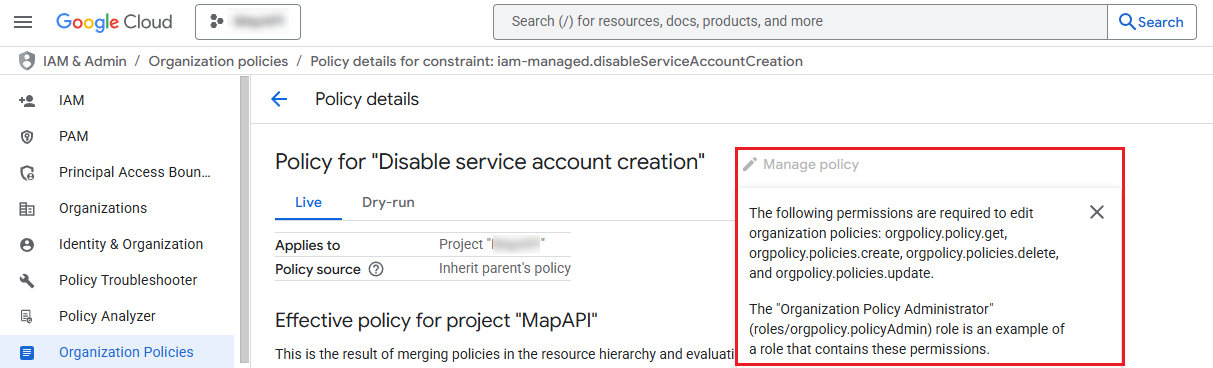
-
Go to .
-
In the resource list, select the organization of the project where you want to create the service account.
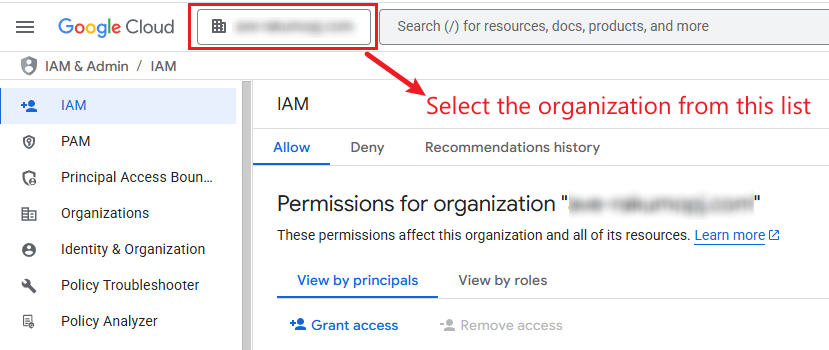
-
Refer to the following instructions based on your scenario:
-
If you want to add a new principal, click Grant access. In the panel of granting access, enter your account in the New principals field, select the Organization Policy Administrator role from the Role drop-down list, and click Save.
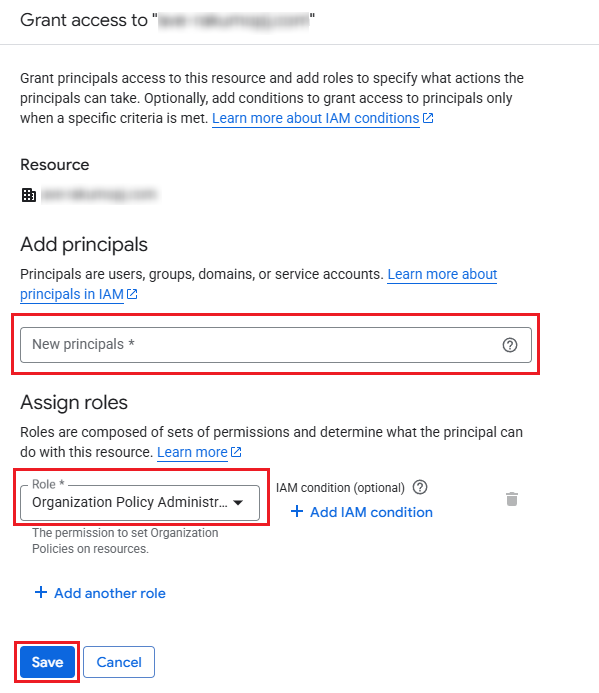
-
If you want to edit an existing principal, click the Edit principal (
 ) button next to the principal. In the panel of editing access, click Add another role, select the Organization Policy Administrator role from the Role drop-down list, and click Save.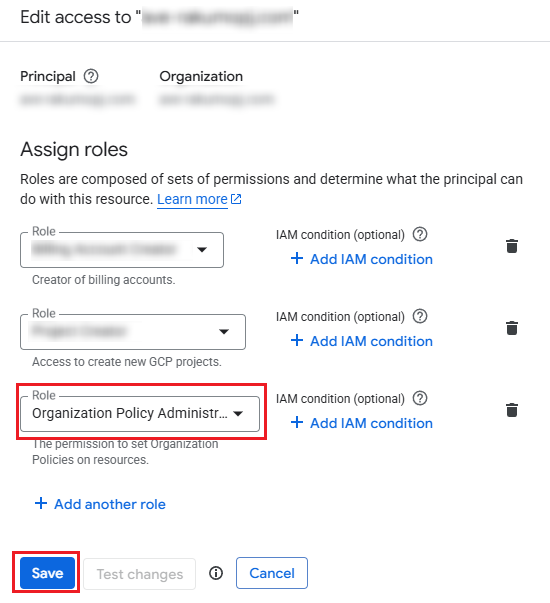
-
-
-
Go to .
-
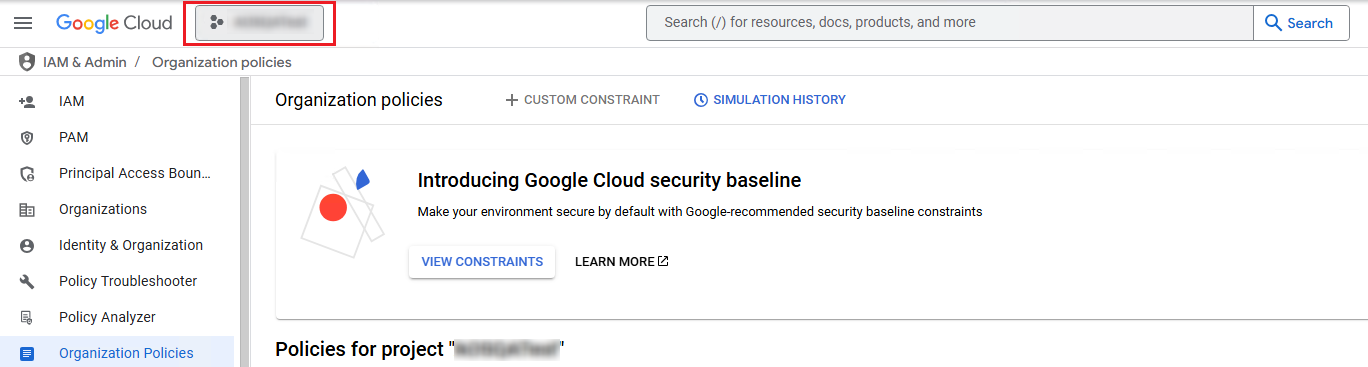
In the resource list, select the project where you create the service account.
-
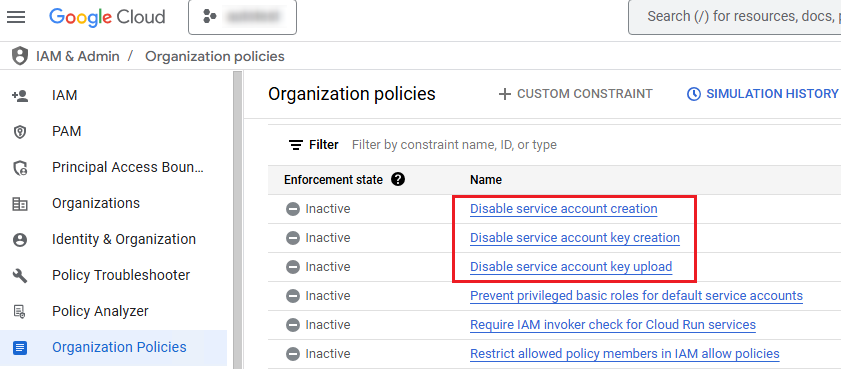
From Disable service account creation, Disable service account key creation, and Disable service account key upload policies, click the policy that you want to turn off.
-
After you click a policy, the policy details page appears, and you can follow the steps below to turn off a policy:
-
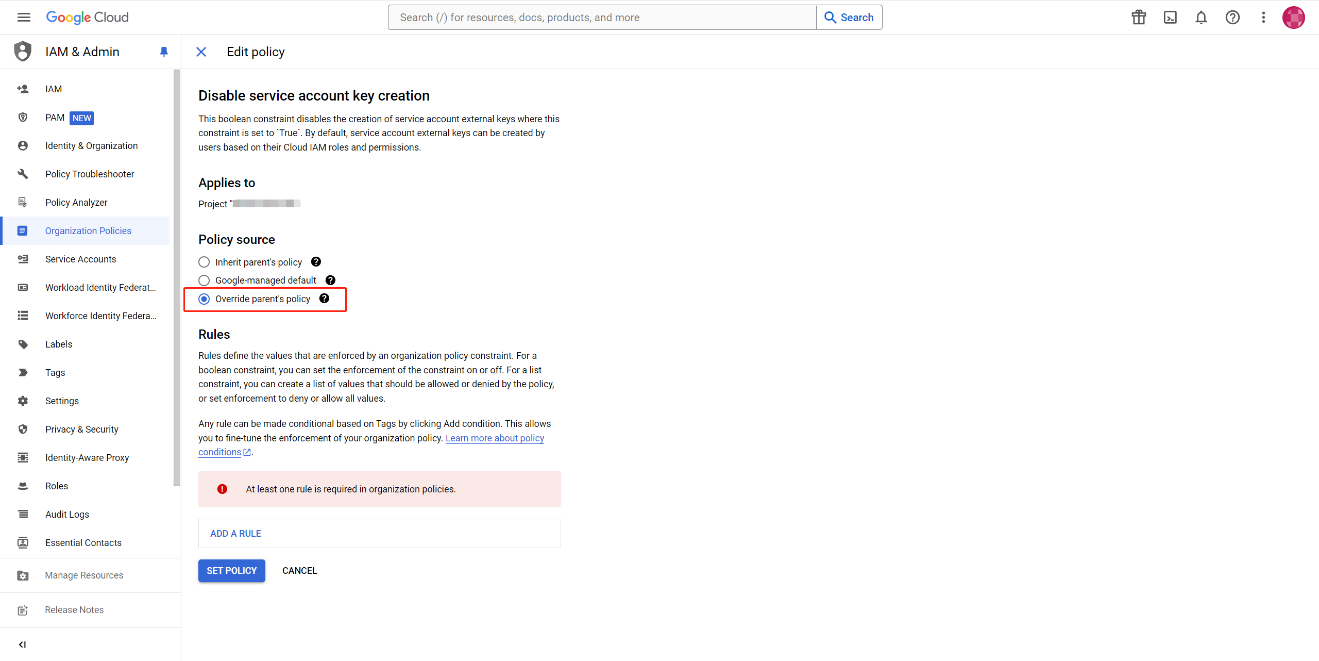
Click Manage policy.
-
Select Override parent's policy to set a unique policy for this project.
-
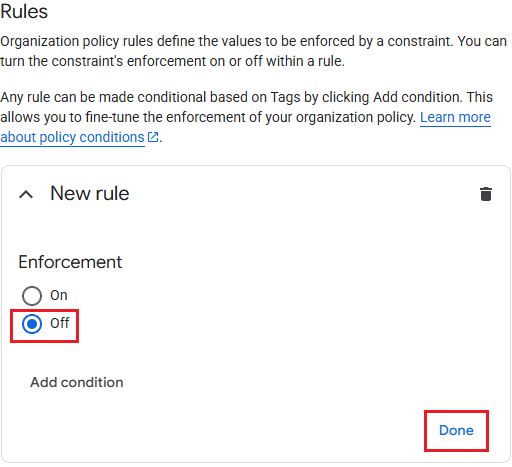
Click Add a rule to add a new rule.

-
Select Off to disable the enforcement of the new rule, and click Done.
-
Click Set policy.
-