
Home > Appendices > Prepare a Certificate for the Custom Azure App > Use a Key Vault in Azure to Prepare Certificates
Export to PDFUse a Key Vault in Azure to Prepare Certificates
Before preparing a certificate with this method, make sure you have a key vault in Azure. If you have an Azure subscription but do not have any key vaults, refer to the instructions in Create a Key Vault in Azure. Then follow the instructions below to prepare the certificate.
-
In the , navigate to Key vaults.
-
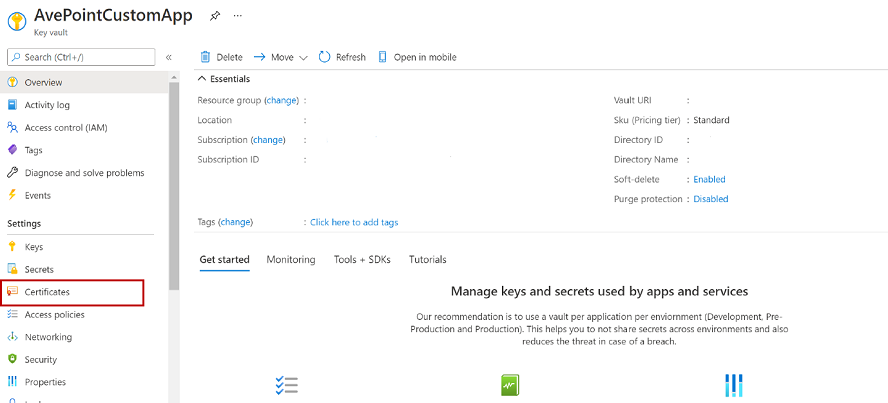
On the Key vaults page, select a key vault and then select Certificates in the left menu.
-
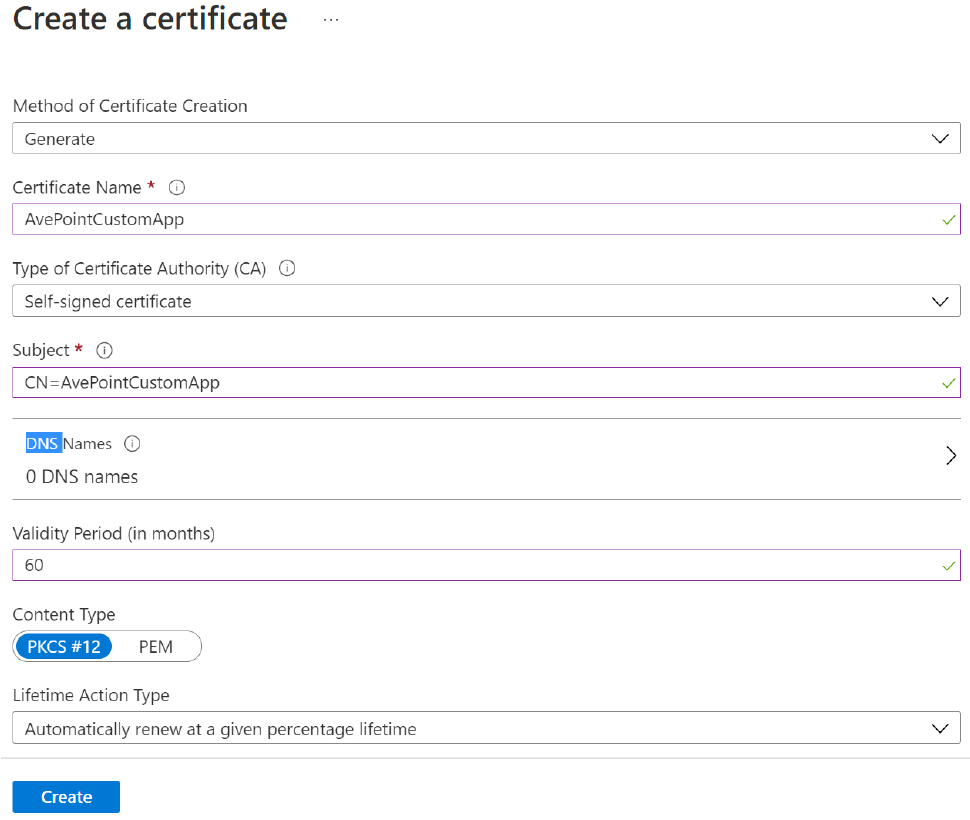
In the Certificates panel, click Generate/Import and complete the required fields. The screenshot below is a sample certificate.
*Note: In the Content Type field, select PKCS #12.
-
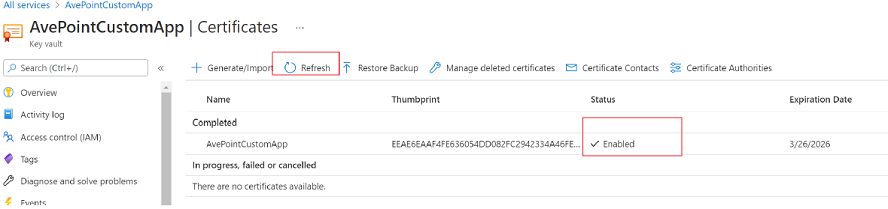
Click Create and wait for the Status of the certificate to become Enabled. You can click Refresh to update the status if needed.
-
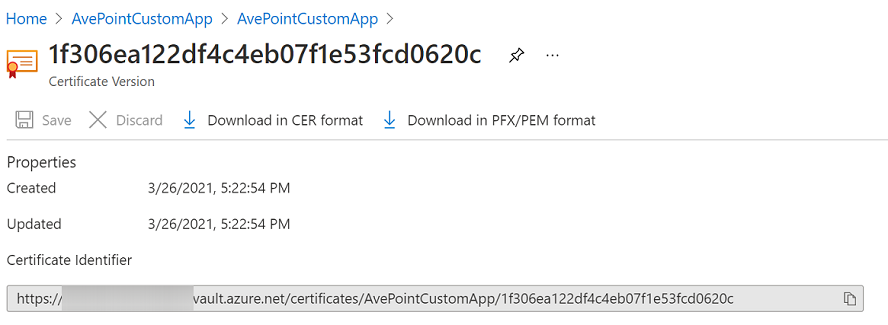
Click the name of the certificate, and then select the current version of the certificate.
-
Click Download in CER format and Download in PFX/PEM format to download the certificate files to your local machine.
-
When you have the certificate (.pfx file), you must set a password to protect the certificate.
-
Open Windows PowerShell and paste the following script to Windows PowerShell. Replace [Full path to your PFX] with the full path of the certificate (.pfx file) in your local machine. Note that quotes are required when you enter the commands.
$pfxPath=”[Full path to your PFX]” Export-PfxCertificate -Password $(Read-Host -AsSecureString -Prompt "Enter a password to protect the certificate") -PFXData $(Get-PfxData -FilePath $pfxPath) -FilePath $pfxPath
-
Press Enter to execute the script.
*Note: The .pfx file contains your private key.
-
After completing the steps above, you will get two certificate files: