
Home > 付録 > Prepare a Certificate for the Custom Azure App > Azure 内のキー コンテナーでの証明書の準備
Export to PDFAzure 内のキー コンテナーでの証明書の準備
この方法を使用して証明書を準備する前に、Azure 内のキー コンテナーを持っていることを確認してください。 If you have an Azure subscription but do not have any key vaults, refer to the instructions in Create a Key Vault in Azure. 証明書の作成方法については、以下の説明を参照してください。
-
In the , navigate to Key vaults.
-
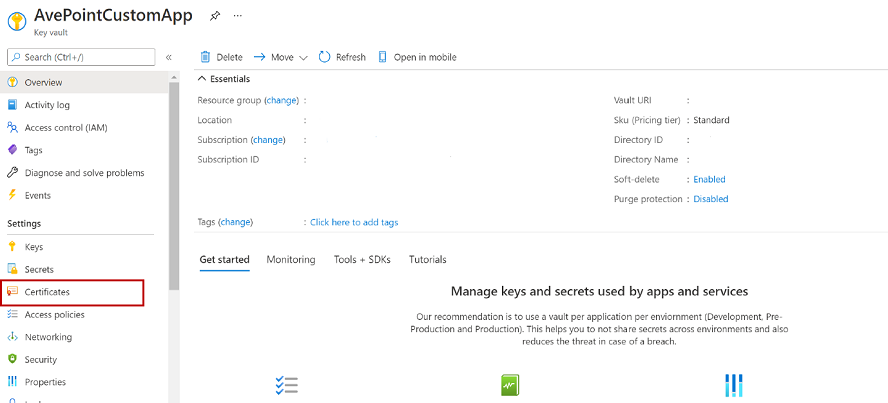
キー コンテナー ページで、キー コンテナーを選択し、左側のメニューで 証明書 ****を選択します。
-
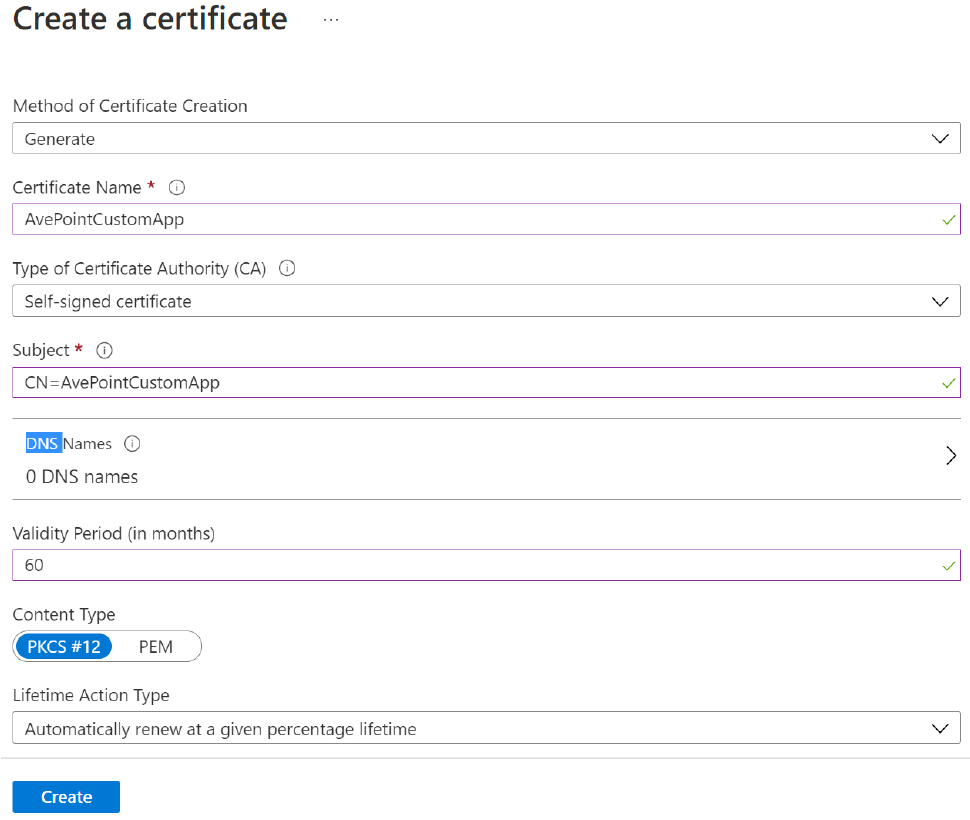
証明書 パネルで、[作成/インポート] をクリックして、必須フィールドに値を入力します。以下のスクリーン ショットは証明書のサンプルです。
*Note: コンテンツ タイプ フィールドで、PKCS#12 を選択します。
-
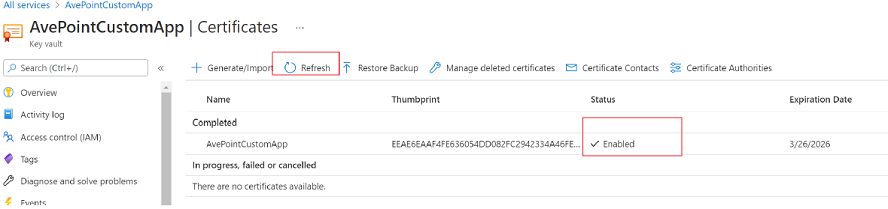
[作成] をクリックして、証明書の 状態 が 有効にする になるまで待ちます。必要に応じて、[更新] をクリックして状態を更新することができます。
-
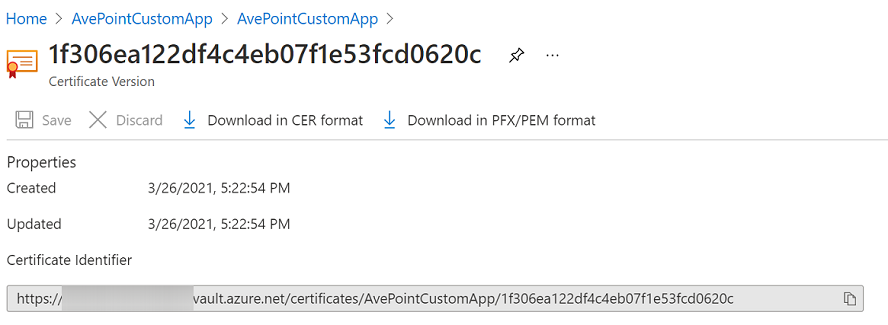
証明書の名前をクリックして、証明書の現在のバージョンを選択します。
-
****[CER形式でダウンロード] と ****[PFX/PEM 形式でダウンロード] ****をクリックして、証明書ファイルをローカル マシンにダウンロードします。
-
When you have the certificate (.pfx file), you must set a password to protect the certificate.
-
Windows PowerShell を開き、次のスクリプトを Windows PowerShell に貼り付けます。 Replace [Full path to your PFX] with the full path of the certificate (.pfx file) in your local machine. コマンドを入力する際に、引用符が必要であることに注意してください。
$pfxPath=”[Full path to your PFX]” Export-PfxCertificate -Password $(Read-Host -AsSecureString -Prompt "Enter a password to protect the certificate") -PFXData $(Get-PfxData -FilePath $pfxPath) -FilePath $pfxPath
-
Enter キーを押して、スクリプトを実行します。
*Note: The .pfx file contains your private key.
-
上記のステップの完了後、2 件の証明書ファイルを取得することができます。