
Home > アプリ プロファイルの管理 > アプリ プロファイルの再承認 > Microsoft テナント > ユーザーの同意
Export to PDFユーザーの同意
ユーザーの同意に対応し、非管理者アカウントを使用して再承認できるアプリについては、以下の表を参照してください。
*Note: When you re-authorize the other apps that are not in the table below, refer to Administrator Consent.
| サービス | App type (in AOS) | アプリ名 (Microsoft Entra ID) |
|---|---|---|
| Insights | Insights for Microsoft 365 | AvePoint Insights for Microsoft365 |
| Insights | Insights for Power Platform | AvePoint Insights for Power Platform |
| EnPower | EnPower for Microsoft 365 | AvePoint EnPower for Microsoft365 |
| EnPower | EnPower for Power Platform | AvePoint EnPower PowerPlatform Management |
| EnPower | EnPower for Teams Calling | AvePoint EnPower Teams Calling |
| Fly | Fly for Power Platform | AvePoint Fly for Power Platform |
| Fly | Fly 委任アプリ | AvePoint Fly 委任アプリ |
| Cloud Backup for IaaS + PaaS | Cloud Backup for Azure | AvePoint Cloud Backup for Azure |
| Cloud Backup for IaaS + PaaS | 委任アプリ | AvePoint Online Services – 委任アプリ |
| Cloud Backup for IaaS + PaaS | Cloud Backup for Azure DevOps | AvePoint Cloud Backup for Azure DevOps |
| Cloud Governance | Cloud Governance for Power Platform | AvePoint Cloud Governance for Power Platform |
| Cloud Governance | Cloud Governance 委任アプリ | AvePoint Cloud Governance 委任アプリ |
| MyHub | MyHub | AvePoint MyHub |
| tyGraph | tyGraph スイート | AvePoint tyGraph |
| tyGraph | tyGraph for Viva Engage | AvePoint tyGraph for Viva Engage |
| Cloud Backup for Microsoft 365 | 委任アプリ | AvePoint Online Services – 委任アプリ |
| Cloud Backup for Microsoft 365 | Cloud Backup Express | AvePoint Cloud Backup Express |
| Cloud GovernanceCloud Backup for Microsoft 365 | Viva Engage | AvePoint Online Services Administration for Viva Engage |
| Document Management System Online | Document Management System Online (DMS Online) | AvePoint Document Management System Online |
| AvePoint Portal Manager | AvePoint Portal Manager | AvePoint Portal Manager |
| AvePoint Portal Manager | 会議室端末インターフェイス ビュー用の AvePoint Portal Manager | 会議室端末インターフェイス ビュー用の AvePoint Portal Manager |
| EnPowerCloud GovernanceCloud Backup for IaaS + PaaSPolicies for Microsoft 365Insights FlyMyHubtyGraphAvePoint Portal Manager | Custom app with delegated permissions (API Permissions Required by Custom Apps) | [custom app name]You can also get its application ID in the app profile detail page. |
ユーザーの同意 方法を選択する前に、以下の準備を完了してください。
-
組織が Microsoft Entra ID でアプリに管理者の同意を付与していることを確認してください。アプリに管理者の同意を付与するには、以下の説明を参照してください。
-
Microsoft Entra 管理センター (または Microsoft Azure ポータル) にログインします。
-
AvePoint アプリまたはカスタム アプリに管理者の同意を付与するには、以下の説明を参照してください。
-
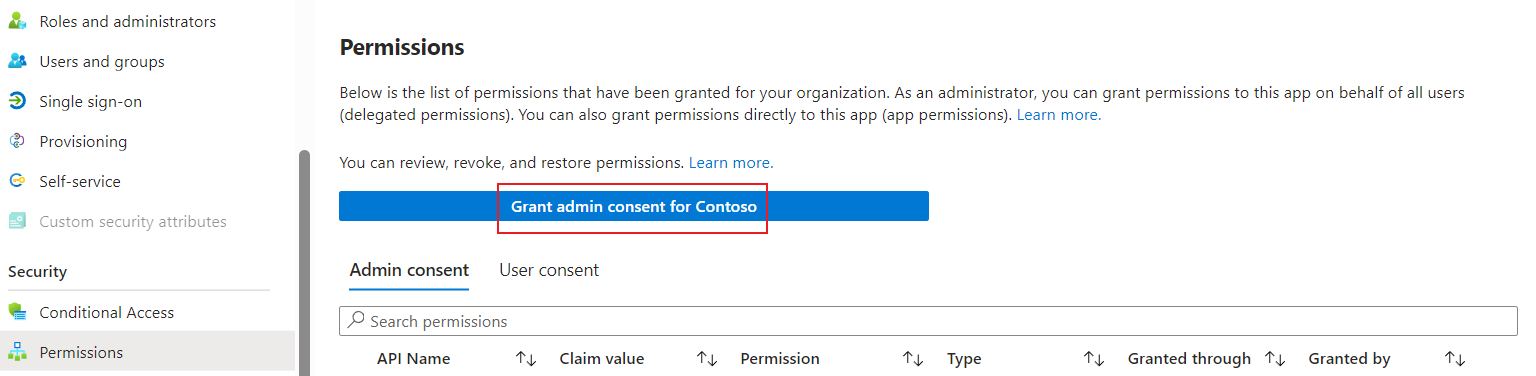
AvePoint アプリに管理者の同意を付与するには、Microsoft Entra ID > エンタープライズ アプリケーション に移動し、アプリをクリックし、セキュリティ メニューの [アクセス許可] をクリックして、[[テナント名] に管理者の同意を与えます] をクリックします。
-
カスタム アプリに管理者の同意を付与するには、Microsoft Entra ID > アプリの登録 に移動し、アプリをクリックし、管理 メニューの [API のアクセス許可] をクリックして、[[テナント名] に管理者の同意を与えます] をクリックします。

-
-
-
Refer to the following information to prepare required users who consent to the apps:
-
Power Platform オブジェクトをスキャンして管理するには、同意ユーザーは以下の必要なライセンス / ロールを持っている必要があります。
-
環境・接続・Power Apps・ソリューション・Power Automate・Copilot Studio オブジェクトをスキャンするために、Power Platform 管理者 ロールをアプリ プロファイルの同意ユーザーに割り当てる必要があります。
-
Power BI オブジェクトをスキャンするために、Power BI ライセンス および Fabric 管理者 ロールをアプリ プロファイルの同意ユーザーに割り当てる必要があります。
-
-
AvePoint の既定サービス アプリを Viva Engage で再承認する場合、同意を提供するユーザーが Engage 管理者 (Microsoft Entra ID における Yammer 管理者) ロールを持つ必要があります。
-
Cloud Backup Express アプリを再承認するには、アプリへの同意を提供するユーザーが Microsoft 365 バックアップ管理者 ロールを持つ必要があります。
-
AvePoint Portal Manager 用のカスタム アプリを再承認するには、アプリへの同意を提供するユーザーが Teams サービス管理者ロールまたはそれ以上の特権ロールを持つ必要があります。
-
Cloud Governance 委任アプリを再承認するには、アプリへの同意を提供するユーザーがグループの所有者である必要があります。
-
ユーザーの同意 方法でアプリ プロファイルを再承認するには、以下の説明を参照してください。
-
アプリ プロファイルを選択して、[再承認] をクリックします。
-
異なるアプリ プロファイルを再承認する際に、以下の点に注意してください。
-
Cloud Backup for Microsoft 365 サービスで使用される委任アプリのアプリ プロファイルを再承認する場合、このアプリによって使用される機能を選択する必要もあります。
-
When you re-authorize an app profile for a Custom Azure app with delegated permissions app, refer to the following instructions:
-
アプリケーション ID – カスタム アプリのアプリケーション ID を入力します。現在のアプリを使い続けるには、アプリ プロファイルの詳細ページでそのアプリのアプリケーション ID を取得することができます。別のアプリの使用を変更する場合、組織が作成したアプリのアプリケーション ID を入力します。 For additional details on creating an app, refer to Create a Custom Azure App.
-
証明書ファイル (.pfx) – [参照] をクリックして、アプリのプライベート証明書 (.pfx ファイル) を選択します。
*Note: この .pfx ファイルは Microsoft Entra ID でこのカスタム アプリ用にアップロードされた .cer/.crt ファイルとペアになっていることを確認してください。組織が証明書を持っていない場合、カスタム Azure アプリ用の証明書の準備 を参照して自己署名証明書を作成することができます。
-
証明書の****パスワード – 証明書のパスワードを入力します。
-
-
-
ユーザーの同意 オプションを選択します。
-
[同意を続行] をクリックします。