
Home > 付録 > Helpful Notes When Auto Discovery Scan Results Return Error Codes
Export to PDFHelpful Notes When Auto Discovery Scan Results Return Error Codes
自動検出スキャン ジョブのエラー メッセージおよび関連するエラー コードについては、以下の表を参照してください。エラー コードのリンクをクリックすると、注意点の詳細を表示することができます。
| エラー メッセージ | エラー コード |
|---|---|
| SharePoint Online には、このスキャン ジョブからのスロットリング要求が存在します。 | cs0000001 |
| SharePoint Online 環境は一時的に使用できません。 | cs0000002 |
| Exchange Online に対してユーザーが同時に開くことができる PowerShell セッション数が上限に達しています。 | cs0000003 |
| 一部の Microsoft 365 グループ、Microsoft Teams、および Viva Engage コミュニティのグループ チーム サイトは取得できません。 | cs0000004 |
| サービス アカウントには多要素認証が有効化されているが、サービス アカウント プロファイルで MFA は構成されていません。 | cs0000005 |
| このスキャン プロファイルで使用されている認証方法プロファイル内のアカウントは、以下で一覧表示している環境にアクセスするライセンスを持っていません。 | ps0000001 |
| このスキャン プロファイルで使用されている認証方法プロファイル内のアカウントは、以下で一覧表示している環境にアクセスする十分な権限を持っていません。 | ps0000002 |
cs0000001
SharePoint Online has a that prevents too many simultaneous requests (SharePoint Online returns the HTTP status code 429). SharePoint Online でスロットリングを回避するには、シナリオに基づいて以下のソリューションを選択してください:
cs0000002
SharePoint Online has a when the environment is too busy (SharePoint Online returns HTTP status code 503). SharePoint Online でスロットリングを回避するには、シナリオに基づいて以下のソリューションを選択してください:
cs0000003
Exchange Online PowerShell にはユーザーが同時に開くことができるセッション数に制限が存在します。以下のスクリーンショットは、セッション数が制限を超える際にエラーが発生することを表しています。
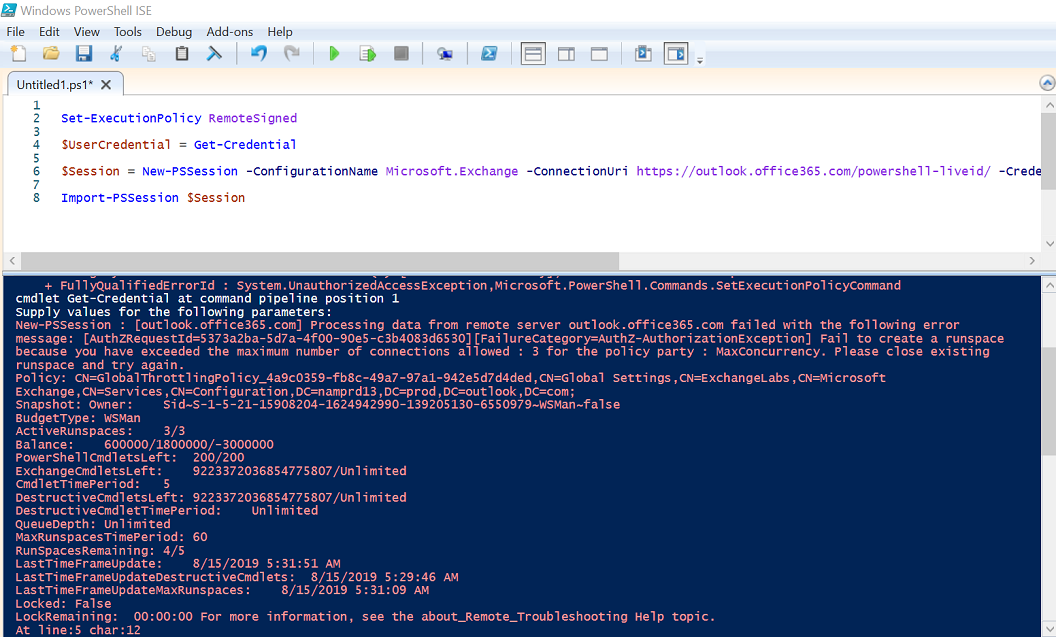
このエラーを回避するには、シナリオに基づいて以下の方法を試してください:
cs0000004
Auto discovery uses Microsoft PowerShell to scan Microsoft 365 Groups, Microsoft Teams, and Viva Engage communities, and the Group team sites will be scanned as the Microsoft 365 Groups’ properties. 場合によっては、グループ チーム サイトが存在しない場合でも、プロパティは Microsoft 365 Outlook で初期化される必要があります。
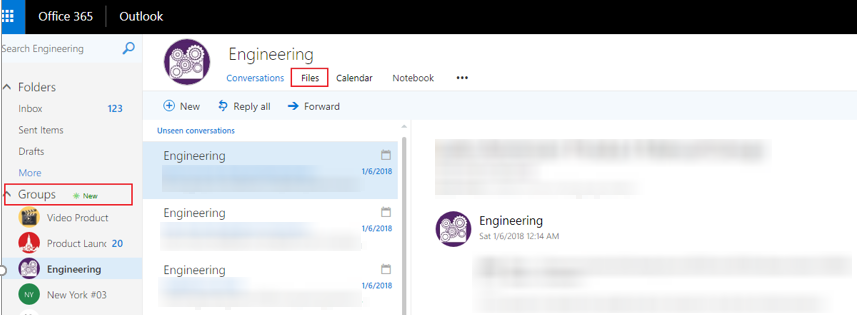
The scan result of this issue is Partially added. グループ チーム サイトを初期化するには、グローバル管理者アカウントで Outlook にサインインし、グループ タブ配下の Microsoft 365 グループ / Microsoft チーム / Viva Engage コミュニティを見つけて、[ファイル] をクリックします。初期化が完了します。以下のスクリーンショットを例として参照してください。
cs0000005
For organizations that use multi-factor authentication in Microsoft 365 or have enabled conditional access policies in Microsoft Azure, it is recommended to configure the app profiles to be used by the scan profiles in Auto discovery. For additional details on app profiles and auto discovery, refer to Manage App Profiles and Manage Auto Discovery.
サービス アカウント認証方法を使用したスキャン プロファイル (これらのスキャン プロファイルは、2023 年 6 月リリースで AOS クラシック UI から移行されました) を引き続き使用する場合、スキャン プロファイルを更新しないでください。 To troubleshoot this error, you can edit the service account profile to update the Microsoft 365 account used in the profile by referring to instructions in Helpful Notes for Passing the Validation Test of a Service Account.
ps0000001
Go to Microsoft 365 admin center and navigate to Users > Active users, find the account (applied in the service account profile or used to authorize the delegated app), and then click Manage product licenses from the More actions () drop-down list.

アカウントの詳細パネルで、ライセンスとアプリ タブをクリックして、Power Automate または Power Apps に関連しているライセンスおよびアプリが選択されていることを確認します。[変更の保存] をクリックします。
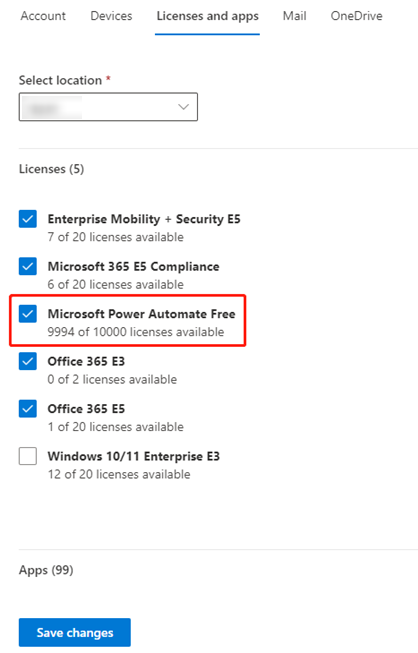
変更が保存された後、このアカウントが正常に Power Automate またはPower Apps にサインインできるかどうかを確認します。その場合、15 分間以上待ってから、AvePoint Online Services にアクセスしてスキャン プロファイルを再実行してください。
Power Platformライセンスの詳細については、Microsoft 記事 and .
ps0000002
Power Platform 管理センターに移動し、環境 を選択して、スキャン履歴でレポートされた環境をクリックします。環境の詳細ページのリボン上で [設定] をクリックします。

設定 ページで、ユーザーとアクセス許可 > ユーザー に移動します。

ユーザー ページで、アカウント (サービス アカウント プロファイルに適用されたもの、または委任済みアプリの承認に使用されたもの) を検索し、シナリオに基づいて以下のアクションを実行します。