ステップ 2: Microsoft 365 テナントでの中央場所の定義****
Microsoft API 制限により、組織の Microsoft 365 テナントで中央場所を取得することができません。各複数の地域場所については、以下の方法のいずれかで中央管理場所を定義してください。
-
Click Add central location.
-
The Microsoft 365 tenant domain field lists tenants based on app profiles configured in AvePoint Online Services. ドロップダウン リストからテナントを選択します。
-
The Microsoft Entra ID, SharePoint, and Exchange fields list geo locations that you configured in Step 1: Configure Mappings for Microsoft 365 Geo Locations. Microsoft Entra ID****、SharePoint、Exchange ドロップダウン リストからテナントの中央管理場所を選択します。
*Note: Microsoft 365 テナントの中央場所を確認するには、以下の Microsoft 365 中央場所の取得 セクションを参照してください。
-
[保存] をクリックします。
Microsoft 365 中央管理場所の取得
Microsoft 365 テナントの中央管理場所を取得するには、以下の説明を参照してください。
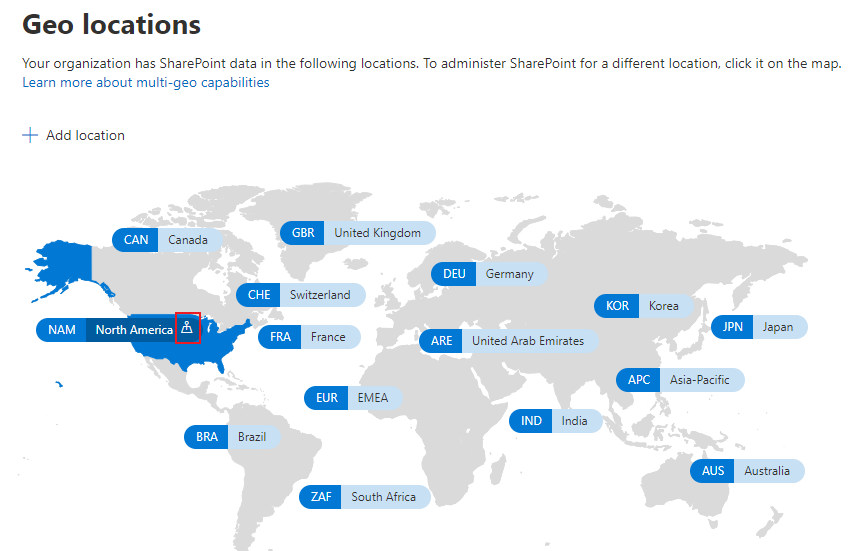
- To get the central location in SharePoint, go to the SharePoint admin center. On the **Geo locations** page, there is an icon () next to the central location.
- To get the central location in Exchange, use the Exchange PowerShell Get-OrganizationConfig cmdlet. Open Windows PowerShell and run the script below with the **Exchange administrator** role.
Set-ExecutionPolicy RemoteSigned
$UserCredential = Get-Credential
$Session = New-PSSession -ConfigurationName Microsoft.Exchange -ConnectionUri https://outlook.office365.com/powershell-liveid/ -Credential $UserCredential -Authentication Basic -AllowRedirection
Import-PSSession $Session
Get-OrganizationConfig | Select DefaultMailboxRegion
中央管理場所は結果に表示されます。
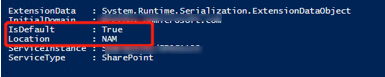
- To get the central location in Microsoft Entra ID, use the Azure PowerShell Get-MsolCompanyAllowedDataLocation[ ](#missing-link)cmdlet. Windows PowerShell を開いて、以下のスクリプトを実行します。
Connect-MsolService
Get-msolcompanyalloweddatalocation | format-list
The central location (**IsDefault** value is **True**) will be displayed in the result.