
Home > アプリ プロファイルの管理 > カスタム アプリの作成 > カスタム Google アプリの作成 > ステップ 3: OAuth スコープの構成
Export to PDFステップ 3: OAuth スコープの構成
スコープの構成および 化を実行するには、以下の説明を参照してください。
-
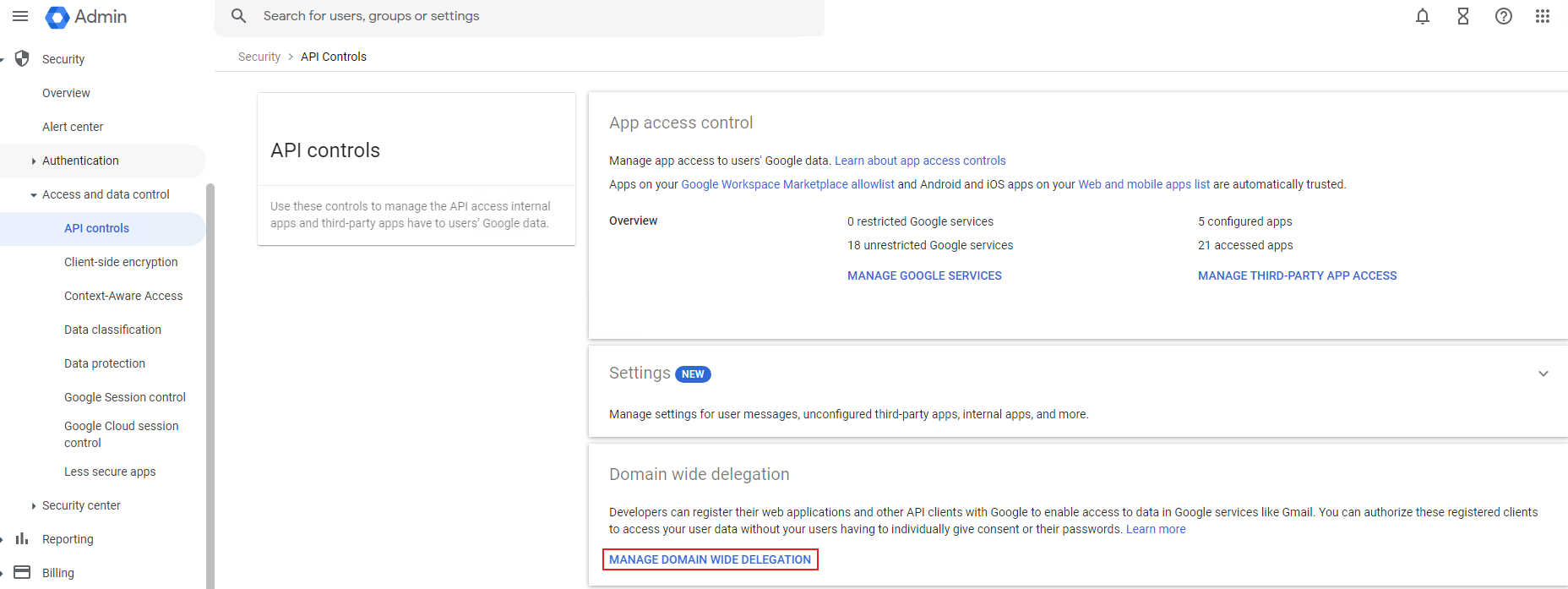
Go to , and then navigate to Security > Access and data control > API controls.
-
[ドメイン全体の委任を管理] をクリックします。
-
[新しく追加] をクリックします。
-
クライアント ID および OAuth スコープを追加します。構成の完了後、[承認] をクリックします。
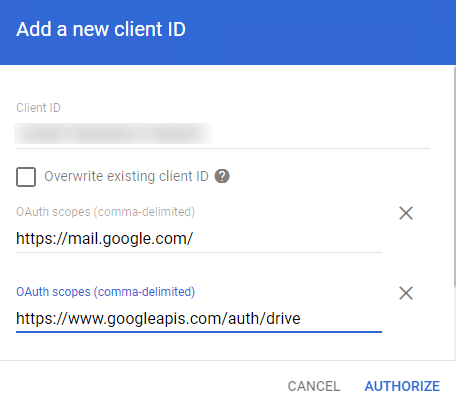
以下のことに注意してください。
-
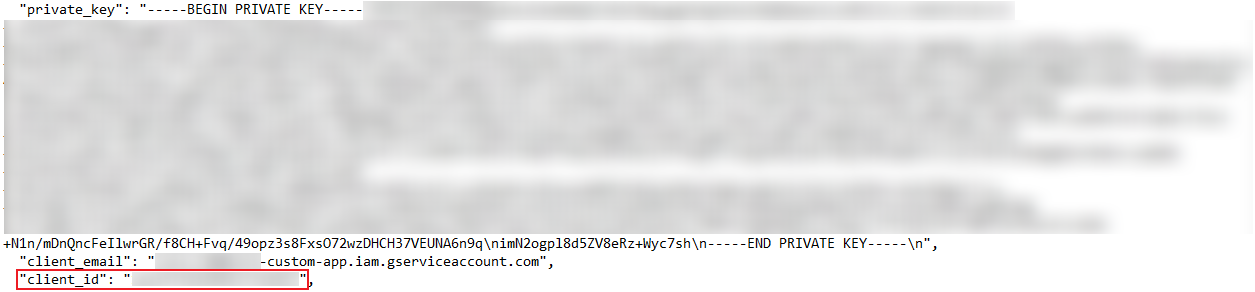
To get the client ID, you can open the private key file (downloaded when you Create a Service Account), or go to the Credentials page.
-
構成されたスコープは、アプリに追加されたスコープと同じである必要があります。 You can add required permission scopes to a custom Google app by referring to , , , or Fly: / .
*Note: 要求する権限範囲を正確に追加する必要があります。例えば、https://www.googleapis.com/auth/drive.readonly 範囲を https://www.googleapis.com/auth/drive 範囲で置き換えることはできません。1 件のカスタム Google アプリに 1 件のサービスのみに構成することをお勧めします。
-
カスタム Google アプリのスコープの構成後、AvePoint Online Services > 管理 > アプリ管理 に移動して、アプリ プロファイルを作成して、カスタム Google アプリに同意します。 For more details, refer to the Consent to Custom Apps section.