
Home > アプリ プロファイルの管理 > カスタム アプリの作成 > カスタム Azure アプリの作成 > ベスト プラクティスのための Azure のカスタム アプリでの条件付きアクセス ポリシーの構成
Export to PDFベスト プラクティスのための Azure のカスタム アプリでの条件付きアクセス ポリシーの構成
To ensure that custom apps in Azure are only accessible by the AvePoint Online Services production environment, follow the steps below to configure a conditional access policy.
-
Microsoft Entra 管理センター (または Microsoft Azure ポータル) にログインし、保護 (または Microsoft Entra ID > セキュリティ) > 条件付きアクセス > ネームド ロケーション に移動します。
-
[IP 範囲の場所] をクリックします。
-
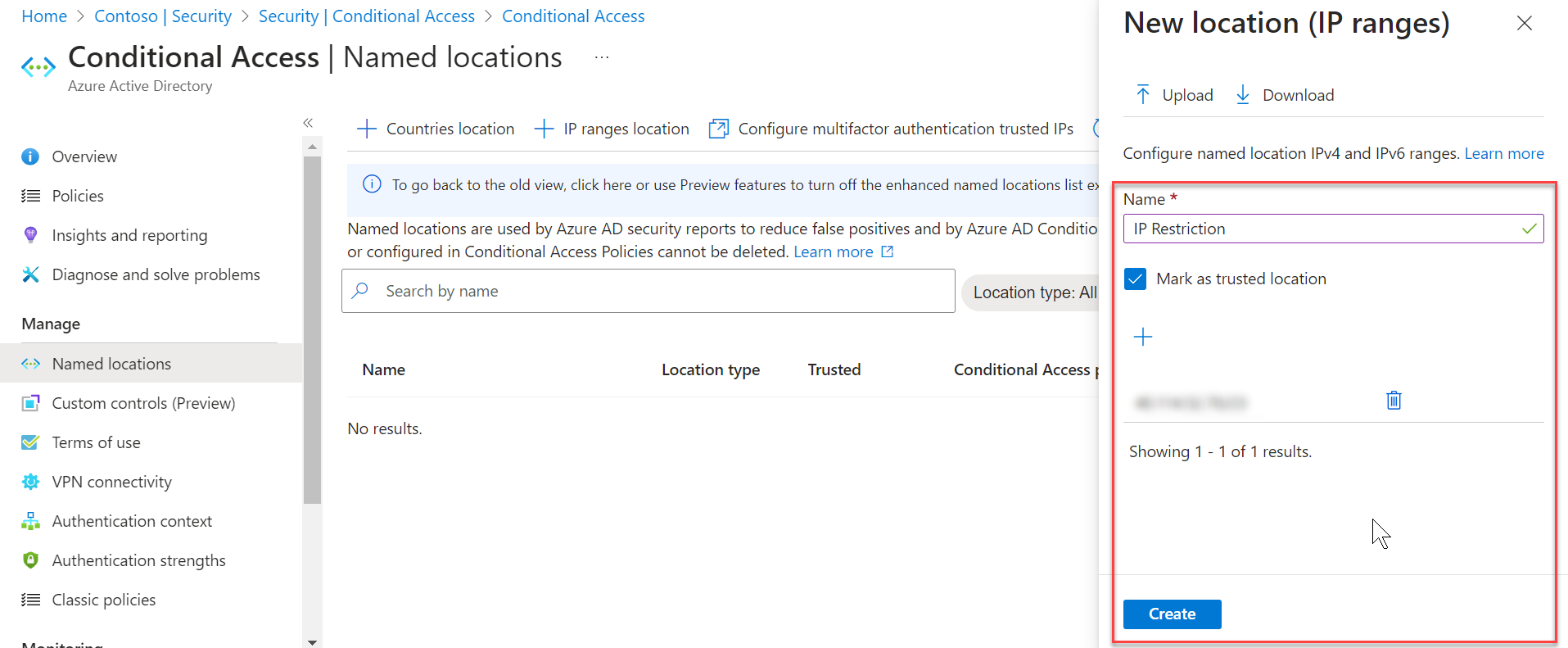
右側の 新しい場所 (IP 範囲) 画面で、以下のステップを完了してください。
-
この場所に名前を指定します。
-
[+] をクリックして、AvePoint Online Services からダウンロードされた予約された IP アドレスに基づいて IP アドレスを追加します。 For details on the reserved IP addresses, see Download a List of Reserved IP Addresses.
-
[作成] をクリックします。
-
-
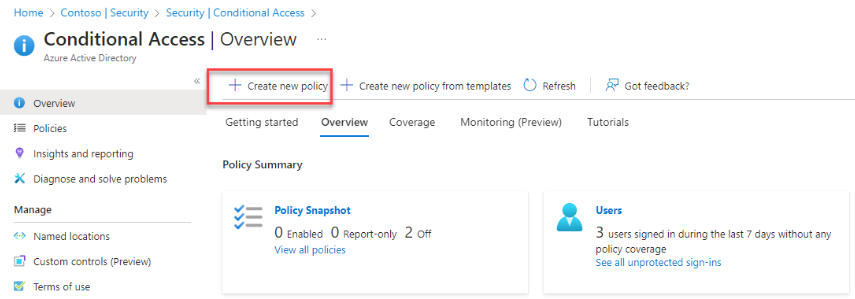
概要 ページに移動して、[新しいポリシーを作成する] をクリックします。
-
以下の説明を参照して、新しいポリシーを構成します。
-
ポリシー名を入力します。
-
Click Users or workload identities, select Workload identities, choose Select service principals, and select your custom apps for AvePoint cloud services.
*Note: ユーザーまたはワークロード アイデンティティ オプションを表示するには、ワークロード アイデンティティ ライセンスが必要です。

-
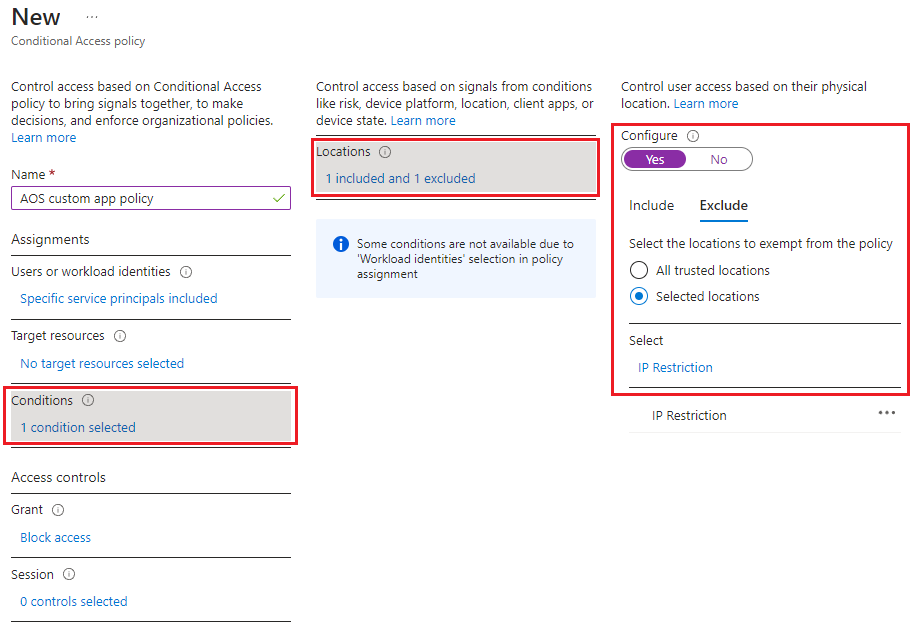
[条件] をクリックして、[場所] をクリックし、構成 切り替えを はい にし、対象外 タブの配下の 選択したネットワークと場所 を選択して、新しい場所 (IP 範囲) ステップで作成された場所を選択します。
-
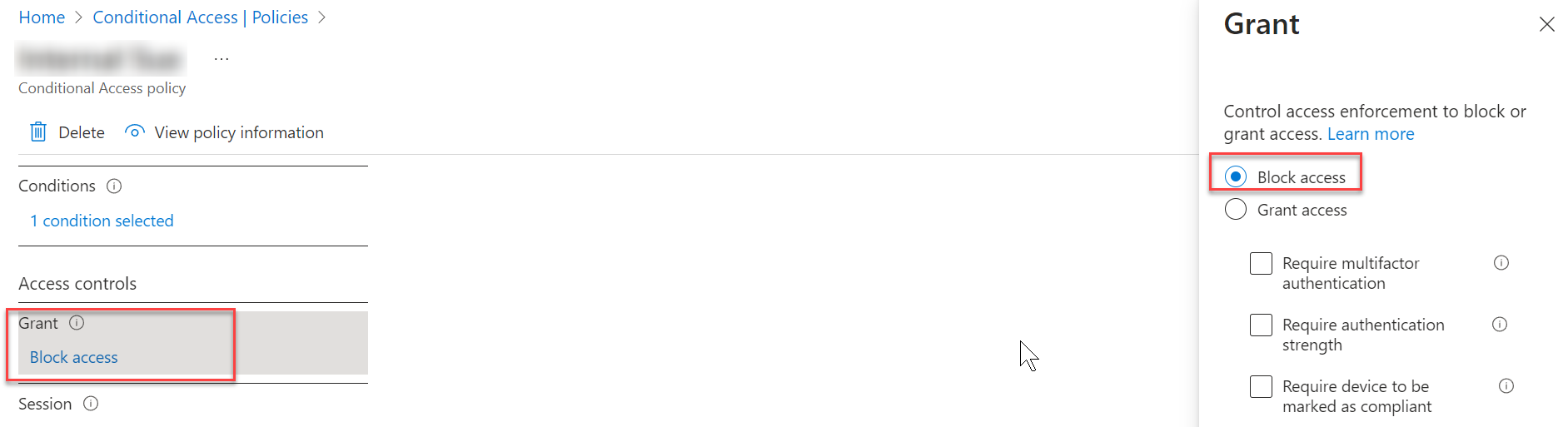
[許可] をクリックして、アクセスのブロック を選択します。
-
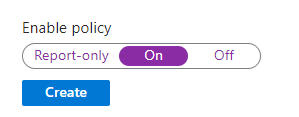
ポリシーの有効化 切り替えを オン にします。
-
[作成] をクリックします。
-