
Home > Configure Other Administration Settings > Enable Report Data Collection > Allow AvePoint Agent Servers to Access Your Storage Account > Add ARM Virtual Networks
Export to PDF#Add ARM Virtual Networks
You can refer to Download ARM VNet IDs to get the VNet IDs for your data center. There are two ways to add ARM virtual networks:
- Use the Azure CLI tool ()

	## Use the Azure CLI tool

	# Step 1 (Optional): If you have multiple Azure subscriptions, please switch to the correct subscription

	# This command sets the active subscription to the specified subscription ID.

	az account set --subscription xxxxxxxx-xxxx-xxxx-xxxx-yyyyyyyyyyyy

	# Step 2 (Optional): Confirm whether the subscription switch is correct

	# This command displays the current subscription information in a table format.

	az account show --output table

	# Step 3: Get the AvePoint Online Services network subnet resource ID

	# This variable stores the resource ID of the subnet in the virtual network.

	# Replace with the Azure Resource Manager (ARM) VNet ID downloaded from your AvePoint Online Services tenant.

	$SUBNETID="/subscriptions/xxxxxxxx-xxxx-xxxx-xxxx-yyyyyyyyyyyy/resourceGroups/ResourceGroupName/providers/Microsoft.Network/virtualNetworks/VirtualNetworkName/subnets/SubnetName"

	# Step 4: Set your resource group name

	# This variable stores the name of the resource group where your storage account is located.

	$DESTRG="customer_resource_group_name"

	# Step 5: Set your storage account name

	# This variable stores the name of the storage account to which you want to add the network rule.

	$DESTSTA="customer_storage_account_name"

	# Step 6: Add the firewall virtual network rule to grant access to AvePoint Online Services

	# This command adds a network rule to the specified storage account, allowing access from the specified subnet.

	az storage account network-rule add --resource-group $DESTRG --account-name $DESTSTA --subnet $SUBNETID

	# Step 7: List the current network rules for the storage account to verify the addition

	# This command lists the virtual network rules for the specified storage account.

	az storage account network-rule list --resource-group $DESTRG --account-name $DESTSTA --query virtualNetworkRules

	# Step 8 (Optional): Disable the public access to storage account

	# This command updates the storage account to deny public network access.

	az storage account update --resource-group $DESTRG --name $DESTSTA --default-action Deny

	# Step 9 (Optional): Verify that the default action for network rules is set to Deny

	# This command shows the network rule set for the specified storage account, including the default action.

	az storage account show --resource-group $DESTRG --name $DESTSTA --query networkRuleSet.defaultAction

- Use the Azure Az PowerShell ()

	## Use Azure PowerShell (Az Module)

	# Step 1: Sign in to Azure with your Azure Admin account

	Connect-AzAccount

	# Step 2 (Optional): If you have multiple Azure subscriptions, please switch to the correct subscription

	# This command sets the active subscription to the specified subscription ID.

	Set-AzContext -SubscriptionId "xxxxxxxx-xxxx-xxxx-xxxx-yyyyyyyyyyyy"

	# Step 3: Get the AvePoint Online Services network subnet resource ID

	# This variable stores the resource ID of the subnet in the virtual network.

	# Replace with the Azure Resource Manager (ARM) VNet ID downloaded from your AvePoint Online Services tenant.

	$SUBNETID="/subscriptions/xxxxxxxx-xxxx-xxxx-xxxx-yyyyyyyyyyyy/resourceGroups/ResourceGroupName/providers/Microsoft.Network/virtualNetworks/VirtualNetworkName/subnets/SubnetName"

	# Step 4: Set resource group name

	# This variable stores the name of the resource group where your storage account is located.

	$DESTRG="customer_resource_group_name"

	# Step 5: Set storage account name

	# This variable stores the name of the storage account to which you want to add the network rule.

	$DESTSTA="customer_storage_account_name"

	# Step 6: Add the firewall virtual network rule to grant access to AvePoint Online Services

	# This cmdlet adds a network rule to the specified storage account, allowing access from the specified subnet.

	Add-AzStorageAccountNetworkRule -ResourceGroupName $DESTRG -Name $DESTSTA -VirtualNetworkResourceId $SUBNETID

	# Step 7: Verify the newly added network rule

	# This cmdlet retrieves the network rule set for the specified storage account.

	Get-AzStorageAccountNetworkRuleSet -ResourceGroupName $DESTRG -AccountName $DESTSTA
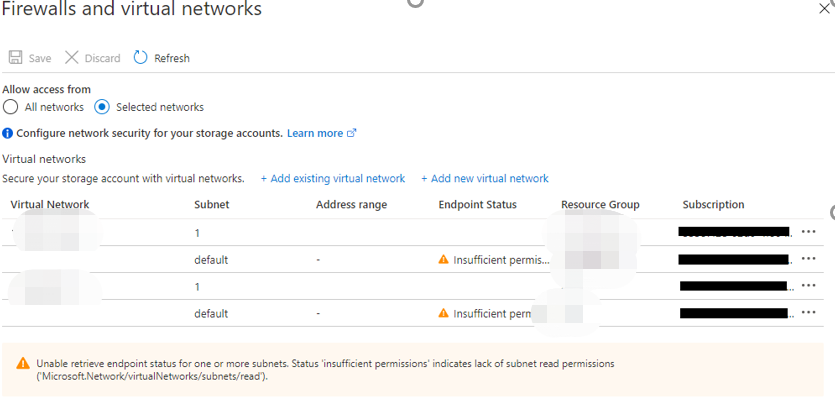
You will see the virtual network rules in Azure Portal, as the screenshot below shows. You may also notice that a warning message “Insufficient Permission…” is displayed. It is because the subnet is not in your subscription. You can ignore it.
On this page