
Home > Appendices > Suggestions after Service Termination (for Microsoft 365 Tenants)
Export to PDFSuggestions after Service Termination (for Microsoft 365 Tenants)
Once your subscription has expired, all information related to the expired subscription will be preserved for about 15 days before they are permanently deleted from AvePoint Online Services. (You can check for details. Organizations may have a different timing depending on their specific contracts with AvePoint). If you want to terminate an Enterprise subscription, no further action is required in AvePoint Online Services and following the instructions below will ensure you a clean and orphan-free environment in your Microsoft 365 tenant.
Remove AvePoint Applications from Your Microsoft Entra Applications
If you have configured app profiles in App management, you can refer to the instructions below to remove the consented applications from your Microsoft Entra environment:
-
Go to (or ).
-
Navigate to Identity > Applications > Enterprise applications (or Microsoft Entra ID > Enterprise applications).
-
Enter the keyword AvePoint to search for applications by application name.
-
Click the application that you want to remove.
-
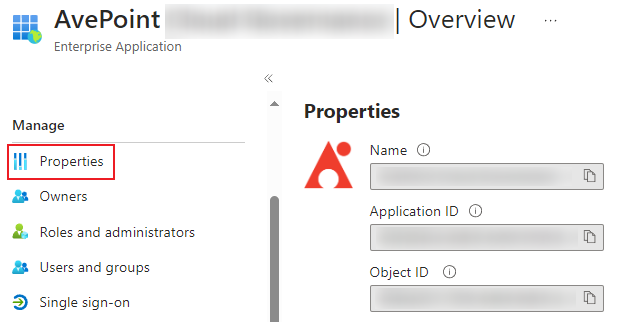
Click Properties in the Manage section on the left menu.
-
Click Delete on the top menu.

-
In the confirmation window, click Yes to confirm your action.
Remove Reserved IP Addresses from Your Microsoft Entra Access Policies
If you have configured Conditional Access policies to add the reserved IP addresses downloaded from AvePoint Online Services, you can refer to the instructions below to remove reserved IP addresses from your policies:
-
Log in to (or ).
-
Navigate to Protection (or Microsoft Entra ID > Security) > Conditional Access.
-
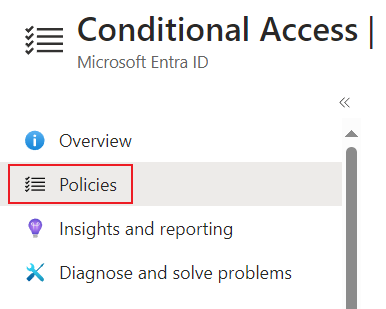
Click Policies.
-
Find the policy related to AvePoint.
-
Edit the policy to remove the reserved IP addresses related to the cloud services that you want to terminate.
Remove the Key Used in AvePoint Online Services
If you have configured a custom encryption profile in Encryption management, you can refer to the instructions below to remove the key:
-
In the , enter Key vaults in the search box on the top, and then select the first result to access the Key vaults page.
-
On the Key vaults page, click Keys in Settings.
-
Find the key used in AvePoint Online Services and click the key.
-
Click Delete on the top menu.

Remove Hybrid Agents
If you have installed the hybrid agent on a machine to manage on-premises objects, you can refer to the instructions below to remove it:
-
Find the Hybrid Agent Management installed on the machine.
-
Run the Setup file as administrator.
-
Select Uninstall to start the removal process.