
Home > FAQs > Auto Discovery > What Should I Do If the Sites.FullControl.All Permission Cannot be Added to My Custom App? > Specify Selected Sites via Graph Explorer
Export to PDFSpecify Selected Sites via Graph Explorer
Refer to the steps below to specify which sites the app can access.
-
Go to , and click the profile icon to sign in.

When the pop-up window appears, click Accept.

-
Refer to the steps below to search for sites that match your provided keywords.
-
From the left navigation, click search for a SharePoint site by keyword.

-
Under the Modify permissions tab, ensure that Sites.Read.All or Sites.ReadWrite.All permissions are granted. If not, click Consent to grant the permissions.

-
Replace the text after search= with the desired site name. Take the screenshot below as an example.

-
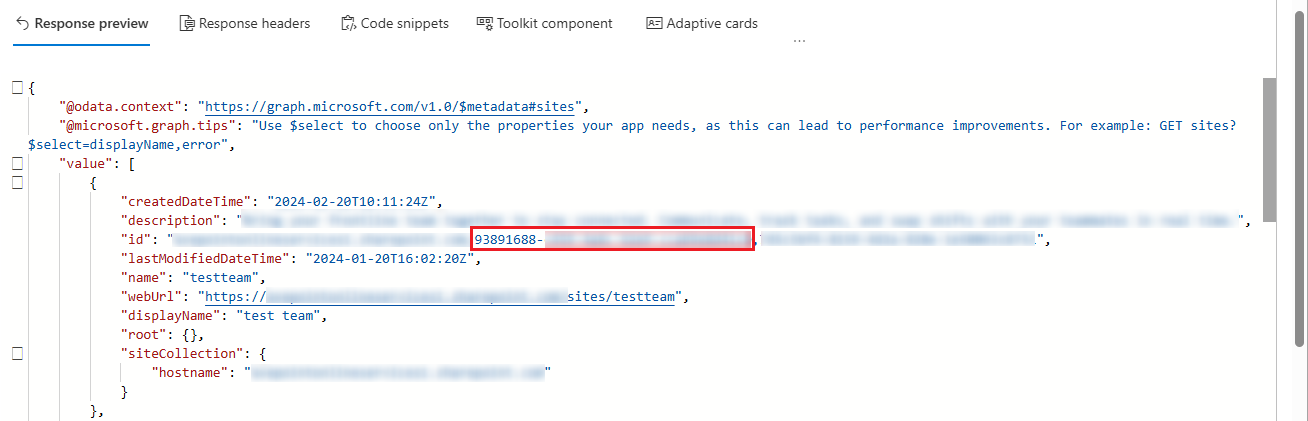
Click Run query. Then, check the response result and note down the site ID value that matches the position of the red box in the screenshot below. The site ID value will be used in the following steps.
-
-
Use the following API call to grant the FullControl permission for your app to access a specific site.
-
Change the request method to POST.
-
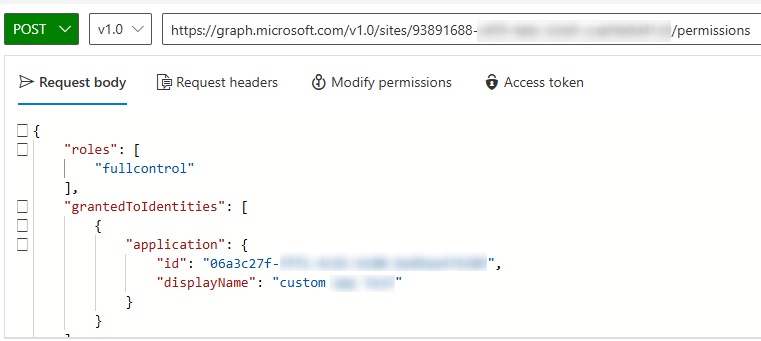
Enter the following URL in the address bar, replacing {site-id} with the site ID value obtained in the previous step.
https://graph.microsoft.com/v1.0/sites/{site-id}/permissions

-
In the Request body text box, enter the following JSON, replacing {app-id} and {app-name} with the custom app's client ID and display name.
{
}
-
Under the Modify permissions tab, ensure that the Sites.FullControl.All permission has been granted. If not, click Consent to grant the permissions.

-
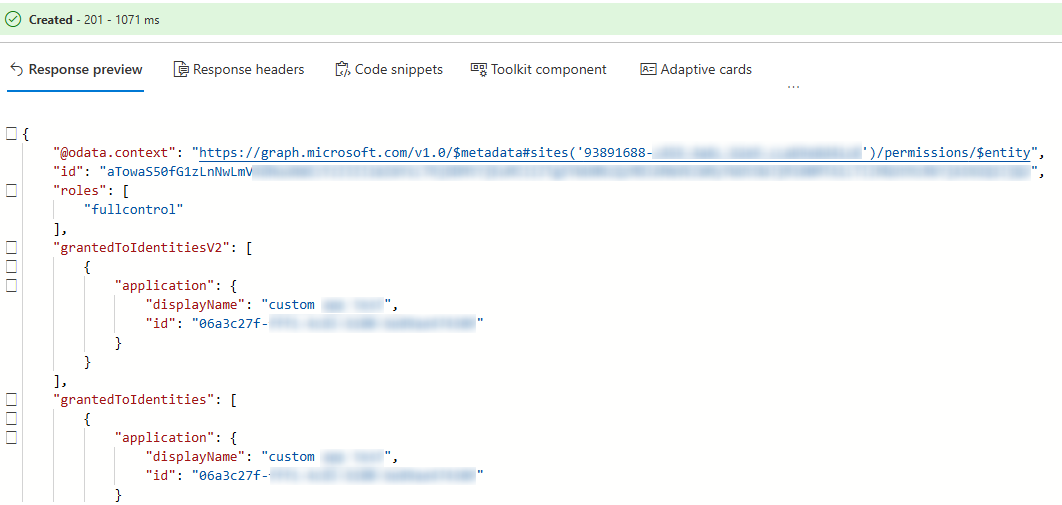
Click Run query to execute the request. A successful execution indicates that the specified site operation is complete.
-