
Home > Get Started
Download this articleGet Started
Follow these steps to get started with AvePoint Cloud Backup for Microsoft 365.
-
Obtain a Subscription
- To obtain a free 30-day trial of AvePoint Cloud Backup for Microsoft 365, visit the AvePoint Online Services website (for commercial use).
- To find out how AvePoint charges for licenses for AvePoint Cloud Backup for Microsoft 365, refer to Subscription and Licensing Information.
-
Access AvePoint Online Services
Use your web browser to navigate to the AvePoint Online Services portal and enter your login credentials (username and password). For details, refer to the AvePoint Online Services User Guide.
-
Connect your tenant
Your AOS tenant owner or service administrators must first connect your Microsoft 365 tenants to AvePoint Online Services. For details, refer to Connect Your Tenants to AvePoint Online Services.
If your Microsoft 365 tenant has Multi-Geo enabled, you can start by going to the Data Center Mappings in AvePoint Online Services to review and map the list of geo locations from your Microsoft 365 tenant that we’ve detected and the supporting data centers.
NOTEThe mapping for SharePoint Online sites depends on the region of the SharePoint Administrator.
-
Configure App Profiles
Create Cloud Backup for Microsoft 365 app profiles in AvePoint Online Services for the services and objects that you want to enable or protect. For details, refer to Create an App Profile in the AvePoint Online Services User Guide.
-
For the app profile that you must prepare with the least permissions for a specific backup service, refer to Enable the Backup Service. You can also get an overall reference from the Configure Auto Discovery section.
-
For the required permissions for app profile authentication, refer to App Profile Authentication.
-
-
Configure Auto Discovery
AvePoint Online Services Auto Discovery now uses app profile authentication to scan and register the objects you want to protect in Cloud Backup for Microsoft 365.
NOTEIf your tenant is Multi-Geo, ensure that you are using the filters provided in the advanced scan mode to separate the mailboxes, OneDrives, sites, and other Microsoft 365 content by their preferred data locations. We’ll use these boundaries to help distribute the management for each of these containers globally.
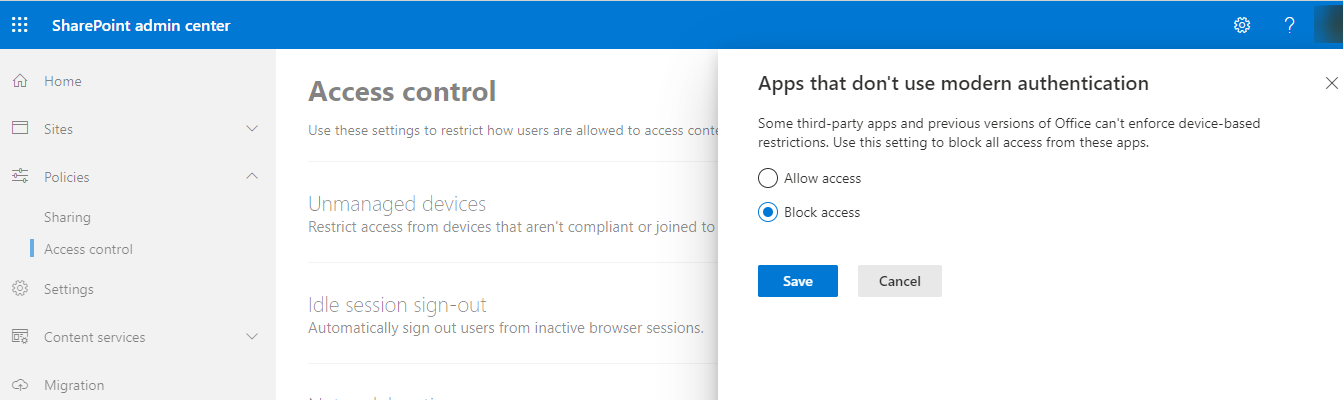
If your administrator has blocked access from apps that don’t use modern authentication, Cloud Backup jobs using a service account will now use modern authentication for backup and restore.
-
Configure Backup Scope and Frequency
-
When you log into Cloud Backup for Microsoft 365 for the first time, you will be prompted to an onboarding wizard to check your preparations and select the objects you want to back up. For details, refer to Set Up the Backup Wizard.
-
To configure which containers and objects will be backed up first during backup jobs, refer to Configure Backup Prioritization.
-
To change the backup scope and frequency, refer to Change the Backup Scope and Change the Backup Frequency.
-
-
Monitor and Manage Backups
-
To configure notifications and user management, refer to Configure Notifications and User Management.
-
To configure other settings for AvePoint Cloud Backup, refer to Configure Settings for AvePoint Cloud Backup:
You can directly enable the following common backup settings in Settings > Backup. For details, refer to Configure Backup Settings.
-
Back up private/shared channels
-
Back up the Recordings folder
-
Back up Planner data
-
Customize the backup time range for Teams chat messages
-
Configure impersonation accounts for Public Folders backup
-
Skip specific errors by error codes
-
-
Regularly monitor the backup status to ensure backups are running as scheduled. For details, refer to Monitor and Manage Your Backup.
-
Monitor Subscription Consumption for both AvePoint Cloud Backup and AvePoint Cloud Backup Express. For AvePoint Cloud Backup, the following reports are also provided:
-
-
Finalize Setup
Verify that all backup configurations are correct and complete. Double-check the settings for each service, notification preferences, backup options, and storage location.
If you want to perform restore and export, refer to the following:
-
To restore backup data from the AvePoint Cloud Backup for Microsoft 365 interface, refer to Restore and Recover Your Data.
-
To export and download backup data protected by AvePoint Cloud Backup, refer to Export and Download Your Data.
-